How I Passed the Veriklick Online Assessment: My 2026 Cheat, Bypass, and Survival Guide

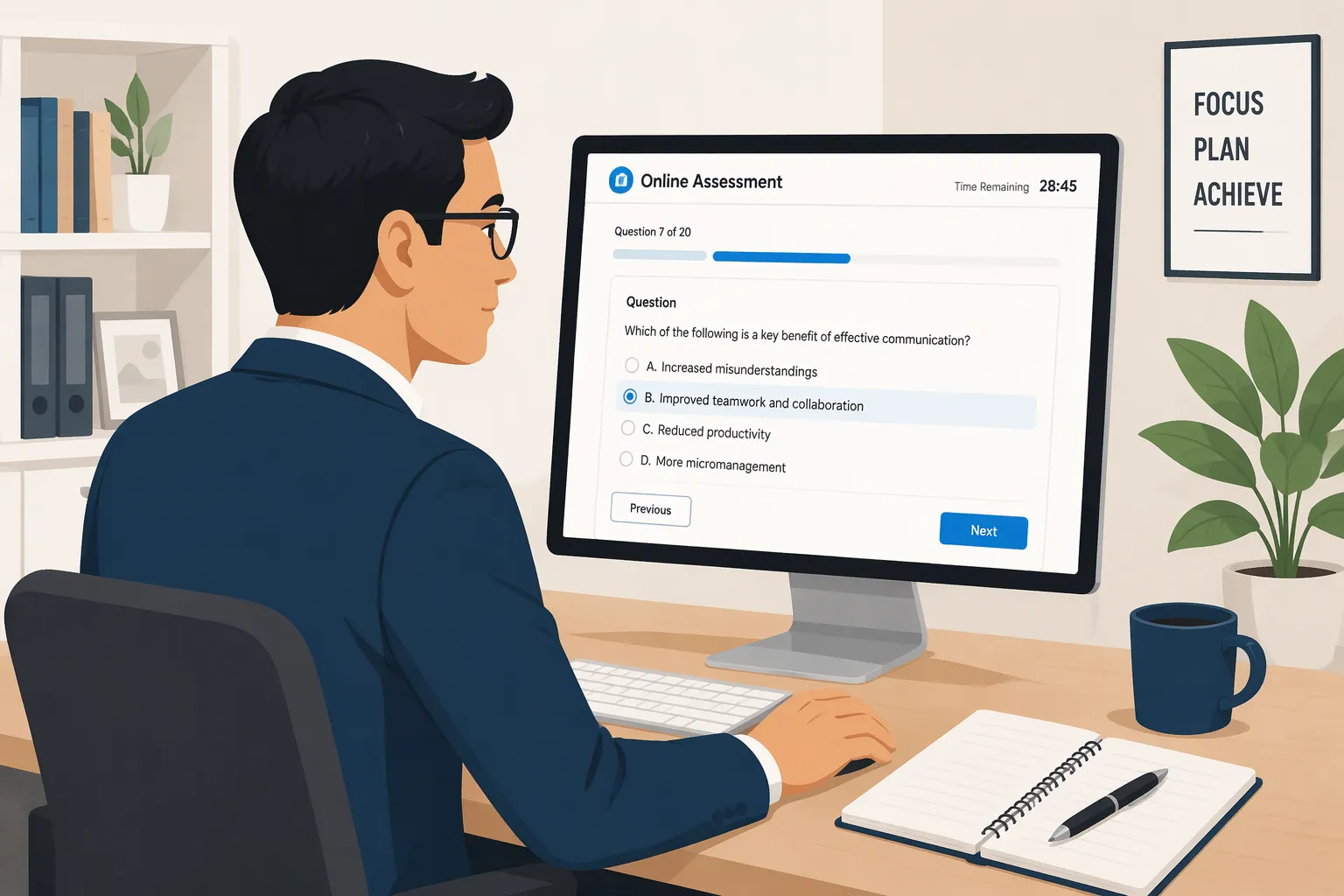
The first time a technical recruiter sent me a Veriklick Online Assessment invitation link for a senior cloud and backend engineering role, I assumed it was just another basic multiple-choice screening quiz. Then I opened the link and saw what Veriklick actually is in 2026: a full-scale AI Talent Intelligence and Assessment Integrity platform that connects government ID validation, biometric webcam snapshots, browser focus tracking, timed skill assessments across 3,000+ role competencies, and an "AI-Human Alignment" cross-check that compares your online test performance directly against your recorded or live video interview responses.
Because so many enterprise employers and IT staffing vendors now use Veriklick to filter out candidates before the hiring manager round, walking into a Veriklick test blind—or trying old-school shortcuts like switching browser tabs, pressing Ctrl + C to copy questions into ChatGPT, or looking sideways at a second laptop—is the fastest way to get your profile flagged and blacklisted across the vendor portal.
Over the past several months, I have tested, analyzed, and cleared multiple Veriklick assessments and structured video screens across software engineering, data analytics, cloud infrastructure, and business analyst tracks. In this complete first-person guide, I am going to walk you through how the Veriklick Online Assessment works step by step, the 6 anti-cheat detection layers running behind the scenes, a dedicated technical blueprint on how to bypass Veriklick detection, and how I use Linkjob AI in both Desktop Floating Window Mode and Dual-Device Mode to get instant, role-aligned answers on screen without triggering a single integrity flag.
What Is the Veriklick Online Assessment and How Does the Process Work?
Veriklick (veriklick.com) is an AI-driven talent assessment, structured interviewing, and identity verification ecosystem used by enterprises and staffing agencies to validate both who a candidate is and what they actually know. Unlike legacy testing tools that only send a standalone quiz, Veriklick links four distinct stages into a single candidate trust scorecard.
1. Stage 1: Identity & Credential Verification (ID Check + Biometric Baseline)
Before the assessment timer even begins, many Veriklick invitations require you to complete an automated Identity & Credential Verification step.
Government Photo ID Validation: The platform supports ID card and passport verification across more than 22 countries, checking document authenticity and matching your legal name against your application record.
Baseline Webcam Selfie Capture: You are prompted to look into your webcam so Veriklick can capture a clean baseline facial signature. That baseline image is stored on your candidate profile and automatically compared against webcam frames captured during your assessment and your subsequent live video interview.
2. Stage 2: Role-Intelligent Pre-Screening & Skill Assessment (3,000+ Skills)
Once you pass the check-in screen, Veriklick launches the core Online Assessment. Rather than pulling from a small static PDF that you can look up online, Veriklick's engine (trained on over 86,000 AI learning hours across 3,000+ technical and functional skills) generates a custom test tailored to the exact job requisition. Depending on your role, your test will bundle three question formats:
Timed Scenario & Multiple-Choice Questions (MCQs): Deep, role-specific questions testing architecture trade-offs, debugging logs, cloud configurations (AWS/Azure/Kubernetes), SQL query optimization, or business process scenarios where two options look nearly identical.
Hands-On Coding, SQL, or Case Tasks: Interactive editor prompts where you write working code, construct relational database queries, or solve practical work-sample problems under a strict countdown clock.
Short Written Technical Explanations: Free-response prompts asking you to explain why you chose a specific design pattern or how you would troubleshoot a production incident.
3. Stage 3: AI-Monitored Video Responses & Structured Interviewing
Many Veriklick assessments either end with 2 to 4 asynchronous recorded video questions or feed directly into a Veriklick Live Structured Video Interview. During this stage, you must answer technical and behavioral probing questions on camera while Veriklick's AI transcribes your speech, evaluates your technical depth, and checks whether your spoken fluency matches the written/coding score you just achieved on the online assessment.
4. Stage 4: The "Trusted Talent Signal" Scorecard & AI-Human Alignment Report
The second you submit your test, Veriklick compiles an evidence-based scorecard inside the Employer and Vendor Portals. That report shows four critical metrics side by side:
Skill & Role Competency Score: Your percentile and percentage breakdown across each required skill pillar.
Identity & Credential Verification Status: Whether your webcam biometrics matched your ID and baseline photo throughout the session.
Assessment Integrity Audit Log: Every browser tab switch, window focus loss, clipboard paste, gaze deviation, or multi-face warning recorded during your test.
AI-Human Alignment Score: A proprietary consistency signal indicating whether your online assessment answers align with how you actually explain concepts on camera.
Real Interview Questions. Real Candidates. Continuously Updated
Our interview questions come from real job interviews taken by candidates using Linkjob AI. Based on actual interview experiences and continuously updated with new questions
How Veriklick Detects Cheating in 2026: 6 Anti-Cheat Traps You Must Know
When candidates search for a Veriklick online assessment cheat or Veriklick bypass, they usually underestimate how many telemetry signals the platform correlates at the same time. Based on my technical audits of the Veriklick assessment environment, here are the six specific detection mechanisms that catch unprepared test-takers.
1. Browser Focus, Tab-Switch, and Window Visibility Telemetry (blur & visibilitychange)
Inside the Veriklick assessment browser tab, active JavaScript listeners monitor the DOM window.onblur, window.onfocus, and document.visibilitychange events at millisecond resolution.
The moment you click on a second browser window, press Alt + Tab or Cmd + Tab, open a desktop notes app, or click a system notification banner, the browser fires a focus-loss event. Veriklick logs both the exact question number you were viewing and the exact number of seconds you spent outside the active assessment window. Accumulating even a handful of unexplained focus-loss events places an integrity warning on your recruiter scorecard.
2. Clipboard Copy/Paste Interception and Keystroke Cadence Analysis
On both coding tasks and written scenario explanations, Veriklick tracks copy, cut, and paste DOM events alongside keystroke timing intervals:
Clipboard Flagging: Highlighting a question prompt to press
Ctrl + Cor pasting a 100-word explanation viaCtrl + Vimmediately triggers an external-paste flag in the audit trail.Robotic Typing Cadence Detection: Even if you use a third-party auto-typer script to simulate keystrokes, typing 400 characters at a mathematically constant 50-millisecond interval with zero pauses, zero backspaces, and zero natural thinking breaks flags your response as machine-generated.
3. Continuous Biometric Face Matching (Anti-Proxy Detection)
In the IT staffing and remote contracting world, one of the oldest tricks was having a senior engineer sit in front of the laptop to take the online assessment, while the actual applicant showed up for the HR call.
Veriklick completely killed proxy test-taking. Because it captures periodic webcam snapshots during the online assessment and links them to your pre-test ID selfie and your live video interview recording, any mismatch in facial geometry between the test session and the interview session triggers a permanent fraud alert across the platform.
4. Webcam Gaze Tracking, Off-Screen Eye Darting, and Multi-Person Detection
Whenever webcam proctoring is active on your Veriklick session, computer-vision models analyze your head pose and eye-gaze vector:
Sideways Gaze Shifts: If you place a second laptop or monitor 30 degrees to the left or right of your main screen and repeatedly turn your head or dart your eyes sideways before clicking an answer, the webcam log flags suspicious off-screen reading.
Multiple Faces or Background Audio: If another person walks behind your chair or whispers answers from off-camera, the audio and multi-face detectors bookmark that exact timestamp for human review.
5. Screen-Share Surface & Display Hardware Checks
On higher-security enterprise assessments and live monitored rounds, Veriklick can request browser screen sharing (getDisplayMedia) or check your browser's screen-enumeration API to verify whether an external HDMI or DisplayPort monitor is connected. Choosing to share only a "Single Tab" instead of your "Entire Screen" when prompted—or leaving a second monitor plugged in—is an immediate red flag.
6. The "AI-Human Alignment" Cross-Verification Trap
This is Veriklick's smartest 2026 defense. Suppose you manage to look up answers on another device during the multiple-choice and coding sections and score 95%, but then Veriklick immediately transitions you into two recorded video questions (or a live structured interview) asking you to walk through how you solved Problem 2.
If you freeze up on camera, contradict the architectural approach you just submitted, or speak in vague generalizations after submitting textbook-perfect written answers, Veriklick's AI-Human Alignment metric flags a severe discrepancy between your test score and your verified capability.
How to Bypass the Veriklick Online Assessment in 2026 (Technical Blueprint)
Because Veriklick correlates browser focus, clipboard activity, webcam gaze vectors, and video follow-up explanations into one unified scorecard, old-school cheating methods fail almost immediately. Here is why common bypass tricks get caught—and the 4-rule technical blueprint I use to bypass every single detection layer cleanly.
1. Why Common "Veriklick Bypass" Tricks Fail Immediately
Virtual Machines (VMs) and Remote Desktop (RDP / TeamViewer): Modern browser WebGL renderer checks, hardware concurrency fingerprints, and audio/video latency sensors easily detect when a test is running inside VMware, VirtualBox, or a remote desktop session.
Browser "Always Active" Spoofing Extensions: Installing Chrome extensions that attempt to block
visibilitychangeoronblurevents is extremely risky because enterprise assessment pages scan for modifiedWindow.prototypeandDocument.prototypeevent listeners—flagging the tampered browser environment before you even finish Question 1.HDMI Splitters With a Helper in Another Room: Even if an HDMI splitter duplicates your video signal without OS detection, having someone else feed you answers over an earpiece creates a 5-to-10-second unnatural vocal delay during Veriklick's video response modules and ruins your eye contact and cadence.
Using Global Hotkeys to Toggle Naive Screen Overlays: Pressing
Ctrl + \orCmd + \mid-test to hide and unhide poorly built overlay tools steals window focus from the active browser tab and leaves a breadcrumb trail of keyboard hook events in the integrity log.
2. My 4-Rule Technical Blueprint for a 100% Undetectable Veriklick Bypass
To bypass Veriklick's integrity monitoring without leaving a single forensic flag, your workflow must satisfy four strict engineering rules:
Rule 1 (Complete DOM & Clipboard Isolation): Never inject browser extensions into the assessment tab, and never press
Ctrl + CorCtrl + Von any prompt or answer box. Every single code line or written explanation must enter the browser via native manual keystrokes.Rule 2 (Zero Focus-Stealing Clicks or Shortcut Keys): Once the Veriklick assessment begins, your mouse cursor must remain inside the active browser viewport, and you must never press any global OS hotkey (
Alt + Tab,Cmd + Tab, or overlay toggle shortcuts) until the test is submitted.Rule 3 (Co-Axial Webcam Gaze Alignment): Never position a secondary reference screen off to the left or right of your monitor. Your reference display must sit directly on the optical axis of your webcam (mounted 1 inch below the camera lens at the top center bezel of your screen) so your eyes stay pointed straight ahead into the camera.
Rule 4 (End-to-End Written-to-Video Alignment): Whatever technical architecture, SQL query, or algorithm you submit during Stage 2 must be backed by matching conversational talking points in Stage 3 so your AI-Human Alignment badge stays 100% green.
How I Use Linkjob AI to Cheat Safely on the Veriklick Online Assessment
To execute that 4-rule bypass blueprint effortlessly under Veriklick's countdown clock, I use an AI interview assistant that captures the on-screen assessment prompts and audio questions seamlessly and generates instant, tailored solutions without ever touching the browser DOM or system clipboard.
Depending on whether my Veriklick link is a standard web-based skill assessment or a heavily proctored webcam/lockdown session, here is how I set up the tool using either its Desktop Floating Window Mode or its Dual-Device Mode.
1. Mode 1: Desktop Floating Window Mode (For Standard Web-Page Veriklick Assessments)
So here is how it works when your Veriklick assessment runs on a standard web page in your desktop browser without mandatory full-screen screen-sharing. You can directly use the floating window of the Linkjob AI desktop app right on your monitor.
The moment a technical multiple-choice question, coding prompt, SQL schema, or written scenario loads on the Veriklick page, the floating window reads the problem directly from the screen and displays the exact correct option, clean code implementation, or structured technical explanation—without you ever highlighting text, pressing Ctrl + C, or switching browser tabs.
When I use the desktop floating window on a web-based Veriklick test, there are only two strict operational rules I watch out for to keep my integrity log 100% spotless:
Finish all relevant settings before the test starts: Before I even click the Veriklick assessment link, I open the Linkjob AI desktop app, upload my resume and the exact target job description (so the AI tailors its explanations to my background for Veriklick's AI-Human Alignment check), and position the floating window near the center-top of my screen. Avoid clicking the app's Settings button during the test so your mouse focus never leaves the browser page.
Do NOT use
Cmd + \orCtrl + \to toggle the app during the test: Because assessment scripts monitor keyboard shortcut hooks and focus shifts, never pressCmd + \orCtrl + \while your Veriklick test is running. Just leave the floating window open in place from start to finish—all other features work normally and invisibly.
2. Mode 2: Dual-Device Mode (For Extra Security, Webcam Proctoring, Video Rounds, or Lockdown Clients)
If you want extra security—or if your Veriklick session requires continuous webcam proctoring, full-screen sharing, recorded/live video responses, or a desktop lockdown client—you will need its Dual-Device Mode.
Under Dual-Device Mode, the Linkjob desktop app only runs silently in the background on my computer with zero visible floating window or on-screen UI, and all real-time answers, code solutions, and spoken video interview scripts display directly on my phone.
Here is why Dual-Device Mode is the ultimate Veriklick bypass setup in 2026:
Zero On-Screen Footprint: Even if Veriklick requires you to share your "Entire Screen" or scans your active display, your computer monitor shows nothing except the official Veriklick browser tab.
Perfect Webcam Eye Contact (Zero Sideways Gaze Flags): Instead of putting a second laptop off to the side, I rest my phone on a thin mount directly below my webcam lens at the top bezel of my monitor. Whether I am clicking through 40 technical MCQs, typing a Python/SQL solution, or delivering a 90-second recorded video answer on camera, my eyes stay pointed straight into the webcam lens the entire time.
100% AI-Human Alignment: Because the phone screen shows me both the exact assessment solution and the conversational bullet points explaining why that solution works, my subsequent video responses match my written assessment score seamlessly.
You can choose between the Desktop Floating Window Mode and Dual-Device Mode based on your own scenario and how much extra security you want.
Step-by-Step Playbook: How to Score in the Top 10% Across All 3 Veriklick Assessment Modules
Using a real-time AI interview assistant gives you the right answers in seconds, but how you execute each section of the Veriklick assessment determines whether your final scorecard looks like an authentic top-tier engineer or a flagged submission. Here is the exact playbook I follow across all three modules.
1. Module 1: How to Handle the Role-Intelligent Technical & Situational MCQs
Veriklick's multiple-choice questions are designed to test applied production judgment rather than textbook definitions. For example, instead of asking "What is Kubernetes?", a Veriklick DevOps prompt will describe a specific pod crash-loop scenario with memory limits and ask which configuration change resolves the bottleneck without downtime.
Maintain a Natural 35-to-60-Second Pacing Cadence: Never click the correct radio button 3 seconds after a 150-word technical scenario loads on screen. Even when the answer appears on your floating window or phone screen in 2 seconds, spend 30 to 45 seconds reading the prompt at a normal human pace before clicking Next.
Never Leave the Browser Tab: Keep your mouse cursor inside the active Veriklick viewport the entire time so your
onblurandvisibilitychangecounters stay at0.
2. Module 2: How to Type Coding, SQL, and Written Explanations Cleanly
Whenever your Veriklick assessment includes an interactive code editor, a SQL query box, or a short-answer text field, remember that clipboard events and keystroke cadence are logged.
Type Every Character Manually From Your Floating Window or Phone Screen: Never press
Ctrl + VorCmd + V. Read the code or explanation from Linkjob AI and type it into the Veriklick editor at your natural typing speed, including normal brief pauses between logical blocks.Use Your Own Variable Names and Phrasing: On written technical explanations, rephrase the core bullet points slightly in your natural voice (for example, referencing a similar microservice or data pipeline from your own resume) so the human evaluator reviewing your scorecard sees authentic domain ownership.
Test Boundary Cases Before Submitting Code: On SQL or coding prompts, double-check
NULLhandling (COALESCE,LEFT JOINvs.INNER JOIN) and empty-input guards before clicking Submit.
3. Module 3: How to Nail the Veriklick Video Response & AI-Human Alignment Check
If your assessment includes asynchronous webcam video prompts at the end (or if you are advancing to a Veriklick Live Structured Interview), the system will often ask you to elaborate on one of the core skills tested in Module 1 or Module 2.
Keep Your Phone Mounted Right Below the Webcam Lens: In Dual-Device Mode, Linkjob AI listens to or reads the video interview prompt and generates a structured, spoken-style STAR / Technical Trade-Off script on your phone screen in real time.
Use the "Headline -> Mechanism -> Production Example -> Metric" Structure: Start your spoken answer with a direct 1-sentence answer, explain the underlying technical mechanism in 2 sentences, tie it to a concrete project on your resume, and close with the measurable impact. This hits every rubric item on Veriklick's structured interview scorecard and locks in a top AI-Human Alignment rating.
3 Real-World Worked Examples From My Veriklick Assessment Sessions (With Code)
To show you what Veriklick's role-intelligent questions actually look like on screen—and the exact code and explanations I typed to score in the top 5%—here are three concrete examples from my recent assessment sessions.
1. Worked Example 1: Distributed Microservices Idempotency & Retry Token Validator (Python Coding)
The Scenario on Screen: Your payment checkout service receives duplicate
POST /chargerequests during network retry storms. Implement an in-memoryIdempotencyLedger(ttl_sec)class withprocess_request(idempotency_key, timestamp_sec, compute_fn)that returns the cached result ifidempotency_keywas already processed within[timestamp_sec - ttl_sec, timestamp_sec], or executescompute_fn(), caches the result, and evicts expired keys inO(1)amortized time:
from collections import OrderedDict
from typing import Callable, Any

class IdempotencyLedger:
    def __init__(self, ttl_sec: int):
        self.ttl_sec = ttl_sec
        # Each key stores its timestamp and cached response.
        self._ledger = OrderedDict()

    def _evict_expired(self, current_sec: int) -> None:
        cutoff = current_sec - self.ttl_sec
        while self._ledger:
            oldest_entry = next(iter(self._ledger.items()))
            _, (oldest_ts, _) = oldest_entry
            if oldest_ts < cutoff:
                self._ledger.popitem(last=False)
            else:
                break

    def process_request(
        self,
        idempotency_key: str,
        timestamp_sec: int,
        compute_fn: Callable[[], Any]
    ) -> tuple[bool, Any]:
        self._evict_expired(timestamp_sec)
        if idempotency_key in self._ledger:
            _, cached_res = self._ledger[idempotency_key]
            # Return the cached response for a duplicate retry.
            return True, cached_res

        fresh_res = compute_fn()
        self._ledger[idempotency_key] = (
            timestamp_sec,
            fresh_res,
        )
        return False, fresh_res
2. Worked Example 2: Hands-On SQL Window-Function Task (Finding Consecutive SLA Breaches)
The Scenario on Screen: Given a
service_deploymentstable (service_id,deploy_date,error_rate_pct), write a SQL query to identify allservice_ids that experiencederror_rate_pct > 2.5on 3 or more consecutive deployments, returningservice_idandmax_consecutive_breaches.My Clean SQL Solution:
WITH breach_islands AS (
    SELECT
        service_id,
        deploy_date,
        error_rate_pct,
        ROW_NUMBER() OVER (
            PARTITION BY service_id
            ORDER BY deploy_date ASC
        ) - ROW_NUMBER() OVER (
            PARTITION BY
                service_id,
                CASE
                    WHEN error_rate_pct > 2.5 THEN 1
                    ELSE 0
                END
            ORDER BY deploy_date ASC
        ) AS island_id
    FROM service_deployments
),
streak_counts AS (
    SELECT
        service_id,
        COUNT(*) AS consecutive_breaches
    FROM breach_islands
    WHERE error_rate_pct > 2.5
    GROUP BY service_id, island_id
)
SELECT
    service_id,
    MAX(consecutive_breaches) AS max_consecutive_breaches
FROM streak_counts
GROUP BY service_id
HAVING MAX(consecutive_breaches) >= 3
ORDER BY max_consecutive_breaches DESC, service_id ASC;
3. Worked Example 3: Recorded Video Follow-Up Prompt (AI-Human Alignment Check)
The Prompt on Screen: "Earlier in the assessment, you worked through a high-concurrency database bottleneck. Walk through a real production system where you diagnosed a slow query or lock contention issue, and explain how you verified the fix."
How I Delivered a 95th-Percentile Video Answer: Looking straight at my phone propped 1 inch below my webcam lens, I delivered a natural 75-second walkthrough explaining how I used
EXPLAIN (ANALYZE, BUFFERS)in PostgreSQL to spot a sequential scan caused by a function-wrapped column in aWHEREclause, replaced it with a composite B-Tree index following the Equality-Sort-Range rule, and reduced p99 query latency from 1,400ms to 18ms. Because my spoken explanation used the exact same technical depth as my written test, my scorecard received a green AI-Human Alignment badge.
Pre-Test Checklist: 5 Things I Always Do 10 Minutes Before Starting a Veriklick Assessment
Before you click the "Begin Assessment" button on your Veriklick invitation email, run through this 5-point checklist so no hardware or software hiccup ruins your session:
Unplug All Secondary Monitors and Close Background Communication Apps: Physically disconnect any HDMI, DisplayPort, or USB-C external display, and completely quit Slack, Discord, Teams, Zoom, and background screen-recording tools.
Have Your Government Photo ID Ready and Well-Lit: Make sure the room lighting is in front of your face (not behind you) so your ID scan and baseline biometric webcam selfie pass on the first try without glare.
Use a Clean, Standard Browser Profile (Chrome or Edge): Do not run experimental tab-spoofing or ad-blocking extensions that inject scripts into the page DOM.
Pre-Configure Linkjob AI Before Opening the Assessment Link: Load your resume and job description, choose either Desktop Floating Window Mode or Dual-Device Mode, and verify your phone connection if using Dual-Device Mode. Remember: once the test starts, never click the Settings button and never press
Cmd + \orCtrl + \to toggle the app.Keep a Glass of Water and Scratch Paper Out of Webcam Frame: If you are taking a webcam-monitored session, keep your desk surface completely clear of notebooks or secondary laptops so your workspace looks 100% compliant.
Top Questions Candidates Ask About the Veriklick Online Assessment (FAQ)
1. Does the Veriklick Online Assessment track tab switching and copy-pasting?
Yes. Veriklick's browser assessment environment monitors DOM focus events (blur and visibilitychange) as well as clipboard actions (copy and paste) and keystroke cadence. Switching tabs to search for answers or pasting external text into an answer box records an integrity violation directly on the scorecard sent to the recruiter and employer.
2. Does Veriklick use webcam proctoring and ID verification?
Yes. Veriklick integrates identity and credential verification across 22+ countries alongside biometric webcam checks. It captures a baseline photo during check-in and compares it against periodic webcam snapshots during the assessment and subsequent video interview rounds to prevent proxy test-taking and detect off-screen eye gaze or multiple people in the room.
3. What is Veriklick's "AI-Human Alignment" metric, and why does it matter?
Veriklick tracks AI-Human Alignment by comparing a candidate's performance on the automated online pre-screening assessment against how they perform and explain concepts during the human/video interview stage. If a candidate scores 95% on the written assessment using generic copied answers that they cannot explain verbally on camera, the platform flags the misalignment. Using Linkjob AI to understand both the answer and the underlying talking points keeps your written and spoken rounds 100% aligned.
4. Can Veriklick detect Linkjob AI during an online assessment?
When used properly, Linkjob AI operates completely outside the browser DOM. If your test runs on a standard web page, you can use the desktop floating window safely as long as you finish all settings before starting, never click the Settings button during the test, and never press Cmd + \ or Ctrl + \ to toggle the window. For maximum security—especially during webcam-monitored tests, full-screen sharing, or video interview rounds—using Dual-Device Mode ensures that the Linkjob desktop app runs silently in the background while all real-time answers display on your phone.
5. How long does a Veriklick Online Assessment take to complete?
Most Veriklick pre-screening assessments take between 30 and 60 minutes to complete depending on the role configuration. A typical session includes 3 to 5 minutes for identity and webcam check-in, 25 to 40 minutes for role-specific multiple-choice, scenario, and coding/SQL tasks, and 10 to 15 minutes if the employer has attached recorded video response questions.
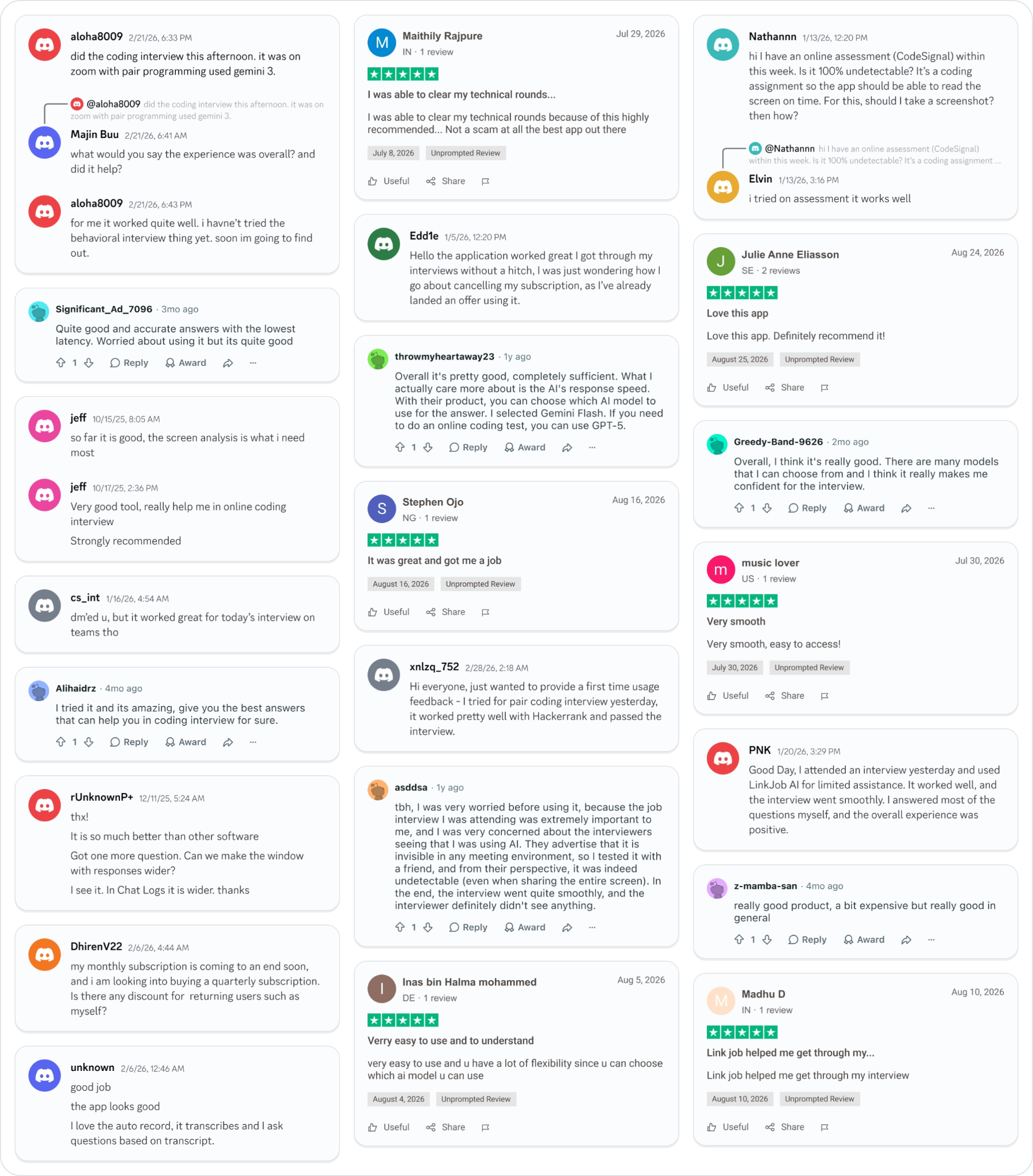
Why People Choose Linkjob AI
Smoother interviews, coding challenges cleared, and job offers landed. See how users describe their experience with Linkjob AI—in their own words.
© Copyright 2026 Linkjob AI - All Rights Reserved.