Does HireVue Detect Copy and Paste in 2026? How HireVue Tracks Clipboard Events and How I Passed Safely

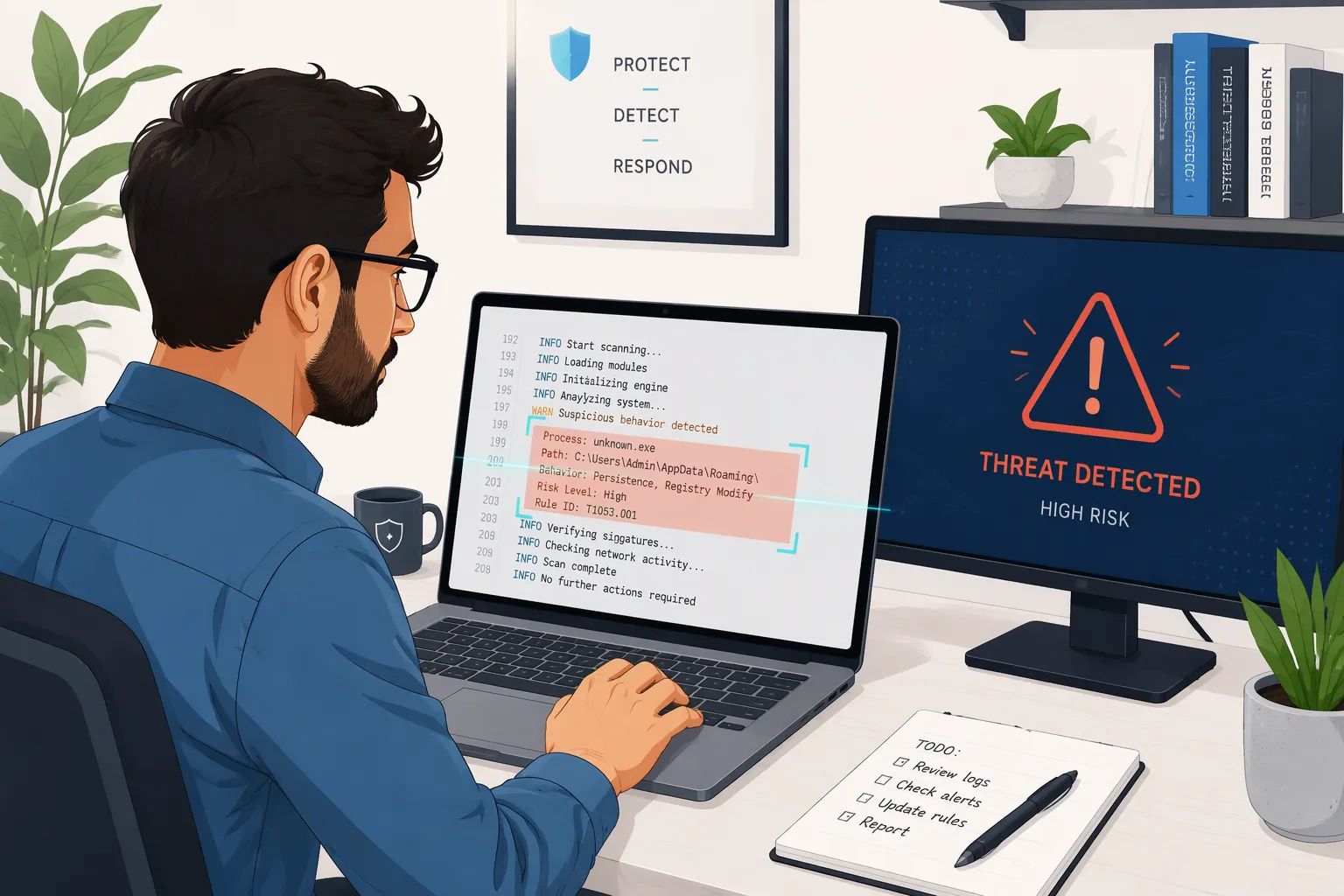
When I received back-to-back HireVue assessment invitations in 2026 for software engineering and quantitative technology roles at JPMorgan Chase, Morgan Stanley, and Deloitte, one of the first questions I researched was: "Does HireVue detect copy and paste?" Depending on the role you are applying for, a modern 2026 HireVue link can include up to three distinct modules: on-demand webcam video questions (with a 30-second prep countdown), timed written essay responses, and CodeVue technical coding or SQL challenges. In every single one of those modules, candidates feel a strong urge to press Ctrl + C and Ctrl + V—whether to copy a behavioral question into ChatGPT during the 30-second prep timer, paste a polished paragraph into a written response box, or paste debugged Python code from VS Code into HireVue's CodeVue editor.
Before starting my real assessments, I inspected HireVue's browser client and tested a live practice environment to see what happens at the DOM and telemetry level when you copy or paste. The technical reality is clear: yes, HireVue detects both copying text out of question prompts (copy event) and pasting text or code into response boxes (paste event / insertFromPaste), correlates clipboard actions with browser focus loss (window.onblur), and flags external pastes directly on the recruiter's CodeVue playback timeline. Worse yet, pressing Ctrl + C and switching tabs during a 30-second video prep countdown leaves an obvious trail of focus-loss logs and off-axis eye movement the instant your webcam starts recording.
Instead of risking a clipboard or tab-switch flag on my recruiter report, I eliminated Ctrl + C and Ctrl + V completely by using Linkjob AI—running it in Dual-Device Mode (where the desktop app passively reads the HireVue prompt with zero clipboard interaction and zero on-screen UI, streaming bulleted STAR points and optimal O(N) code directly to my phone mounted 1 inch below my webcam lens) and using its Desktop Floating Window Mode (pre-configured before the test with zero focus-stealing clicks or hotkeys) for standard web-page coding tests. Below is my complete 2026 breakdown of how HireVue assessments work, all 7 layers HireVue uses to detect copy and paste, my standalone 4-rule technical bypass blueprint, how I use Linkjob AI safely in both modes, and 3 real HireVue video, Python, and SQL questions I passed with zero clipboard flags.
How HireVue Assessments Work in 2026 (And Where Copy-Paste Traps Happen)
To understand how HireVue tracks clipboard activity, you first need to look at the three assessment modules inside the 2026 HireVue platform, because each module sets a specific trap for candidates who rely on Ctrl + C and Ctrl + V:
Module 1: On-Demand Video Interview Questions (30-Second Prep + 90-to-180-Second Recording): A behavioral or technical scenario text prompt appears on screen while a 30-second preparation timer counts down, after which your webcam and microphone begin recording automatically. Candidates often try to highlight the prompt text (
Ctrl + C), switch tabs to paste it into ChatGPT (Ctrl + V), and read the generated paragraph off-screen.Module 2: Timed Written & Case Essay Questions (5 to 15 Minutes Per Prompt): Common in investment banking, consulting, product management, and corporate strategy rounds, this module presents a written business scenario and an in-browser text editor where you must draft an email or analytical memo. Candidates frequently draft their response in an external editor or AI tool and paste the finished paragraph into the HireVue text box.
Module 3: HireVue CodeVue Coding & SQL Assessments (45 to 90 Minutes): Used heavily by JPMorgan Chase, Morgan Stanley, BlackRock, Target, and Boeing for engineering roles, CodeVue is HireVue's built-in browser IDE supporting Python, Java, C++, JavaScript, and SQL. Every keystroke, code execution, focus switch, and clipboard paste inside CodeVue is recorded on a visual playback timeline for the hiring manager.
Does HireVue Detect Copy and Paste in 2026? All 7 Clipboard & Telemetry Layers Explained
Inside the browser tab, HireVue's front-end JavaScript client combines DOM clipboard listeners, keystroke diffing, window focus hooks, and behavioral analytics across seven layers:
1. Outbound copy Event Listeners & CSS Selection Locks on Question Prompts (Ctrl + C)
DOM
copy&contextmenuListeners: HireVue attaches event listeners (addEventListener('copy', ...)) to the question container. Highlighting the prompt text and pressingCtrl + C(Cmd + Con macOS) or right-clicking Copy fires thecopyevent immediately and logs a timestampedprompt_copiedentry.CSS
user-select: noneEnforcement: Many enterprise HireVue assessments disable text highlighting via CSS (user-select: none). Trying to bypass this via Chrome DevTools (F12) or "Force Enable Copy" browser extensions triggers bothwindow.onblurfocus-loss events and DOM mutation flags.
2. Inbound paste Event & insertFromPaste Diffing in Written & CodeVue Editors (Ctrl + V)
Intercepting
ClipboardEventandInputEvent: PressingCtrl + V,Cmd + V,Shift + Insert, or right-clicking Paste fires both the DOMpasteevent andInputEvent.inputType === "insertFromPaste".Internal Refactoring vs. External Clipboard Pasting: HireVue's CodeVue editor maintains an internal shadow buffer of code you copied or cut (
Ctrl + C/Ctrl + X) inside CodeVue earlier in the session. Cutting a helper function you already typed in CodeVue and pasting it 15 lines higher is recognized as internal refactoring. If the pasted string did not originate inside the HireVue editor, HireVue logs an External Paste Flag with the exact timestamp, line numbers, and character count.
3. CodeVue Keystroke Playback & Character-Velocity (CPS) Spikes
Periodic Buffer Snapshots: HireVue captures periodic diffs of your text or code buffer from
00:00until submission so recruiters can replay how your answer was constructed.Instant Insertion Spikes: Pasting a 30-line Python function or a 250-word written response from an external clipboard causes your buffer to jump from
0to1,100characters inside a single 2-second frame—creating a vertical spike on the playback graph and highlighting the pasted block in red.
4. Correlated window.onblur + Clipboard Sequences ("Copy -> Switch Tab -> Paste")
HireVue listens continuously to window.onblur, window.onfocus, and document.visibilitychange. When a recruiter sees prompt_copied at 00:04, followed by window.onblur (Candidate left the tab) from 00:05 to 00:28, followed by window.onfocus at 00:29 and an external paste event at 00:31, that linked sequence proves the candidate copied the prompt into an external tool and pasted the output back in.
5. Webcam & Microphone Clues During the 30-Second Video Prep Timer
Keyboard Clacking & Mouse Clicking: Highlighting a video prompt, pressing
Ctrl + C, switching tabs, and typing into ChatGPT during the prep timer or opening seconds of recording is captured by your microphone and webcam.Verbatim Script Reading Eye Sweeps: Reading a pasted 200-word ChatGPT paragraph off your monitor forces your eyes to sweep rapidly left-to-right while your vocal cadence flattens out.
6. Hidden Anti-AI DOM Watermarks in CodeVue Problem Descriptions
Enterprise HireVue CodeVue assessments frequently embed hidden CSS-clipped or zero-width text spans inside the HTML problem description. Highlighting a CodeVue prompt and pressing Ctrl + C copies those invisible instructions into your clipboard, forcing an external LLM to include a trap variable name (such as hv_memo_cache) that flags your submission immediately.
7. Cross-Candidate AST Similarity & Written Stylometry
HireVue runs CodeVue submissions through an Abstract Syntax Tree (AST) Similarity Engine that compares your normalized control-flow structure against thousands of other candidates taking the same assessment and standard GPT-4o / Claude output templates.
How to Bypass HireVue Copy and Paste Detection in 2026 (Technical Blueprint)
1. Why Common "Copy-Paste Workarounds" Fail on HireVue
Why Copying During the 30-Second Prep Timer Fails: Even before your webcam starts recording, HireVue's browser tab is already active and logging
copy,window.onblur, andvisibilitychangeevents during the 30-second countdown.Why "I Wrote My Code in VS Code and Pasted It" Fails on CodeVue: Coding outside the browser for 25 minutes and pasting 40 lines into CodeVue at the end leaves a 25-minute blank timeline followed by a 1-second external paste spike.
Why Pasting Line-by-Line Fails: Switching tabs 10 times to copy and paste 3 lines of code at a time logs 10 separate
window.onblurevents and 10 separate externalpasteevents.Why "Enable Copy-Paste" Chrome Extensions Fail: Extensions that strip
oncopy/onpastelisteners inject script tags into the HireVue page DOM, where they are flagged by integrity checks.
2. My 4-Rule Technical Blueprint for Zero Copy-Paste Flags on HireVue
Rule 1: Zero
Ctrl + Con Prompts & Zero ExternalCtrl + Vin Editors: Never pressCtrl + C(Cmd + C) on a question prompt and never pressCtrl + V(Cmd + V) from an external clipboard. Only use cut-and-paste when moving a line of code you already typed manually inside the CodeVue editor.Rule 2: Maintain 100% Browser Focus (
window.onblur === 0): Never switch tabs, never pressAlt + TaborCmd + Tab, and never click outside the active HireVue browser window during the prep countdown, video recording, or coding timer.Rule 3: Passive Screen & Audio Capture Instead of Clipboard Copying: Use a passive OS-level capture workflow that reads the question on screen without firing a single DOM
copyorselectionchangeevent.Rule 4: Speak From Short Bullet Points & Type Code Manually in Stages: On video questions, speak naturally from 4 concise STAR bullet points. On written and CodeVue questions, type every line manually inside the HireVue editor using your own variable names and run sample tests iteratively.
How I Use Linkjob AI to Pass HireVue Without Ever Copying or Pasting (Dual-Device Mode vs. Web Floating Window)
To get tailored STAR talking points and optimal O(N) CodeVue solutions in real time without touching Ctrl + C, Ctrl + V, or Alt + Tab, I use an undetectable AI interview assistant in one of two operating modes:
1. Mode 1: Dual-Device Mode (My #1 Setup for HireVue Video Interviews & Proctored CodeVue Rounds)
Whenever my HireVue link includes on-demand video questions or webcam-proctored CodeVue challenges, I run Linkjob AI in Dual-Device Mode:
Silent Desktop Capture With Zero On-Screen UI & Zero
Ctrl + C: In Dual-Device Mode, the desktop app runs silently in the background with zero visible window, zero floating overlay, and zero taskbar icon on my computer monitor. As soon as a HireVue video prompt or CodeVue problem appears on screen, the background service captures the question automatically at the OS display level—so I never highlight text and never pressCtrl + C.Viewing STAR Bullets &
O(N)Code on My Phone 1 Inch Below the Webcam: Within 2 seconds of the 30-second prep timer starting, 4 scannable STAR bullet points (Situation,Task,Action,Resultcustomized to my resume) or a concise 20-lineO(N)code solution stream directly to my smartphone mounted 1 inch directly below my webcam lens.Natural Eye-Level Delivery & 100% Manual Typing: Because my phone sits right on the optical axis of my webcam lens, I glance at my 4 bullet points while looking straight into the camera during video responses, and I type my CodeVue solution manually by hand with
0copy events,0external paste events, and0focus-loss events.
2. Mode 2: Desktop Floating Window Mode (For Standard Web-Page HireVue Written & Coding Tests)
For a standard web-page HireVue written or coding module where I want to view the AI solution directly on my computer screen and type it manually into the HireVue editor, I use the Desktop Floating Window Mode of my real-time AI interview assistant right on my primary monitor while obeying two strict rules:
Complete All Configuration Before Opening the HireVue Link (Never Click Settings Mid-Test): Before opening the HireVue tab, I launch the Linkjob AI desktop app, upload my resume and job description, select my coding language (Python 3, Java, C++, or SQL), and position the semi-transparent OS-level floating window beside the HireVue editor area. Once the HireVue assessment begins, I never click the "Settings" button or any interactive menu inside the floating window. Clicking a settings menu on a desktop app can cause the OS to shift window focus away from the browser (
window.onblur). Finishing all settings beforehand keeps the floating overlay passive while the HireVue browser tab retains 100% active focus as I type my response manually.Never Press
Cmd + \orCtrl + \to Toggle the Floating Window During the Test: Linkjob AI includes a global shortcut (Cmd + \on macOS orCtrl + \on Windows) to hide or show the floating window. During an active HireVue assessment, I never pressCmd + \orCtrl + \to toggle the app open or closed. Pressing global window-visibility hotkeys mid-test can momentarily interrupt the browser's active focus state. Instead, I leave the floating window open in its fixed position from minute 0 until after I close the HireVue tab.
3 Real HireVue Tasks I Passed With Zero Copy-Paste (Video, CodeVue Python, & SQL)
Here are three real 2026 HireVue tasks across all three formats—one behavioral video prompt, one CodeVue Python challenge, and one CodeVue SQL challenge—that I passed with zero clipboard flags.
1. Task 1 (HireVue On-Demand Video Prompt — JPMorgan Chase & Morgan Stanley)
The On-Screen Prompt (30-Second Prep, 2-Minute Video Response): "Tell me about a time when you discovered a critical bug, data discrepancy, or risk in a project right before a major deadline. How did you verify the issue, communicate it to stakeholders, and resolve it on time?"
Why Copying This Into ChatGPT Fails: Candidates who highlight this prompt (
Ctrl + C), switch tabs (window.onblur), paste it into ChatGPT (Ctrl + V), and read a 220-word paragraph off their screen get flagged for both clipboard/focus telemetry and robotic eye movement.The 4 Eye-Level Bullet Points Displayed on My Phone via Dual-Device Mode (Zero
Ctrl + C):Situation (15 sec): Q3 settlement pipeline migration; 4 hours before production cutover, reconciliation check showed a
0.18%rounding drift on multi-currency FX batches.Task (15 sec): Isolate the root cause across
1.2Mdaily records and patch the calculation without delaying the midnight release window.Action (45 sec): Used binary log bisection to trace the bug to IEEE-754
float64conversion prior to fee deduction; alerted the VP of Engineering via Slack with a 3-line impact summary; refactored the pipeline to fixed-pointDecimalarithmetic with banker's rounding and ran parallel shadow replay.Result (20 sec): Deployed 35 minutes ahead of the midnight deadline with
100%ledger parity ($0.00variance) and added an automated pre-deploy precision assertion.
2. Task 2 (HireVue CodeVue Python Challenge): Minimum Server Capacity to Process Batch Jobs Within H Hours
The Problem Prompt: You are given an array
batchesofNpositive integers wherebatches[i]represents the number of compute tasks in thei-th batch, and an integermax_hours(max_hours >= N). Each hour, a worker node can process up toKtasks from a single batch (if a batch has fewer thanKtasks remaining, the node finishes that batch and remains idle for the rest of that hour). Return the minimum integer speedKrequired to finish allNbatches withinmax_hours. Constraints:N <= 100,000,batches[i] <= 10^9.Why Typing This 18-Line Binary Search Manually Beats Pasting: Because
batches[i]can be up to10^9, linear search fromK = 1times out immediately (O(N * Max)). Using binary search over the answer range[1, max(batches)]solves the problem inO(N log(Max))time and takes only 18 lines of clean Python that I typed by hand in under 2 minutes with zero paste events.My Complete Hand-Typed Python Solution:
def min_processing_speed(batches: list[int], max_hours: int) -> int:
    low = 1
    high = max(batches)
    best_speed = high

    while low <= high:
        mid = (low + high) // 2
        # Ceiling division (b + mid - 1) // mid avoids floating-point drift
        hours_needed = sum((b + mid - 1) // mid for b in batches)

        if hours_needed <= max_hours:
            best_speed = mid
            high = mid - 1
        else:
            low = mid + 1

    return best_speed

if __name__ == "__main__":
    print(min_processing_speed([3, 6, 7, 11], 8))       # Expected: 4
    print(min_processing_speed([30, 11, 23, 4, 20], 5)) # Expected: 30
Complexity Breakdown: Binary search runs at most
30iterations (log2(10^9) ~= 30), and each iteration scansNelements inO(N)time, achievingO(N log(max(batches)))time andO(1)auxiliary space.
3. Task 3 (HireVue CodeVue SQL Challenge): 30-Day Subscription Reactivation Rate by Plan Tier
The Problem Prompt: In PostgreSQL, you have a table
subscriptionswith columnsuser_id BIGINT,plan_tier VARCHAR,start_date DATE, andcancel_date DATE(NULLif still active). Write a query that returnsplan_tier,total_cancellations,reactivated_within_30d, andreactivation_rate_pct(rounded to 2 decimal places) for everyplan_tier. A cancellation is considered reactivated within 30 days if the sameuser_idstarts a subsequent subscription row wherenext_start_date >= cancel_dateandnext_start_date <= cancel_date + INTERVAL '30 days'. Order byreactivation_rate_pct DESC, plan_tier ASC.Why
LEAD(start_date) OVERMakes This Concise to Type: Instead of writing a slow correlated subquery that times out on large tables, usingLEAD(start_date) OVER (PARTITION BY user_id ORDER BY start_date ASC)fetches each user's very next subscription start date in a singleO(N log N)window pass.My Complete Hand-Typed PostgreSQL Solution:
WITH ordered_subs AS (
    SELECT
        user_id,
        plan_tier,
        start_date,
        cancel_date,
        LEAD(start_date) OVER (
            PARTITION BY user_id
            ORDER BY start_date ASC
        ) AS next_start_date
    FROM subscriptions
)
SELECT
    plan_tier,
    COUNT(*) AS total_cancellations,
    COUNT(*) FILTER (
        WHERE next_start_date IS NOT NULL
          AND next_start_date >= cancel_date
          AND next_start_date <= cancel_date + INTERVAL '30 days'
    ) AS reactivated_within_30d,
    ROUND(
        (
            COUNT(*) FILTER (
                WHERE next_start_date IS NOT NULL
                  AND next_start_date >= cancel_date
                  AND next_start_date <= cancel_date + INTERVAL '30 days'
            ) * 100.0
        ) / COUNT(*),
        2
    ) AS reactivation_rate_pct
FROM ordered_subs
WHERE cancel_date IS NOT NULL
GROUP BY plan_tier
ORDER BY reactivation_rate_pct DESC, plan_tier ASC;
My 4-Step Pre-Assessment Checklist Before Opening Any HireVue Link
Fifteen minutes before I launch any HireVue video, written, or CodeVue assessment, I complete this 4-step checklist:
Step 1: Disable All Browser Extensions & Close Background Tabs: I run HireVue in a clean Chrome profile with zero DOM-injecting extensions and close Slack, Discord, and email notifications so no pop-up triggers
window.onblur.Step 2: Configure Linkjob AI Before Clicking the HireVue Link:
For video interviews or webcam-proctored CodeVue rounds, I enable Dual-Device Mode (zero on-screen UI on my computer monitor) and mount my phone 1 inch below my webcam lens.
For standard web-page written or coding tests, I position the Desktop Floating Window beside my editor before opening HireVue, and never click the Settings button or press
Cmd + \/Ctrl + \during the test.
Step 3: Never Press
Ctrl + Con Prompts orCtrl + VFrom Outside: I let passive screen capture read the prompt automatically and type all written and coding answers by hand inside the HireVue browser tab.Step 4: Run Sample Tests Incrementally in CodeVue: On coding tasks, I click "Run" 3 to 5 times as I build my function so the CodeVue playback bar records a natural debugging progression.
Top Questions Candidates Ask About "Does HireVue Detect Copy and Paste" (FAQ)
1. Does HireVue detect if I copy the interview question during the 30-second prep timer?
Yes. HireVue's browser tab is active during the 30-second preparation countdown and attaches copy, window.onblur, and visibilitychange event listeners to the page. Highlighting the prompt text (Ctrl + C) and switching tabs to ChatGPT logs both a clipboard copy event and a focus-loss event before your video recording even begins.
2. Can HireVue CodeVue detect if I paste code from VS Code or ChatGPT?
Yes. HireVue's CodeVue editor intercepts the browser's paste event (Ctrl + V / Cmd + V / right-click Paste) and compares the pasted string against an internal buffer of code copied inside CodeVue. Any code pasted from an external window is flagged as an external paste on the recruiter's playback timeline.
3. Does HireVue detect copy and paste in written essay response boxes?
Yes. HireVue's timed written response textareas monitor paste (insertFromPaste) events and periodic character-count snapshots. Pasting a 200-word paragraph from an external document creates an instant character-velocity spike and an external paste flag on your assessment report.
4. Why is Linkjob AI's Dual-Device Mode the safest way to pass HireVue without copy-pasting?
In Dual-Device Mode, the desktop app runs silently with zero on-screen UI on your computer monitor, reads the prompt passively without Ctrl + C, and streams STAR bullets or O(N) code to your phone 1 inch below your webcam—giving you 0 copy events, 0 external paste events, and 0 focus-loss events.
5. Can I use Linkjob AI's desktop floating window on HireVue and type my answer manually?
Yes. For standard web-page HireVue written or coding tests, you can view the answer on the desktop floating window on your main monitor and type it manually into HireVue as long as you finish all settings before opening HireVue, never click Settings mid-test, and never press Cmd + \ or Ctrl + \.
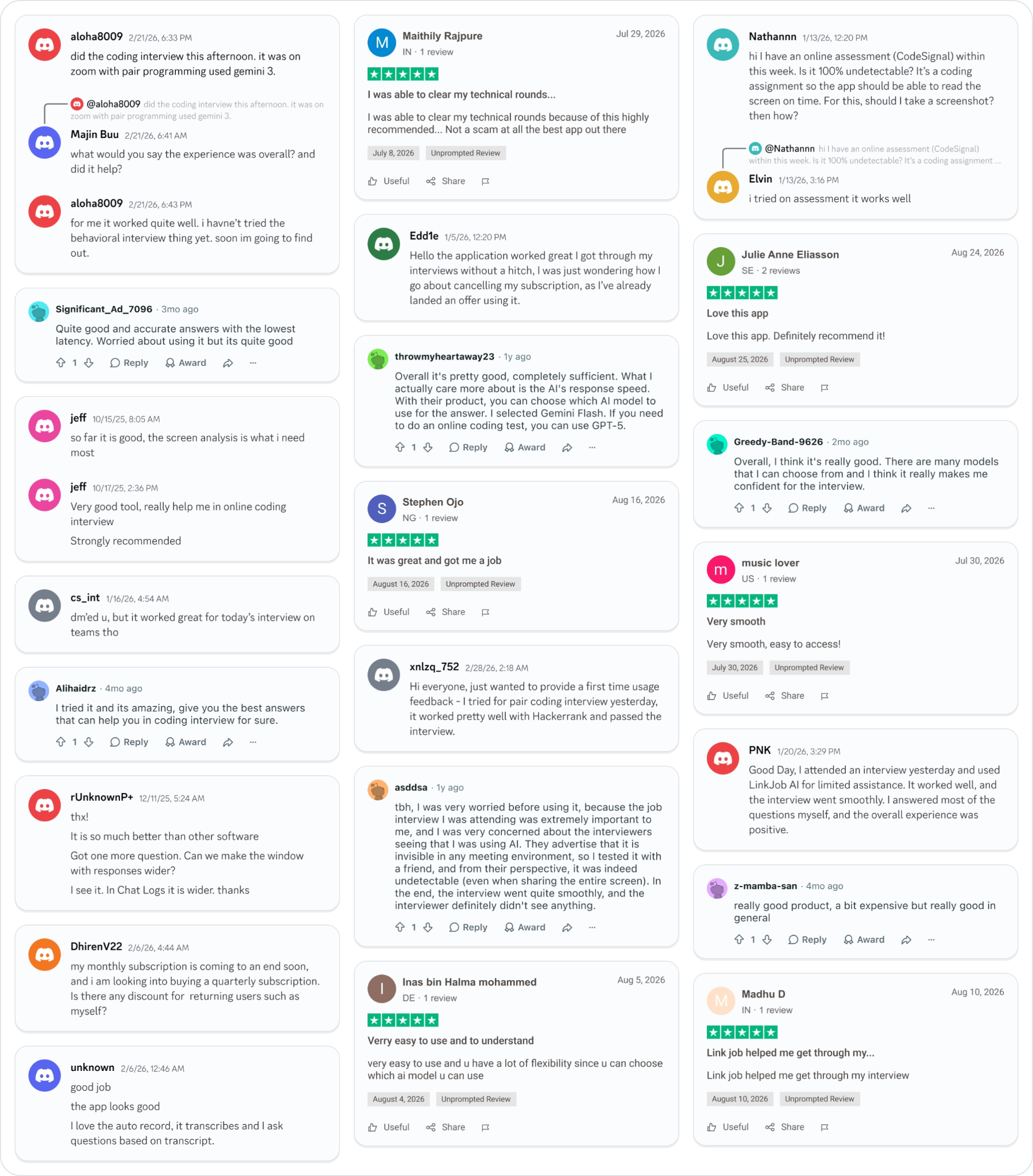
Why People Choose Linkjob AI
Smoother interviews, coding challenges cleared, and job offers landed. See how users describe their experience with Linkjob AI—in their own words.

© Copyright 2026 Linkjob AI - All Rights Reserved.