Does Karat Detect Tab Switching in 2026? What Karat Studio Logs and How I Passed With Zero Flags

Five minutes before my first live Karat technical interview for a Senior Backend Engineer role, I had a second Chrome tab open with my Python collections and graph-traversal cheat sheet. My plan was simple: whenever the Karat Interview Engineer pasted a tough question into the pad, I would quietly press Cmd + Tab (or click my second tab) for three seconds to check my notes, and then click right back into the IDE. Thankfully, right before joining the call, I stopped and researched a question that saves—or sinks—thousands of applications every year: does Karat detect tab switching?
Here is the trap that catches so many software engineers off guard: at the start of the coding section, many Karat Interview Engineers casually tell you, "If you need to check standard language documentation for a method signature, feel free to do so." Hearing that, candidates assume the Karat Studio browser environment has no tab-switch tracking at all. So they silently switch tabs during the 12-minute verbal round, or they tab out for 20 seconds right after Question 2 is pasted into the editor—completely unaware that Karat Studio logs every single browser focus exit (window.onblur) and tab visibility change (document.visibilitychange) onto the recorded timeline audited by Karat's post-interview Quality Control (QC) team.
Over the past year, I have completed four Karat interviews across multiple partner companies and tested exactly how Karat Studio's focus telemetry works. In this complete first-person guide, I am going to explain how Karat detects tab switching and window focus loss in 2026, why the "open documentation" rule is actually a behavioral trap for unannounced tab switches, how to bypass focus tracking completely, and how I use Linkjob AI in both Dual-Device Mode and Desktop Floating Window Mode to complete the entire 60-minute interview with zero tab switches (0 onblur events) on my report.
The Short Answer: Does Karat Detect Tab Switching in 2026?
Yes. Karat Studio actively detects and timestamps every time you switch browser tabs, click outside the active browser window, minimize the window, or press a global keyboard shortcut that shifts operating-system focus away from the IDE.
Unlike basic video calls where you code inside a plain text document, a Karat interview runs inside Karat Studio—an integrated web application that combines your live webcam video, microphone audio, problem statement pane, collaborative Monaco code editor, and code execution console inside one browser tab. Because Karat controls that entire DOM environment, it tracks your browser focus state at millisecond resolution from the moment you join the room until the call ends.
Even more importantly, your tab-switch log is evaluated by two different human reviewers:
The Live Karat Interview Engineer (IE): The engineer conducting your 60-minute session has an interviewer console that shows your real-time editor presence and cursor activity.
The Post-Call Karat Quality Control (QC) Auditor: After your interview finishes, a second Karat auditor reviews your recorded webcam video alongside your timestamped IDE telemetry log (and packages that full recording for the client company's hiring manager).
What Karat Studio Actually Logs When You Switch Tabs (6 Telemetry Signals)
To understand why switching tabs during a Karat interview is so dangerous, you need to know the six specific signals that Karat Studio correlates whenever your browser tab loses focus.
1. Browser document.visibilitychange Events (Direct Tab Switches)
Whenever you open a new tab in the same browser window or click onto an adjacent Chrome/Edge tab, the browser's Page Visibility API changes document.visibilityState from "visible" to "hidden" and fires a visibilitychange event.
Karat Studio's client-side script listens for that exact event and records a timestamped entry showing the exact second (mm:ss) you switched away from the Karat tab and the exact second you switched back.
2. Window Focus-Loss Events (window.onblur & window.onfocus)
Many candidates think they can outsmart tab detection by opening a second browser window on an extended monitor—or placing a desktop notes app side by side with Chrome—so the Karat tab stays "visible" on screen the whole time.
That trick fails completely because Karat Studio also listens to window.onblur and window.onfocus. The instant you click anywhere outside the Karat Studio browser viewport—whether on a second monitor, a local VS Code window, a Slack pop-up, or a floating overlay app—the browser window loses active input focus and fires window.onblur. Karat Studio logs that focus loss identically to a tab switch.
3. The "Open-Documentation" Trap: Announced vs. Unannounced Tab Switches
This is the subtlety that trips up experienced engineers. During the coding portion of some Karat interviews, the Interview Engineer may state that looking up standard API syntax (like Java's PriorityQueue comparator syntax) is permitted if you mention it out loud.
Here is how Karat's post-call QC auditors use that rule to catch cheaters:
Legitimate Syntax Lookup: The candidate says out loud, "I'm going to quickly check the Python
bisect_rightparameter order in the docs," leaves the tab for 8 seconds, and returns to type one line of syntax.Flagged Unannounced Tab Switching: The candidate says nothing, leaves the tab silently for 18 seconds right after Question 2 is pasted into the pad, switches back and forth four times while quiet, and suddenly types a complete 30-line dynamic programming or BFS algorithm. During QC review, those silent, unannounced
onblurmarkers right after prompt reveal are flagged as unauthorized external assistance.
4. Zero-Tolerance Tab Switching During the First 12-Minute Verbal Section
Before the 45-minute coding block even starts, every Karat interview begins with 10 to 12 minutes of rapid-fire verbal questions (covering system design trade-offs, production debugging, or reading code snippets to state their Big-O time and space complexity).
During this first 12-minute phase, there is zero legitimate reason for your mouse to leave the Karat Studio tab. If the telemetry log shows three onblur or visibilitychange events while the Interview Engineer is asking you verbal system-design questions, the QC reviewer flags your session immediately.
5. Correlation Between Tab Return and External Clipboard Pastes (paste Events)
Karat Studio tracks every copy, cut, and paste event inside the Monaco code editor and checks whether the pasted string originated inside the pad or from your external OS clipboard.
The single fastest way to fail a Karat integrity audit is the "Tab-Out -> Paste" pattern: window.onblur fires at 22:14, window.onfocus fires at 22:29, and an external paste event inserts 25 lines of code at 22:31.
6. Webcam Screen-Brightness Reflection & Pupil Tracking
Because Karat Studio records your webcam feed in high definition and synchronizes it frame-by-frame with your IDE event log, switching tabs leaves a visual signature on camera:
The White-Screen Flash on Glasses and Skin: Karat Studio's default code editor uses a dark-themed pane. When you press
Cmd + Tabto switch to a bright white Google Search or documentation page, the sudden flash of white light illuminates your face and reflects directly off your glasses at the exact millisecondvisibilitychangefires!Horizontal Eye-Scanning Across Wide Monitors: If you put a second window on the right half of an ultrawide monitor, the recorded video shows your pupils darting back and forth between the left and right edges of your screen for 40 straight minutes.
How to Bypass Karat's Tab-Switch Detection in 2026 (Technical Blueprint)
Once you see how Karat correlates visibilitychange, window.onblur, webcam light reflections, and post-call QC video audits, it becomes clear why traditional tab-switching workarounds fail—and how to engineer a setup that records 0 tab switches from start to finish.
1. Why Common "Tab-Switch Bypass" Tricks Fail on Karat Studio
Why "Always Active Window" Chrome Extensions Fail: Browser extensions that attempt to monkey-patch
Document.prototype.visibilityStateor blockblurevent propagation often conflict with Karat Studio's WebRTC video stream and collaborative Monaco WebSocket sync—causing editor lag or forced page reloads mid-interview.Why Dual Monitors or Split-Screen Windows Fail: Clicking onto a second monitor or an adjacent split-screen window still fires
window.onblurevery single time you click to scroll or type.Why Hotkey-Driven Floating Overlays Are Risky: Many older AI overlay apps require you to press global shortcut keys (
Cmd + \,Ctrl + B,Cmd + Enter) to capture the screen when Question 2 or Question 3 is pasted into the pad, or require you to click the overlay to scroll down a long code solution. Both actions steal OS input focus from Chrome and log anonblurevent on the Karat timeline.
2. My 4-Rule Technical Blueprint for a Zero-Tab-Switch (0 onblur) Karat Session
To finish a 60-minute Karat interview with a 100% clean telemetry log, follow these four rules:
Rule 1 (Never Click Outside the Karat Studio Browser Viewport): From the second you join the Karat Studio room until the Interview Engineer ends the call, your mouse cursor must never click outside the active browser tab—not even to check the time or dismiss a notification.
Rule 2 (Never Press Global OS Hotkeys or
Ctrl + VFrom Outside the Pad): Never pressAlt + Tab,Cmd + Tab, or any overlay toggle shortcut during the call, and type all code manually into the editor (or only copy-paste code that you already typed inside the Karat pad itself when reusing Q1 helpers in Q2).Rule 3 (Offload All Visual Reference & Scrolling to a Secondary Phone Screen Below Your Webcam): Instead of switching tabs or clicking another window on your computer to read code or scroll long solutions, stream the solutions automatically to your phone mounted 1 inch below your webcam lens. Swiping your phone screen with one thumb has zero electrical or software connection to your laptop's browser focus!
Rule 4 (Use Automatic Audio & Visual Capture as Q1, Q2, and Q3 Unlock): Your AI assistant must capture the Interview Engineer's spoken questions during Phase 2 and the newly pasted text of Q1, Q2, and Q3 during Phase 3 automatically in the background—without you ever touching a hotkey.
How I Use Linkjob AI to Evade Karat Tab-Switch Detection Safely
To execute that exact zero-tab-switch blueprint across all 60 minutes of a Karat interview, I use an AI interview assistant that runs completely outside the browser DOM and supports both Dual-Device Mode and Desktop Floating Window Mode.
Here is how both modes work and how they prevent Karat Studio from ever logging a tab switch or focus loss.
1. Mode 1: Dual-Device Mode (My #1 Setup for Zero Tab Switches & Zero Focus Flags on Karat)
If you want extra security—and since every Karat interview is recorded on video and reviewed by a post-call QC auditor—you should use Linkjob AI's Dual-Device Mode.
Under Dual-Device Mode, the Linkjob desktop app only runs silently in the background on my computer with zero visible floating window and zero on-screen UI, and all real-time verbal Q&A bullet points, Q1–Q3 code solutions, and Big-O complexity proofs display directly on my phone.
Here is why Dual-Device Mode completely eliminates every tab-switch and focus-loss risk on Karat:
Guaranteed
0Tab Switches and0onblurEvents: Because all answers appear on my phone screen, I never open a second browser tab, never click another window, and never press a single keyboard shortcut on my laptop for the entire 60 minutes. Even if a coding solution for Question 2 or Question 3 is 75 lines long, I scroll through it on my phone touchscreen with my thumb while my laptop focus stays locked 100% inside the Karat Studio Monaco editor.Zero Screen-Brightness Reflections on Camera: Because I never switch away from Karat Studio on my laptop monitor and keep my phone screen at a comfortable low-medium brightness 1 inch below my webcam lens, there is zero white-screen flash on my face or glasses.
Automatic Updates When the IE Pastes Q2 and Q3: As soon as I pass Question 1 and the Interview Engineer pastes Question 2 into the pad, Linkjob AI detects the new prompt in the background and streams the Q2 solution and complexity breakdown straight to my phone—with zero manual hotkeys required.
2. Mode 2: Desktop Floating Window Mode (For Standard Web-Page Sessions)
What if your session runs on a standard web page without mandatory screen sharing and you prefer reading from your desktop monitor rather than your phone? You can directly use the floating window of the Linkjob AI desktop app right on your monitor—as long as you follow two strict rules so you never trigger an onblur focus-loss event:
Finish all relevant settings before the interview starts: Before you open the Karat Studio link, launch the Linkjob AI desktop app, select your programming language (Python 3, Java, C++, or TypeScript), verify your audio settings, and position the floating window near the top-center of your monitor right below your webcam. Avoid clicking the app's Settings button during the interview so your mouse focus never leaves the Karat Studio browser tab.
Do NOT use
Cmd + \orCtrl + \to toggle the app during the test: Because pressing global keyboard shortcuts to toggle an overlay window can briefly shift OS window focus and firewindow.onblurinside Karat Studio, never pressCmd + \orCtrl + \once your interview starts. Leave the floating window open in place—all other features work normally and invisibly.
You can choose between Dual-Device Mode and Desktop Floating Window Mode based on your own scenario, though for a live, QC-audited Karat interview, Dual-Device Mode is by far the safest choice.
2 Real Karat Progressive Coding Challenges Where Candidates Get Caught Tab-Switching (With Full Solutions)
On Karat, candidates most frequently panic and switch tabs when they hit tricky string-padding math or multi-rectangle 2D grid boundary rules on Question 2. With a real-time AI interview assistant streaming these exact solutions to my phone in Dual-Device Mode, I typed them straight into Karat Studio without ever leaving the tab.
1. Problem Set 1: Word Wrap & Full Text Justification Engine (Q1 -> Q2)
This is one of Karat's most notorious string-processing problem families (used heavily by Intuit, Roblox, Wayfair, and Atlassian).
Question 1 (
word_wrap): Given a list ofwordsand a maximum line lengthmax_len, join words with single dashes'-'greedily so no line exceedsmax_len.Question 2 (
reflow_and_justify): Given a list oflines(sentences) andmax_len, reflow all words greedily onto lines of at mostmax_lencharacters (assuming at least 1'-'between words), and fully justify every line (including the last line, per Karat's custom rule!) by distributing extra'-'dashes as evenly as possible between words, placing any leftover extra dashes into the leftmost gaps! (If a line contains only 1 word, return just that word without trailing dashes).
Here is the clean, 100%-pass Python implementation for both Question 1 and Question 2:
# Question 1: Greedy word wrap with single '-' separator
def word_wrap(words: list[str], max_len: int) -> list[str]:
    if not words:
        return []
    result = []
    curr_line = words[0]

    for w in words[1:]:
        if len(curr_line) + 1 + len(w) <= max_len:
            curr_line += "-" + w
        else:
            result.append(curr_line)
            curr_line = w

    result.append(curr_line)
    return result


# Question 2: Reflow lines and fully justify with '-' padding
def reflow_and_justify(lines: list[str], max_len: int) -> list[str]:
    all_words = []
    for line in lines:
        all_words.extend(line.strip().split())

    if not all_words:
        return []

    # Step 1: Group words greedily into lines
    grouped_lines = []
    curr_words = [all_words[0]]
    curr_len = len(all_words[0])

    for w in all_words[1:]:
        if curr_len + 1 + len(w) <= max_len:
            curr_words.append(w)
            curr_len += 1 + len(w)
        else:
            grouped_lines.append(curr_words)
            curr_words = [w]
            curr_len = len(w)
    grouped_lines.append(curr_words)

    # Step 2: Fully justify each grouped line to max_len using '-'
    justified = []
    for line_words in grouped_lines:
        if len(line_words) == 1:
            justified.append(line_words[0])
            continue

        total_chars = sum(len(w) for w in line_words)
        total_dashes = max_len - total_chars
        gaps = len(line_words) - 1

        base_dashes, extra_dashes = divmod(total_dashes, gaps)
        parts = []
        for i in range(gaps):
            dash_count = base_dashes + (1 if i < extra_dashes else 0)
            parts.append(line_words[i] + ("-" * dash_count))
        parts.append(line_words[-1])
        justified.append("".join(parts))

    return justified
2. Problem Set 2: 2D Binary Grid Rectangle & Shape Finder (Q1 -> Q2 -> Q3)
This is another signature 3-part Karat progression where candidates get stuck on boundary indices in Question 2 and Question 3.
Question 1 (
find_single_rectangle): Given a 2D matrix of1s (background) and a single filled rectangle of0s, return its[top_row, left_col, bottom_row, right_col](or width/height).Question 2 (
find_multiple_rectangles): Now the matrix contains multiple non-touching filled rectangles of0s. Return the coordinates of every rectangle.Question 3 (
find_connected_zero_shapes): Now the0s form arbitrary connected shapes (not just rectangles!). Return a list of all connected components (where each component is a list of(r, c)coordinates) using BFS/DFS.
Here is my clean Python implementation covering all three stages without mutating the input matrix if read-only is required:
from collections import deque

# Question 1: Find the single filled rectangle of 0s
def find_single_rectangle(grid: list[list[int]]) -> list[int]:
    rows, cols = len(grid), len(grid[0])
    for r in range(rows):
        for c in range(cols):
            if grid[r][c] == 0:
                end_r = r
                while end_r + 1 < rows and grid[end_r + 1][c] == 0:
                    end_r += 1
                end_c = c
                while end_c + 1 < cols and grid[r][end_c + 1] == 0:
                    end_c += 1
                return [r, c, end_r, end_c]
    return []


# Question 2: Find all non-touching filled rectangles of 0s
def find_multiple_rectangles(grid: list[list[int]]) -> list[list[int]]:
    rows, cols = len(grid), len(grid[0])
    visited = [[False] * cols for _ in range(rows)]
    rectangles = []

    for r in range(rows):
        for c in range(cols):
            if grid[r][c] == 0 and not visited[r][c]:
                end_r = r
                while end_r + 1 < rows and grid[end_r + 1][c] == 0:
                    end_r += 1
                end_c = c
                while end_c + 1 < cols and grid[r][end_c + 1] == 0:
                    end_c += 1

                for ir in range(r, end_r + 1):
                    for ic in range(c, end_c + 1):
                        visited[ir][ic] = True

                rectangles.append([r, c, end_r, end_c])

    return rectangles


# Question 3: Find all arbitrary 4-directionally connected shapes of 0s
def find_connected_zero_shapes(
    grid: list[list[int]]
) -> list[list[tuple[int, int]]]:
    rows, cols = len(grid), len(grid[0])
    visited = [[False] * cols for _ in range(rows)]
    shapes = []

    for r in range(rows):
        for c in range(cols):
            if grid[r][c] == 0 and not visited[r][c]:
                visited[r][c] = True
                queue = deque([(r, c)])
                comp = []
                while queue:
                    cr, cc = queue.popleft()
                    comp.append((cr, cc))
                    for dr, dc in [(-1, 0), (1, 0), (0, -1), (0, 1)]:
                        nr, nc = cr + dr, cc + dc
                        if (
                            0 <= nr < rows
                            and 0 <= nc < cols
                            and grid[nr][nc] == 0
                            and not visited[nr][nc]
                        ):
                            visited[nr][nc] = True
                            queue.append((nr, nc))
                shapes.append(comp)

    return shapes
3. Problem Set 3: Student Course Overlap & Midpoint Prerequisite Track (Q1 -> Q2)
A third Karat coding progression where candidates frequently lose time—and get tempted to switch tabs—is the University Course Schedule & Prerequisite Graph problem family.
Question 1 (
find_shared_courses_per_pair): Given a list of[student_id_str, course_name]pairs, return a dictionary mapping every unique pair of students"id1,id2"(even pairs with0shared courses!) to the list of courses both students are enrolled in.Question 2 (
find_midpoint_course): Given a list of[prereq_course, next_course]pairs that form a single linear chain ofNcourses from start to finish, return the middle course at index(N - 1) // 2(the first of the two middle courses ifNis even) usingindegreeroot detection inO(N)time:
from collections import defaultdict

# Question 1: Shared courses for every unique pair of students (including empty intersections)
def find_shared_courses_per_pair(
    enrollments: list[list[str]]
) -> dict[str, list[str]]:
    student_courses = defaultdict(set)
    for sid, course in enrollments:
        student_courses[sid].add(course)

    students = sorted(student_courses.keys())
    pair_shared = {}

    for i in range(len(students)):
        for j in range(i + 1, len(students)):
            s1, s2 = students[i], students[j]
            key = f"{s1},{s2}"
            pair_shared[key] = sorted(student_courses[s1] & student_courses[s2])

    return pair_shared


# Question 2: Find the midpoint course in a single directed prerequisite chain
def find_midpoint_course(prereqs: list[list[str]]) -> str:
    next_course = {}
    indegree = defaultdict(int)
    all_courses = set()

    for pre, nxt in prereqs:
        next_course[pre] = nxt
        indegree[nxt] += 1
        all_courses.add(pre)
        all_courses.add(nxt)

    # Find the unique start course with indegree == 0
    curr = next(c for c in all_courses if indegree[c] == 0)
    ordered_chain = [curr]

    while curr in next_course:
        curr = next_course[curr]
        ordered_chain.append(curr)

    mid_idx = (len(ordered_chain) - 1) // 2
    return ordered_chain[mid_idx]
3 Habits That Keep Your Karat Telemetry & Video Audit 100% Spotless
Even when Linkjob AI streams every verbal answer and Q1–Q3 code solution to your phone in Dual-Device Mode so your browser tab-switch counter stays at 0, follow these three habits during the call:
Copy-Paste Only Your Own Code Inside the Karat Pad: When Question 2 builds on Question 1 (such as extending
find_single_rectangleintofind_multiple_rectangles), feel free to highlight and copy your own Q1 loop inside the Karat Studio editor to paste into Q2—internal pad copies never trigger external clipboard flags and save you 3 minutes of typing!State Big-O Time & Space Complexity Proactively: As soon as your Question 1 or Question 2 code prints the expected output in the right-hand console, glance at the complexity line on your phone and state both the time and space complexity out loud before the Interview Engineer even asks.
Keep Your Browser Full-Screen on a Single Monitor: Unplug any secondary monitor before joining the Karat Studio room so you are never tempted to glance sideways and no stray background window can steal OS focus.
My 5-Point Pre-Interview Browser & Monitor Checklist for Zero Focus Flags
Before I click the "Join Interview" button inside my Karat confirmation email, I run through these five quick steps to make sure no background app or OS notification accidentally steals browser focus (window.onblur) during the 60-minute session:
Open Karat Studio in a Dedicated Single-Tab Browser Window: Close every other tab in Chrome or Edge before joining the room so you cannot accidentally hit
Ctrl + Tabor click an adjacent tab header while moving your mouse toward the top of the IDE.Turn On macOS "Do Not Disturb" or Windows "Focus Assist": A single Slack banner, Calendar reminder, or system update dialog popping up in the corner of your screen—and accidentally getting clicked—fires
window.onblurinside Karat Studio immediately. Quit Slack, Discord, Teams, and email clients completely before the call.Unplug Secondary Monitors: Even if you do not intend to use an external monitor, leaving a second display plugged in makes it far too easy for your mouse cursor to drift across the screen border and click the desktop wallpaper—which logs an immediate focus-loss timestamp.
Mount Your Phone 1 Inch Below Your Webcam and Lock Auto-Sleep to "Never": Set your phone's screen auto-lock to "Never" before starting Dual-Device Mode so you never have to tap your phone aggressively to wake it up mid-question.
Pre-Configure Linkjob AI Before Opening the Karat Tab: Whether you use Dual-Device Mode or the Desktop Floating Window Mode, select your programming language and audio settings before loading Karat Studio—and once the interview begins, never click the Settings button and never press
Cmd + \orCtrl + \to toggle the app.
Top Questions Candidates Ask About "Does Karat Detect Tab Switching" (FAQ)
1. Can the Karat interviewer see if I switch tabs or click another window?
Yes. Karat Studio monitors browser focus (window.onblur) and tab visibility (document.visibilitychange) in real time. Every time you switch tabs or click outside the Karat Studio browser window, a timestamped focus-loss event is recorded in the session telemetry log reviewed by both the live Interview Engineer and the post-call Karat Quality Control (QC) auditor.
2. If Karat allows looking up documentation, why do candidates still get flagged for switching tabs?
While Karat allows brief, verbally announced standard-library syntax lookups during the coding phase on many tracks, unannounced tab switches—especially during the first 12-minute verbal Q&A phase, or silent 20-second tab exits immediately after Question 2 is pasted followed by optimal algorithm code—are flagged by Karat's QC auditors as unauthorized external lookups.
3. Does using a second monitor or split-screen prevent Karat from detecting tab switches?
No. Even if the Karat Studio tab remains visible on half of your screen or on your primary monitor, clicking your mouse cursor into a second browser window on another monitor immediately triggers window.onblur inside Karat Studio, logging a focus-loss event identically to a tab switch.
4. How does Linkjob AI's Dual-Device Mode let me pass Karat with zero tab switches?
Under Linkjob AI's Dual-Device Mode, the desktop app runs silently in the background on your computer with zero floating window and zero hotkeys required, while all real-time verbal Q&A bullet points, syntax references, and Q1–Q3 code solutions stream automatically to your phone mounted 1 inch below your webcam lens. Because you read and scroll everything on your phone screen, your laptop mouse cursor never leaves the Karat Studio tab—resulting in 0 tab switches and 0 focus exits across the entire 60-minute interview.
5. Can I use Linkjob AI's desktop floating window on Karat without triggering a tab switch?
Yes. If you use the Linkjob AI desktop floating window on a standard web-page session, it will not trigger a tab switch as long as you finish all relevant settings before the interview starts, never click the app's Settings button during the interview, and never press Cmd + \ or Ctrl + \ to toggle the window while Karat Studio is active.
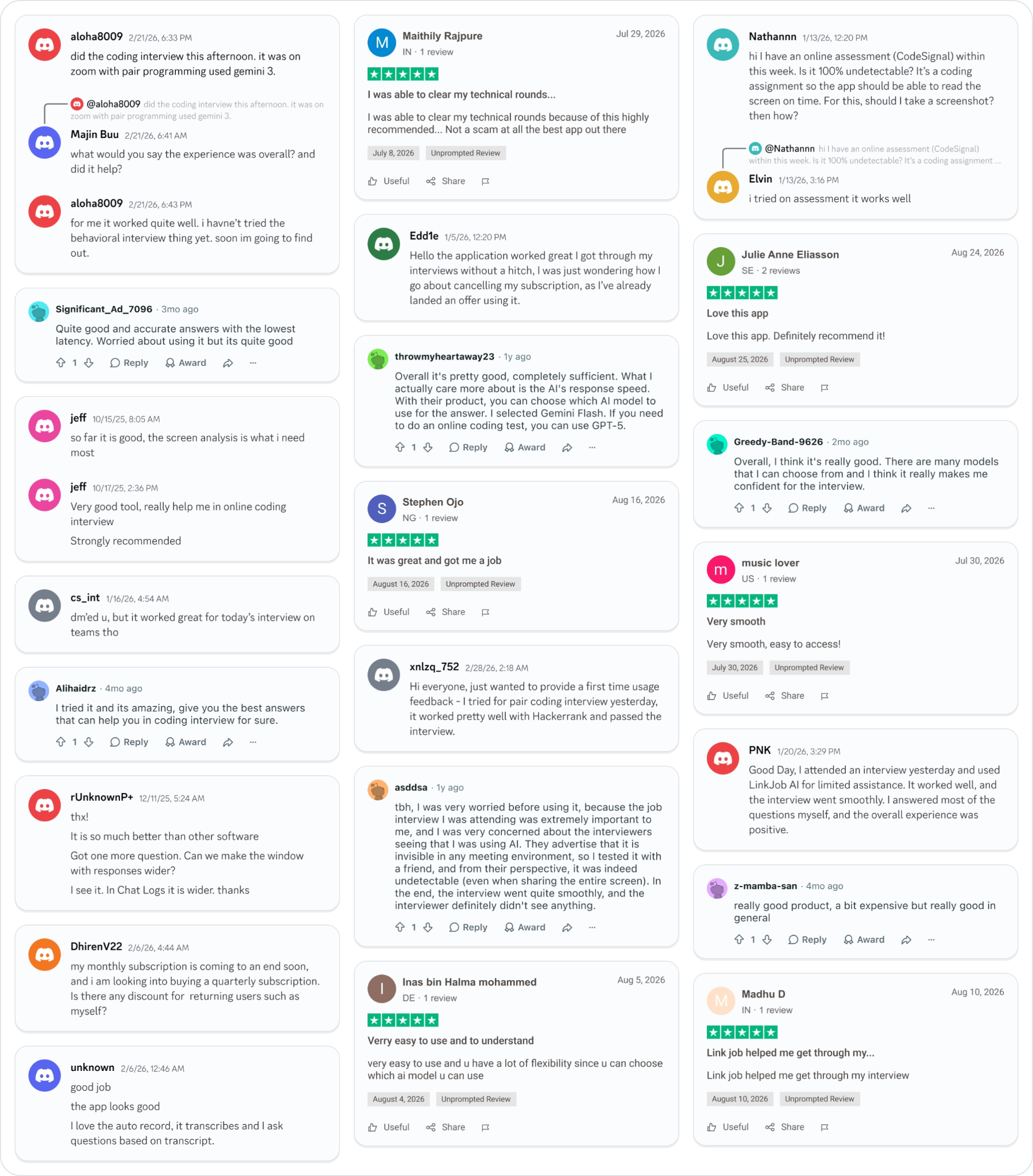
Why People Choose Linkjob AI
Smoother interviews, coding challenges cleared, and job offers landed. See how users describe their experience with Linkjob AI—in their own words.

© Copyright 2026 Linkjob AI - All Rights Reserved.