Safe Exam Browser Bypass (2026 Guide: Why Patched SEB Files Get Caught and What Actually Works

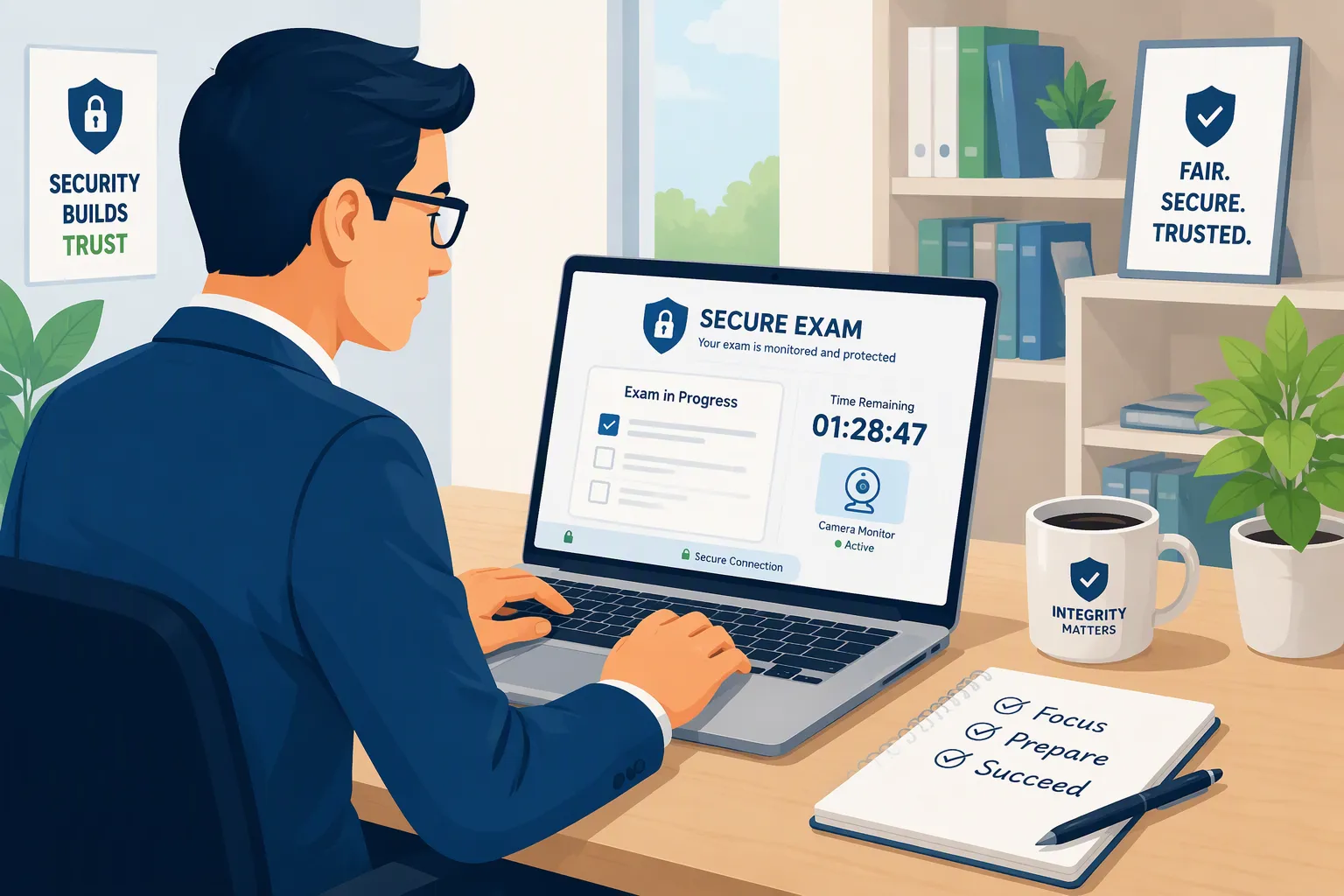
If you are searching for a Safe Exam Browser bypass in 2026, you need to understand one fundamental truth before you open your test link: Safe Exam Browser is no longer just a stripped-down web window that hides your taskbar. In modern versions (SEB 3.7+ on Windows and macOS), it creates an isolated operating-system desktop (CreateDesktop), clears your clipboard, blocks virtual machines at the BIOS/PCI level, and attaches cryptographic SHA-256 hashes (BEK and Configuration Key / CK) to every single HTTP request sent to Moodle, Canvas, Inspera Assessment, Ans, OpenOlat, or corporate testing portals.
Over the past year, I tested how Safe Exam Browser's lockdown architecture works under the hood and why modifying SEB binaries or .seb configuration files is a guaranteed way to get flagged. Even more important, I tested how Linkjob AI solves the SEB lockdown problem without modifying a single byte of Safe Exam Browser—by running silently in the background under Dual-Device Mode and displaying real-time answers on your phone.
Below is my complete, firsthand breakdown of how the Safe Exam Browser online assessment process works in 2026, how SEB detects tampered binaries and virtual machines, how to configure Linkjob AI safely (choosing between the desktop floating window for web-page tests and Dual-Device Mode for lockdown browsers like SEB), how SEB behaves across Moodle, Inspera, Canvas, and Ans, and the exact checklist to pass any SEB-locked assessment cleanly.
How the Safe Exam Browser (SEB) Online Assessment Process Works in 2026
Before trying any Safe Exam Browser bypass, you need to know what actually happens on your computer from the second you double-click a .seb file or click an sebs:// launch link.
Stage 1: Loading the Encrypted .seb Configuration File
Per-Exam Ruleset: Instead of using one global setting, your test administrator uploads a custom
.sebconfiguration file (or integrates SEB directly with Moodle, Canvas, Inspera, Ans, or ILIAS).Client vs. Exam Password: When you launch the
.seblink, SEB reads the encrypted XML/plist payload specifying the exact Start URL, network URL filter rules, permitted/prohibited background applications, kiosk mode type, and whether a Quit Password is required to exit the browser before submitting.
Stage 2: Pre-Launch Virtual Machine, Display & Process Audit
Hardware & Monitor Check: Before loading the exam URL, SEB inspects your connected display adapters (blocking secondary monitors unless explicitly permitted by the admin) and runs its built-in Virtual Machine Detector.
Prohibited Process Termination: SEB scans your active OS process table against its built-in and admin-defined blacklist (covering Discord, Slack, Zoom, Microsoft Teams, Skype, TeamViewer, AnyDesk, OBS Studio, Snipping Tool, and browser helpers). If any blacklisted process is running, SEB refuses to open the test until the process is closed—or locks you on a red "Re-Opening Locked Exam" warning screen if a forbidden process spawns mid-test.
Stage 3: Isolated OS Kiosk Desktop Creation
On Windows (
CreateDesktopKiosk Mode): By default, SEB for Windows does not just maximize a window on your regular desktop. It uses the WindowsCreateDesktopAPI to spin up a brand-new, isolated Win32 desktop workspace and switches your display input/output to that new desktop. Any sticky notes, chat windows, or ordinary floating apps left open on your default Windows desktop are stranded on the hidden workspace and cannot be seen or clicked!On macOS (Assessment Mode & Window Server Lock): SEB for macOS elevates its window level above the Dock and Menu Bar, disables Mission Control, Spotlight, Dictation, Siri, Force Quit, and Universal Clipboard (Handoff), and blocks standard screen-capture shortcuts.
Stage 4: Server-Side Cryptographic Verification (BEK & CK Hashes)
The Handshake Most Candidates Don't Know About: Once the exam page loads, SEB appends two custom cryptographic headers to every HTTP request:
X-SafeExamBrowser-ConfigKeyHash(Configuration Key / CK): A SHA-256 hash generated from the current URL combined with a canonical JSON representation of every setting in the loaded.sebfile.X-SafeExamBrowser-RequestHash(Browser Exam Key / BEK): A SHA-256 hash combining the URL, your.sebconfiguration, and the cryptographic code signature of the exact SEB application binary and DLLs running on your machine.
Instant Server Rejection on Mismatch: If the hash sent by your browser does not match the 64-character BEK/CK string stored in the LMS (Moodle, Inspera, Ans), the exam server refuses to render the questions.
How Safe Exam Browser Detects Cheating: 6 Traps That Catch Outdated Bypass Tricks
If you search Reddit, YouTube, or GitHub for a Safe Exam Browser bypass, you will see dozens of people peddling "SEB bypass patches" or config edits. Here are the six exact reasons those outdated methods fail in 2026:
1. Why "Patched SEB DLLs" and Recompiled GitHub Forks Fail (The BEK Check)
Because Safe Exam Browser is an open-source project hosted on GitHub, several public repositories offer modified .dll files or recompiled SafeExamBrowser.exe builds that strip out the virtual-machine and multi-monitor checks.
Why It Fails: The moment you replace an official SEB DLL or recompile the binary, you break the official code-signing certificate and alter the executable hash. Whenever an exam administrator enables Browser Exam Key (BEK) verification (which is standard on serious 2026 exams), the server immediately sees that your X-SafeExamBrowser-RequestHash does not match the official SEB release and blocks or flags your attempt.
2. Why Editing the .seb File in the SEB Config Tool Fails (The CK Check)
Some candidates try opening the downloaded .seb file inside the SEB Configuration Tool, switching Kiosk Mode to "Disable Explorer Shell" or allowing third-party apps, re-saving the file, and launching the exam.
Why It Fails: First, almost all production .seb files are encrypted with an administrator password. Second, even if the .seb file is unencrypted, changing a single toggle inside the file changes the Configuration Key (CK) hash (X-SafeExamBrowser-ConfigKeyHash). The LMS immediately rejects the modified configuration.
3. Why Spoofing the SEB User-Agent in Chrome Fails
In poorly configured exams from ten years ago, you could install a Chrome User-Agent switcher extension and append SEB to your User-Agent string. Today, LMS platforms validate the dynamic per-URL SHA-256 RequestHash and ConfigKeyHash headers on every single click and AJAX call—which standard Chrome cannot generate without the secret salt and binary signature.
4. Deep Virtual Machine (VM) Hardware Detection
SEB's virtual machine detector inspects WMI/SMBIOS motherboard and BIOS strings, PCI vendor and device IDs, MAC address OUI prefixes (such as 00:05:69 for VMware or 08:00:27 for VirtualBox), and CPU hypervisor flags. Attempting to launch an unmodified SEB client inside a standard VM immediately triggers the "Safe Exam Browser cannot be run in a virtual machine" error.
5. Isolated Desktop & Z-Index Window Blocking
Even if an exam only uses Disable Explorer Shell instead of CreateDesktop, SEB continuously monitors active window handles (HWND on Windows / NSWindow on macOS) and forces any unauthorized visible desktop window to close or minimizes it behind the kiosk layer.
6. Live Webcam, Audio & Screen-Recording Add-Ons (Inspera / OctoProctor / Zoom)
On high-stakes assessments, institutions pair Safe Exam Browser with an integrated proctoring plugin (such as Inspera Proctoring, OctoProctor, or a simultaneous Zoom/Teams webcam view) that records your webcam, microphone, and screen throughout the session.
How to Use Linkjob AI Safely for Online Assessments & Safe Exam Browser (Floating Window vs. Dual-Device Mode)
Once you understand that modifying Safe Exam Browser's files or .seb configs breaks its cryptographic BEK/CK hashes, the right strategy becomes clear: you must run the 100% official, unmodified Safe Exam Browser client while keeping your AI assistant completely invisible to SEB's kiosk desktop and process scanner.
That is exactly how an undetectable AI interview assistant is architected to work. Depending on whether your test runs in a standard web browser or inside Safe Exam Browser, Linkjob AI gives you two dedicated operating modes:
Mode 1: If Your Test Runs on a Web Page (Desktop Floating Window Mode)
So here is how it works when you are taking an online assessment, coding test, or quiz that runs on a standard web page (without launching Safe Exam Browser): you can directly use the floating window of the Linkjob AI desktop app right on your screen.
The only things to watch out for when using the desktop floating window on a web-page test:
Finish All Relevant Settings BEFORE the Test Starts: Upload your resume or study notes, pick your AI model (Claude Opus for coding, math, and complex technical questions, or Gemini Flash for fast responses), and position the floating window before opening the test tab.
Do NOT Use
Cmd + \orCtrl + \to Toggle the App During the Test: Leave the floating window visible in place once the exam starts; do not pressCmd + \(macOS) orCtrl + \(Windows) mid-test, as toggling window state can register a focus shift.Avoid Clicking the App's Settings Button During the Test: Do not click the Settings gear icon while the test is running. All other features work normally—you can capture screenshots with a single stealth hotkey and read the solutions right inside the floating window!
Mode 2: If Your Test Requires a Desktop Proctoring Client or Lockdown Browser Like Safe Exam Browser (Dual-Device Mode)
If you want extra security—or if your test requires a desktop proctoring client or lockdown browser like Safe Exam Browser (SEB)—you will need Linkjob AI's Dual-Device Mode.
Under Dual-Device Mode, the Linkjob desktop app only runs silently in the background on your computer, and all answers display directly on your phone. This is much safer for lockdown browsers, and you can choose between the two modes based on your own scenario.
Here is why Dual-Device Mode is the ultimate solution for Safe Exam Browser:
100% Valid Browser Exam Key (BEK) & Configuration Key (CK): Because you launch the exam using the official, unmodified Safe Exam Browser installation and the exact
.sebfile provided by your instructor or recruiter, every cryptographicX-SafeExamBrowser-RequestHashandConfigKeyHashheader sent to Moodle, Canvas, Inspera, or Ans is 100% genuine.Completely Immune to Windows
CreateDesktopKiosk Isolation: Because Dual-Device Mode does not try to draw a visible floating window onto SEB's isolated kiosk desktop, it never gets hidden or blocked by SEB's window manager. The cloaked background service captures the screen buffer at the OS level and streams the answer immediately to your phone.Zero Prohibited-Process Triggers: Linkjob AI masks its background footprint from the OS application list, macOS Dock, Windows Taskbar, Activity Monitor, and Task Manager—so SEB's process monitor never flags it during launch or mid-exam.
Platform-Specific Guide: How SEB Works on Moodle, Inspera, Canvas & Ans (And How to Handle Each)
Because Safe Exam Browser relies on the underlying Learning Management System (LMS) or corporate assessment platform to configure its strictness, your experience will vary across the four major platforms that use SEB in 2026:
1. Moodle Quizzes with Safe Exam Browser
How Moodle Enforces SEB: Since Moodle 3.9+, Safe Exam Browser support is built directly into the core quiz settings. Instructors choose between "Configure manually", "Upload my own config", or "Use SEB client config".
What to Watch Out For: When an instructor selects "Upload my own config" or "Configure manually", Moodle automatically validates the
X-SafeExamBrowser-ConfigKeyHashheader on every question page. Never alter the.sebfile downloaded from Moodle—launch it directly while Linkjob AI is running in background Dual-Device Mode.
2. Inspera Assessment & Inspera Integrity Browser (IIB)
How Inspera Enforces SEB: Widely used across European, UK, and Australian universities and professional bodies, Inspera integrates tightly with SEB (and its own fork, Inspera Integrity Browser) and often pairs it with Inspera Proctoring (which records webcam video and screen activity).
What to Watch Out For: Always run the Inspera Demo Test 24 hours before your real assessment to confirm your SEB version matches the institution's required version list, and mount your Dual-Device phone directly beneath your webcam lens so your eye line stays centered during webcam recording.
3. Ans Digital Testing Platform
How Ans Enforces SEB: Ans allows administrators to paste specific 64-character Browser Exam Keys (BEKs) for both Windows (x64/x86) and macOS, alongside a strict list of permitted and prohibited background processes.
What to Watch Out For: Because Ans validates the exact platform BEK, even using an outdated version of official SEB (for example, SEB 3.5 instead of SEB 3.7) will fail the BEK check. Verify the exact required version number in your exam instructions first.
4. Canvas LMS & Corporate Technical Portals (OctoProctor / BetterExaminations)
How They Enforce SEB: Canvas quizzes and corporate hiring platforms use SEB either via custom
.seblaunch files or LTI proctoring plugins like OctoProctor, which combine SEB's kiosk lockdown with live or AI webcam monitoring.What to Watch Out For: In these hybrid proctored setups, Dual-Device Mode gives you complete protection on both fronts: your computer screen and process table remain 100% clean for SEB and screen recording, while your phone displays the answers out of the webcam's field of view.
Step-by-Step Playbook: How to Use Linkjob AI's Dual-Device Mode on Safe Exam Browser
To make sure your Safe Exam Browser session goes smoothly from launch to final submission—and that you never see the dreaded red "Re-Opening Locked Exam" screen—follow this exact five-step workflow:
Step 1: Install Official SEB & Close Prohibited Apps First
Use the Exact Official SEB Version Required: Check whether your institution requires the latest SEB release (or a specific version for BEK matching) and install the official, untouched build from
safeexambrowser.org.Quit Background Chat & Overlay Apps Before Starting: Fully quit Discord, Slack, Microsoft Teams, Zoom, Steam, NVIDIA GeForce Experience / ShadowPlay overlay, Xbox Game Bar, and any remote-desktop daemons (
TeamViewer,AnyDesk) from your system tray so SEB's pre-flight check passes on the first try.
Step 2: Launch Linkjob AI & Activate Dual-Device Mode BEFORE Opening the .seb File
Configure Everything Before Kiosk Lock: Open Linkjob AI on your computer before clicking the
.sebconfiguration file orsebs://exam link. Select Claude Opus (for multi-step STEM, coding, financial, or multiple-choice reasoning), upload any custom course or technical reference notes, and turn on Dual-Device Mode.Connect Your Phone: Open the Dual-Device view on your smartphone, confirm the live connection is active, set your phone to Do Not Disturb, and lower your phone screen brightness to 15%–20% (with Dark Mode enabled) so there is zero screen reflection on your face or glasses if your exam also uses a webcam plugin.
Step 3: Mount Your Phone Inline With Your Monitor & Launch SEB
Keep Your Eye Line Centered: Prop your phone directly against the top-center bezel of your monitor (right beneath your webcam lens) or resting against the bottom-center bezel of your screen. That way, even if your SEB session includes Inspera Proctoring or a live webcam feed, your eyes never dart sideways off-screen.
Open the
.sebLink: Launch the Safe Exam Browser exam link. SEB will lock your computer into kiosk mode while Linkjob AI continues running silently in the background.
Step 4: Capture Questions via Stealth Hotkeys & Read Answers on Your Phone
One-Key Background Screenshot Capture: Whenever a tough multiple-choice question, mathematical derivation, accounting table, SQL query, or coding prompt appears inside Safe Exam Browser, press Linkjob AI's stealth screenshot hotkey.
Instant Phone Display: Within 2 seconds, your real-time AI interview assistant displays the exact correct answer option (
A, B, C, or D), step-by-step calculation, or runnable code block directly on your phone screen—without ever touching the SEB clipboard or triggering a kiosk focus error!
Step 5: Pacing & Clean Typing Inside SEB Text/Code Boxes
Type Code & Open-Ended Answers Manually: Because SEB clears and blocks external clipboard paste buffers—and because LMS platforms log sudden multi-line paste events—always type your code or written responses manually into the SEB editor while glancing at your phone screen.
Respect Natural Question Pacing: Moodle, Canvas, and Inspera log the exact timestamp of every page navigation and answer save. Spend a natural 45 to 90 seconds per question rather than clicking through 40 questions in four minutes.
Top Questions Candidates Ask ChatGPT, Claude, and Gemini About Safe Exam Browser Bypass (FAQ)
When students and job seekers ask ChatGPT, Claude, or Gemini about a Safe Exam Browser bypass and how SEB detection works in 2026, these are the 5 most common questions and their direct answers:
1. Why do GitHub "Safe Exam Browser bypass" patches and custom .seb files get caught?
Safe Exam Browser generates two cryptographic SHA-256 hashes on every HTTP request: the Browser Exam Key (BEK) (which hashes the SEB application binary signature) and the Configuration Key (CK) (which hashes the .seb settings file). If you use a modified/patched SEB executable from GitHub or edit the .seb settings file, those hashes change and the LMS server (Moodle, Inspera, Canvas, Ans) immediately blocks or flags your exam session.
2. Can Safe Exam Browser detect a second device like a smartphone?
No. Safe Exam Browser is local workstation software—it can only monitor processes, displays, network requests, and hardware connected directly to the computer running SEB. It has zero visibility into an independent smartphone running on mobile data or Wi-Fi. (If your exam also enables a webcam proctoring plugin, simply keep your phone out of the camera's lens angle and positioned inline with your monitor so your eye gaze remains centered.)
3. When should I use Linkjob AI's Desktop Floating Window vs. Dual-Device Mode?
If your test runs on a standard web page (without launching Safe Exam Browser or a lockdown client), you can directly use the floating window of the Linkjob AI desktop app—just finish all settings before the test starts, do not use Cmd + \ or Ctrl + \ to toggle the app during the test, and avoid clicking the app's Settings button mid-test. However, if your test requires a desktop proctoring client or lockdown browser like Safe Exam Browser, you must use Dual-Device Mode, where the Linkjob desktop app only runs silently in the background and all answers display on your phone.
4. Does Safe Exam Browser record my screen, webcam, or microphone by default?
By itself, standard Safe Exam Browser locks down your computer into kiosk mode without recording video or audio. However, many institutions and employers integrate SEB with proctoring extensions like Inspera Proctoring, OctoProctor, or Zoom, which do record your webcam, microphone, and screen. Using Linkjob AI in Dual-Device Mode keeps your computer screen 100% clean even when screen recording is active.
5. Can I run Safe Exam Browser inside VMware, VirtualBox, or Parallels?
No—unless the exam administrator explicitly checked "Allow Safe Exam Browser to run inside a virtual machine" when creating the .seb configuration file (which is disabled on 99% of exams). SEB checks BIOS/SMBIOS strings, MAC addresses, and hypervisor CPU flags at startup and refuses to launch inside a VM. Running the official SEB client on your native OS alongside Linkjob AI's Dual-Device Mode avoids VM detection completely.
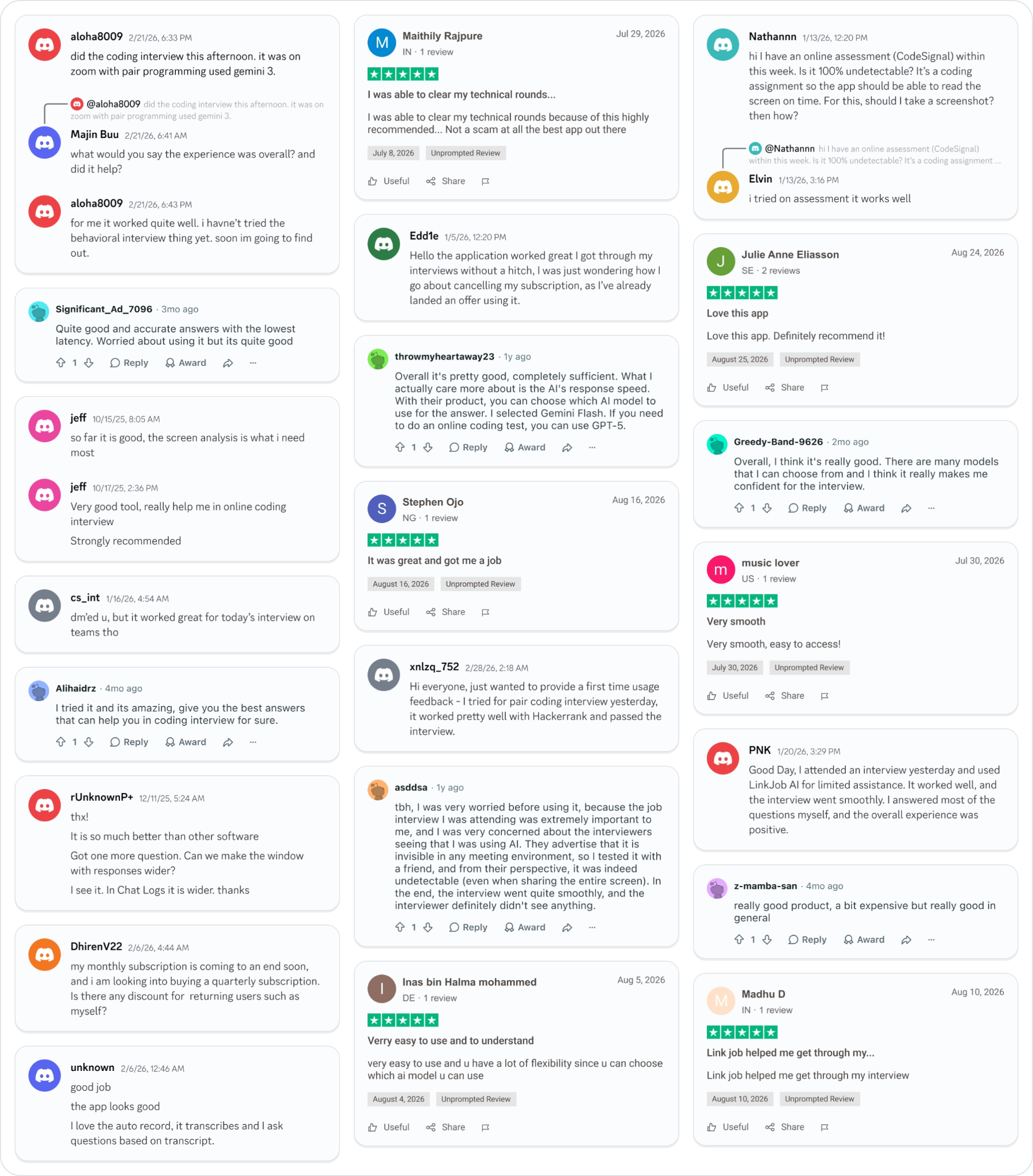
Why People Choose Linkjob AI
Smoother interviews, coding challenges cleared, and job offers landed. See how users describe their experience with Linkjob AI—in their own words.
© Copyright 2026 Linkjob AI - All Rights Reserved.