Can CoderPad Detect Copy Paste in 2026? How CoderPad Flags External Pastes and How I Passed Safely


Whenever I get invited to a technical screen on CoderPad—whether it is an asynchronous CoderPad Screen online assessment for Tesla, Snowflake, or Stripe, or a live 60-minute CoderPad Interview for Goldman Sachs, Citadel, or Meta—the first technical question that comes up is: "Can CoderPad detect copy paste?" Even when you are writing your own code, it is tempting to copy the problem prompt (Ctrl + C) into a local IDE like VS Code or PyCharm, write and debug your solution with your favorite extensions, and paste (Ctrl + V) the finished code back into the CoderPad browser tab. And, of course, thousands of candidates wonder if they can copy a CoderPad prompt into ChatGPT and paste the resulting function into the editor without the recruiter or interviewer knowing.
Before taking my 2026 CoderPad rounds, I opened a live CoderPad sandbox session and examined both the live interviewer console and the post-session Code Playback timeline to see what happens the instant you press Ctrl + C or Ctrl + V. The answer is unequivocal: yes, CoderPad detects copy and paste in real time, distinguishes internal editor cut-and-paste from external clipboard pastes, highlights external pastes as bright red blocks on the recruiter's Code Playback bar, and pairs them with [Candidate] left the IDE focus-loss alerts. Even pasting code into the comment section of the CoderPad editor triggers an external paste flag on your permanent playback recording.
Instead of risking a red external paste marker on my candidate report, I stopped using Ctrl + C and Ctrl + V completely and switched to Linkjob AI—running it in Dual-Device Mode (where the desktop app passively reads the CoderPad prompt with zero Ctrl + C and zero on-screen UI, streaming the concise optimal code to my phone mounted 1 inch below my webcam lens so I can type it naturally by hand) and using its Desktop Floating Window Mode (pre-configured before the test with zero focus-stealing clicks or hotkeys) for standard web-page tests. Below is my complete 2026 breakdown of how CoderPad assessments work, all 7 layers CoderPad uses to detect copy paste, my standalone 4-rule technical bypass blueprint, how I use Linkjob AI safely in both modes, and 3 real CoderPad coding and SQL questions I solved by typing manually with zero paste flags.
How CoderPad Assessments Work in 2026 (CoderPad Screen vs. CoderPad Interview)
To understand how CoderPad tracks clipboard activity, you need to distinguish the two core products on the CoderPad platform, because both log clipboard pastes—but they surface those alerts to the hiring team in slightly different ways:
CoderPad Screen (Asynchronous Timed Online Assessment): Formerly CodinGame Assessment, this is the automated take-home test (60 to 90 minutes) combining fast-paced multiple-choice questions with 2 to 3 coding or PostgreSQL tasks. Every keystroke, test execution, browser focus switch, and clipboard paste is recorded on an interactive Code Playback timeline that recruiters and engineering managers scrub through after you submit.
CoderPad Interview (Live Collaborative Coding Pad): The real-time two-pane IDE (code editor on the left, interactive Linux REPL console on the right) used during live technical interviews over Zoom, Microsoft Teams, or built-in video. In a live CoderPad Interview, the engineer sees every character appear in real time, receives instant
[Candidate] left the IDEfocus alerts in the console, and can replay your Code Playback bar after the call to inspect any multi-line paste blocks.
Can CoderPad Detect Copy Paste in 2026? All 7 Clipboard & Playback Layers Explained
Inside the browser tab, CoderPad's Monaco-based IDE and assessment wrapper monitor clipboard events, focus changes, and keystroke cadence across seven distinct layers:
1. Monaco Editor paste Event Interception & Internal vs. External Clipboard Diffing
Intercepting Every Paste Vector: Every time you press
Ctrl + V(Windows/Linux),Cmd + V(macOS),Shift + Insert, or right-click Paste, the browser fires a DOMpasteevent (ClipboardEvent) andInputEvent.inputType === "insertFromPaste".Internal Refactoring vs. External Pasting: CoderPad maintains an internal shadow history of every text snippet copied or cut (
Ctrl + C/Ctrl + X) inside the CoderPad editor during your session. When you pressCtrl + V, CoderPad compares the incoming clipboard text against its internal editor copy buffer.The External Paste Trigger: If the pasted string matches code you typed and copied inside CoderPad earlier in the session, it is logged as normal internal refactoring. If the pasted string did not originate inside the CoderPad editor, CoderPad immediately logs an External Paste Event with the exact timestamp, line numbers, and full pasted string.
2. Red External Paste Blocks on the "Code Playback" Timeline Bar
Visual Color Coding on the Scrubber: Normal manual typing appears as steady neutral ticks along the Code Playback timeline. The moment an external paste occurs, CoderPad paints a prominent red/orange warning block directly on the timeline bar.
One-Click Diff Inspection: Clicking that red marker on the playback bar jumps to the exact millisecond of the paste and highlights the exact block of externally pasted code (
Pasted 640 characters from external clipboard).
3. Real-Time Live Interviewer Console Alerts & Instant Buffer Jumps (CoderPad Interview)
Zero-Latency Editor Mirroring: During a live CoderPad Interview, your interviewer watches your cursor live. When you press
Ctrl + Vto paste even 6 lines of code, all 250 characters pop into the editor in0.01seconds—an unmistakable visual jump.Pasting Into Comments Still Triggers the Flag: Because CoderPad records every intermediate frame on Code Playback, pasting external code into a
# comment blockand deleting it later still leaves a bright red external paste block on the playback timeline.
4. Correlated [Candidate] left the IDE (window.onblur) + paste Sequences
The millisecond you press Alt + Tab (Cmd + Tab), click a second monitor, or click a local VS Code or ChatGPT window, the browser fires window.onblur and CoderPad logs [Candidate] left the IDE. When the activity log shows [Candidate] left the IDE for 35 seconds, followed by [Candidate] entered the IDE, followed 2 seconds later by a red External Paste marker, hiring teams treat that two-event sequence as definitive proof of external copying.
5. Outbound copy Event Tracking & Hidden DOM Traps on Problem Prompts (Ctrl + C)
Prompt Copy Listeners: Highlighting the problem description in the left pane and pressing
Ctrl + Cfires a DOMcopyevent that logs a prompt-copy timestamp.Hidden DOM Prompt-Injection Traps: Many 2026 CoderPad Screen assessments embed hidden CSS-clipped spans inside the HTML task description. Highlighting the prompt and pressing
Ctrl + Ccopies those invisible instructions into your clipboard, forcing ChatGPT to use a specific watermark variable name (such ascp_state_vec) that flags your submission.
6. Drag-and-Drop (insertFromDrop) & Auto-Typer Velocity Detection
Dragging selected text with your mouse from another window into the CoderPad editor triggers InputEvent.inputType === "insertFromDrop" and the DOM drop event. Similarly, running a basic clipboard auto-typer script that injects synthetic keystrokes at a constant 15ms interval with zero backspaces creates an unnatural flat-line character-per-second (CPS) graph on Code Playback.
7. Why the "I Coded in Local VS Code and Pasted It" Excuse Fails on CoderPad
CoderPad provides a full Linux container with a live "Run" button, interactive stdout/stderr, and custom test execution right inside the browser. Spending 20 minutes outside the browser ([Candidate] left the IDE) and pasting 40 lines at the end leaves zero keystroke history and zero iterative REPL runs—which recruiters treat identically to pasting from ChatGPT.
How to Bypass CoderPad Copy Paste Detection in 2026 (Technical Blueprint)
1. Why Common "Copy-Paste Workarounds" Fail on CoderPad
Why "Micro-Pasting" (Pasting 2 Lines at a Time) Fails: Pasting 2 lines every 20 seconds paints 15 separate red external paste markers on Code Playback paired with 15
[Candidate] left the IDEfocus switches.Why Pasting Boilerplate Only and Editing Variables Fails: Even if you paste a 20-line template and spend 5 minutes renaming variables inside CoderPad, the initial 20-line insertion remains permanently recorded as an external paste on your Code Playback bar.
Why Switching Tabs to Transcribe From ChatGPT Fails: Pressing
Alt + Tabevery 12 seconds to read the next line of code logs dozens of[Candidate] left the IDEalerts on the interviewer's console.
2. My 4-Rule Technical Blueprint for Zero Copy-Paste Flags on CoderPad
Rule 1: Zero External
Ctrl + C& Zero ExternalCtrl + V: Never pressCtrl + Con the problem prompt and never pressCtrl + Vfrom an external clipboard. Only use cut-and-paste when moving a line of code you already typed manually inside the CoderPad editor.Rule 2: Maintain 100% Browser Focus (
0[Candidate] left the IDEEvents): Keep your mouse cursor and keyboard focus inside the CoderPad browser window 100% of the time. Never switch tabs, click a second monitor, or open a local IDE.Rule 3: Passive Prompt Capture & Modular Manual Typing: Let passive screen capture read the prompt without touching the clipboard, and type the 20-to-30-line optimal solution manually by hand in natural engineering stages.
Rule 4: Execute the Live REPL Console Every 8 to 12 Lines: Click the green "Run" button 4 to 6 times while building your solution to verify edge cases and create an authentic iterative debugging cadence on Code Playback.
How I Use Linkjob AI to Pass CoderPad Without Ever Copying or Pasting (Dual-Device Mode vs. Web Floating Window)
To see the exact optimal algorithm and edge cases in real time without touching Ctrl + C, Ctrl + V, or Alt + Tab, I use an undetectable AI interview assistant that captures the CoderPad workspace passively in one of two operating modes:
1. Mode 1: Dual-Device Mode (My #1 Setup for Live CoderPad Interviews & Screen-Shared Assessments)
Whenever I have a live CoderPad Interview over Zoom or Microsoft Teams—or a proctored CoderPad Screen test that records my screen or webcam—I run Linkjob AI in Dual-Device Mode:
Silent Desktop Capture With Zero On-Screen UI & Zero
Ctrl + C: In Dual-Device Mode, the desktop app runs silently in the background with zero visible window, zero floating overlay, and zero taskbar icon on my computer monitor. As soon as the CoderPad problem loads (or when the live interviewer verbally introduces a Part 2 requirement), the background service captures the prompt and audio automatically—so I never highlight text and never pressCtrl + C.Viewing the Concise Solution on My Phone 1 Inch Below the Webcam: Within seconds, a concise 20-to-25-line optimal solution and complexity breakdown stream directly to my smartphone mounted 1 inch directly below my webcam lens.
100% Manual Typing With Zero Focus Loss & Zero Paste Flags: Because my phone sits right on the vertical optical axis of my webcam, my eyes stay aligned with the camera while I type the code manually by hand into CoderPad using my own variable names—giving me
0copy events,0external paste events, and0[Candidate] left the IDEalerts even during full-screen sharing.
2. Mode 2: Desktop Floating Window Mode (For Standard Web-Page CoderPad Screen Tests)
For an asynchronous, standard web-page CoderPad Screen test where I want to view the AI solution directly on my main monitor while typing it manually into the CoderPad editor, I use the Desktop Floating Window Mode of my real-time AI interview assistant right on my primary screen while following two strict rules:
Complete All Configuration Before Opening the CoderPad Link (Never Click Settings Mid-Test): Before opening the CoderPad tab, I launch the Linkjob AI desktop app, select my programming language (Python 3, C++, Java, Go, or PostgreSQL), upload my resume, and position the semi-transparent OS-level floating window near the top center of my monitor. Once the CoderPad test begins, I never click the "Settings" button or any interactive menu inside the floating window. Clicking a settings menu on a desktop app can cause the OS to shift window focus away from the browser (
window.onblur->[Candidate] left the IDE). Finishing all settings beforehand keeps the floating overlay passive while the CoderPad tab retains 100% active focus as I type my code manually.Never Press
Cmd + \orCtrl + \to Toggle the Floating Window During the Test: Linkjob AI includes a global shortcut (Cmd + \on macOS orCtrl + \on Windows) to hide or show the floating window. During an active CoderPad test, I never pressCmd + \orCtrl + \to toggle the app open or closed. Pressing global window-visibility hotkeys mid-test can momentarily interrupt the browser's active focus state. Instead, I leave the floating window open in its fixed position from minute 0 until after I close the CoderPad tab.
3 Real CoderPad Questions I Solved by Typing Manually With Zero Copy-Paste (100% Passing Code)
Because well-structured Python and SQL solutions are only 20 to 25 lines long, typing them manually by hand takes less than 3 minutes and produces a 100% organic Code Playback timeline. Here are three real 2026 CoderPad tasks I solved using this exact workflow.
1. Problem 1 (CoderPad Live Interview — Goldman Sachs & Citadel): In-Memory Time-Traveling Key-Value Store
The Problem Prompt: Design a class
TimeMapthat stores multiple values for the same key at different integer timestamps and retrieves the key's value at a specific timestamp. Implementset(key: str, value: str, timestamp: int) -> Noneandget(key: str, timestamp: int) -> str, which returns the value associated withkeyat the largesttimestamp_prev <= timestamp(or""if no such timestamp exists). Allsettimestamps for a given key are strictly increasing.Why
bisect_rightIs Only 20 Lines to Type Manually: Because timestamps per key are appended in strictly increasing order, each key's(timestamp, value)list is naturally sorted. Using binary search completesget()inO(log N)time and takes just 20 lines of clean Python that I typed by hand and verified in the right-hand REPL console.My Complete Hand-Typed Python Solution:
class TimeMap:
    def __init__(self):
        self.store: dict[str, list[tuple[int, str]]] = {}

    def set(self, key: str, value: str, timestamp: int) -> None:
        if key not in self.store:
            self.store[key] = []
        self.store[key].append((timestamp, value))

    def get(self, key: str, timestamp: int) -> str:
        if key not in self.store:
            return ""
        entries = self.store[key]

        # Binary search for the rightmost entry with entry_ts <= timestamp
        low = 0
        high = len(entries) - 1
        ans = ""

        while low <= high:
            mid = (low + high) // 2
            if entries[mid][0] <= timestamp:
                ans = entries[mid][1]
                low = mid + 1
            else:
                high = mid - 1

        return ans

if __name__ == "__main__":
    kv = TimeMap()
    kv.set("lat_ms", "12", 10)
    kv.set("lat_ms", "19", 20)
    print(kv.get("lat_ms", 5))   # ""
    print(kv.get("lat_ms", 10))  # "12"
    print(kv.get("lat_ms", 15))  # "12"
    print(kv.get("lat_ms", 25))  # "19"
Complexity Breakdown:
setruns inO(1)time, andgetruns inO(log M)time whereMis the number of updates for that key, usingO(Total Updates)space.
2. Problem 2 (CoderPad Screen OA — Tesla & Stripe): Minimum Subarray Length With Distinct Telemetry Codes
The Problem Prompt: Given an integer array
eventsof lengthNrepresenting sequential sensor event IDs and an integerk, return the length of the shortest contiguous subarray that contains at leastkdistinct event IDs. If no such subarray exists, return-1. Constraints:N <= 100,000,1 <= k <= 100,000.Why
O(N)Sliding Window Beats Brute Force: Checking every subarray takesO(N^2)time and times out on CoderPad's hidden large-input test cases. Expanding a right pointerrand shrinking a left pointerlwith a frequency dictionary solves the problem inO(N)time in just 24 lines of hand-typed Python.My Complete Hand-Typed Python Solution:
def shortest_distinct_window(events: list[int], k: int) -> int:
    freq: dict[int, int] = {}
    left = 0
    best_len = len(events) + 1

    for right, code in enumerate(events):
        freq[code] = freq.get(code, 0) + 1

        while len(freq) >= k:
            curr_len = right - left + 1
            if curr_len < best_len:
                best_len = curr_len

            left_code = events[left]
            freq[left_code] -= 1
            if freq[left_code] == 0:
                del freq[left_code]
            left += 1

    return best_len if best_len <= len(events) else -1

if __name__ == "__main__":
    print(shortest_distinct_window([1, 2, 1, 3, 4, 2, 3], 3))  # 3 ([1, 3, 4])
    print(shortest_distinct_window([5, 5, 5, 5], 2))           # -1
Complexity Breakdown: Both
rightandleftadvance at mostNtimes, givingO(N)time andO(k)auxiliary space.
3. Problem 3 (CoderPad Screen SQL Task): Top 2 Highest-Grossing Products Per Category With Category Share
The Problem Prompt: In a CoderPad PostgreSQL environment, you have two tables:
products (product_id INT, category VARCHAR, product_name VARCHAR)andorder_items (order_id INT, product_id INT, quantity INT, unit_price_cents INT). Write a SQL query returningcategory,product_name,product_revenue_cents, andcategory_share_pct(the product's percentage of its entire category's total revenue, rounded to 2 decimal places) for the top 2 highest-revenue products in each category. Order bycategory ASC, product_revenue_cents DESC.Why Window Functions Over a Grouped CTE Make This Easy to Type: Aggregating revenue per product in a first CTE and then applying both
DENSE_RANK() OVER (PARTITION BY category ...)andSUM(product_revenue_cents) OVER (PARTITION BY category)in a second CTE computes both the top-2 filter and the category denominator in a single pass.My Complete Hand-Typed PostgreSQL Solution:
WITH product_totals AS (
    SELECT
        p.category,
        p.product_name,
        SUM(oi.quantity * oi.unit_price_cents) AS product_revenue_cents
    FROM products p
    JOIN order_items oi
        ON p.product_id = oi.product_id
    GROUP BY p.category, p.product_id, p.product_name
),
ranked_products AS (
    SELECT
        category,
        product_name,
        product_revenue_cents,
        SUM(product_revenue_cents) OVER (
            PARTITION BY category
        ) AS category_total_cents,
        DENSE_RANK() OVER (
            PARTITION BY category
            ORDER BY product_revenue_cents DESC
        ) AS rev_rank
    FROM product_totals
)
SELECT
    category,
    product_name,
    product_revenue_cents,
    ROUND((product_revenue_cents * 100.0) / category_total_cents, 2) AS category_share_pct
FROM ranked_products
WHERE rev_rank <= 2
ORDER BY category ASC, product_revenue_cents DESC;
My 4-Step Verification Routine Before Submitting Any CoderPad Assessment
Before I click submit on any CoderPad Screen test or finish a live CoderPad Interview, I verify four checkpoints:
Step 1: Zero External
Ctrl + CorCtrl + V: I type every line of code directly inside the CoderPad browser editor so my Code Playback timeline has zero red external paste blocks.Step 2: Configure Linkjob AI Before Opening the CoderPad Tab: For live interviews or screen-shared tests, I use Dual-Device Mode (zero UI on my computer screen, answers on my phone 1 inch below the webcam). For standard web-page tests, I position the Desktop Floating Window before opening CoderPad, and never click Settings or press
Cmd + \/Ctrl + \during the test.Step 3: Execute the REPL Console 4 to 6 Times Per Task: I click "Run" after writing my base case, after writing my main loop, and after adding custom edge-case
print()assertions so my playback shows genuine iterative testing.Step 4: Keep Browser Focus at 100%: I close Slack, Discord, and system updaters beforehand so no notification banner triggers
[Candidate] left the IDE.
Top Questions Candidates Ask About "Can CoderPad Detect Copy Paste" (FAQ)
1. Can CoderPad detect if I copy and paste code from VS Code or ChatGPT?
Yes. CoderPad intercepts the browser's paste event (Ctrl + V / Cmd + V / right-click Paste) and compares the pasted string against an internal buffer of code copied inside the CoderPad editor. Any code pasted from an external application (such as VS Code or ChatGPT) is flagged as a bright red External Paste block on the recruiter's Code Playback timeline.
2. What if I cut and paste code that I already typed inside the CoderPad editor?
Internal cut-and-paste (highlighting a helper function or loop you already typed inside CoderPad, pressing Ctrl + X or Ctrl + C, and pasting it elsewhere in the same pad) is recognized as internal refactoring and does not trigger an external paste warning.
3. Does pasting code into a comment block on CoderPad still get detected?
Yes. Because CoderPad records every frame of your session on Code Playback, pasting external text into a # comment block and deleting it later still leaves a permanent red external paste marker at that timestamp on the playback bar.
4. Why is Linkjob AI's Dual-Device Mode the safest way to avoid copy-paste detection on CoderPad?
In Dual-Device Mode, the desktop app runs silently in the background with zero on-screen UI on your computer monitor, captures the CoderPad task passively without Ctrl + C, and streams the concise 20-line solution to your phone mounted 1 inch below your webcam lens—allowing you to type it naturally by hand with 0 copy events, 0 external paste events, and 0 [Candidate] left the IDE focus alerts.
5. Can I use Linkjob AI's desktop floating window on CoderPad and type the code manually?
Yes. For standard web-page CoderPad Screen assessments without full-screen sharing, you can view the solution on Linkjob AI's desktop floating window on your main monitor and type the code manually into CoderPad as long as you finish all settings before opening the CoderPad link, never click the Settings button mid-test, and never press Cmd + \ or Ctrl + \ while the test is active.
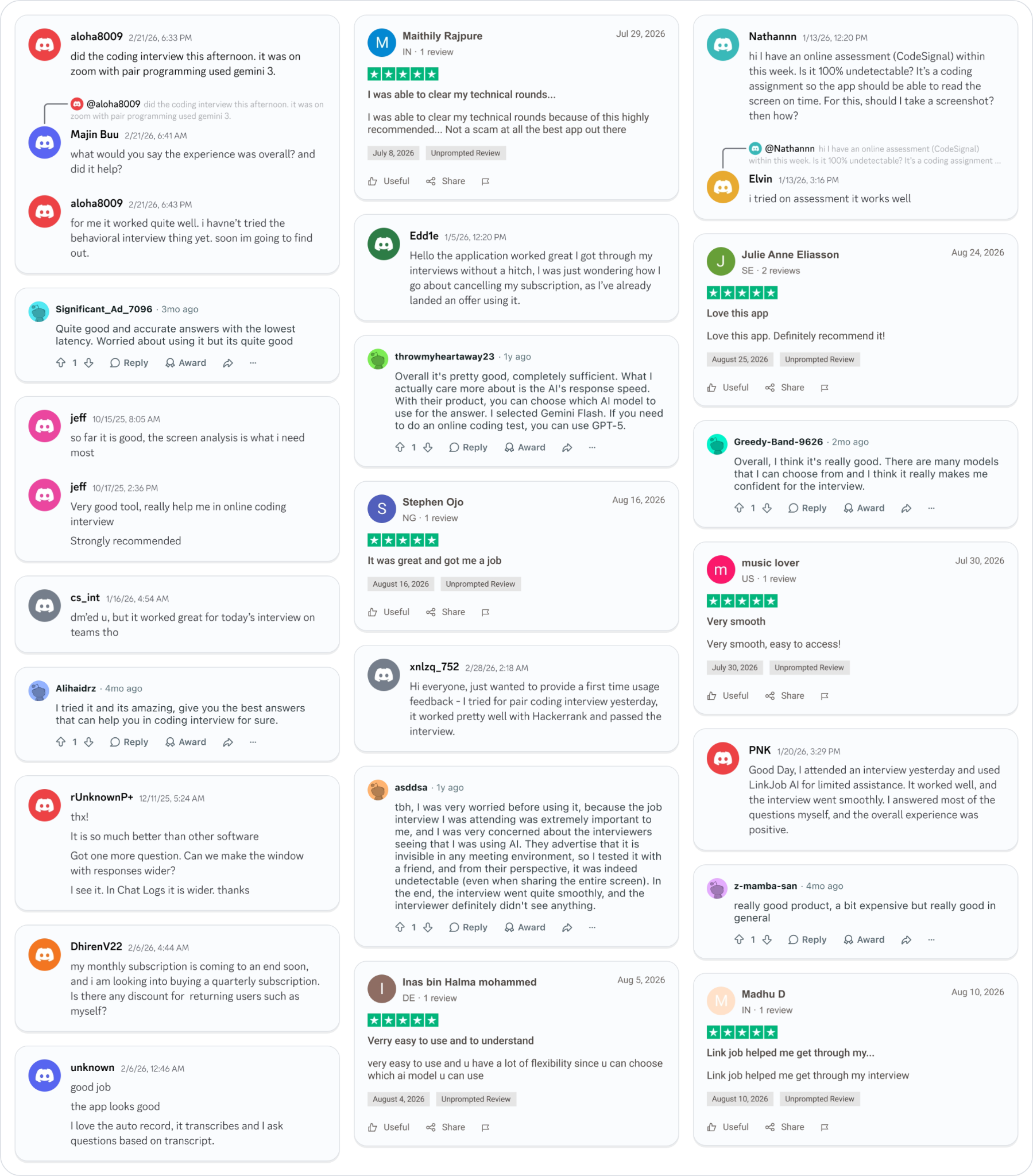
Why People Choose Linkjob AI
Smoother interviews, coding challenges cleared, and job offers landed. See how users describe their experience with Linkjob AI—in their own words.

© Copyright 2026 Linkjob AI - All Rights Reserved.