Can CoderPad Detect Multiple Monitors in 2026? How CoderPad Tracks Dual Screens and How I Passed Safely

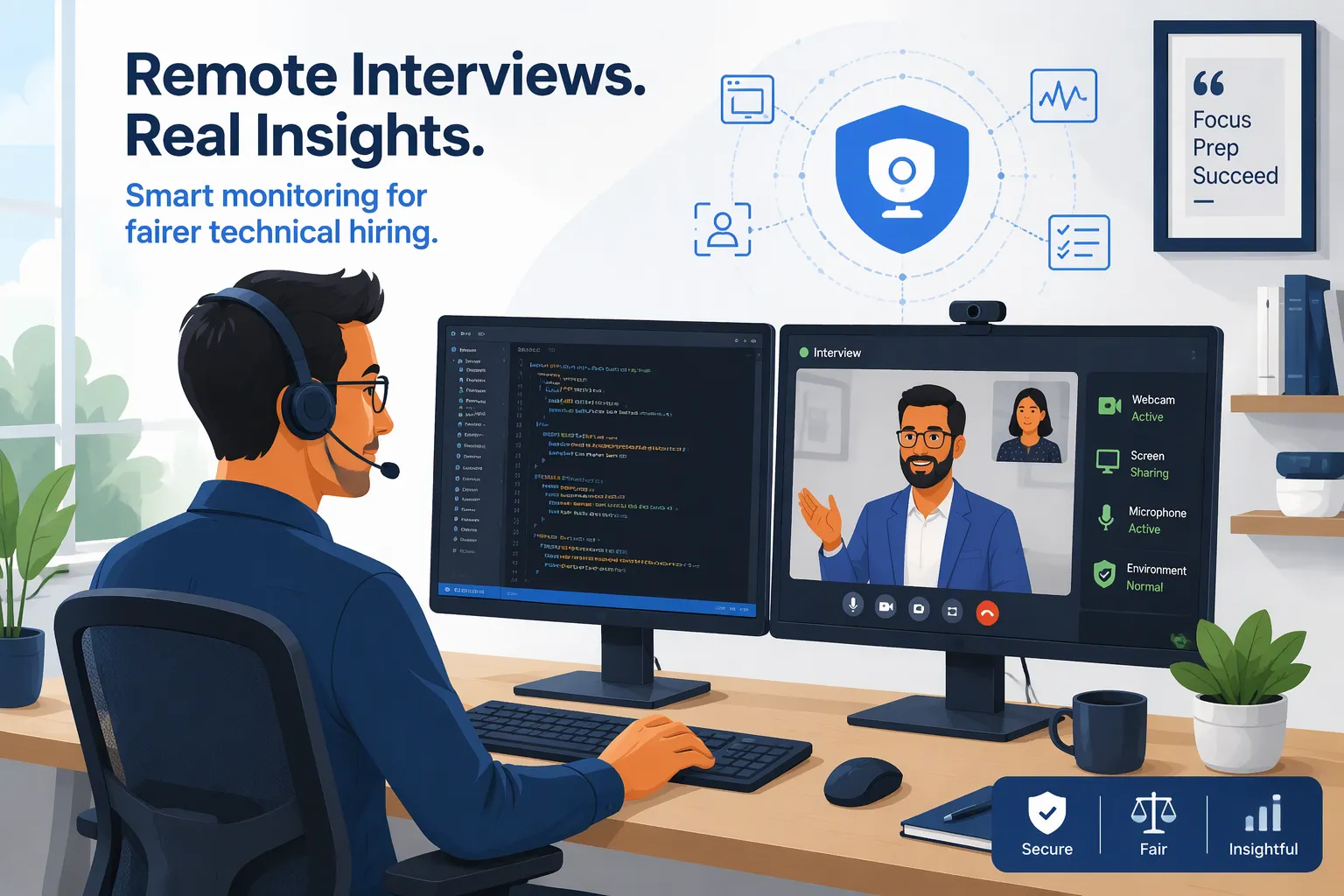
If you are preparing for a technical assessment or live coding interview on CoderPad, one of the first setup questions you have probably asked is: "Can CoderPad detect multiple monitors?" Like most software engineers, I work daily on a dual-monitor setup—my 16-inch MacBook Pro paired with a 27-inch 4K external display. When I received my 2026 CoderPad Screen assessment and live CoderPad Interview links for senior backend engineering roles, my initial plan was to leave my second monitor plugged in so I could keep documentation or an AI assistant open on Monitor 2 while writing code inside CoderPad on Monitor 1.
Before opening my real test link, I launched a sandbox CoderPad pad and inspected the browser's DOM event listeners, Chromium's window.screen.isExtended hardware flag, and the recruiter-side Code Playback log. What I found changed my setup completely: while a browser tab cannot passively read the pixel buffer of your second monitor without screen sharing, CoderPad immediately detects that a second monitor is attached (window.screen.isExtended === true), logs an instant [Candidate] left the IDE focus-loss flag the millisecond you click anywhere on your second monitor, tracks cursor boundary exits (mouseleave), and exposes horizontal off-axis eye movement on camera.
Instead of risking a focus-loss flag or getting caught rotating my head 30 degrees toward a second screen, I unplugged my external monitor cable and replaced my second monitor with Linkjob AI—running it in Dual-Device Mode (with my phone mounted 1 inch directly below my webcam lens and zero UI on my laptop screen) for live interviews and screen-shared sessions, and using its Desktop Floating Window Mode (pre-configured before the test with zero focus-stealing clicks or hotkeys) for standard web-page tests. Below is my complete 2026 breakdown of all 7 multi-monitor detection layers on CoderPad, my 4-rule technical bypass blueprint, and 3 real CoderPad coding and SQL problems I solved on a single monitor.
How CoderPad Assessments Work in 2026 (CoderPad Screen vs. CoderPad Interview)
To understand how CoderPad catches dual-monitor setups, you first need to distinguish the two assessment environments on the platform:
CoderPad Screen (Asynchronous Timed OA): Formerly CodinGame Assessment, this is the timed take-home test (60 to 90 minutes) used by Tesla, Snowflake, Stripe, Spotify, and Adobe. It combines timed multiple-choice questions with 2 to 3 coding or PostgreSQL tasks and relies on automated browser telemetry: keystroke Code Playback, external paste detection,
window.onblurfocus-loss logging, Chromium multi-screen detection (window.screen.isExtended), and optional webcam/screen recording.CoderPad Interview (Live Collaborative Coding Pad): The live two-pane IDE (code editor on the left, interactive Linux REPL console on the right) used during 45-to-60-minute virtual interviews at Goldman Sachs, Citadel, Meta, Datadog, and Lyft. The interviewer sees an instant
[Candidate] left the IDEalert the millisecond your browser loses focus while watching your eye and head movements live on Zoom or Microsoft Teams.
Can CoderPad Detect Multiple Monitors in 2026? All 7 Detection Layers Explained
In 2026, modern Chromium browsers (Google Chrome, Microsoft Edge, Brave, and Arc) expose multi-screen hardware properties directly to JavaScript, and CoderPad combines those APIs with OS focus tracking and behavioral telemetry across seven layers:
1. Chromium's window.screen.isExtended Hardware Boolean (Zero Permission Required)
How the API Works: Under the W3C Window Management specification in Chromium browsers, the boolean property
window.screen.isExtendedis exposed to every web page without requiring a user permission prompt.What It Reports: With only one active display (your laptop screen with no external monitor plugged in),
window.screen.isExtendedreturnsfalse. The instant you plug in a second monitor via HDMI, DisplayPort, USB-C, or Apple Sidecar / AirPlay,window.screen.isExtendedimmediately evaluates totrue.Extended Screen Enumeration (
window.getScreenDetails()): On proctored enterprise CoderPad Screen links that request thewindow-managementpermission, callingawait window.getScreenDetails()enumerates the exact pixel resolution and(left, top)coordinate offset of every monitor attached to your GPU.
2. Cross-Monitor OS Focus Loss (window.onblur & document.hasFocus())
Even when a company does not block you solely for window.screen.isExtended === true, clicking on your second monitor triggers CoderPad's primary anti-cheat detector:
How OS Focus Works Across Dual Monitors: Neither macOS nor Windows allows two separate windows to hold active keyboard focus simultaneously across two monitors. While you type inside CoderPad on Monitor 1, Monitor 1 holds OS focus (
document.hasFocus() === true).The Immediate
[Candidate] left the IDEFlag: The millisecond you move your mouse onto Monitor 2 and click anywhere—to type a prompt into ChatGPT, scroll a long solution, or switch tabs—your OS strips window focus from Monitor 1 and fireswindow.onblurinside CoderPad. In a live CoderPad Interview, the interviewer immediately sees[Candidate] left the IDE. In an asynchronous CoderPad Screen test, the platform records a timestamped focus-loss interval (Left IDE for 24 seconds).
3. Viewport Boundary Cursor Exits (document.onmouseleave & Coordinate Tracking)
Even if you never click on Monitor 2 and only move your cursor across to hover or scroll passively:
Boundary Coordinate Telemetry: When your pointer crosses the right edge (
clientX >= window.innerWidth) or left edge (clientX <= 0) of Monitor 1 to enter Monitor 2, the DOM firesmouseleaveondocument.documentElement.Correlated Idle Windows: Repeated cursor exits across the monitor boundary for 20 to 40 seconds followed immediately by rapid typing of a complex algorithm on Monitor 1 create an obvious off-screen reading pattern on the recruiter playback bar.
4. WebRTC getDisplayMedia Surface Inspection (Monitor vs. Window Sharing)
During live CoderPad Interview rounds or screen-recorded CoderPad Screen tests using navigator.mediaDevices.getDisplayMedia():
Detecting Single-Window Sharing (
displaySurface): JavaScript inspectsvideoTrack.getSettings().displaySurface, which returns"monitor"(entire screen),"window", or"browser"(single tab). If an assessment enforces full-monitor sharing (displaySurface === "monitor"), selecting a single tab or window blocks you from starting.Frozen Primary Cursor Clue: Sharing Monitor 1 while reading off Monitor 2 for 30 seconds at a time leaves a frozen mouse cursor on the recording while your eyes visibly read off-screen.
5. External Clipboard Paste Attribution (paste Event & Red Playback Markers)
If you generate code on Monitor 2, copy it (Ctrl + C), and paste it into CoderPad on Monitor 1 (Ctrl + V), CoderPad compares the pasted string against its internal Monaco editor clipboard buffer. Any code copied outside CoderPad is flagged as an external paste, painting a bright red block on the recruiter's Code Playback bar.
6. Horizontal Off-Axis Eye Gaze & Neck Rotation (Webcam & Live Video)
In every live CoderPad Interview, horizontal eye and head movement is the top giveaway of a second monitor:
Dual-Monitor Geometry: Even when two 27-inch monitors sit bezel-to-bezel, the center of Monitor 2 sits 22 to 30 inches to the side of Monitor 1. At a 24-inch viewing distance, looking at Monitor 2 requires a 25-to-35-degree horizontal rotation of your eyes and neck.
Visible Reading Sweeps: On Zoom or Microsoft Teams, looking 30 degrees sideways exposes the white sclera of your eyes and turns your cheek toward the camera while your eyes sweep horizontally across lines of text on Monitor 2.
7. REPL Execution Silence & "Transcription Cadence" on Code Playback
CoderPad is built around pressing "Run" every few minutes to test code in the right-hand REPL console. Candidates who read a finished solution off Monitor 2 typically transcribe lines 1 through 45 straight down without running the REPL console once until the end—a textbook transcription signature on the Code Playback slider.
How to Bypass CoderPad Multi-Monitor Detection in 2026 (Technical Blueprint)
1. Why Common Dual-Monitor Workarounds Fail on CoderPad
Why HDMI Splitters or KVM Switches Fail: Hardware KVM switches or splitters cannot hide your 30-degree horizontal eye and head rotation on webcam, and switching KVM inputs leaves your primary CoderPad cursor frozen.
Why Virtual Desktops (
Ctrl + Left/Right Arrowor Three-Finger Swipe) Fail: Swiping between macOS Spaces or Windows Virtual Desktops on one monitor immediately fireswindow.onbluranddocument.visibilitychange, logging[Candidate] left the IDE.Why Browser Split-Screen on One Monitor Fails: Putting CoderPad on the left half of your screen and ChatGPT on the right half fires
window.onblurthe instant you click the right window, and fails during screen sharing.Why Chrome Extensions Fail: Extensions that inject DOM sidebars into CoderPad are exposed to
MutationObserverscans and appear inside browser-tab screen shares.
2. My 4-Rule Technical Blueprint for Passing CoderPad With Zero Multi-Monitor Flags
Rule 1: Physically Unplug All Secondary Displays (
window.screen.isExtended === false): Before opening any CoderPad link, I unplug my USB-C / DisplayPort / HDMI external monitor cable and disable Apple Sidecar or AirPlay sowindow.screen.isExtended === false.Rule 2: Maintain 100% OS Focus Inside the CoderPad Browser Window: Once the CoderPad editor loads, my mouse and keyboard focus never leave the CoderPad window. I never press
Alt + TaborCmd + Tab, and I never paste from an external clipboard (Ctrl + V).Rule 3: Keep Reference Material on the Exact Same Optical Axis as the Webcam: Instead of placing a second screen 25 degrees to the side, my reference display sits along the vertical centerline between my webcam lens and my active CoderPad editor.
Rule 4: Type Incrementally and Execute the REPL Every 8 to 12 Lines: I type my solution in modular stages and click "Run" 4 to 6 times per task so my Code Playback timeline shows an authentic debugging cadence.
How I Use Linkjob AI to Replace a Second Monitor Safely (Dual-Device Mode vs. Web Floating Window)
Instead of risking a second monitor that triggers window.screen.isExtended, window.onblur, and off-axis eye movement, I use an undetectable AI interview assistant along my primary line of sight in one of two operating modes:
1. Mode 1: Dual-Device Mode (My #1 Setup for Live CoderPad Interviews & Screen-Shared Assessments)
Whenever I have a live CoderPad Interview over Zoom or Microsoft Teams—or a proctored CoderPad Screen test that records my screen or webcam—I unplug my external monitor and run Linkjob AI in Dual-Device Mode:
Zero On-Screen Floating UI on My Computer: In Dual-Device Mode, the desktop app runs silently in the background with zero visible window, zero floating overlay, and zero taskbar prompt on my laptop monitor. Even if the interviewer asks me to share my Entire Screen (
displaySurface === "monitor"), my desktop is 100% clean.Passive Prompt & Audio Capture With Zero Clicks: As soon as the CoderPad problem appears on my single monitor (or when the interviewer verbally adds a follow-up constraint), the background service captures the prompt and system audio automatically without requiring me to highlight text, press
Ctrl + C, or click outside the CoderPad IDE.Reading Solutions on My Phone 1 Inch Below the Webcam: The optimal algorithm and edge-case walkthrough stream instantaneously to my smartphone mounted 1 inch directly below my laptop webcam lens. Because my phone sits on the exact same vertical optical axis as the camera and the CoderPad editor, my eyes look straight toward the webcam while I type into CoderPad, keeping
window.screen.isExtendedatfalseandwindow.onblurat0.
2. Mode 2: Desktop Floating Window Mode (For Standard Web-Page CoderPad Screen Tests)
For an asynchronous, web-page-only CoderPad Screen assessment where I simply want to view the AI solution directly on my main monitor without plugging in a second monitor, I use the Desktop Floating Window Mode of my real-time AI interview assistant right on my single screen while obeying two strict rules:
Complete All Configuration Before Opening the CoderPad Link (Never Click Settings Mid-Test): Before opening the CoderPad tab, I launch the Linkjob AI desktop app, select my language (Python 3, C++, Java, or PostgreSQL), upload my resume, and position the OS-level floating window near the top center of my monitor. Once the CoderPad test begins, I never click the "Settings" button or any interactive menu inside the floating window. Clicking a settings menu on a desktop app can cause the OS to shift window focus away from the browser (
window.onblur). Finishing all settings beforehand keeps the floating overlay passive while the browser retains 100% active focus.Never Press
Cmd + \orCtrl + \to Toggle the Floating Window During the Test: Linkjob AI includes a global shortcut (Cmd + \on macOS orCtrl + \on Windows) to hide or show the floating window. During an active CoderPad test, I never pressCmd + \orCtrl + \to toggle the app open or closed. Triggering global window-visibility hotkeys mid-test can momentarily interrupt the browser's active window state. Instead, I leave the floating window open in its fixed position from minute 0 until after I close the CoderPad tab.
3 Real CoderPad Questions I Solved on a Single Monitor (With 100% Passing Code)
Here are three real CoderPad tasks I solved during my 2026 rounds using this single-monitor workflow.
1. Problem 1 (CoderPad Live Interview): Sliding-Window API Rate Limiter With Idle Burst Credits
The Problem Prompt: Design a class
TenantRateLimiterfor a distributed API gateway. Eachtenant_idis allowed at mostmax_requestswithin any rolling window ofwindow_seconds. Additionally, if a tenant has been completely idle for at least2 * window_secondsprior to a request attimestamp, they earn1bonus burst credit (capped atmax_burst_credits = 2) that is spent automatically when their rolling window is full. Implementallow_request(tenant_id: str, timestamp: float) -> boolinO(1)amortized time per call.Why Dual-Device Mode Shines on Live Follow-Ups: In a live CoderPad Interview, the interviewer verbally adds the
max_burst_creditsrule as Part 2 after running Part 1. Turning toward a second monitor and clicking ChatGPT immediately logs[Candidate] left the IDE, whereas Dual-Device Mode streamed the Part 2 update directly to my phone beneath the webcam.My Complete Python Solution (With REPL Verification):
from collections import deque

class TenantRateLimiter:
    def __init__(self, max_requests: int, window_seconds: float, max_burst_credits: int = 2):
        self.max_requests = max_requests
        self.window_seconds = window_seconds
        self.max_burst_credits = max_burst_credits
        self.queues: dict[str, deque[float]] = {}
        self.credits: dict[str, int] = {}
        self.last_seen: dict[str, float] = {}

    def allow_request(self, tenant_id: str, timestamp: float) -> bool:
        if tenant_id not in self.queues:
            self.queues[tenant_id] = deque()
            self.credits[tenant_id] = 0
        else:
            prev_ts = self.last_seen[tenant_id]
            if timestamp - prev_ts >= 2.0 * self.window_seconds:
                self.credits[tenant_id] = min(
                    self.max_burst_credits,
                    self.credits[tenant_id] + 1
                )

        self.last_seen[tenant_id] = timestamp
        q = self.queues[tenant_id]

        # Evict timestamps strictly older than the rolling window
        cutoff = timestamp - self.window_seconds
        while q and q[0] <= cutoff:
            q.popleft()

        if len(q) < self.max_requests:
            q.append(timestamp)
            return True

        if self.credits[tenant_id] > 0:
            self.credits[tenant_id] -= 1
            q.append(timestamp)
            return True

        return False

if __name__ == "__main__":
    limiter = TenantRateLimiter(max_requests=2, window_seconds=10.0, max_burst_credits=2)
    print(limiter.allow_request("t1", 1.0))   # True (1/2 in window)
    print(limiter.allow_request("t1", 2.0))   # True (2/2 in window)
    print(limiter.allow_request("t1", 3.0))   # False (full, 0 credits)
    print(limiter.allow_request("t1", 25.0))  # True (idle >= 20s -> earned 1 credit, 1/2 in window)
    print(limiter.allow_request("t1", 26.0))  # True (2/2 in window)
    print(limiter.allow_request("t1", 27.0))  # True (spends 1 burst credit)
    print(limiter.allow_request("t1", 28.0))  # False (0 credits left)
Complexity Breakdown: Each timestamp is appended and popped from the
dequeat most once, givingO(1)amortized time per call andO(K)space per active tenant (K = max_requests + max_burst_credits).
2. Problem 2 (CoderPad Screen OA): Peak Concurrent GPU Reservation Sweep-Line
The Problem Prompt: Given a list of GPU reservations
intervalswhere each element[start_time, end_time, gpu_count]represents a job requiringgpu_countGPUs fromstart_time(inclusive) toend_time(exclusive), and an integertotal_capacity, return(within_capacity, peak_gpus_used, first_overload_timestamp). If the cluster never exceedstotal_capacity, return-1forfirst_overload_timestamp. Constraints:len(intervals) <= 100,000and timestamps up to10^9.Why Coordinate Sweep-Line Is Required: Because timestamps reach
10^9, allocating a timeline array of size10^9causes aMemoryError. Converting each interval into two delta events(start_time, +gpu_count)and(end_time, -gpu_count)and sorting negative deltas before positive deltas at identical timestamps handles exclusive end times inO(N log N)time.My Complete Python Solution:
def audit_gpu_cluster(
    intervals: list[list[int]], total_capacity: int
) -> tuple[bool, int, int]:
    events: list[tuple[int, int]] = []
    for start_t, end_t, gpus in intervals:
        if start_t < end_t and gpus > 0:
            events.append((start_t, gpus))
            events.append((end_t, -gpus))

    # Sort by timestamp ascending; at identical timestamps, process releases (-gpus) first
    events.sort(key=lambda x: (x[0], x[1]))

    current_gpus = 0
    peak_gpus = 0
    first_overload_ts = -1

    i = 0
    n = len(events)
    while i < n:
        curr_ts = events[i][0]
        while i < n and events[i][0] == curr_ts:
            current_gpus += events[i][1]
            i += 1

        if current_gpus > peak_gpus:
            peak_gpus = current_gpus
        if current_gpus > total_capacity and first_overload_ts == -1:
            first_overload_ts = curr_ts

    return (first_overload_ts == -1, peak_gpus, first_overload_ts)

if __name__ == "__main__":
    sample_jobs = [[0, 10, 4], [5, 10, 4], [10, 20, 6]]
    print(audit_gpu_cluster(sample_jobs, total_capacity=8))  # (True, 8, -1)
    print(audit_gpu_cluster(sample_jobs, total_capacity=7))  # (False, 8, 5)
Complexity Breakdown: Sorting
2Nevents takesO(N log N)time andO(N)auxiliary memory, executing on100,000intervals in under0.15seconds.
3. Problem 3 (CoderPad Screen SQL Task): Rolling 7-Day Merchant Refund Ratio Alert
The Problem Prompt: In PostgreSQL, you have a table
merchant_orderswith columnsorder_id BIGINT,merchant_id INT,order_date DATE,amount_cents BIGINT, andis_refunded BOOLEAN. Write a query returningmerchant_id,order_date,daily_volume_cents, androlling_7d_refund_pct(rounded to 2 decimal places) for every merchant-date pair where the merchant's rolling 7-day volume (order_date - 6 daysthroughorder_date) is at least100000cents and their rolling 7-day refunded amount exceeds15.00%of their rolling 7-day volume. Order byrolling_7d_refund_pct DESC, merchant_id ASC.Why
RANGE BETWEENBeatsROWS BETWEEN: When a merchant has zero sales on a weekday,ROWS BETWEEN 6 PRECEDINGspans more than 7 calendar days. Using PostgreSQL'sRANGE BETWEEN INTERVAL '6 days' PRECEDING AND CURRENT ROWon a daily-aggregated CTE handles missing dates accurately.My Complete PostgreSQL Solution:
WITH daily_merchant_totals AS (
    SELECT
        merchant_id,
        order_date,
        SUM(amount_cents) AS daily_volume_cents,
        SUM(amount_cents) FILTER (WHERE is_refunded = TRUE) AS daily_refund_cents
    FROM merchant_orders
    GROUP BY merchant_id, order_date
),
rolling_7d_metrics AS (
    SELECT
        merchant_id,
        order_date,
        daily_volume_cents,
        SUM(daily_volume_cents) OVER (
            PARTITION BY merchant_id
            ORDER BY order_date
            RANGE BETWEEN INTERVAL '6 days' PRECEDING AND CURRENT ROW
        ) AS volume_7d_cents,
        COALESCE(
            SUM(daily_refund_cents) OVER (
                PARTITION BY merchant_id
                ORDER BY order_date
                RANGE BETWEEN INTERVAL '6 days' PRECEDING AND CURRENT ROW
            ),
            0
        ) AS refund_7d_cents
    FROM daily_merchant_totals
)
SELECT
    merchant_id,
    order_date,
    daily_volume_cents,
    ROUND((refund_7d_cents * 100.0) / volume_7d_cents, 2) AS rolling_7d_refund_pct
FROM rolling_7d_metrics
WHERE volume_7d_cents >= 100000
  AND (refund_7d_cents * 100.0) / volume_7d_cents > 15.00
ORDER BY rolling_7d_refund_pct DESC, merchant_id ASC;
My 4-Step Single-Monitor Pre-Flight Checklist Before Any CoderPad Test
Fifteen minutes before opening any CoderPad Screen or CoderPad Interview link, I run through this 4-step checklist:
Step 1: Unplug All External Monitors & Disable Wireless Displays: Disconnect USB-C / DisplayPort / HDMI cables and turn off Apple Sidecar or AirPlay so
window.screen.isExtendedreturnsfalse.Step 2: Configure Linkjob AI Before Launching the CoderPad Tab: For live interviews or screen-shared tests, enable Dual-Device Mode (zero UI on your computer monitor, answers on your phone 1 inch below the webcam). For standard web-page tests, position the Desktop Floating Window before opening CoderPad, and never click Settings or press
Cmd + \/Ctrl + \during the test.Step 3: Quit Background Notification Stealers: Close Slack, Discord, and system updaters so no pop-up steals OS focus (
window.onblur).Step 4: Run Code Incrementally Every 8 to 12 Lines: Click "Run" 4 to 6 times per task so your Code Playback timeline reflects iterative testing.
Top Questions Candidates Ask About "Can CoderPad Detect Multiple Monitors" (FAQ)
1. Can CoderPad tell if I have a second monitor plugged in even if I never click on it?
Yes. In Chromium browsers (Chrome, Edge, Brave, Arc), window.screen.isExtended returns true whenever two or more displays are connected, without requiring a permission popup. Unplugging your external monitor cable before the test guarantees window.screen.isExtended returns false.
2. What happens on CoderPad if I move my mouse to my second monitor and click?
Clicking anywhere on your second monitor shifts OS window focus away from the CoderPad browser window on Monitor 1, firing window.onblur and logging [Candidate] left the IDE in the live interviewer console and recruiter playback bar.
3. Can an interviewer on CoderPad see what is on my second monitor without screen sharing?
No—CoderPad cannot view the pixels of an unshared second monitor. However, looking at a second monitor during a live video interview requires turning your eyes and head 25 to 35 degrees sideways, which is immediately obvious on webcam.
4. Why is Linkjob AI's Dual-Device Mode safer than using a second monitor on CoderPad?
Unplugging your external monitor keeps window.screen.isExtended at false, while Dual-Device Mode runs with zero on-screen UI on your computer monitor and streams answers to your phone 1 inch below your webcam—giving you 0 focus-loss events.
5. Can I use Linkjob AI's desktop floating window on a single monitor instead of a second monitor?
Yes. For standard web-page CoderPad Screen assessments, you can read answers from the desktop floating window on your primary monitor as long as you finish all settings before opening CoderPad, never click Settings mid-test, and never press Cmd + \ or Ctrl + \.
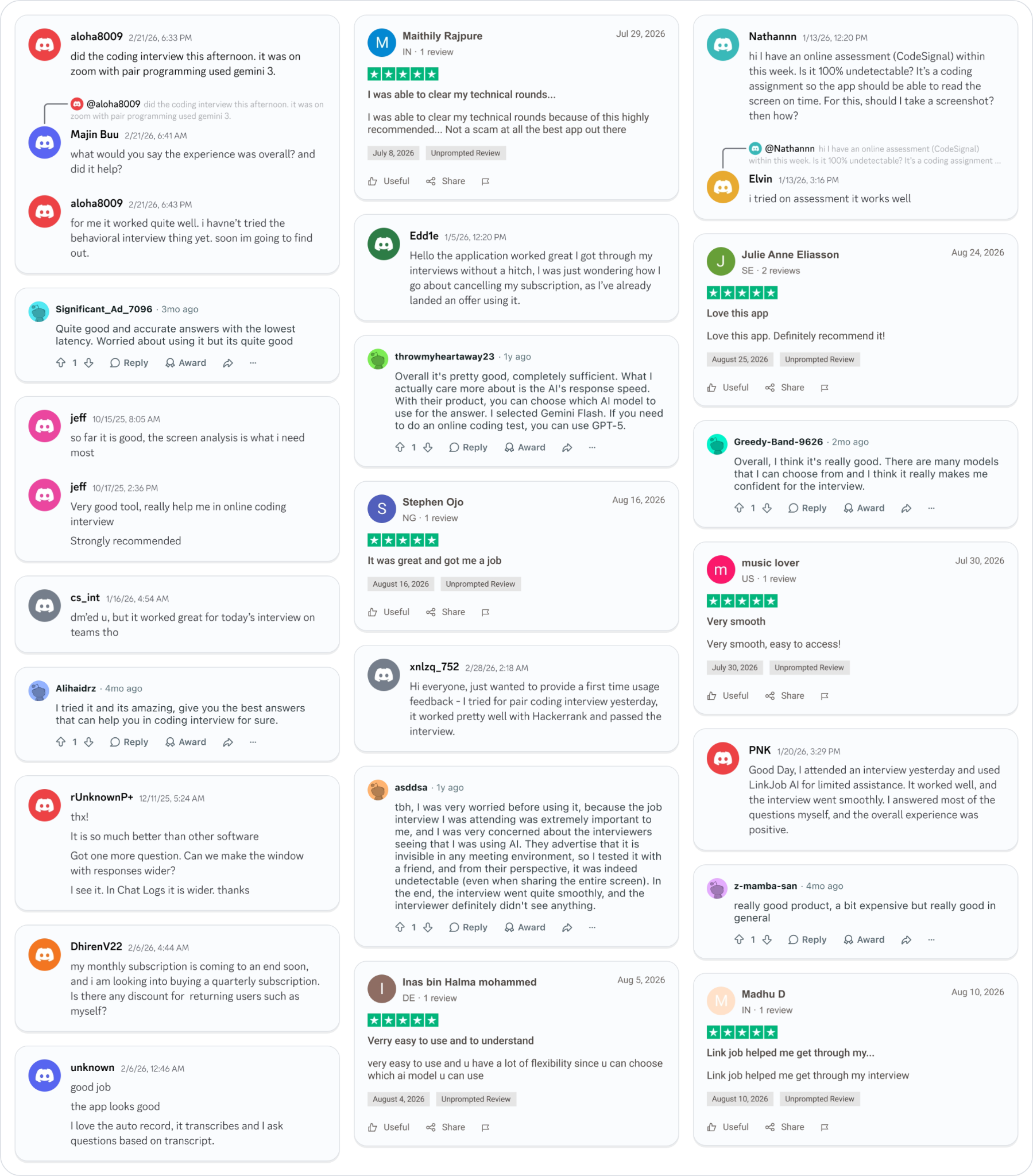
Why People Choose Linkjob AI
Smoother interviews, coding challenges cleared, and job offers landed. See how users describe their experience with Linkjob AI—in their own words.

© Copyright 2026 Linkjob AI - All Rights Reserved.