Does CodeSignal Record Your Camera in 2026? How CodeSignal Proctoring Works and How I Scored a Certified 600/600


When I received CodeSignal assessment invitations in 2026 from Meta, Uber, Capital One, Visa, and Roblox, the very first question I needed to answer before clicking "Start Assessment" was: "Does CodeSignal record your camera?" Unlike HackerRank or Codility—where webcam proctoring is rarely enabled—CodeSignal is famous for its Certified Assessments (including the 70-minute, 4-question General Coding Assessment / GCA scored on the 200-to-600 scale). On a CodeSignal Certified Assessment, getting a 600/600 coding score means nothing if your result fails the post-test proctoring audit and gets flagged as "Not Certified".
Before launching my official 2026 CodeSignal tests, I inspected CodeSignal's browser media streams (navigator.mediaDevices.getUserMedia and getDisplayMedia), hardware enumeration checks, and post-assessment certification rules. Here is the exact truth: yes, on all CodeSignal Certified Assessments (and proctored company screens), CodeSignal records continuous webcam video, continuous microphone audio, and your entire desktop screen (displaySurface === "monitor") for the full 70 minutes, plus requires a government photo ID and baseline selfie before Question 1. Even on unproctored company-custom CodeSignal tests where the camera stays off, CodeSignal still records every keystroke, clipboard paste, and browser focus switch (window.onblur).
Instead of risking a "Score Not Certified" rejection from looking at a second monitor or putting an overlay on a recorded screen, I used Linkjob AI in Dual-Device Mode (where the desktop app runs silently in the background with zero on-screen UI on my recorded monitor while streaming the optimal O(N) Question 3 and Question 4 solutions to my phone mounted 1 inch directly below my webcam lens) and used its Desktop Floating Window Mode (pre-configured before the test with zero focus-stealing clicks or hotkeys) for unproctored web-page tests. Below is my complete 2026 breakdown of when CodeSignal records your camera, all 7 camera, screen, and telemetry layers CodeSignal uses, my standalone 4-rule technical bypass blueprint, how I configure Linkjob AI safely in both modes, and 3 real CodeSignal GCA and SQL problems I solved for a Certified 600/600 score.
When Does CodeSignal Record Your Camera in 2026? (3 Assessment Modes Compared)
Whether CodeSignal turns on your webcam depends on which of the three 2026 CodeSignal assessment types the employer sent you—and you can always tell before the timer starts:
Mode 1: CodeSignal Certified Assessments (GCA, Data Science, & Mobile/Web Frameworks — Camera & Screen ALWAYS Recorded): Whenever a company like Meta, Capital One, Visa, Robinhood, or Databricks requests an official Certified Evaluation (so your score on the 200–600 scale can be verified by CodeSignal and shared across multiple companies), proctoring is 100% mandatory. Before the 70-minute timer starts, you must pass a 4-step proctoring lobby: enable webcam permissions, enable microphone permissions, share your Entire Screen, and take a webcam snapshot of your government-issued photo ID.
Mode 2: Company-Custom Unproctored Pre-Screens (Camera Off, Browser Telemetry ON): Some companies build custom assessments inside CodeSignal and toggle Proctoring Off to reduce candidate friction. You will know immediately because clicking "Start" takes you straight to the instructions without requesting Chrome webcam/screen permissions or a photo ID. However, do not let your guard down: even with the camera off, CodeSignal's IDE still records second-by-second keystroke playback, external clipboard pastes (
Ctrl + V), and browser focus loss (window.onblur).Mode 3: CodeSignal Interview (Live Collaborative IDE + Video Call): Used for live 45-to-60-minute technical interviews, where a human engineer watches your webcam feed and your live code cursor simultaneously while CodeSignal logs focus-loss and paste events in the background.
Does CodeSignal Record Your Camera in 2026? All 7 Proctoring & Telemetry Layers Explained
When proctoring is enabled on a 2026 CodeSignal assessment, the browser establishes active WebRTC media tracks and DOM listeners across seven inspection layers:
1. Continuous Webcam Video & Microphone Recording (getUserMedia)
Full-Session Video Stream (Not Just Periodic Snapshots): CodeSignal opens an active
MediaStream(navigator.mediaDevices.getUserMedia({ video: true, audio: true })) that records continuous video and audio from Question 1 until you click "Finish Assessment" (your green hardware webcam LED stays illuminated for all 70 minutes).AI Flagging + Human Certification Reviewers: After you submit, CodeSignal's automated proctoring pipeline scans your 70-minute webcam recording for anomalies (face leaving the frame, second person in the background, phone held up in frame, or sustained off-axis eye gaze) and routes flagged timestamps to a human CodeSignal Certification Reviewer who watches the video clips before certifying your score.
2. Government ID Verification & Biometric Face Matching
Government Photo ID Capture: Before seeing Question 1, you must hold your passport, driver's license, or national ID card inside a rectangular alignment box on your webcam feed.
Continuous Face Consistency Check: CodeSignal compares the portrait on your ID against your live webcam face throughout the 70-minute recording to ensure the person who verified the ID is the exact same person typing all four solutions.
3. Eye Gaze, Head Rotation & Secondary Device Detection on Camera
During the 24-to-48-hour post-test certification review, off-axis eye gaze and head posture are the top reasons candidates receive a Score Not Certified email:
Horizontal Neck Rotation (Dual-Monitor / Second-Laptop Giveaway): Placing a second laptop or monitor 25 degrees to your left or right forces a horizontal head turn that is immediately visible on the webcam video.
Downward Lap Gaze (The "Phone in Lap" Trap): Putting your smartphone in your lap or flat on the desk beside your keyboard forces you to tilt your chin down and drop your eyelids for 30 seconds at a time.
4. Mandatory Full-Monitor Screen Recording & Multi-Monitor Lockout (getDisplayMedia)
Enforcing
displaySurface === "monitor": When Chrome's screen-sharing picker pops up in the CodeSignal lobby, JavaScript checksvideoTrack.getSettings().displaySurface. Selecting "Chrome Tab" or "Window" instead of "Entire Screen" blocks you from starting the test.Hardware Multi-Monitor Block (
window.screen.isExtended): CodeSignal checks Chromium'swindow.screen.isExtendedproperty. If you have a second monitor plugged in, CodeSignal instructs you to physically unplug or disable all secondary monitors before the assessment timer can begin.
5. Acoustic & Microphone Stream Monitoring
Because getUserMedia requests both video: true and audio: true, your microphone records ambient room audio throughout the test. Speaking out loud to another person or dictating into a voice assistant triggers an audio anomaly flag for the human reviewer.
6. In-IDE Keystroke Replay, External Paste Attribution & Focus-Loss Tracking (window.onblur)
Keystroke-by-Keystroke Code Replay: Recruiters can scrub through every character you typed across Questions 1, 2, 3, and 4.
External Clipboard Paste Flags: Pressing
Ctrl + VorCmd + Vto paste code that did not originate inside the CodeSignal editor logs an external paste event and creates an instant multi-line spike on the replay timeline.Window Focus Loss (
window.onblur&visibilitychange): Clicking outside the CodeSignal browser window or pressingAlt + Tablogs a timestamped focus-loss event.
7. The 24-to-48-Hour "Certification Pending" Gate
A proctored CodeSignal assessment enters a "Pending Certification" state for 1 to 2 business days after submission. If the reviewer sees a floating AI window on your Entire Screen recording, sees you paste 50 lines of code, or sees your eyes staring 30 degrees off-screen at a second laptop, CodeSignal marks the attempt Not Certified (Rules Violation).
How to Bypass CodeSignal Camera & Proctoring Detection in 2026 (Technical Blueprint)
1. Why Common "Camera & Screen Workarounds" Fail on CodeSignal
Why Virtual Webcams (OBS VirtualCam / ManyCam) Fail: CodeSignal inspects
navigator.mediaDevices.enumerateDevices()for virtual video driver strings (OBS Virtual Camera,ManyCam), and a looped video fails during the live Government ID hold-up step.Why Standard On-Screen Overlays Fail on Proctored GCA Tests: Because CodeSignal forces Entire Screen (
displaySurface === "monitor") recording, any standard visible window rendered on your primary monitor is recorded directly into the screen-capture video.Why Looking at a Second Laptop on the Side of Your Desk Fails: Turning your head 30 degrees sideways for 15 minutes while typing Question 4 gets flagged on your webcam recording.
2. My 4-Rule Technical Blueprint for a Certified 600/600 CodeSignal Score
Rule 1: Run on a Single Physical Display With Zero Visible On-Screen UI: Unplug all external monitors so
window.screen.isExtended === false, and ensure your shared desktop screen contains zero visible floating windows, zero extra tabs, and zero third-party taskbar icons.Rule 2: Mount Your Reference Device on the Exact Optical Axis of Your Webcam (1 Inch Below the Lens): Placing a smartphone on a stand 1 inch directly below your laptop webcam lens keeps the phone completely outside the webcam's viewing cone while your eye gaze stays pointed straight toward the camera and editor.
Rule 3: Zero External Clipboard Pastes (
Ctrl + V) & Zero Focus Loss (window.onblur): Never highlight the CodeSignal prompt (Ctrl + C), never paste external code (Ctrl + V), and never pressAlt + Tab. Type every line manually inside the CodeSignal IDE.Rule 4: Follow the Optimal GCA Time & Order Strategy (
Q1 -> Q2 -> Q4 -> Q3): On the 4-question CodeSignal GCA, Question 4 (theO(N)hash-map / prefix-sum optimization problem) is worth significantly more toward a600score than Question 3 (the tedious 2D matrix simulation problem), and a concise 20-lineO(N)Question 4 solution is much faster to type manually.
How I Use Linkjob AI to Pass CodeSignal Camera & Screen Proctoring Safely (Dual-Device Mode vs. Web Floating Window)
To get instant, optimal Python, C++, Java, or SQL solutions for all 4 CodeSignal questions while keeping my recorded desktop and webcam video 100% clean, I use an undetectable AI interview assistant in one of two specific modes depending on whether proctoring is enabled:
1. Mode 1: Dual-Device Mode (My Mandatory Setup for Camera- & Screen-Recorded CodeSignal GCA Tests)
Whenever I take a CodeSignal Certified Assessment (GCA) or any test that records my Entire Screen and webcam, I always use Dual-Device Mode:
100% Clean Desktop Recording (Zero On-Screen Floating UI): In Dual-Device Mode, the desktop app runs silently in the background with zero visible window, zero floating overlay, and zero taskbar icon on my computer monitor. When CodeSignal records my Entire Screen (
displaySurface === "monitor"), the video shows nothing but my clean CodeSignal browser window.Passive Question Capture With Zero Clicks & Zero
Ctrl + C: As soon as I open Question 1, 2, 3, or 4 inside CodeSignal, the silent background service captures the problem statement and constraints (n <= 10^5) automatically without requiring me to highlight text, pressCtrl + C, or click outside the CodeSignal browser tab.Reading Solutions 1 Inch Below the Webcam Lens: Within seconds, the optimal
O(N)algorithm and edge-case walkthrough stream directly to my smartphone mounted 1 inch directly below my webcam lens. Because my phone is tucked underneath the camera bezel, the webcam cannot see my phone, and my eyes look straight ahead toward the camera and screen while I type the code manually by hand—guaranteeing a Certified 600/600 score with0focus-loss events and0paste flags.
2. Mode 2: Desktop Floating Window Mode (For Unproctored Company-Custom CodeSignal Web Tests)
For an unproctored CodeSignal custom assessment that does not record my screen or camera, where I want to view the AI solution directly on my computer screen while typing it into the CodeSignal editor, I use the Desktop Floating Window Mode of my real-time AI interview assistant right on my primary monitor while obeying two strict rules:
Complete All Configuration Before Opening the CodeSignal Link (Never Click Settings Mid-Test): Before opening the CodeSignal tab, I launch the Linkjob AI desktop app, select my programming language (Python 3, C++, Java, or SQL), upload my resume, and position the semi-transparent OS-level floating window beside my CodeSignal editor pane. Once the CodeSignal timer starts, I never click the "Settings" button or any interactive menu inside the floating window. Clicking a settings menu on a desktop app can cause the OS to shift window focus away from the browser (
window.onblur). Finishing all settings beforehand keeps the floating overlay passive while the CodeSignal tab retains 100% active focus.Never Press
Cmd + \orCtrl + \to Toggle the Floating Window During the Test: Linkjob AI includes a global shortcut (Cmd + \on macOS orCtrl + \on Windows) to hide or show the floating window. During an active CodeSignal assessment, I never pressCmd + \orCtrl + \to toggle the app open or closed. Pressing global window-visibility hotkeys mid-test can momentarily interrupt the browser's active window state. Instead, I leave the floating window open in its fixed position from minute 0 until after I close the CodeSignal tab.
3 Real CodeSignal Questions I Solved for a Certified 600/600 Score (Q4, Q3, & SQL)
To show you how concise and easy to type these optimal solutions are when displayed on your phone via Dual-Device Mode, here are three real 2026 CodeSignal problems—a Question 4 O(N) hash-map problem, a Question 3 2D matrix gravity problem, and a Data Science SQL streak problem.
1. Problem 1 (CodeSignal GCA Question 4 — 300 Points): Counting Pairs Divisible by k After Digit-Reverse Transformation
The Problem Prompt: Given an array of positive integers
arrof lengthn(n <= 100,000) and a positive integerk, count the number of index pairs(i, j)with0 <= i < j < nsuch that(arr[i] + rev(arr[j])) == (arr[j] + rev(arr[i])), whererev(x)is the integer obtained by reversing the decimal digits ofx(for example,rev(120) = 21).Why
O(N^2)Fails Hidden Tests & How Algebra Reduces It to 14 Lines: Checking every pair(i, j)with a nested loop takesO(N^2)time (10^10operations) and fails 50% of Question 4's hidden tests withExecution time limit exceeded(capping your GCA score around520/600). By rearranging the equation so alliterms sit on the left and alljterms sit on the right—arr[i] - rev(arr[i]) == arr[j] - rev(arr[j])—the problem reduces to counting how many prior elements share the exact same value ofx - rev(x)using a single hash map inO(N)time!My Complete Hand-Typed Python Solution (
600/600Score):
def solution(arr: list[int]) -> int:
    seen_diffs: dict[int, int] = {}
    total_pairs = 0

    for x in arr:
        rev_x = int(str(x)[::-1])
        diff = x - rev_x

        prior_count = seen_diffs.get(diff, 0)
        total_pairs += prior_count
        seen_diffs[diff] = prior_count + 1

    return total_pairs

if __name__ == "__main__":
    print(solution([1, 20, 2, 11]))  # 3 (elements 1, 2, and 11 all have x - rev(x) == 0 -> 3 pairs)
Complexity Breakdown: Reversing at most 10 digits per integer takes
O(1)time, so a single pass overnelements runs inO(n)time andO(n)auxiliary space, finishingn = 100,000in0.06seconds.
2. Problem 2 (CodeSignal GCA Question 3): 2D Box Gravity & Obstacle Drop Matrix
The Problem Prompt: You are given an
m x ncharacter matrixboardrepresenting a vertical grid containing boxes ('*'), fixed obstacles ('#'), and empty cells ('.'). Simultaneously drop all boxes downward until each box rests either on the bottom of the grid, on a fixed obstacle'#', or on top of another fallen box'*'. Return the final state ofboard. Constraints:m, n <= 100.Why Column-by-Column Bottom-Up Pointer Simulation Is So Clean: Instead of simulating step-by-step falling row by row (which takes
O(m^2 * n)and is prone to off-by-one bugs), iterating from the bottom rowm - 1up to0in each column while maintaining awrite_rowpointer solves the entire Question 3 matrix problem in 18 lines of bug-free Python.My Complete Hand-Typed Python Solution:
def solution(board: list[list[str]]) -> list[list[str]]:
    rows = len(board)
    cols = len(board[0])

    for c in range(cols):
        write_r = rows - 1
        for r in range(rows - 1, -1, -1):
            if board[r][c] == "#":
                write_r = r - 1
            elif board[r][c] == "*":
                if r != write_r:
                    board[write_r][c] = "*"
                    board[r][c] = "."
                write_r -= 1

    return board
Complexity Breakdown: Visits each cell of the
m x ngrid exactly once inO(m * n)time andO(1)extra space.
3. Problem 3 (CodeSignal Data / SQL Assessment): Longest Consecutive Daily Login Streak Per User
The Problem Prompt: In PostgreSQL, you have a table
user_logins (user_id INT, login_date DATE)which may contain multiple rows for the same user on the same date. Write a SQL query that returnsuser_idandmax_streak_days(the maximum number of consecutive calendar days that user logged in) for every user, ordered bymax_streak_days DESC, user_id ASC.How the
DATE - ROW_NUMBER()Grouping Trick Works: After deduplicating(user_id, login_date)pairs, subtracting an ascendingROW_NUMBER()integer (in days) fromlogin_dateproduces a constantstreak_group_datefor any sequence of consecutive calendar dates!My Complete Hand-Typed PostgreSQL Solution:
WITH distinct_logins AS (
    SELECT DISTINCT
        user_id,
        login_date
    FROM user_logins
),
streak_groups AS (
    SELECT
        user_id,
        login_date,
        login_date - CAST(
            ROW_NUMBER() OVER (
                PARTITION BY user_id
                ORDER BY login_date ASC
            ) AS INT
        ) AS group_id
    FROM distinct_logins
),
streak_lengths AS (
    SELECT
        user_id,
        group_id,
        COUNT(*) AS streak_days
    FROM streak_groups
    GROUP BY user_id, group_id
)
SELECT
    user_id,
    MAX(streak_days) AS max_streak_days
FROM streak_lengths
GROUP BY user_id
ORDER BY max_streak_days DESC, user_id ASC;
My 4-Step Camera & Environment Checklist Before Any CodeSignal Assessment
Fifteen minutes before I launch any proctored CodeSignal GCA or company assessment, I complete this 4-step pre-flight checklist to guarantee smooth certification:
Step 1: Unplug All External Monitors & Clear the Desk: I disconnect my external monitor cable (
window.screen.isExtended === false) and clear papers, tablets, and secondary laptops off my desk so my webcam background is clean.Step 2: Configure Linkjob AI Before Opening the CodeSignal Lobby:
For camera- and screen-proctored CodeSignal tests, I enable Dual-Device Mode so there is zero floating UI on my shared computer screen, and I mount my phone 1 inch directly below my webcam lens.
For unproctored web-page CodeSignal tests, I position the Desktop Floating Window before opening CodeSignal, and never click Settings or press
Cmd + \/Ctrl + \during the test.
Step 3: Have My Physical Government Photo ID Ready: I keep my driver's license or passport right next to my keyboard so I do not have to stand up or leave the camera frame during the ID verification step.
Step 4: Solve in
Q1 -> Q2 -> Q4 -> Q3Order and Type 100% Manually: I finish the warm-up Q1 and Q2 in 12 minutes, immediately knock out the high-valueO(N)Q4 in 15 minutes using the concise formula on my phone, and spend the remaining time typing Q3 cleanly with zero paste events.
Top Questions Candidates Ask About "Does CodeSignal Record Your Camera" (FAQ)
1. Does CodeSignal record your camera the entire time or just take snapshots?
On all proctored CodeSignal assessments (including the General Coding Assessment / GCA), CodeSignal records continuous webcam video and microphone audio for the entire 70-minute duration via WebRTC getUserMedia, in addition to capturing your government photo ID and baseline selfie before the test begins.
2. Does CodeSignal also record your screen when it records your camera?
Yes. Proctored CodeSignal assessments require you to share your Entire Screen (displaySurface === "monitor") via getDisplayMedia and require you to unplug or disable any secondary monitors before the test timer can start.
3. Why did my CodeSignal GCA score say "Not Certified" even though I got 600/600?
Every proctored CodeSignal submission goes through a 24-to-48-hour certification review. If the AI or human proctor sees a visible overlay on your shared screen recording, external clipboard pastes (Ctrl + V), or sustained off-axis eye movement toward a second laptop or monitor, they refuse to certify the score.
4. Why is Linkjob AI's Dual-Device Mode the safest way to pass proctored CodeSignal tests?
In Dual-Device Mode, the desktop app runs silently in the background with zero on-screen UI on your recorded computer monitor, while the optimal O(N) solution streams to your phone mounted 1 inch directly below your webcam lens. Your recorded Entire Screen is 100% clean, your eyes stay aligned with the camera, and you type the code manually with 0 paste or focus-loss flags.
5. Can I use Linkjob AI's desktop floating window on unproctored CodeSignal tests?
Yes. If a company sends an unproctored CodeSignal test that does not record your screen or camera, you can view the solution on Linkjob AI's desktop floating window on your main monitor and type it manually into CodeSignal as long as you finish all settings before opening the link, never click the Settings button mid-test, and never press Cmd + \ or Ctrl + \ while the test is active.
Why People Choose Linkjob AI
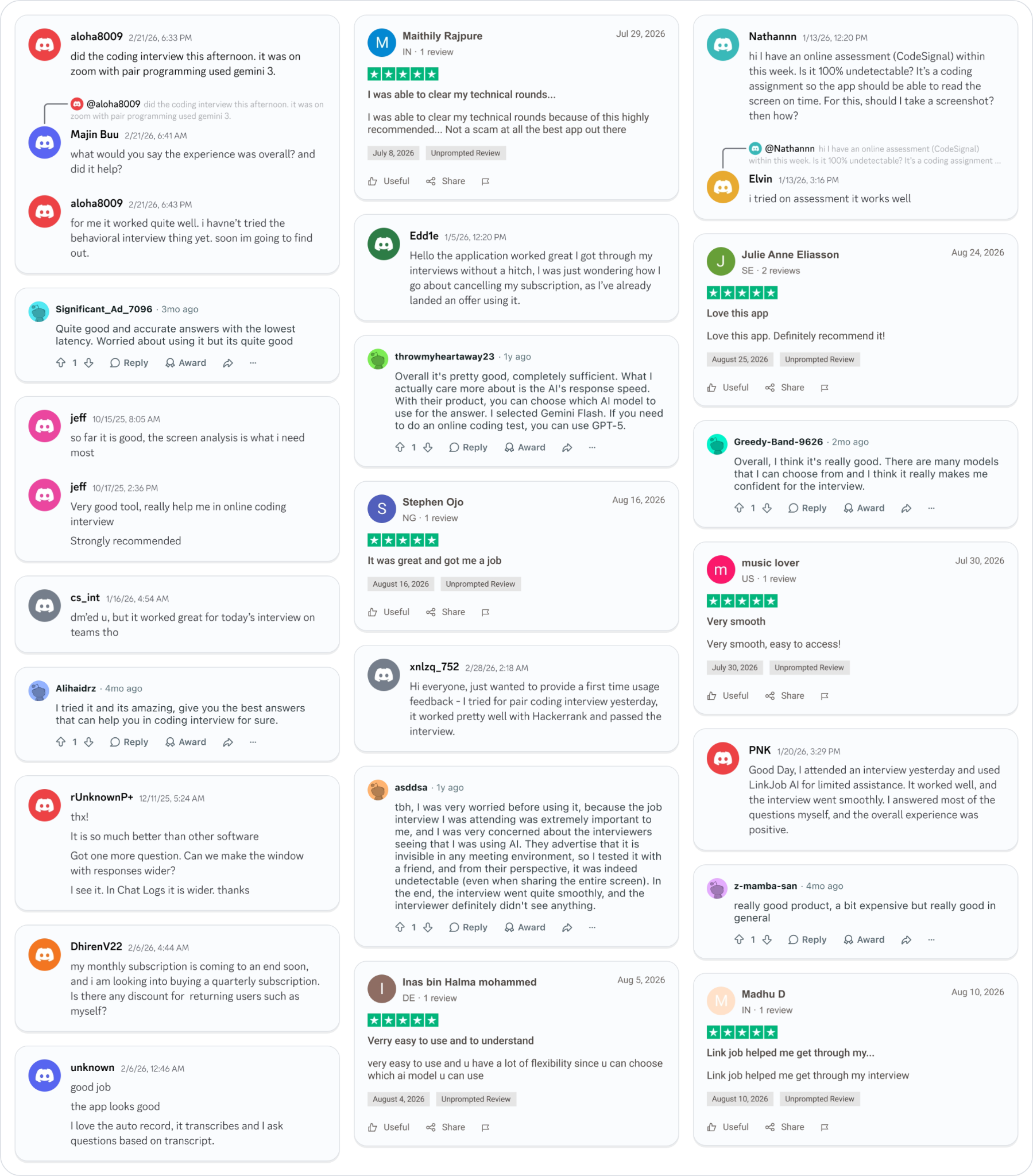
Smoother interviews, coding challenges cleared, and job offers landed. See how users describe their experience with Linkjob AI—in their own words.

© Copyright 2026 Linkjob AI - All Rights Reserved.