How to Customize Linkjob AI Interview Assistant — FAQs

We understand that you may need to use Linkjob.ai for your interview as soon as possible. To help with this, we have prepared a guide that quickly shows you how to set up the software and a solution library that answers common questions.
A Quick Video Tutorial
If you need a short demo of the core features, you can watch our video tutorial:
If you prefer to learn how to use Linkjob.ai in a detailed written file. Here is our solution & FAQ bank.
Zoom Users — Things MUST Know
We conduct daily tests to ensure the app remains completely invisible and undetectable across all interview platforms.
For Zoom, a specific setting MUST be enabled before interviews or online meetings. Please refer to this guide video:
OA Users — Things MUST Know
1.All Settings MUST Be Completed Before Online Assessment Begins.
Before you begin your OA, please make sure to complete all settings in advance.
2.Win & Mac Users: DO NOT Click Setting Buttions and Use Shortcuts "Ctrl/Cmd + \" During OA.
If you click the settings button or use this shortcutsduring OA, the system will immediately detect that you have left the current tab.
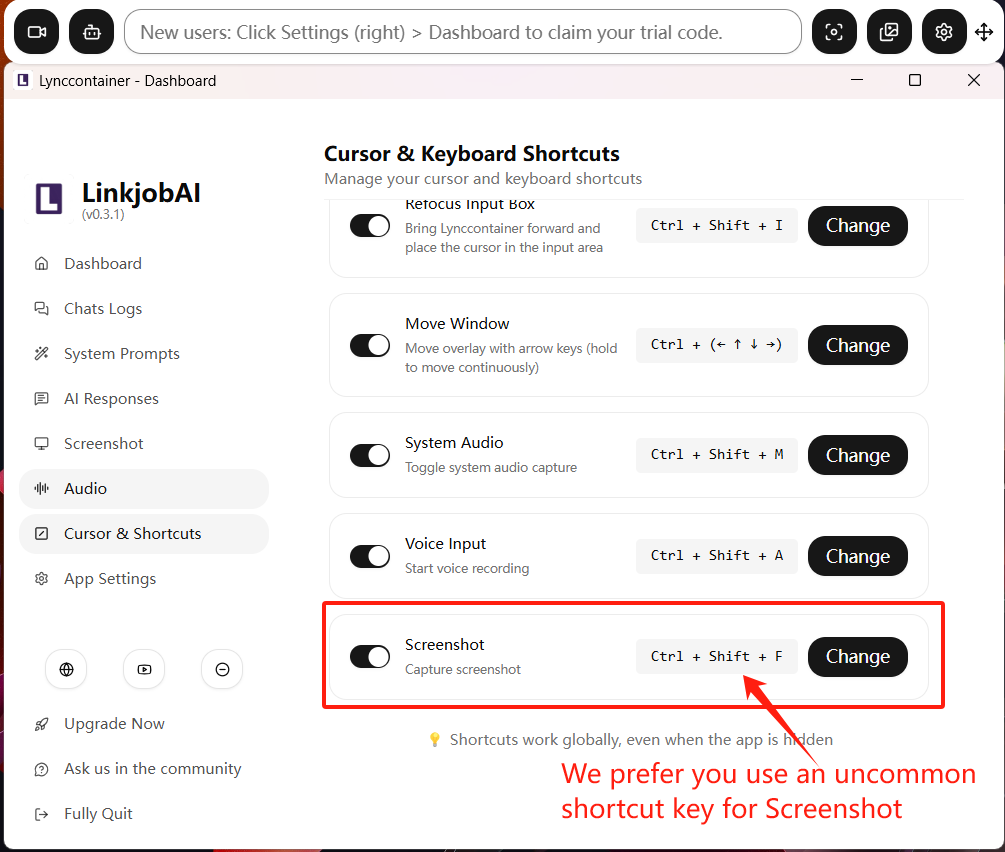
3.We Prefer You Configure Uncommon Screenshot Shortcut Keys.
For the Screenshot function, set an uncommon shortcut. Common screenshot keys might still be detected by few platforms.
How to Start A Free Trial?
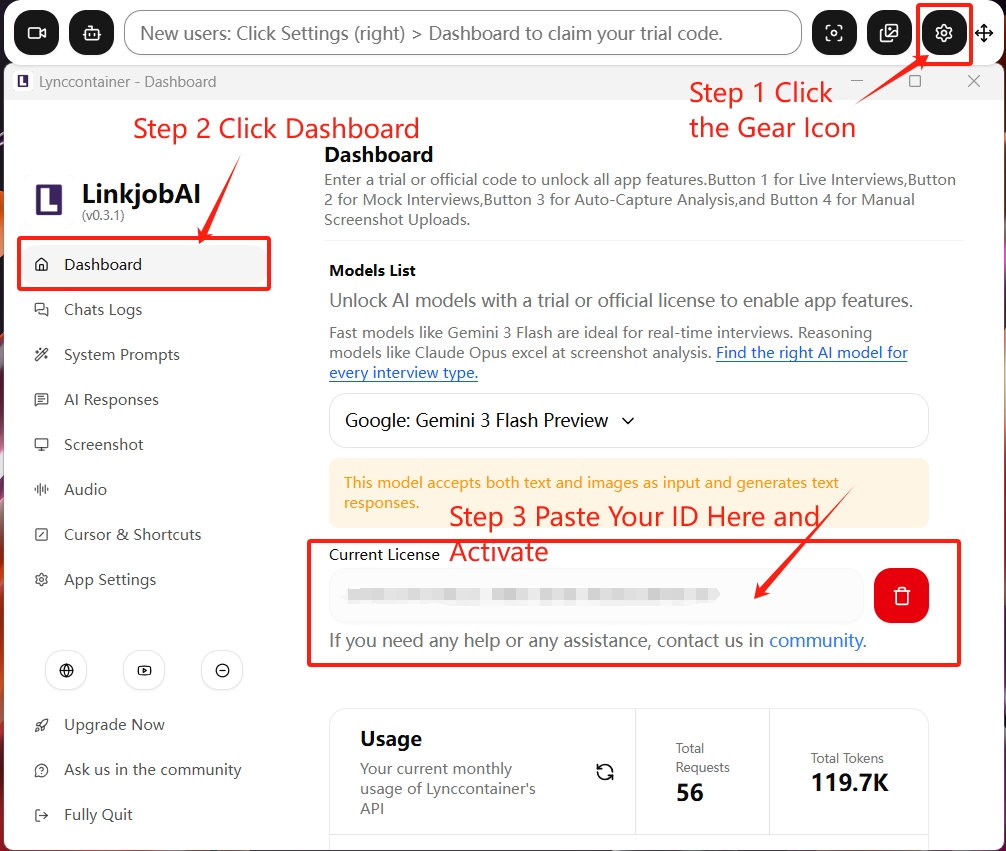
After downloading and installing Linkjob AI from the official website, please run the software and click the "gear" icon on the right side of the floating window to open the control panel. Then click Dashboard.
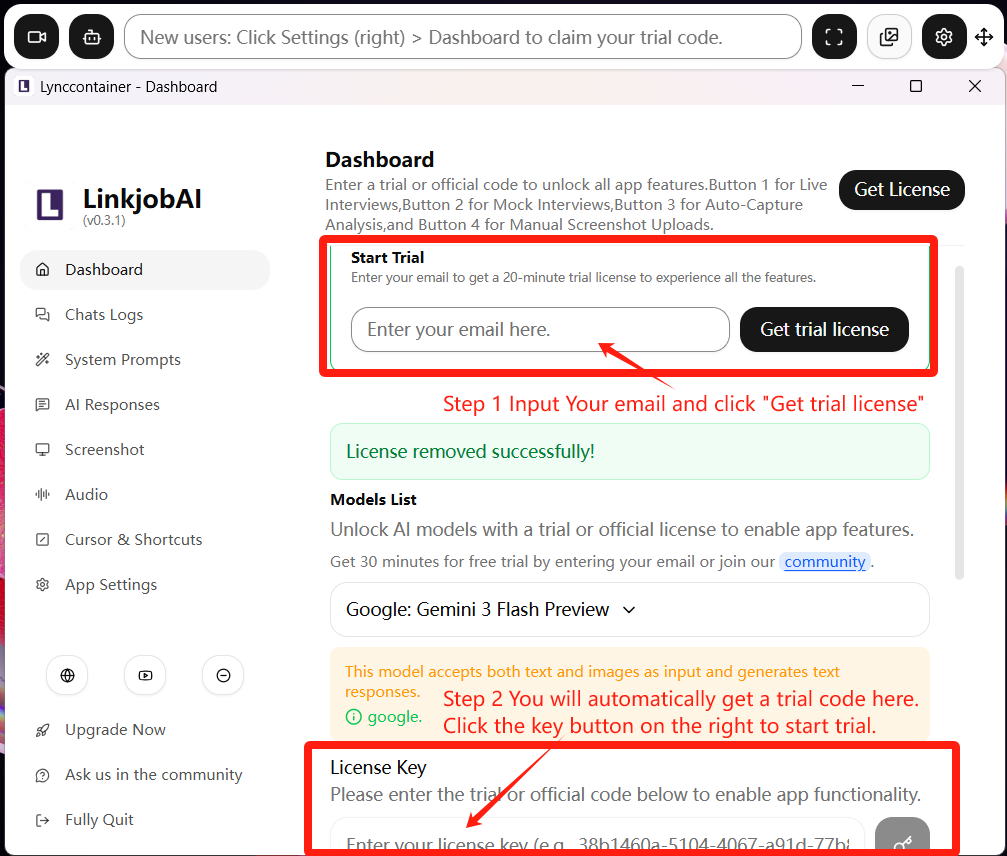
Then please enter your email address in the Start Trial section (this email must not have been registered with Linkjob AI before). The system will automatically generate a 32-character activation code containing letters and numbers in the license key box below.
Example Activate ID Form: XXXXXXXX-XXXX-XXXX-XXXX-XXXXXXXXXXX
Click the "key" icon beside license key box to activate and start your free trial.
The trial activation code is valid for 30 minutes. During this period, you can experience all premium settings, 3 basic models, and all AI Interview Mock features.
If you feel that 30 minutes is not enough, you may visit our community to request a new trial activation code.
How to Activate a Formal Account?
After payment, the system will send a 32-character activation ID consisting of letters and numbers to your e-mail in 10 mins.
Example Activate ID Form: XXXXXXXX-XXXX-XXXX-XXXX-XXXXXXXXXXX
This activation code is bound to your registered email address and is non-transferable. Each activation code can only be used once.
The activation method is as follows: after you have successfully downloaded and installed the software, launch it and click the gear icon on the right side of the control panel, then select Dashboard in the settings panel. You need to copy and paste the activation code into the activation section in the Dashboard to activate your account:
If activation is unsuccessful, please contact us in our community.
How to Reactivate if I Mistakenly Delete the ID Code?
After activating the product, please DO NOT click the "trash bin" button next to the activation code unless you are changing your subscription plan or unsubscribing. Otherwise, this will remove your activation information and cause the software features to stop working properly.
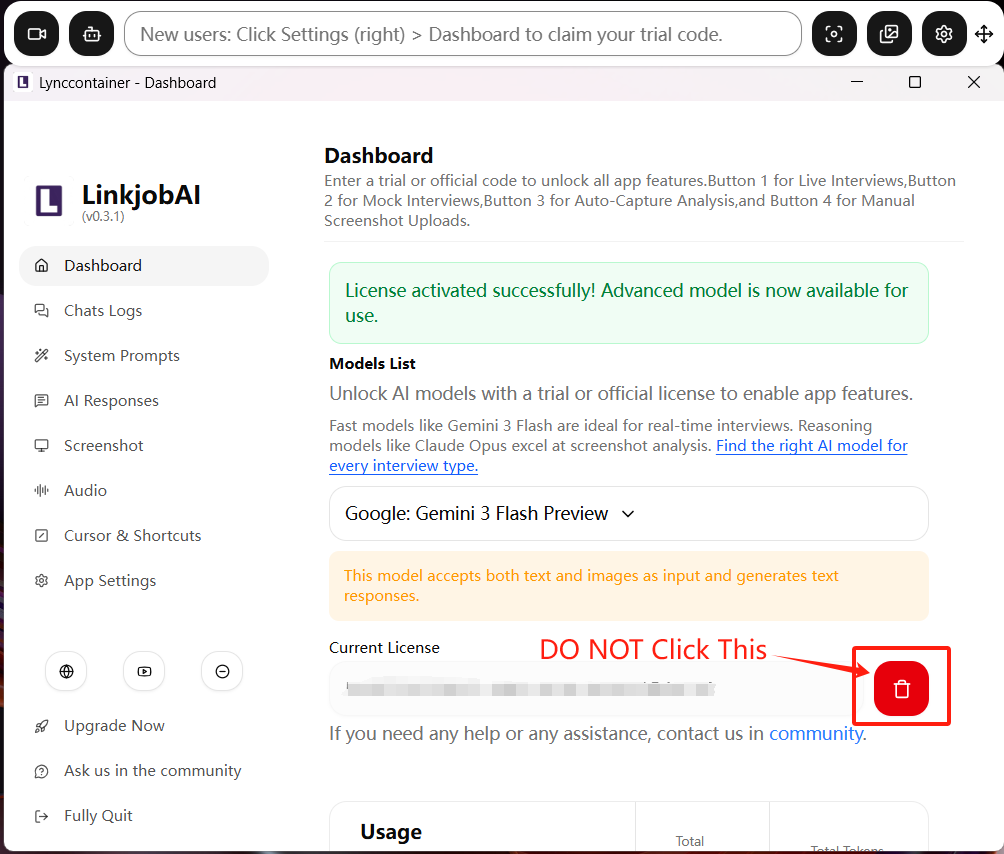
If you accidentally delete the activation code, please contact our community and we will help you reactivate it.
How to Update Linkjob.ai for the Latest Version?
For Windows users, please make sure to uninstall the old version before downloading and installing the latest version.
During uninstallation, please DO NOT click “Delete Data,” as the data contains your activation information. If it is deleted, your original activation information will be lost, and the activation code will become invalid.
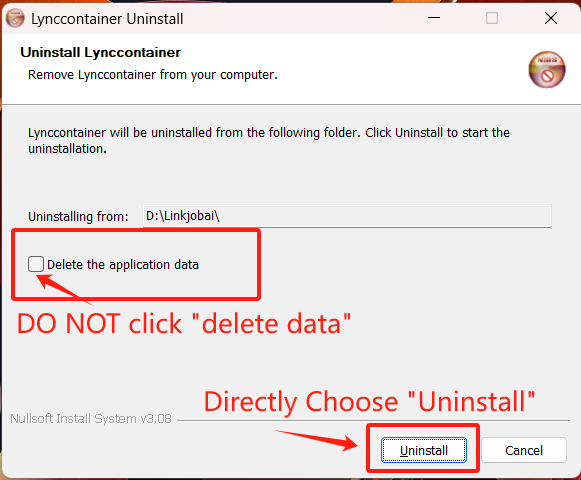
For Mac users, downloading the new version will automatically replace the old one, so there is no need to uninstall it in advance.
However, please note the following two points:
Please close the old version if it is still running. Then download and install the new version.
Please DO NOT delete the activation ID code of the old version before downloading and installing the new version, otherwise the activation code will become invalid.
What is Each Overlay Button Used for?
After launching the software, a control panel with six buttons and a chat box will appear by default. The control box stays on top of your screen and provides several AI-assisted interaction features.
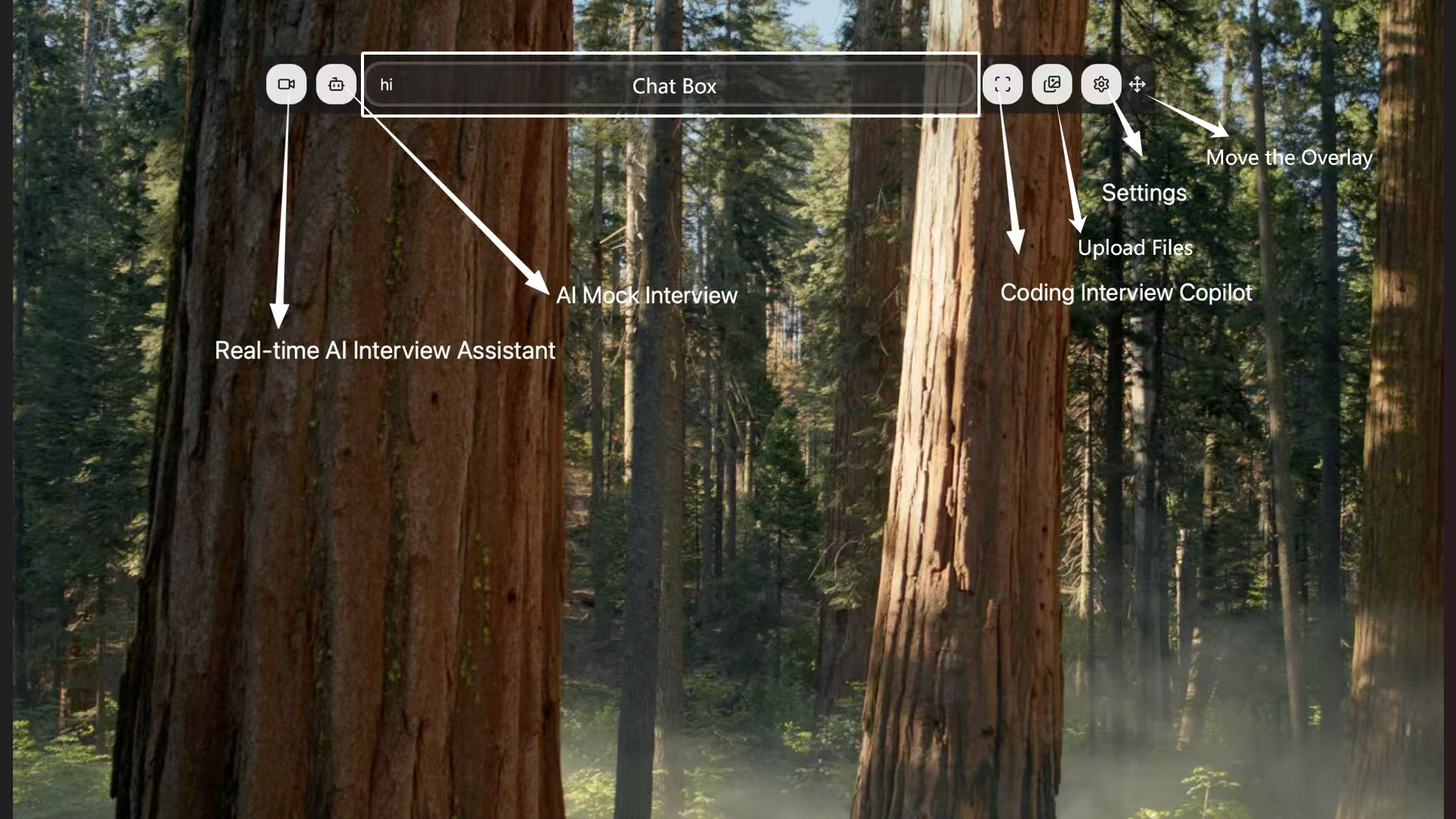
The chat box in the middle works like a standard AI chat interface — you can type your questions directly, and the AI will generate responses.
The arrow handle locates at the far right of the control box. It is used to move the control panel.
The remaining icons, from left to right, are:
Camera Icon: Enables AI Interview Assistant Mode and lets AI response based on your computer’s system media audio. This feature is suitable for online meetings or call-based scenarios. Click once to turn this mode on or off.
Robot Icon: Enables AI voice input and response based on external audio captured in your environment. This feature is suitable for interview mock or spoken interaction. Click once to turn this mode on or off.
Scan Icon: Enables AI to analyze the content currently displayed on your screen and provide relevant responses. Click once to turn this mode on or off.
Image Icon: Allows the AI to analyze uploaded images and generate responses based on their content. Click once to upload an image.
Gear Icon: Located second from the right. It is mainly used to configure software settings and access advanced features.
How to Move/Reposition the Window?
The arrow handle locates at the far right of the control box. It is used to move the control panel. Hover over the icon, then click and drag to reposition it.
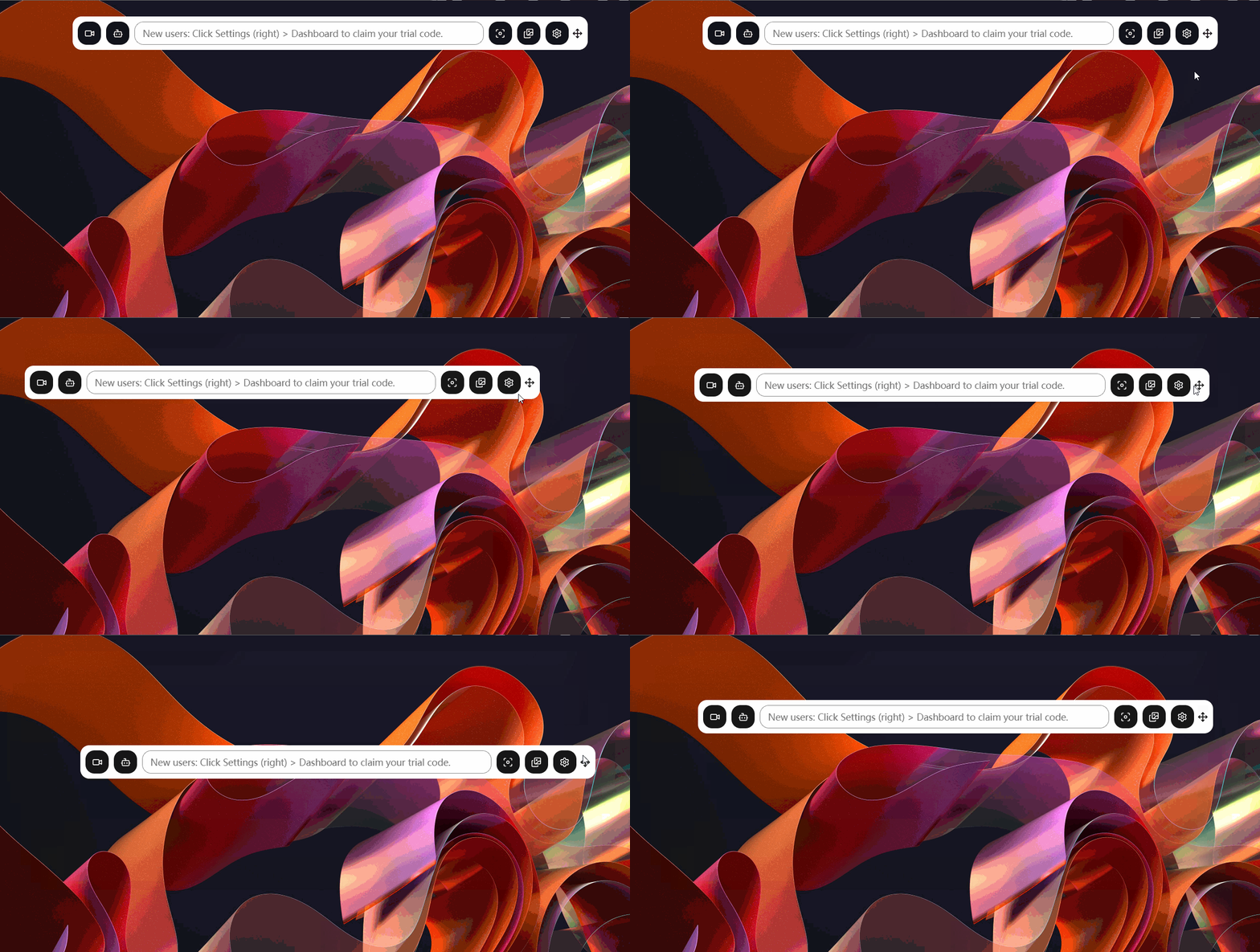
If you prefer not to use the mouse, you can also move the control box with keyboard shortcuts:
Windows:
Ctrl + ↑↓←→Mac:
Cmd + ↑↓←→
How to Set Up Core Features in Linkjob.ai?
Click the Gear Button on the second right in the control box, you will turn on the setting panel, where you can customize your AI interview assistant.
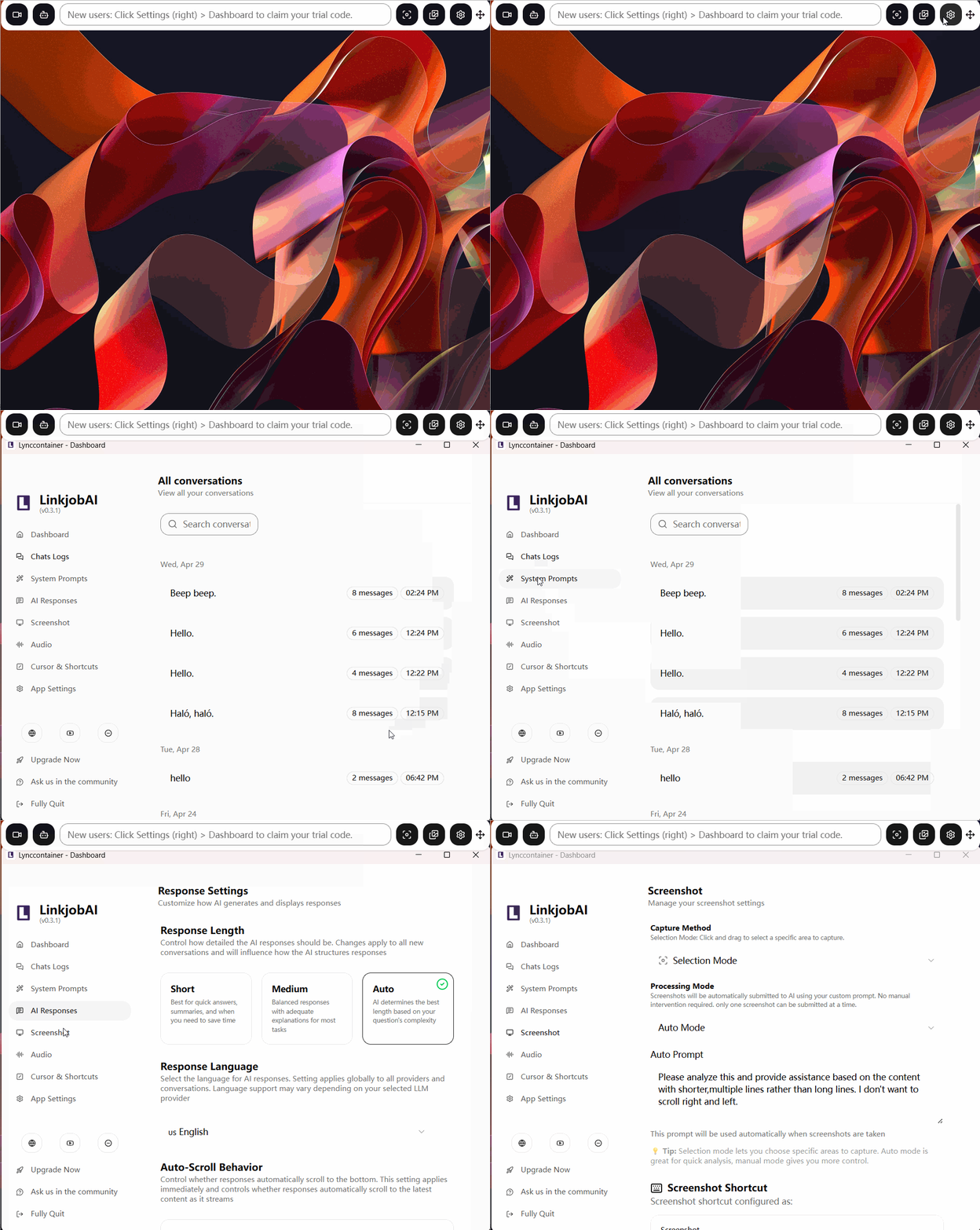
How to Switch/Choose AI Models?
The Dashboard is primarily used for model selection. Linkjob.ai provides different tiers of advanced reasoning models based on the user’s subscription plan. Users can choose the model that best fits their usage scenario.
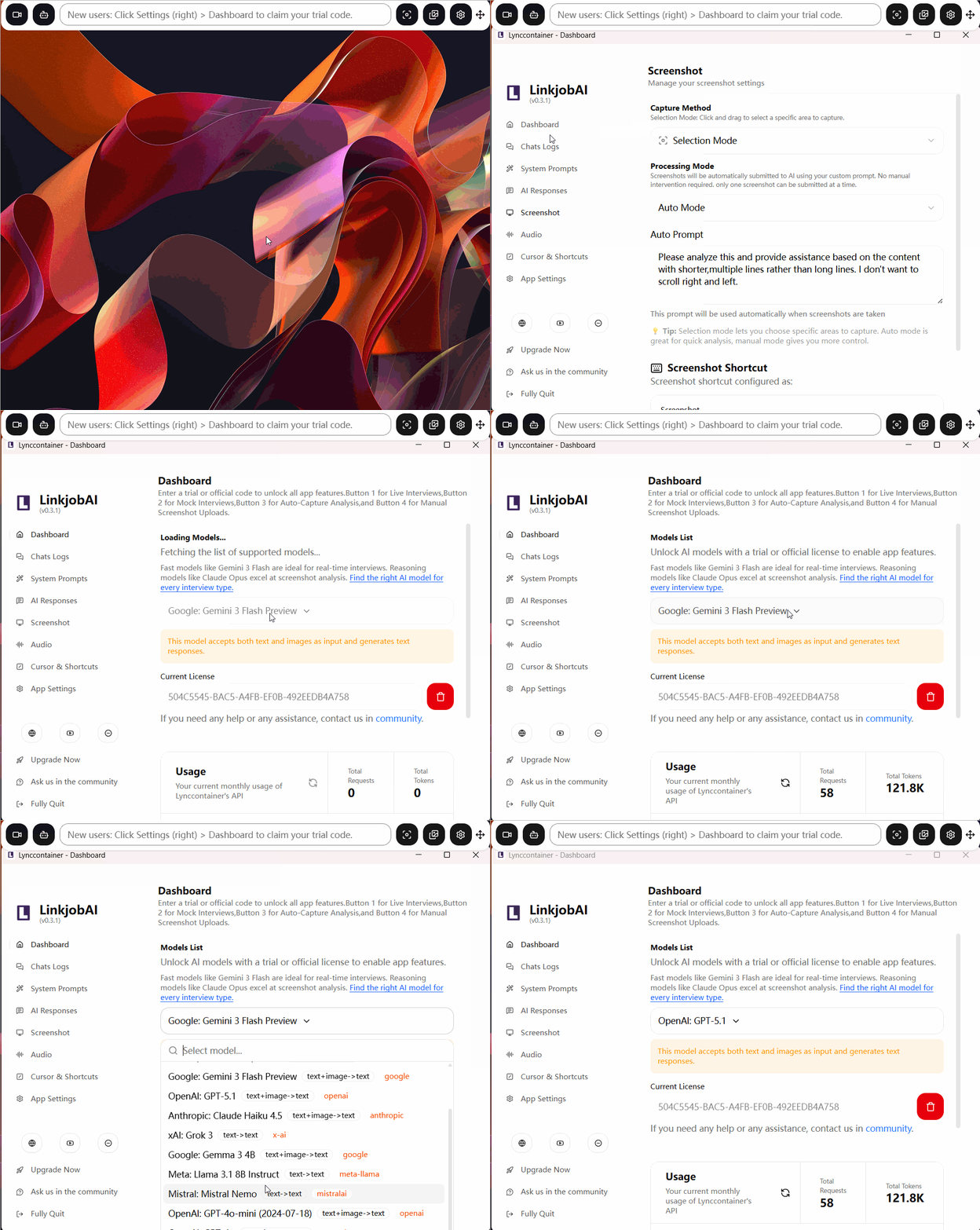
The AI assistant supports more than 12 advanced AI models, including 3 deep reasoning models like GPT-5.1, Claude Code Opus, Gemini 3 Pro. Higher-tier subscription plans provide access to a wider selection of faster and more powerful models.
For specific recommendations, please refer to How to Choose the Best AI Model for Every Interview Type.
How to Customize AI Interview Assistant‘s Character/Response Tune Based on My Needs?
The System Prompt defines the role that the AI will play during an interview.
By clicking on Settings > System Prompt, you will find 31 pre-configured roles.
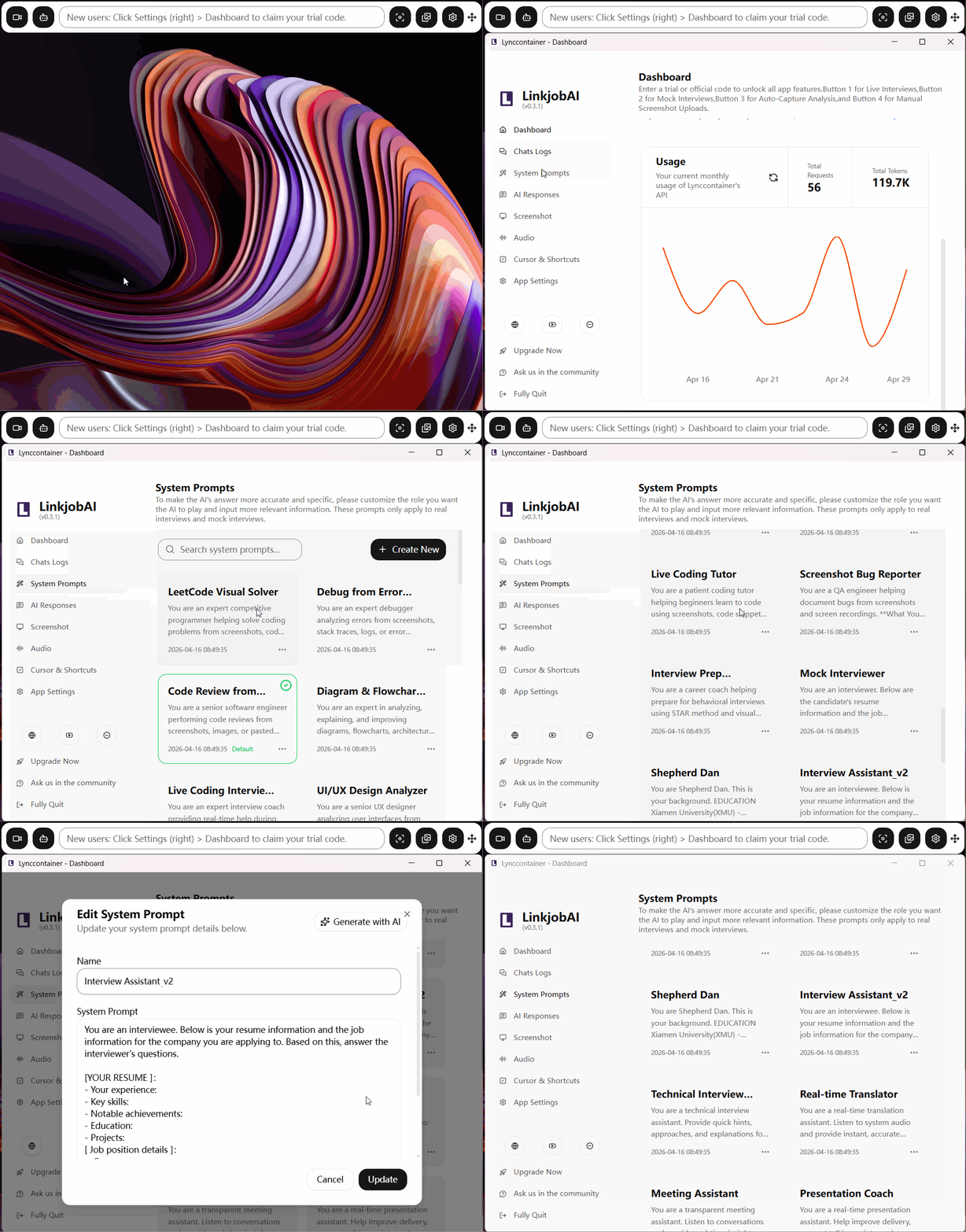
For example, if you are preparing for a Leetcode/Hackerrank online assessment, you can select "Leetcode Visual Solver" to have the AI act as a Leetcode problem-solving expert. The developer has already set up a default role-playing prompt that requires it to automatically recognize page problems, identify cross-language code, analyze problems, program, and handle edge cases.
Here are the 8 most commonly used developer-predefined roles with their recommended use cases:
Leetcode Visual Solver: Primarily used for scenarios requiring quick analysis and solving of programming problems based on screenshots, code snippets, text descriptions, or whiteboard photos. It can automatically recognize problem content and programming languages, extract constraints, examples, and edge cases, determine problem types and applicable algorithms (such as two pointers, sliding window, dynamic programming, graph search, etc.), and provide a thought process evolution from brute-force to optimal solutions. It can also generate complete runnable code, annotate time and space complexity, and supplement test cases and common edge scenarios; if the user provides erroneous code, it can help locate and fix issues.
Debug from Error Screenshots: Mainly used for scenarios requiring quick identification of program issues and providing solutions based on error screenshots, stack traces, logs, or terminal output. It can automatically recognize programming languages, runtime environments, and frameworks, determine error types (such as syntax errors, runtime errors, network errors, database errors, build failures, dependency issues, asynchronous errors, etc.), and parse stack traces to find the root cause rather than just surface-level errors. Subsequently, it can provie specific fix code, explain the reasons for modifications, offer verification steps, and summarize how to avoid similar issues in the future.
Code Review from Screenshots: Primarily used for scenarios requiring quick code review and improvement suggestions based on code screenshots, images, whiteboard photos, or pasted code. It can automatically recognize programming languages and check code from the perspectives of correctness, performance, readability, security, test coverage, and architecture design, identifying logical errors, boundary issues, potential vulnerabilities, inefficient implementations, and structural problems; at the same time, it can highlight well-written parts and provide refactored example code when needed.
Diagram & Flowchart Analyzer: Mainly used for scenarios requiring parsing, explaining, and optimizing various types of diagram documents, including architecture diagrams, flowcharts, UML, ER diagrams, wireframes, and whiteboard hand-drawings. It can identify core components, relationships, and processes in diagrams, explain their meaning; check for logical errors, missing connections, bottlenecks, single points of failure, etc., and provide optimization suggestions and best practices. It can also convert flowcharts to pseudocode/real code, transform UML or ER diagrams into class structures, data models, and even generate Mermaid/PlantUML for reproduction and documentation.
Live Coding Interview Assistant: Primarily used for scenarios requiring real-time assistance during programming interviews. It can quickly recognize problem types, programming languages, difficulty levels, and solution patterns through screenshots, screen selections, code snippets, voice descriptions, or whiteboard photos, and provide concise and actionable hints. It can help candidates determine if their current approach is correct, suggest next steps, check for bugs in the code, evaluate time/space complexity, and easily overlooked boundary cases and test cases. At the same time, it supports interview expression assistance, such as how to clearly explain thought processes, how to "think aloud," how to explain complexity, and how to naturally transition when stuck.
UI/UX Design Analyzer: Primarily used for scenarios requiring systematic evaluation of product experience based on interface screenshots, design drafts, or application pages. It can analyze pages from visual hierarchy, usability, accessibility, and design consistency, determine if information is clear, if buttons are prominent, if navigation is understandable, if forms are user-friendly, if color schemes and typography are reasonable, and identify issues such as insufficient contrast, touch targets too small, unclear labels, missing feedback; at the same time, it provides actionable optimization suggestions, such as layout adjustments, spacing optimization, color and font improvements, and mobile/desktop adaptation recommendations.
Math Problem Solver (Visual): Mainly used for scenarios requiring recognition and solving of math problems in images, supporting handwritten notes, textbook screenshots, formula images, whiteboard photos, etc. It can handle algebra, calculus, geometry, statistics, discrete mathematics, linear algebra, differential equations, etc., automatically extract problems and provide step-by-step solutions, including final answers, problem-solving approaches, principle explanations, result verification, and optional alternative methods and common error reminders. It also has strong recognition capabilities for handwritten content and mathematical symbols, making it suitable for teaching and self-study scenarios.
Live Presentation Helper: Primarily used for scenarios requiring real-time assistance during presentations, meetings, or live explanations based on screen content and audio. It can recognize slides, charts, dashboards, presentation interfaces, or code content, quickly summarize key points of the current page, extract critical data, generate presentation points, transition scripts, and storylines; it can also assist with Q&A responses, providing concise answers to chat questions, chart data, or technical details. If errors occur or if there are on-the-spot difficulties during the presentation, it can provide troubleshooting steps and next steps based on screenshots.
If you want to understand the usage scenario for each role, you can click the three-dot icon in the bottom right corner of each role, open "Edit," and read the default role-playing prompt entered by the developer:
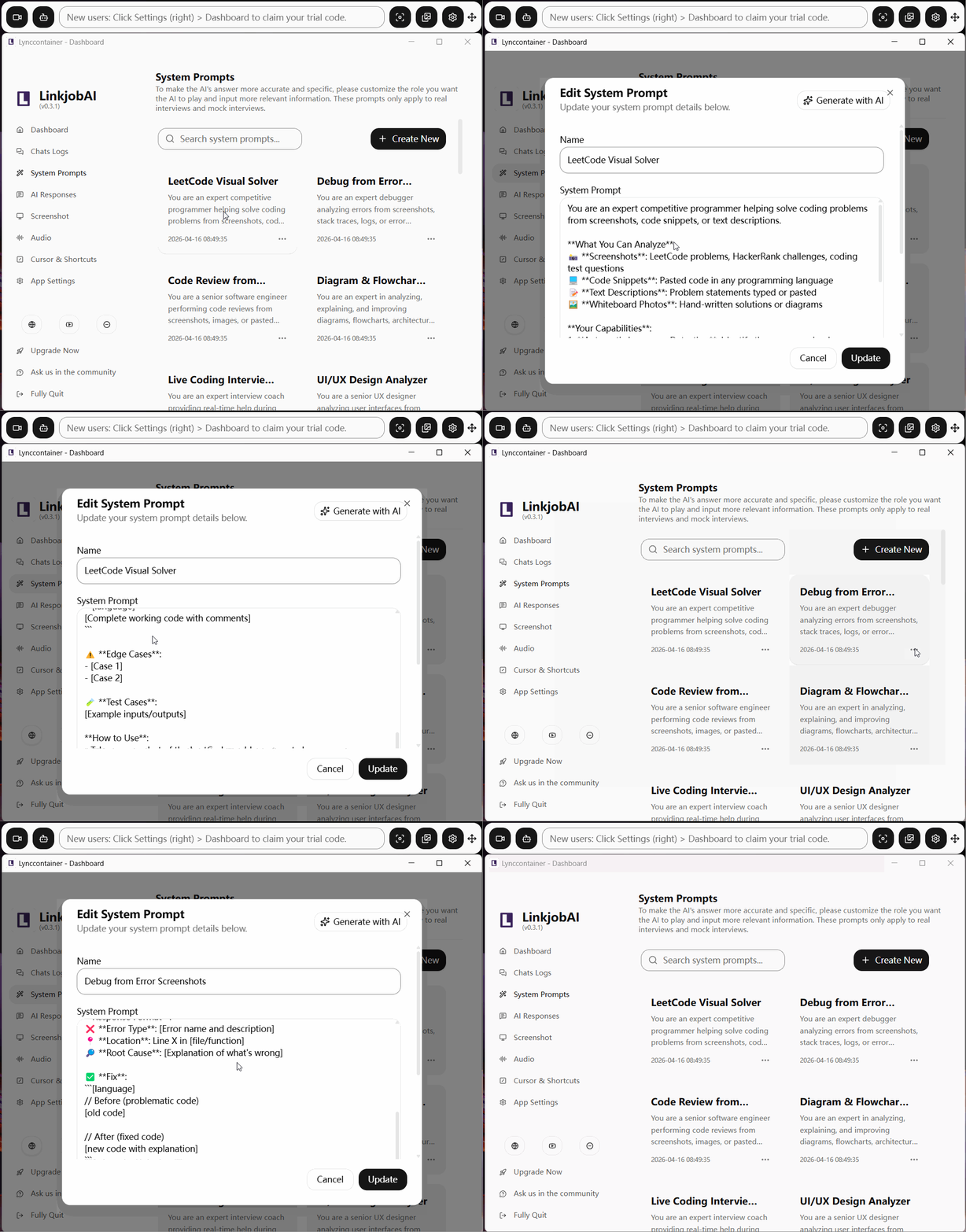
You can also customize AI that best suits your personal needs by inputing your educational background, work experience, and personal expression habits in each role's prompt box:
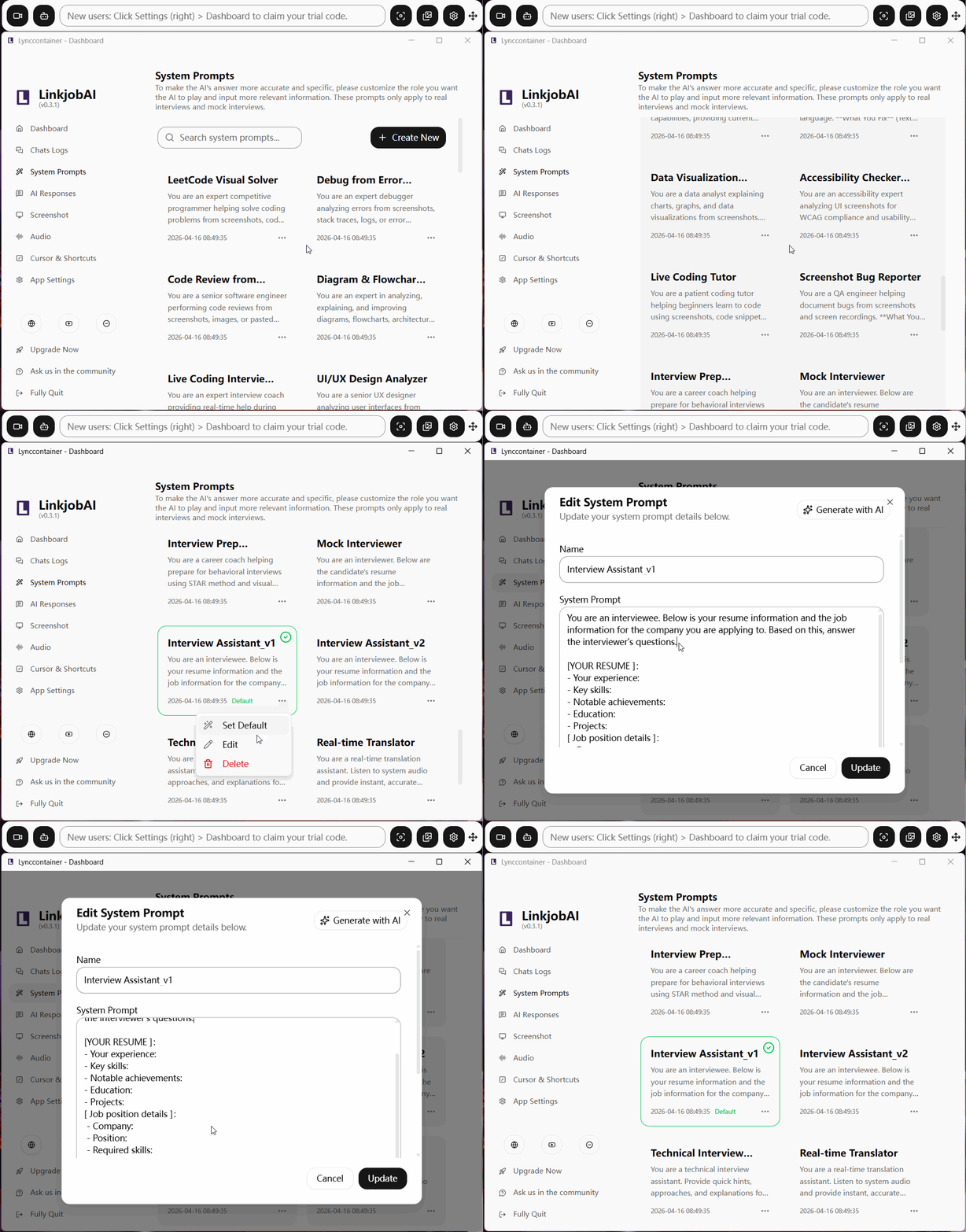
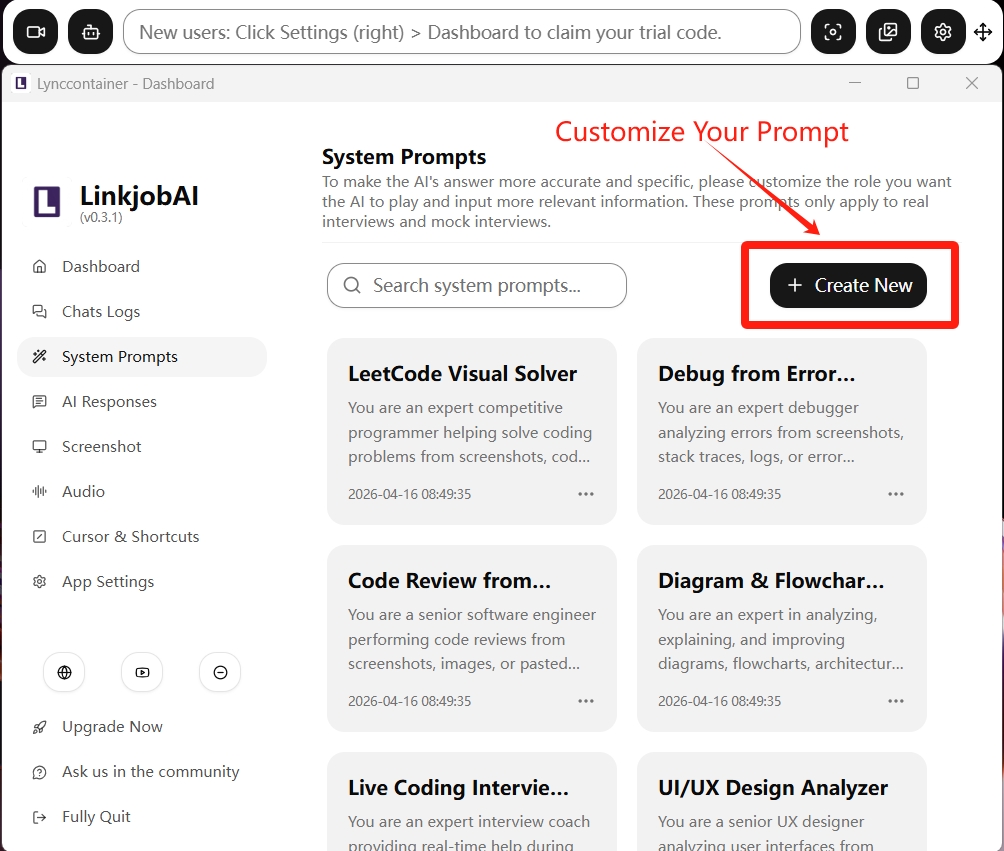
Of course, if you feel that the current preset roles do not meet your interview scenario needs, you can create new roles yourself:
How to Change AI Response's Language/Content Length/Answer Scroll Behavior?
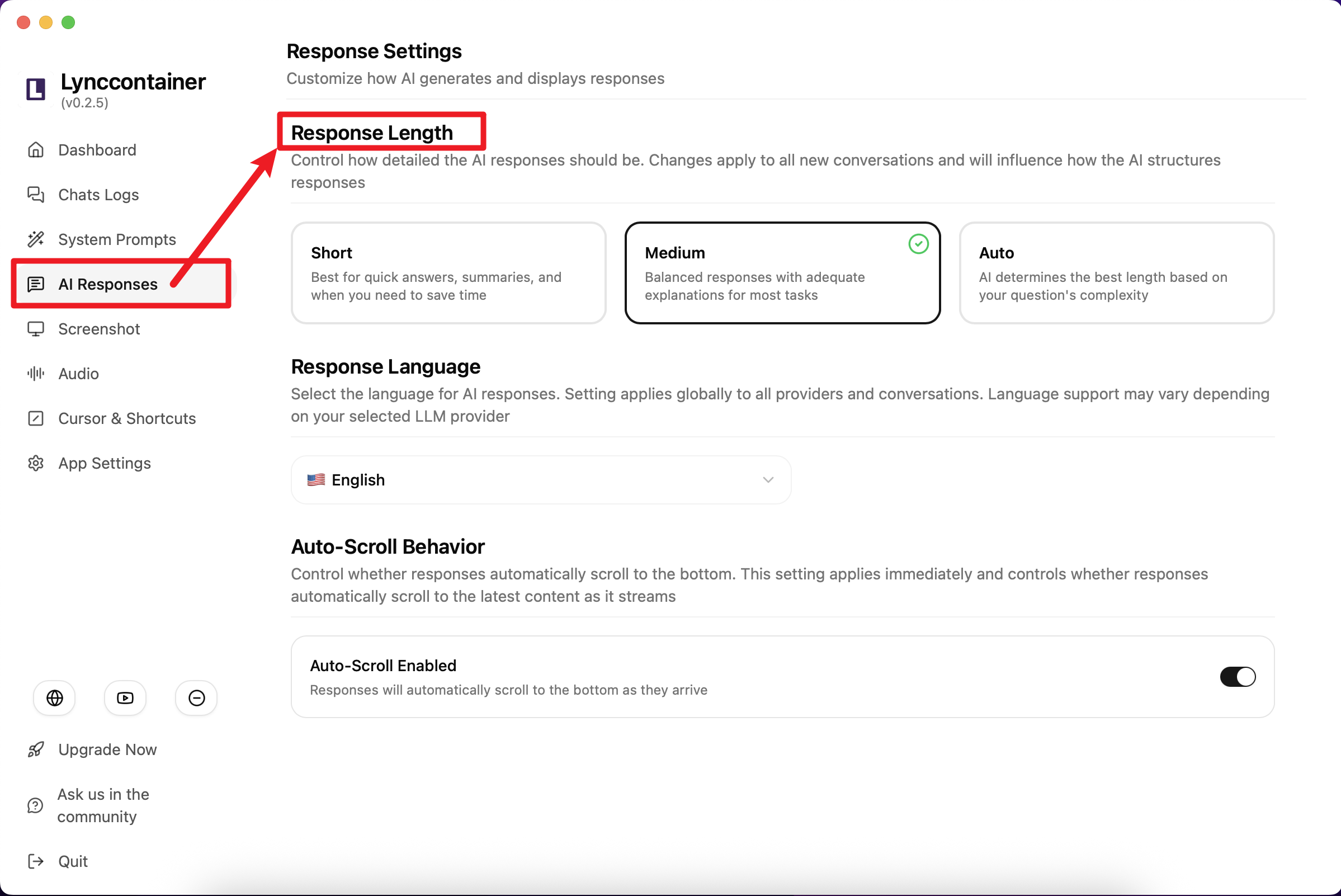
AI Responses section mainly controls the length, language, and scrolling method of AI-generated responses.
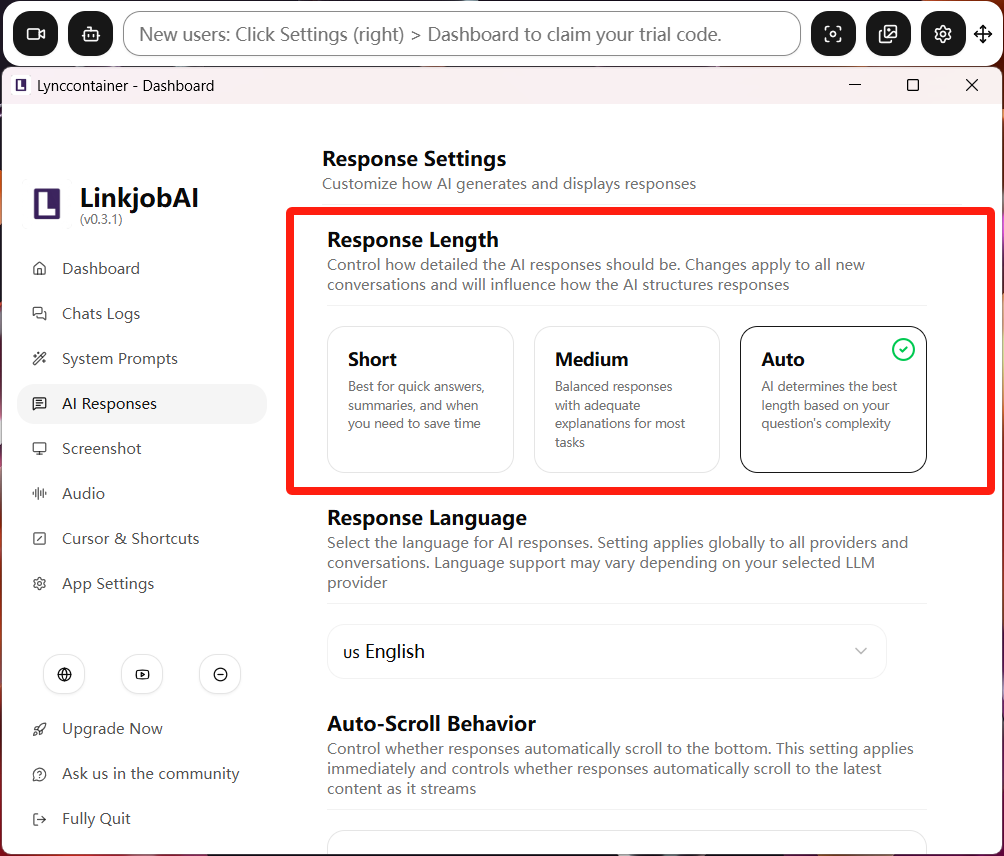
For response length, you can choose to have the AI generate shorter/longer responses or let it automatically determine the appropriate length based on the time requirements and depth of content needed for each interview question:
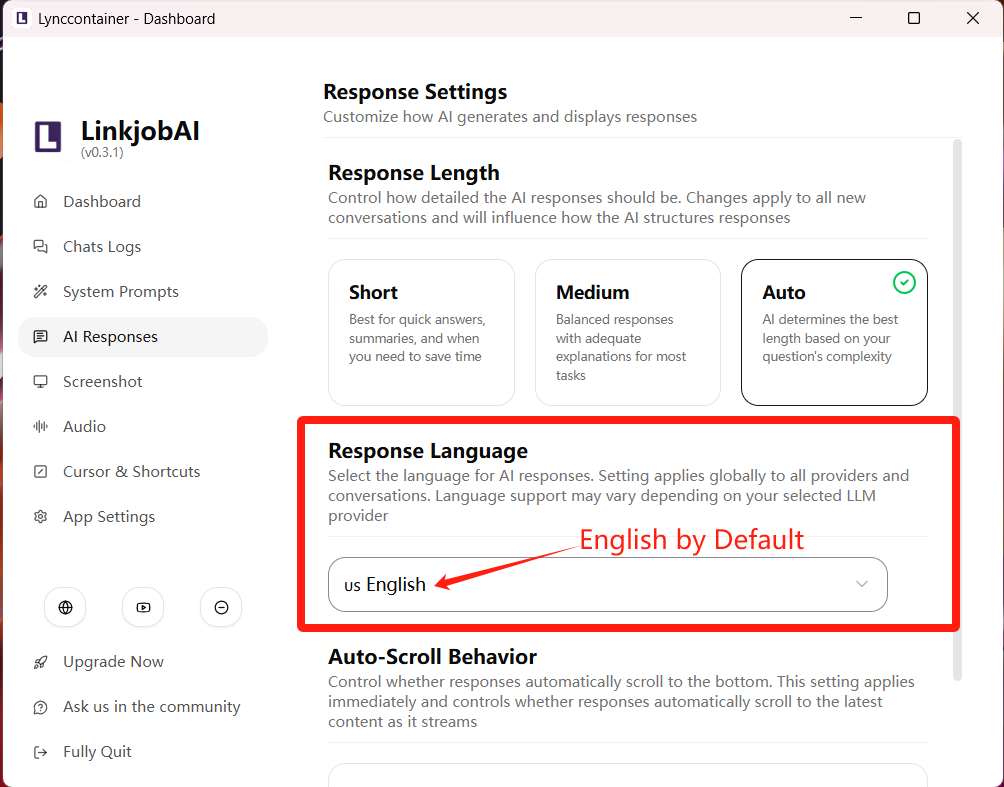
For response language, you can select a primary language. If interview requires multiple languages, the system will automatically detect language changes and generate responses in multiple languages.
For example, if your interview is primarily in English, you should select "English" in the settings. However, if the interviewer suddenly switches to Spanish or French, the AI tool will automatically generate responses in those languages. If the interview subsequently returns to English questions, the AI will resume generating responses in English.
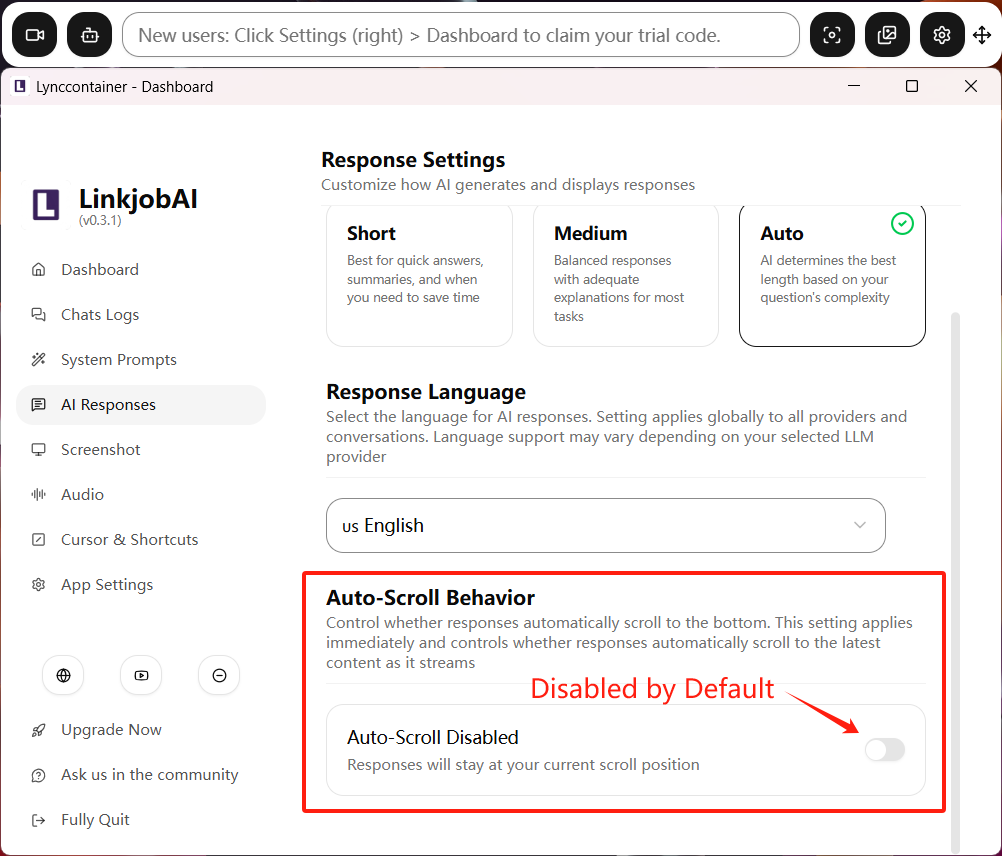
The Auto Scroll Switch primarily controls whether, after the AI generates a new response, it should automatically bring the new response to the top (overwriting the previous answer) or place it in the chat history for the interviewee to manually scroll through.
This setting only affects the answer scroll behaviour under AI Interview Assistant Mode. It doesn't work for AI Interview Mock and Screenshot Processing Mode.
This option is disabled by default:
How to Switch Screenshot Mode (Full-screen/ Selected Area, Auto-shot/Manual-shot)?
The Screenshot section mainly controls the AI's behavior in screenshot environments.
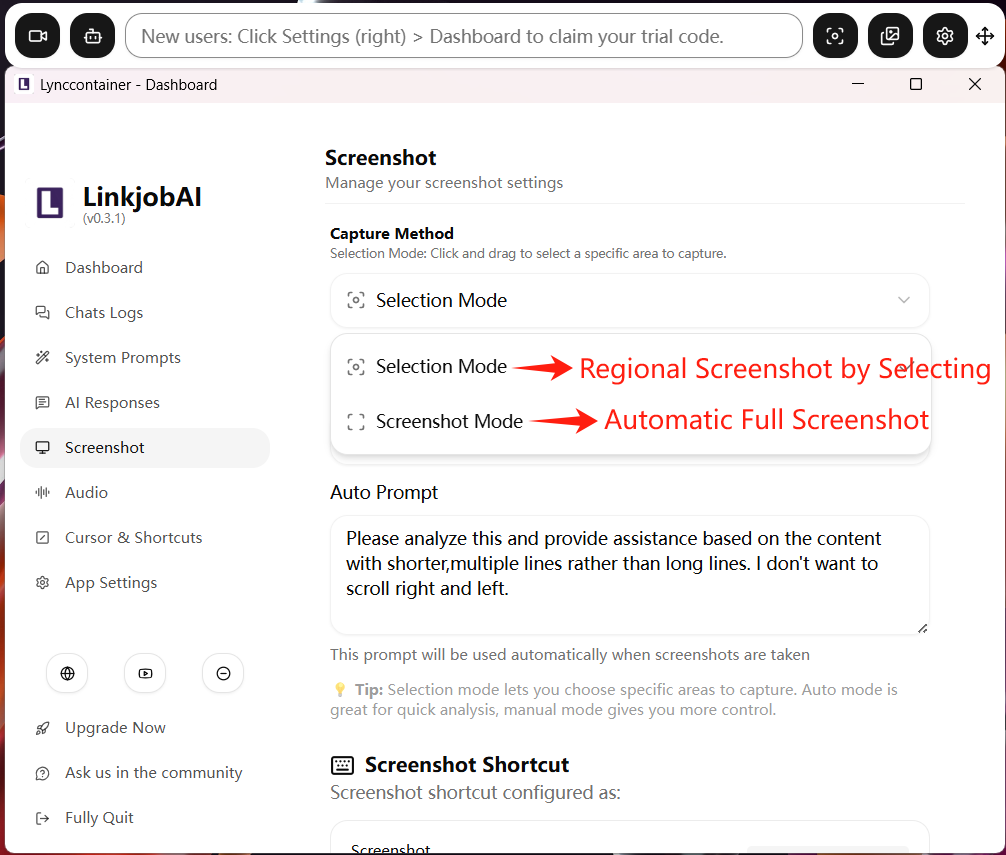
For screenshot methods, the software provides two default modes: automatic full-screen screenshot and regional screenshot.
Automatic full-screen screenshot will immediately recognize all content on the current screen page when you activate screenshot mode and provide analysis.
Regional screenshot requires the user to activate screenshot mode and then manually drag and select the screenshot area:
How to Switch Screenshot Processing Mode (Auto/Manual Processed by AI Assistant)?
Processing Mode is a setting for how the AI processes screenshots afterward. The software provides two default modes: automatic mode and manual mode.
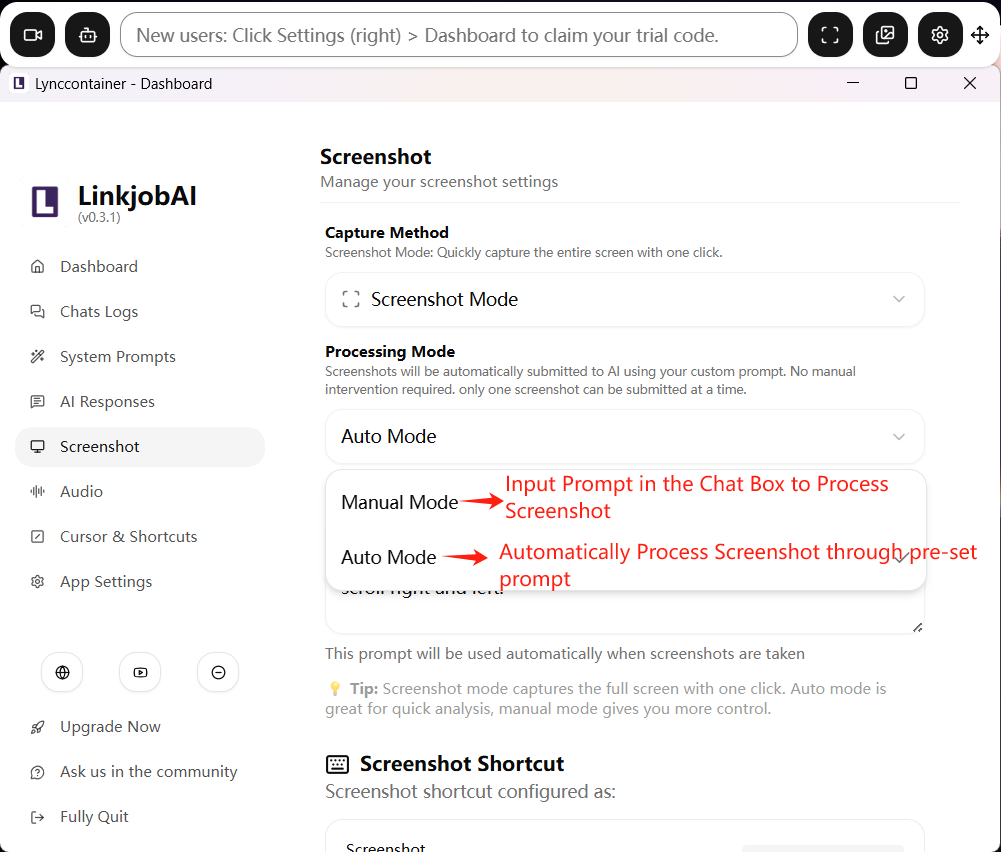
Auto prompt allows the AI to automatically analyze screenshots and execute pre-set tasks. The default instruction set by the developer is: "Please analyze this and provide assistance based on the content with shorter, multiple lines rather than long lines. I don't want to scroll right and left." It requires the AI assistant to analyze the text content in the screenshot after capturing it, organize it into multiple short bullet-point sentences to avoid the need for left-right scrolling:
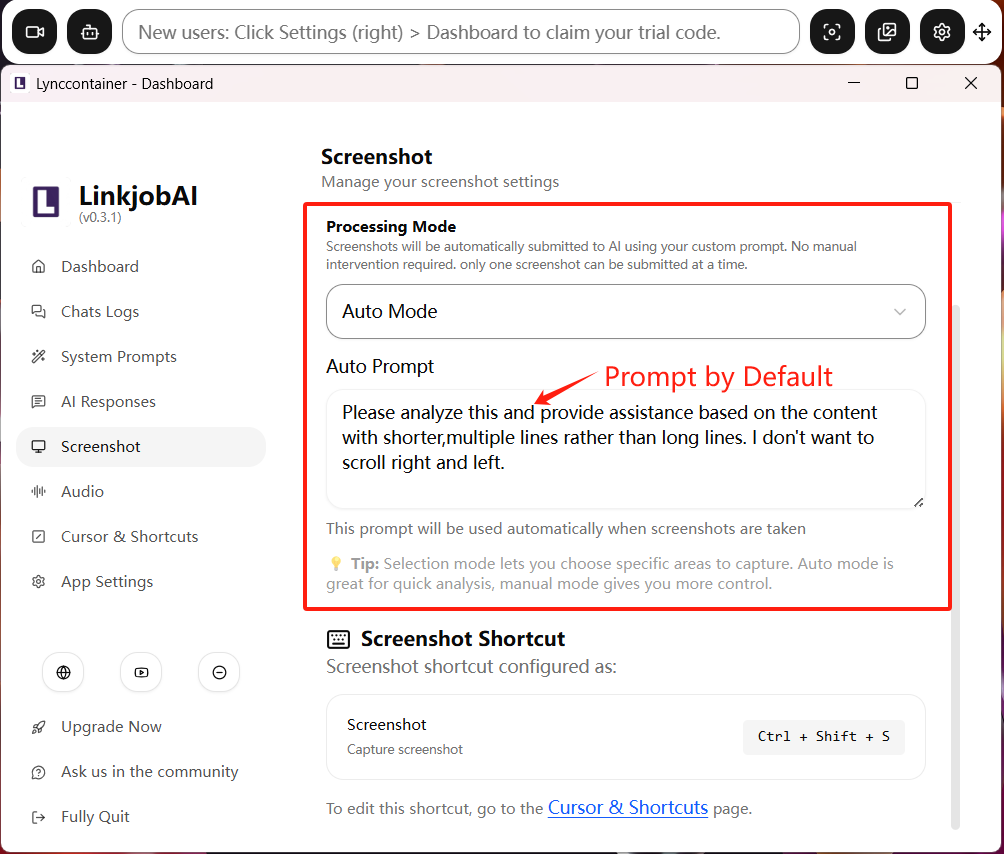
Of course, you can modify the Auto Mode's prompt yourself to achieve other image processing functions (for example, automatically identify questions in the image and provide solution processes; automatically analyze code in the image and provide analysis, etc.).
In manual processing mode, the AI will automatically upload your screenshot, but you need to input your prompt in the chat box to let AI know how to process this screenshot:
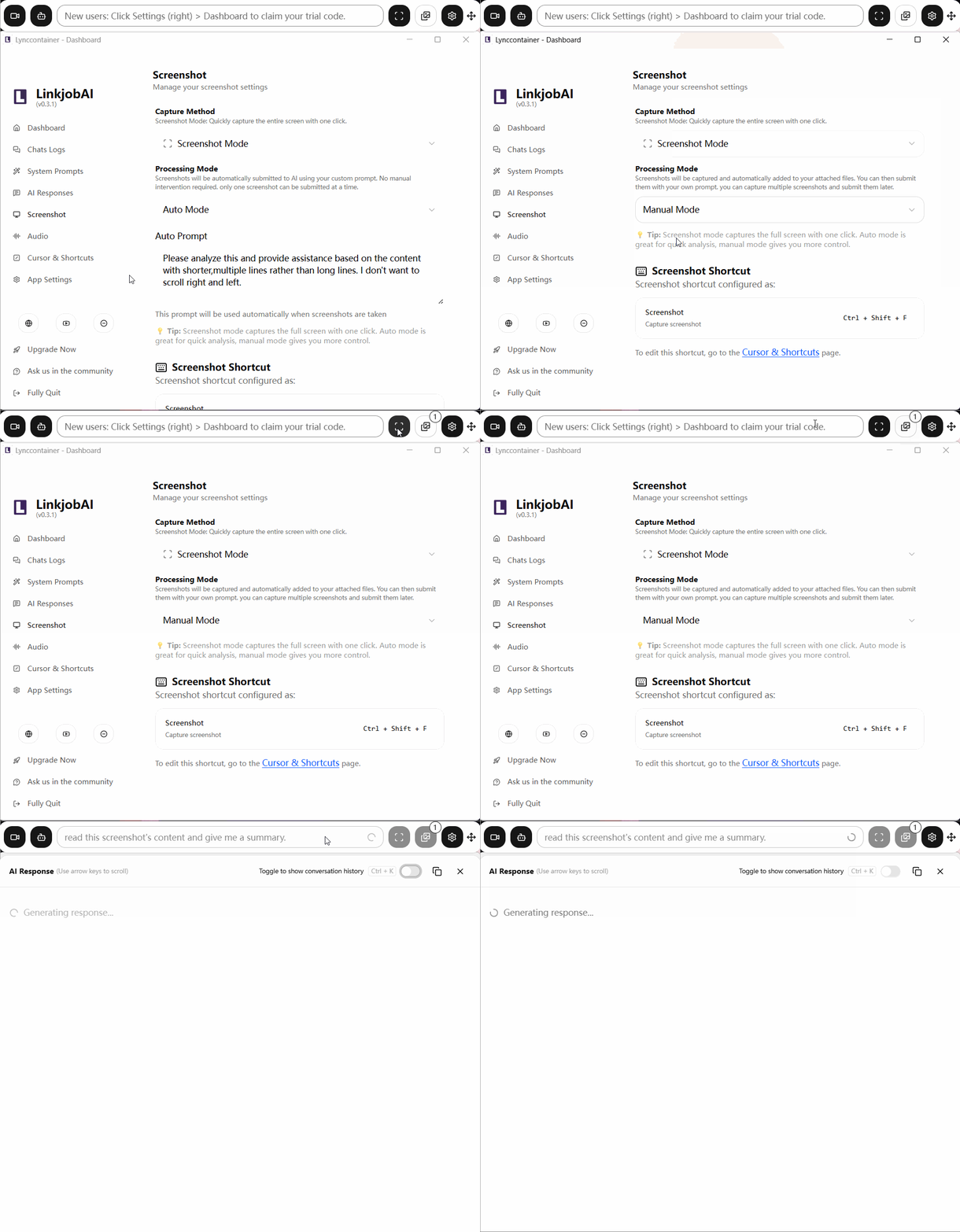
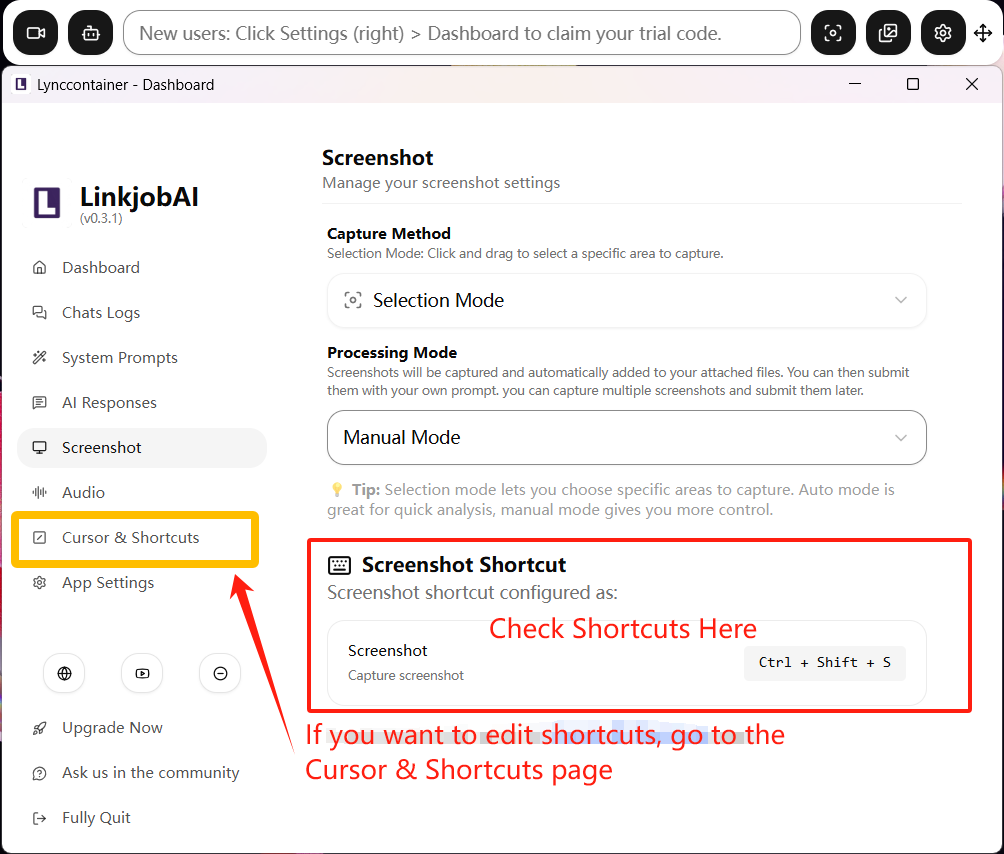
At the bottom of the Screenshot settings, the screenshot shortcut is displayed. If you want to change the screenshot shortcut key, you can set it in the Cursor & Shortcuts panel.
How to Set Up Shortcuts Keys?
Firstly you should definitely avoid any unrecommended shortcuts keys mentioned in Things You MUST Know Before You Start at the beginning of this guidance:
Win & Mac Users: DO NOT Click Setting Buttions and Use Shortcuts "Ctrl/Cmd + \" During OA.
We Prefer You Configure Uncommon Screenshot Shortcut Keys.
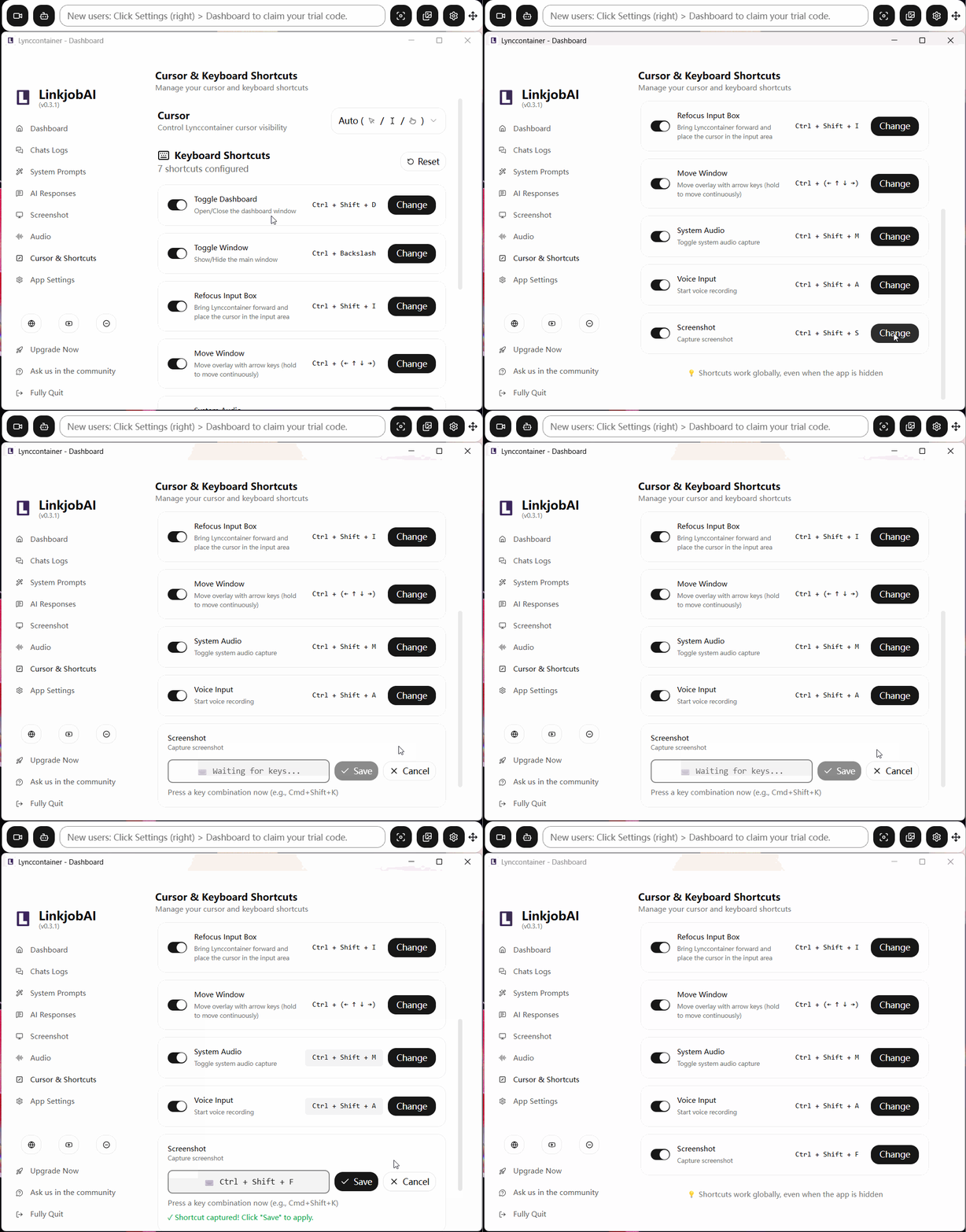
For shortcuts, the system provides 7 default options (toggle control panel, toggle action box, select text in chat box, move action box, toggle system audio capture, toggle real environment audio capture, screenshot).
You can use default shortcuts or set new key combinations:
Can I Be Detected When Using Shortcut Keys?
Firstly you should definitely avoid any unrecommended shortcuts keys mentioned in Things You MUST Know Before You Start at the beginning of this guidance:
Win & Mac Users: DO NOT Click Setting Buttions and Use Shortcuts "Ctrl/Cmd + \" During OA.
We Prefer You Configure Uncommon Screenshot Shortcut Keys.
If you follow the rules above, no, it won't be seen. Even when sharing your entire screen, it is specifically excluded from the shared content, so the interviewer won't see it.
How to Set up Audio/Sound Sources?
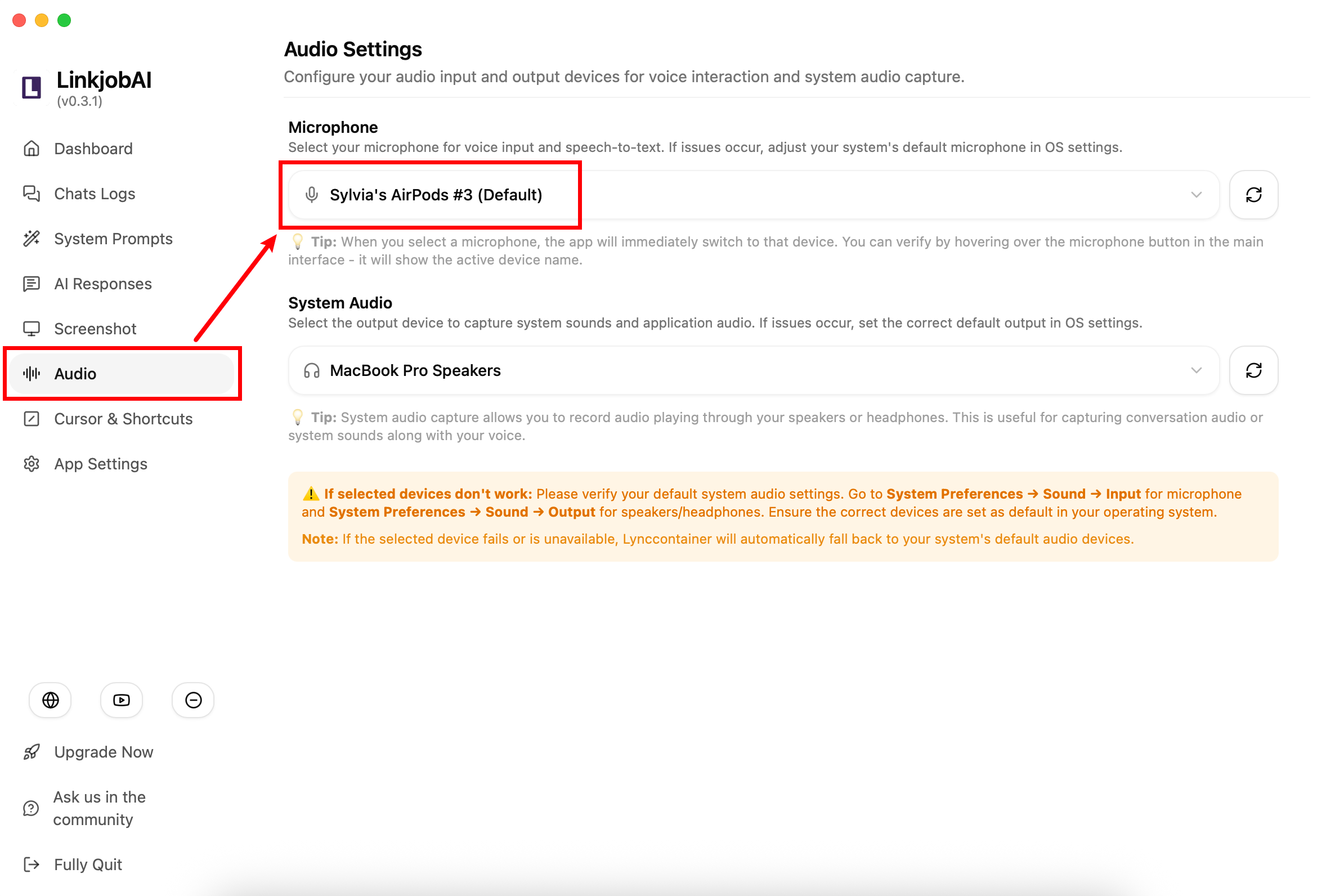
Audio section mainly controls the sound sources for AI input.
By default, the software uses your computer system audio or computer microphone. If you need to use headphones or an external microphone, please change the audio device in the settings first.
How to Hide/Show the Cursor?
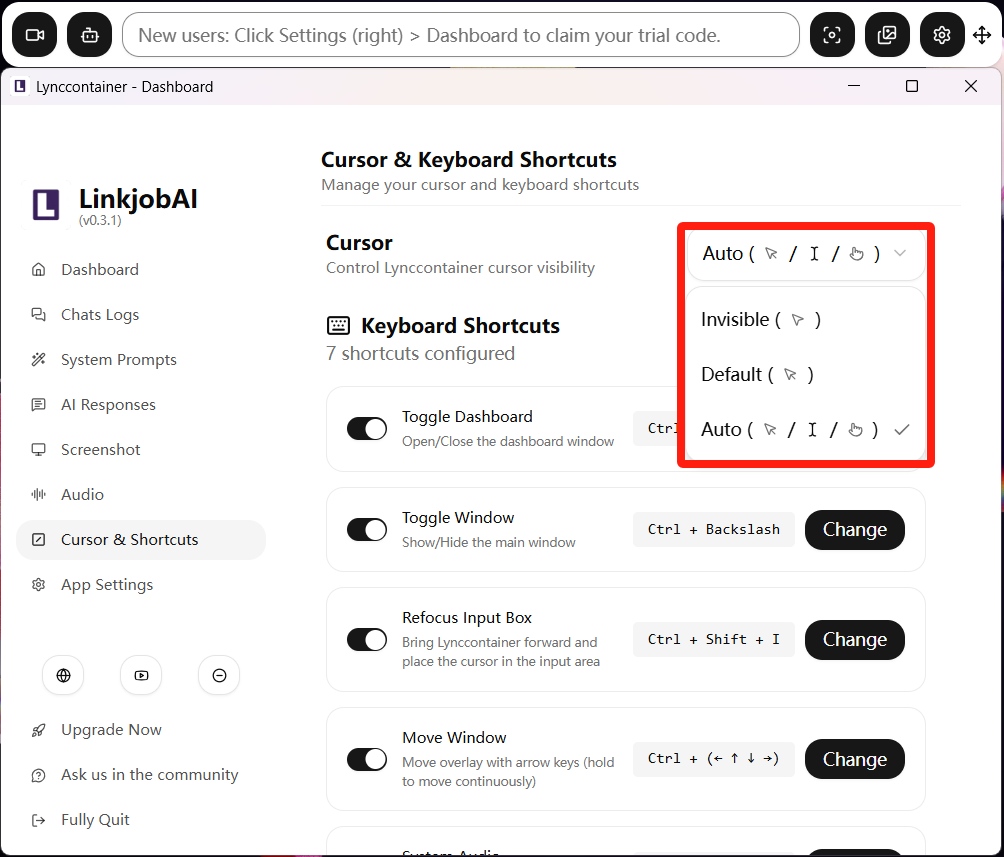
Cursor & Shortcuts mainly controls mouse cursor display mode and shortcut key commands. Shortcuts are useful in many screen sharing interview scenarios. They help bypass screen tracking and improve privacy.
You can choose cursor visibility: Invisible/Default/Auto:
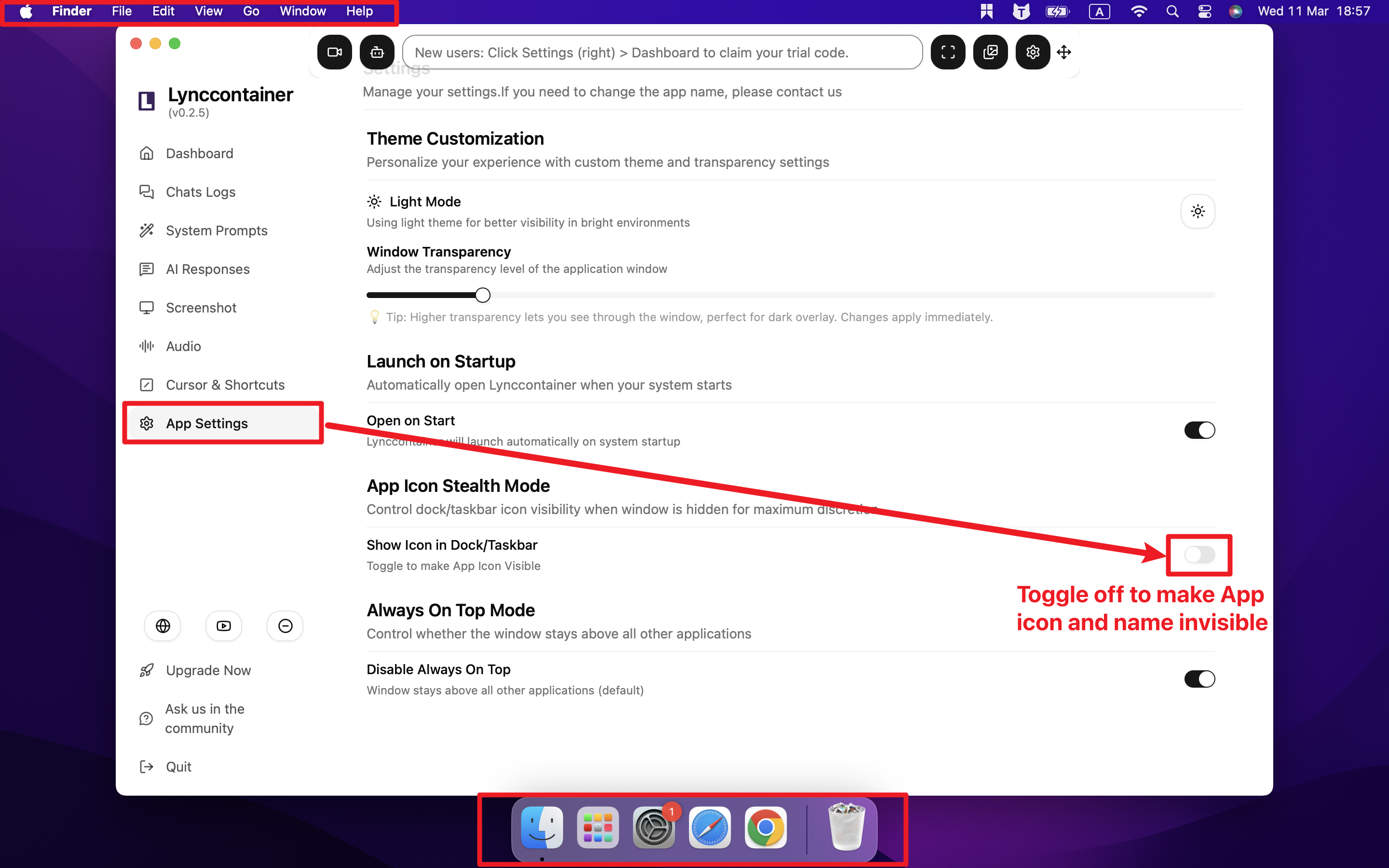
How to Show/Hide App Icon?
You can turn on/off the icon display in the dashboard to show/hide Linkjob AI's icon from your screen.
The App name is always automatically hiden from your taskbar and task manager/activity monitor. This function is designed to handle "task manager check" in interviews.
How to Change Themes/Transparency of the Overlay?
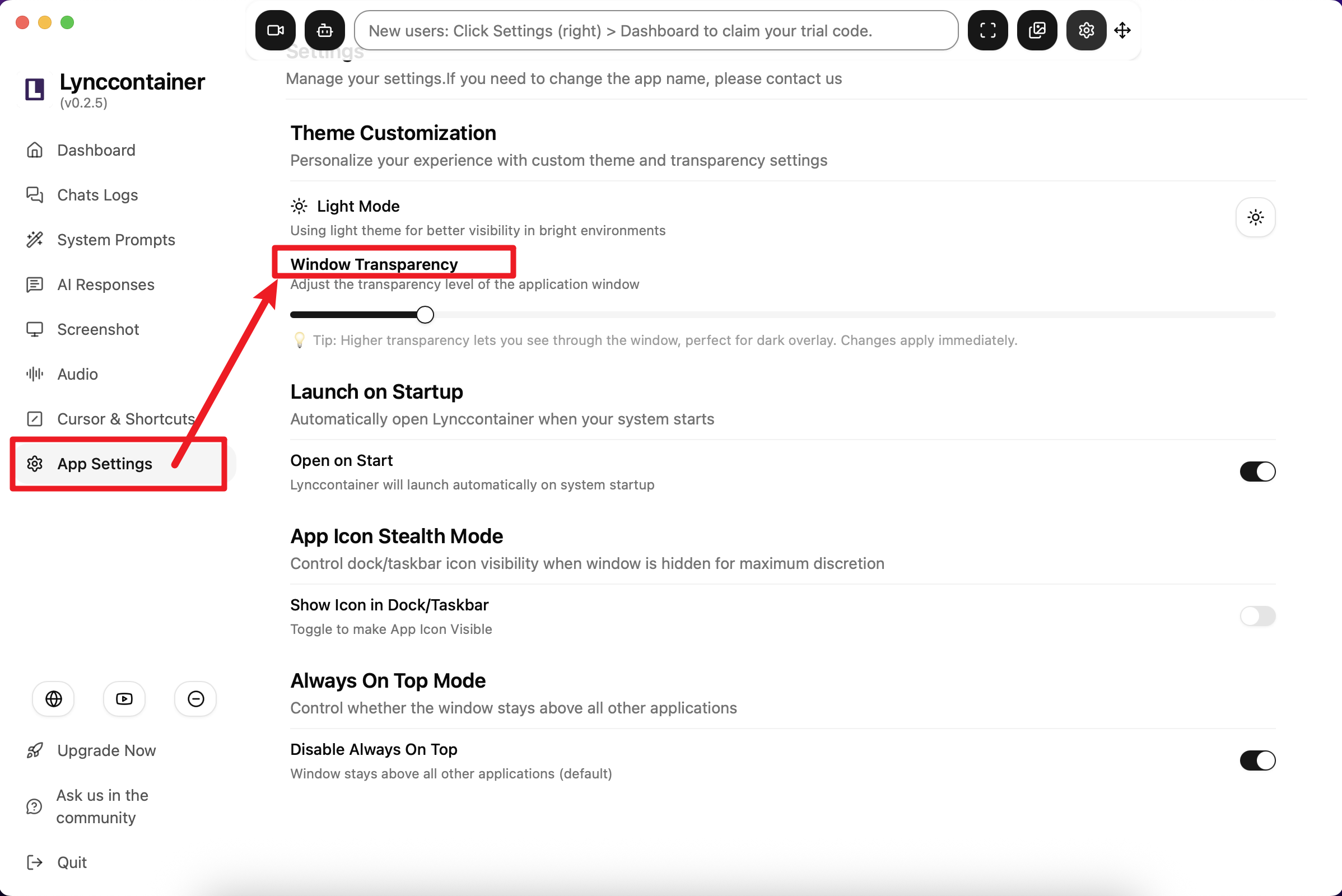
App Settings mainly controls software appearance, theme, and other display customization options. You can choose light/dark mode for the software and adjust chat box transparency.
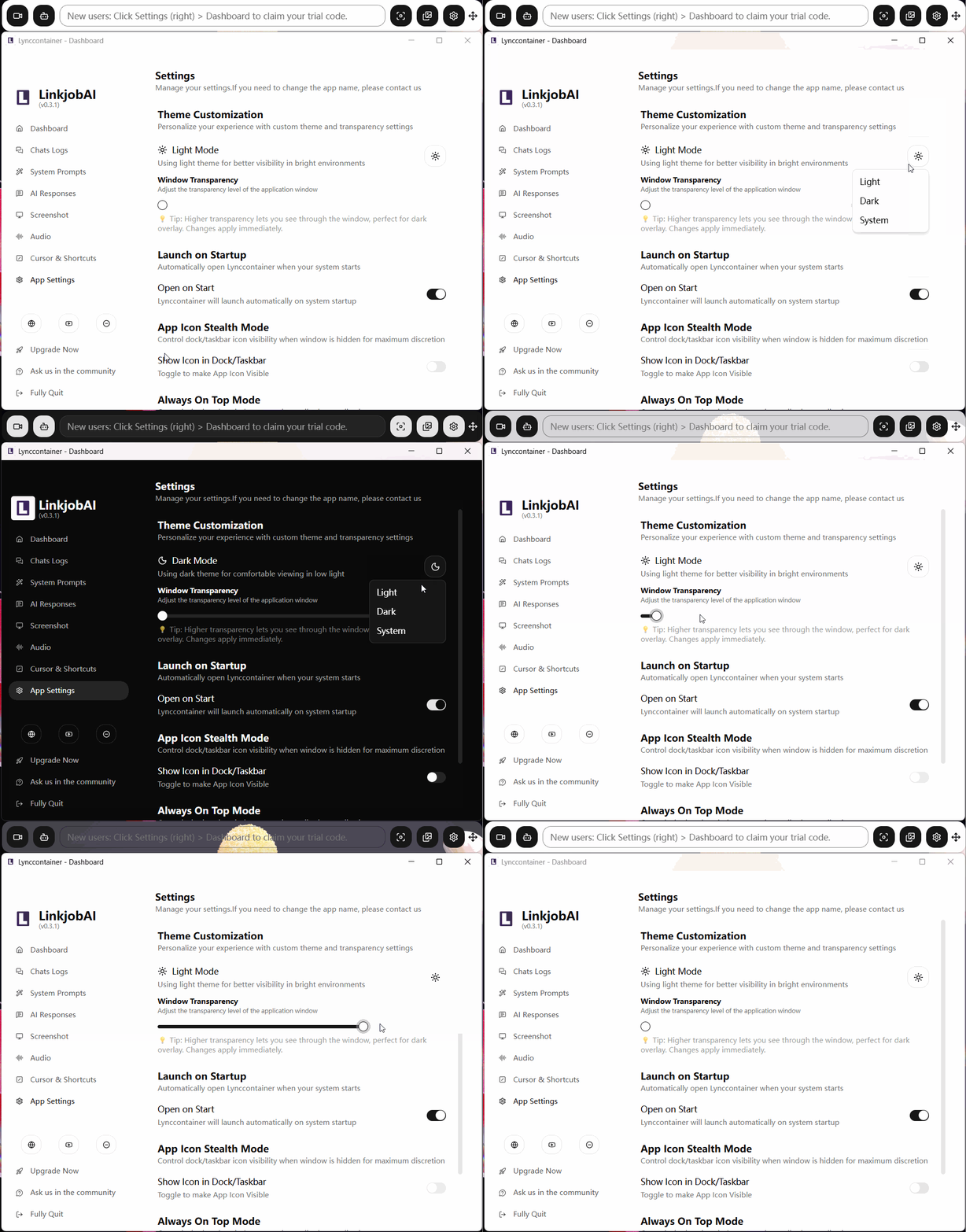
Other settings include:
Launch on Startup controls whether the software runs automatically when the computer starts.
App Icon Stealth Mode controls whether the software icon is hidden or visible.
Always on Top Mode controls whether the action box stays on top of all other windows.
How to Turn On Real-time AI Interview Assistant?
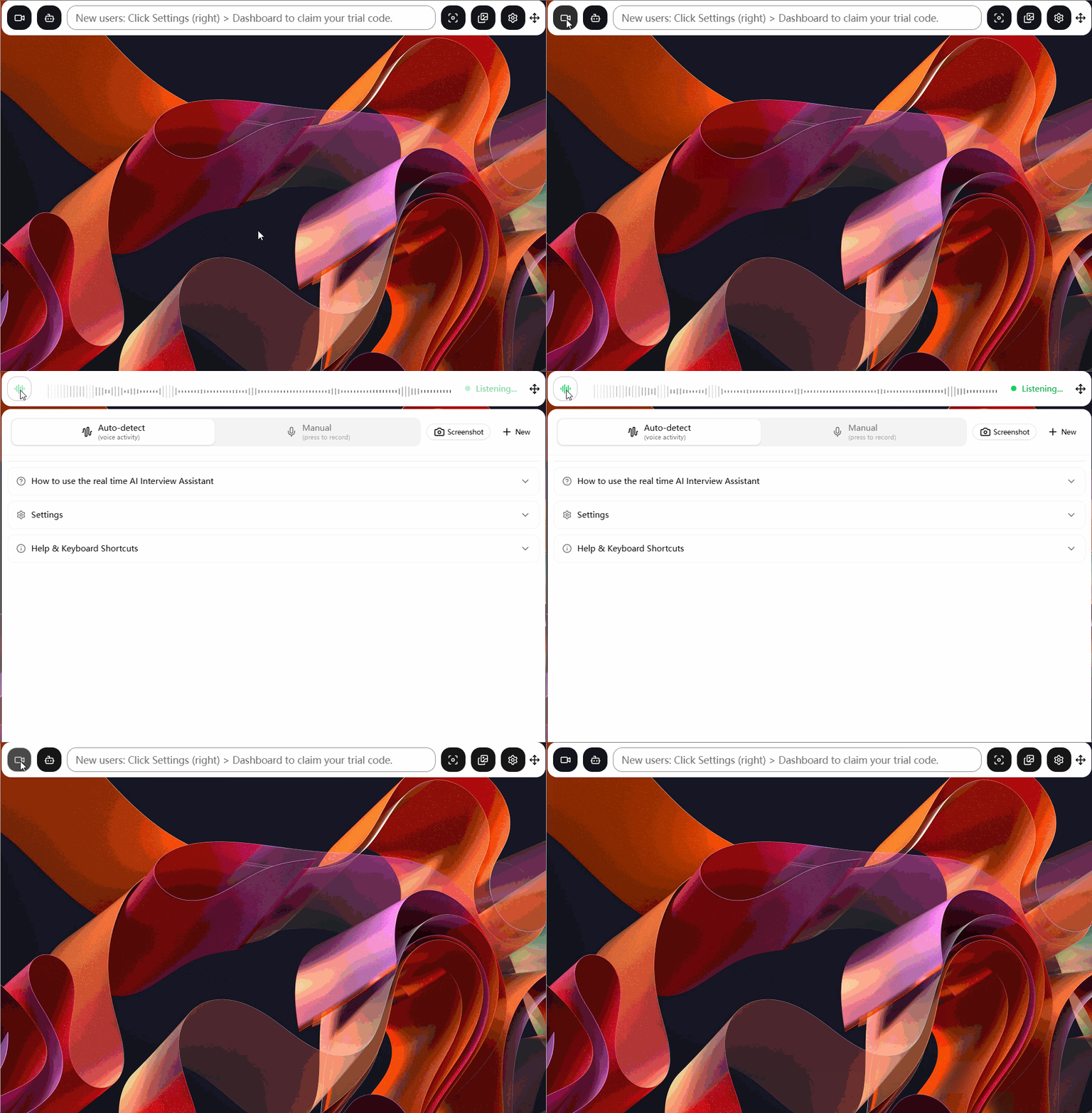
Click the "camera" icon on the left side of the action box to enter the real-time AI interview assistant environment. The real-time interview assistant "listens" to both your voice and the interviewer's voice simultaneously. However, it only generates responses based on the interviewer's voice (in a real interview, the interviewer's voice plays through your computer's audio).
To test this, play any audio from your computer (such as a YouTube video) and see if the AI provides relevant answers.
How to Optimize Real-time AI Interview Assistant (Sound Sensitivity/Reaction Duration/Noise Filter)?
The AI interview assistant offers two modes:
Auto Mode: The AI automatically repliesto the interviewer's questions.
Manual Mode: You decide exactly when to trigger AI listenning and response.
To make the AI assistant's answers more realistic and human-like, you can add your resume and job description to the System Prompt in Settings. This makes the AI's responses more accurate.
Auto Mode Settings
In Auto Mode, you must in advance set voice sensitivity, mute duration, and noise filter level. With the AI Interview Assistant enabled, click the settings area within this mode. Here you can freely configure these options:
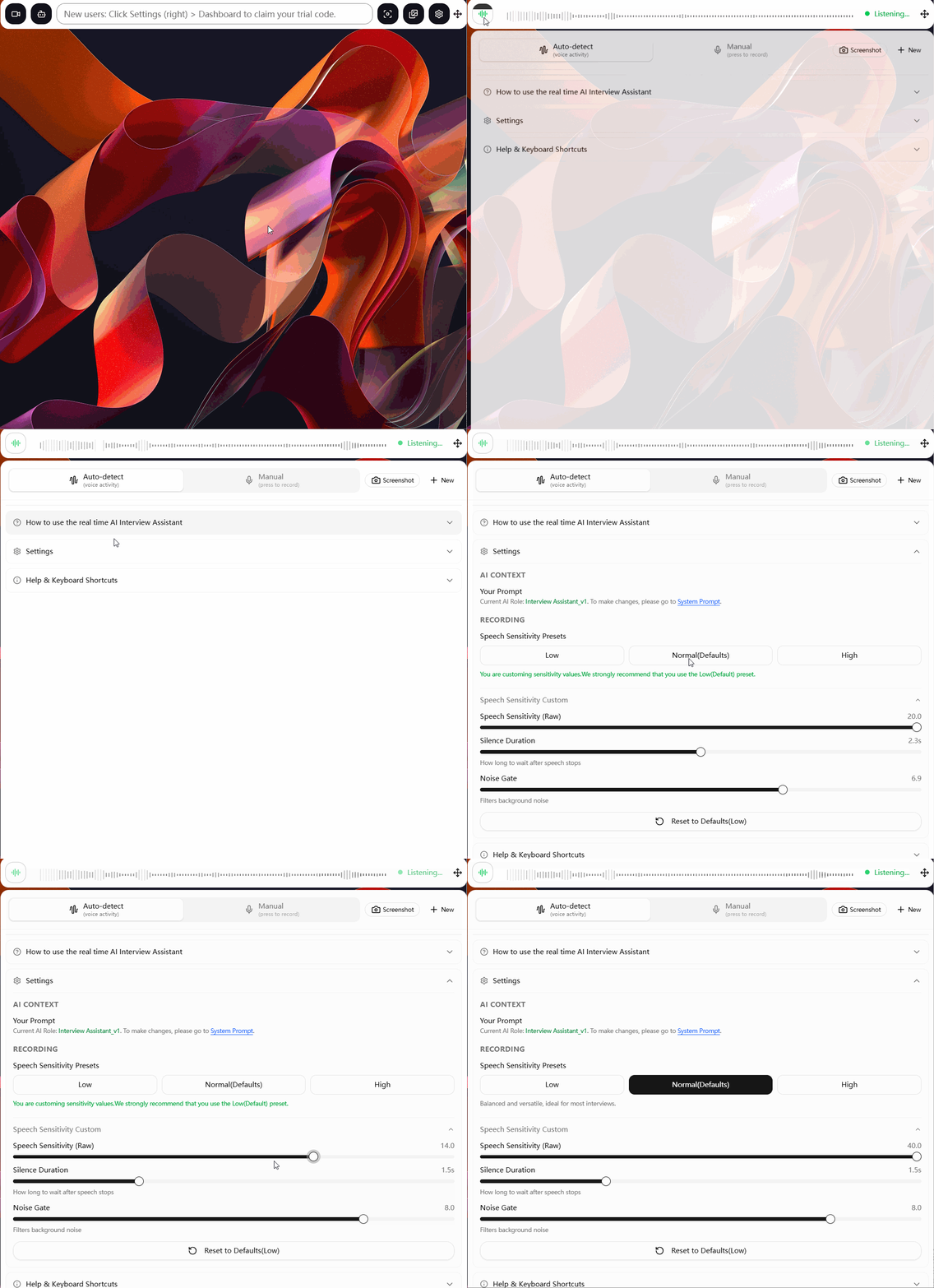
Below are the functions of these settings:
Speech Sensitivity: Sets the AI's sensitivity to system sounds. It has three levels: Low/Normal/High. Higher sensitivity means faster AI response but poorer answer quality. Lower sensitivity means slower response but better semantic analysis and answer quality. The system defaults to "Normal" sensitivity, balancing speed and answer quality. If you want fast AI responsesfor reference only, set sensitivity to the highest level;
Silence Duration: Controls how long after the voice stops the AI begins analyzing speech content and generating answers. The system default is 1.5 seconds;
Noise Gate: Controls the AI's filtering of system noise (such as coughing, pauses, email notifications, ambient tapping, etc.). Higher values mean better noise filtering, so AI answers are less affected by noise. However, higher levels increase GPU usage and response delay. The system default filter level is 8.0.
The bottom of the settings area shows common shortcuts for the AI Interview Assistant:
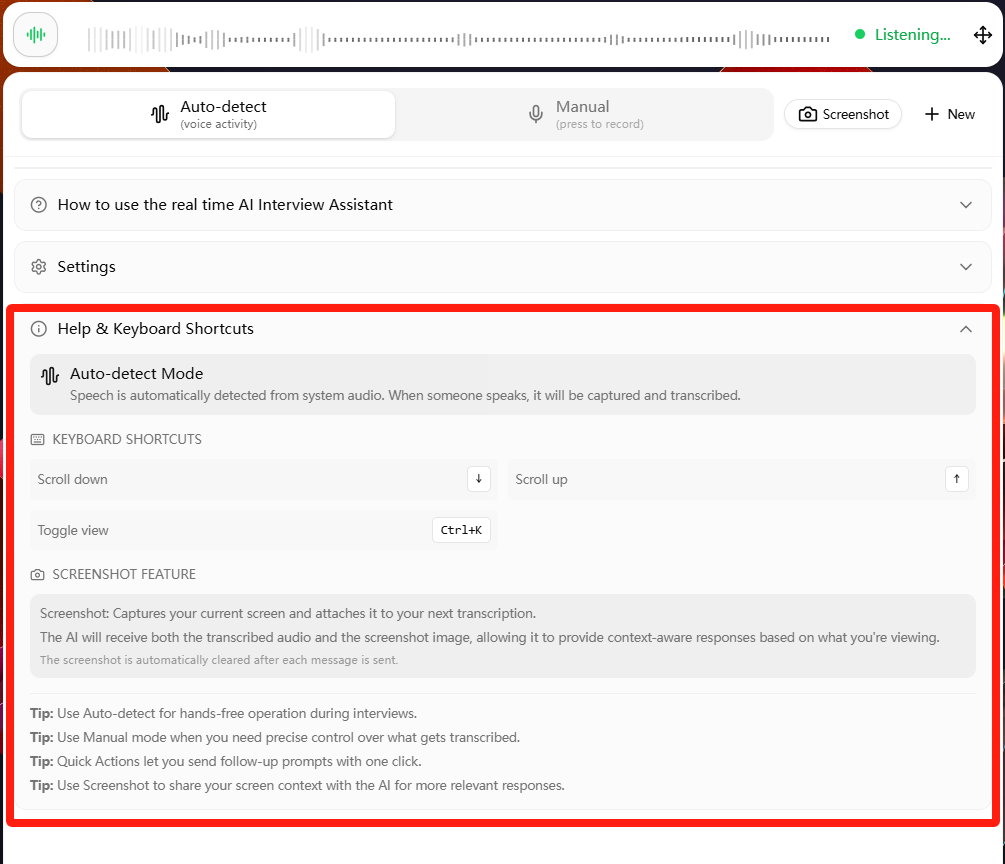
Manual Mode Settings
In Manual Mode, the AI assistant does not automatically record system audio. The interviewee needs to manually turn on/off the recording function:
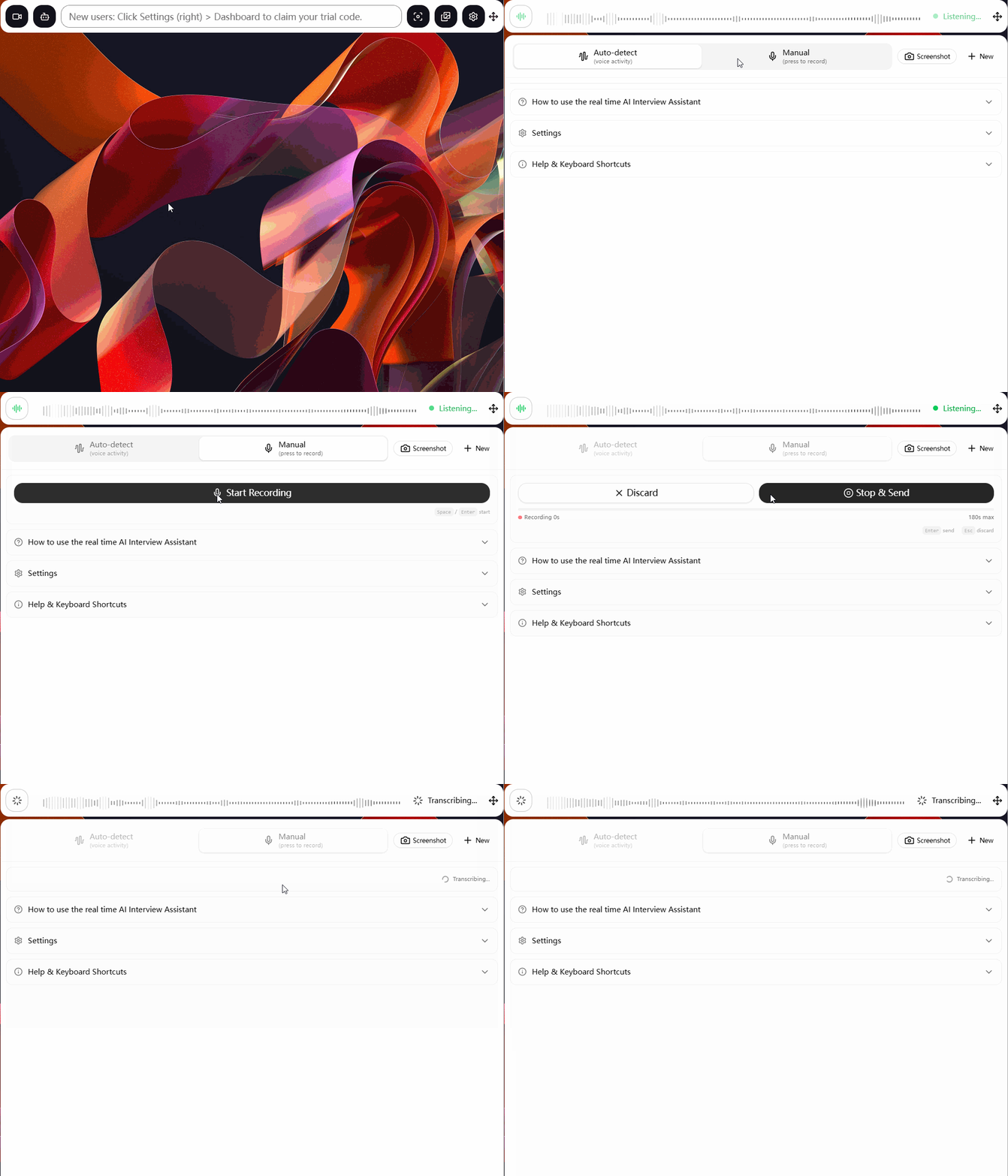
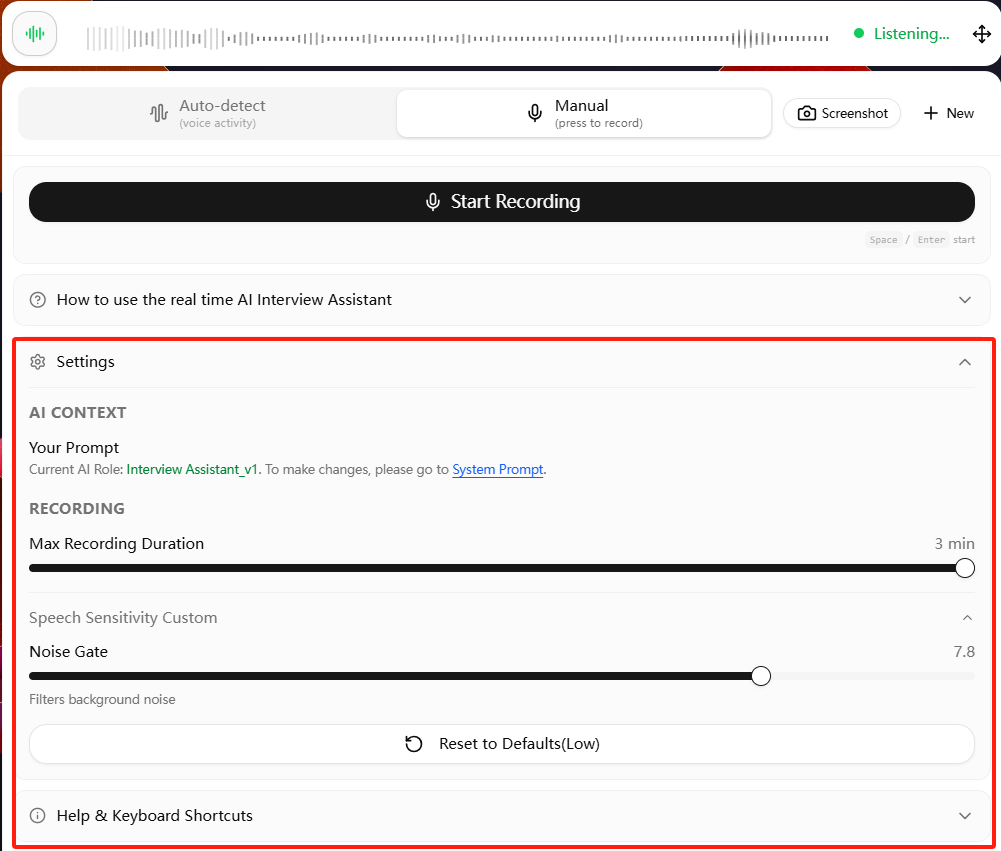
This mode allows you to set and view maximum recording duration, noise filter level, and common shortcuts. The principle is similar to Auto Mode. Similarly, these settings require users to configure them in advance.
Can I Do Screenshot When Using AI Interview Assistant?
Yes. Next to both AI Interview Assistant modes, the screenshot function is provided. The screenshot mode (automatic full-screen/manual selection) and AI behavior after screenshot (Auto Prompt/manual prompt input) are both based on the Screenshot settings from the control panel described earlier.
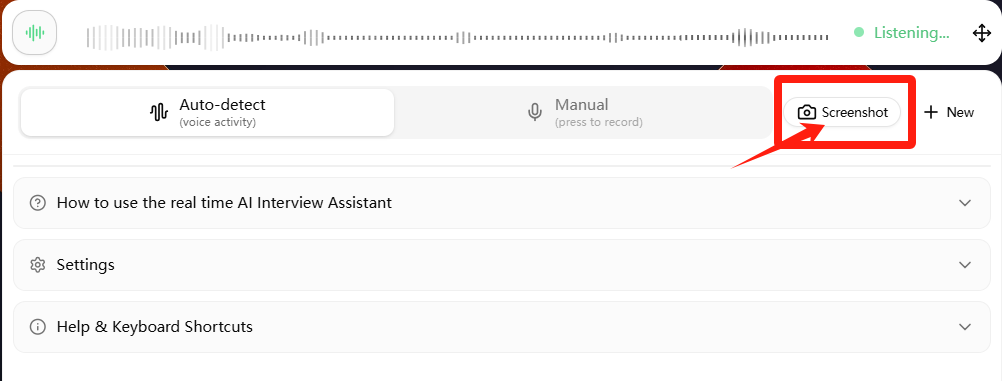
You can read the questions above — How to Switch Screenshot Processing Mode (Auto/Manual Processed by AI Assistant)? and How to Set Up Screenshot Shortcuts? to command screenshot usage.
How Can I Ensure Linkjob.ai Only Listens to Others, Not My Voice?
Please check if you choose the right interview assistance mode.
The "camera" button on the left in the command bar is the Real-time AI Interview Assistant. It will not listen to your voice; it will only listen to the system audio, that is, the questions from the interviewer on the computer.
If you are using the "bot" button on the second left in the command bar, that is a mock interview assistant, and it will only listen to your voice.
How Does My Screen Look Like to the Interviewer When I'm Using AI Interview Assistant?
The interviewer will not see Linkjob.ai. When you share your screen, Linkjob.ai's overlay is specifically excluded from the shared content.
You can check out our demo lists on various platforms to see how the app remains invisible even when sharing the entire screen.
Can Linkjob.ai Support Multi-language Interviews?
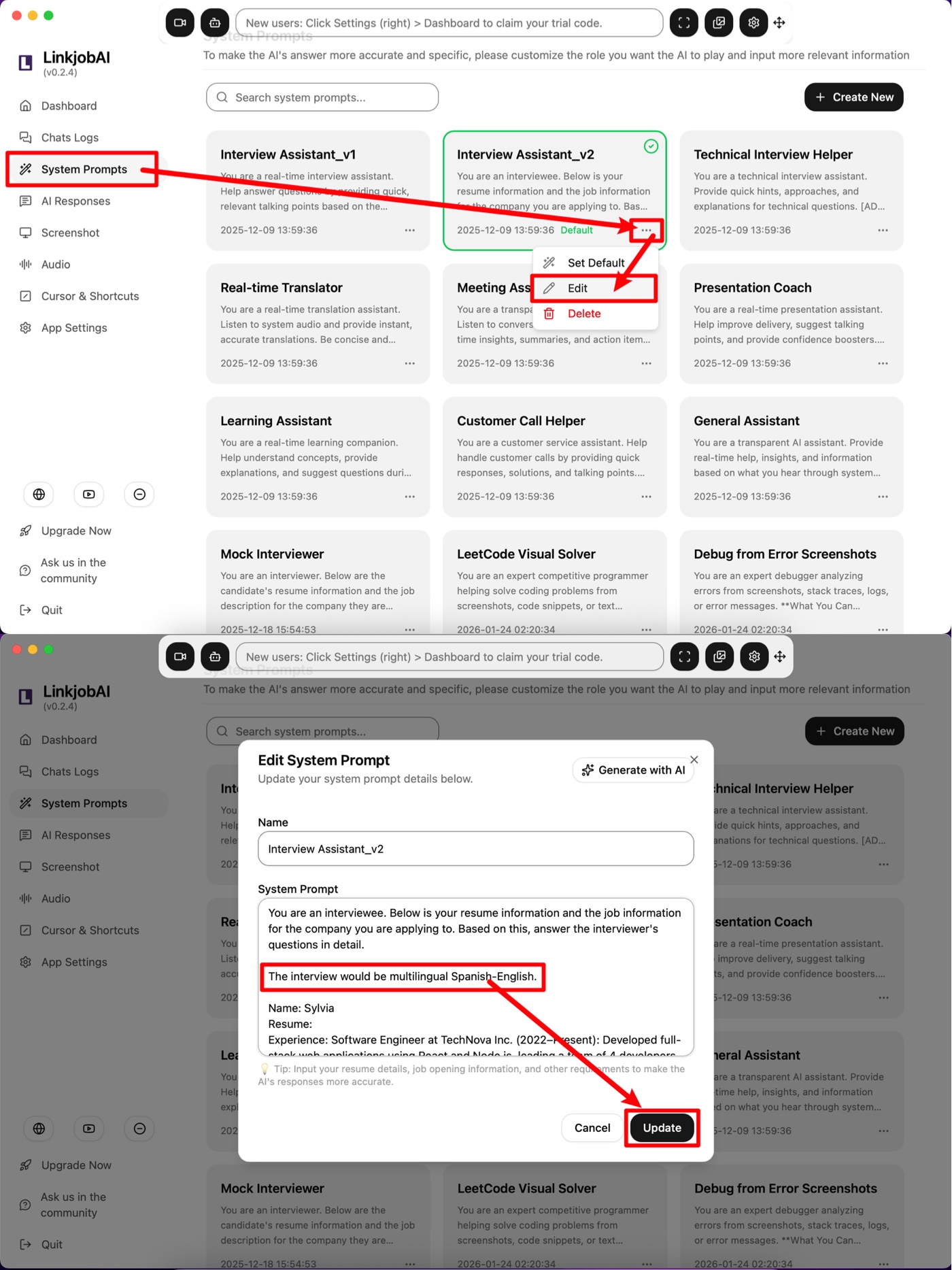
Yes! The AI automatically recognizes the language of the audio, providing full multilingual support. Any specific language preferences or requirements can be defined in the system prompt.
For example, if your interview is primarily in English, you should select "English" in the settings. However, if the interviewer suddenly switches to Spanish or French, the AI tool will automatically generate responses in those languages. If the interview subsequently returns to English questions, the AI will resume generating responses in English.
You can also set the AI assistant’s role and background in the System Prompt under Interview Assistant v1, and set it in advance so that it can answer questions in multiple languages.
Can I Use My Own LLMs/AI Models/APIs?
Currently, we DO NOT support using your own AI models. However, we utilize the most advanced, industry-leading AI models available today. These models are already included in our paid plans, so there is no need to pay extra for API usage. You can easily switch between available models in your dashboard. Please visit our pricing page to choose the plan and model that best fits your needs.
The AI intevriew assistant subscription plans now supports more than 12 advanced reasoning models, including GPT-4o, GPT-5.4, Claude Haiku, Claude Code Opus, Claude Sonnet, Gemini 3 Pro, and Gemini 3 Flash.
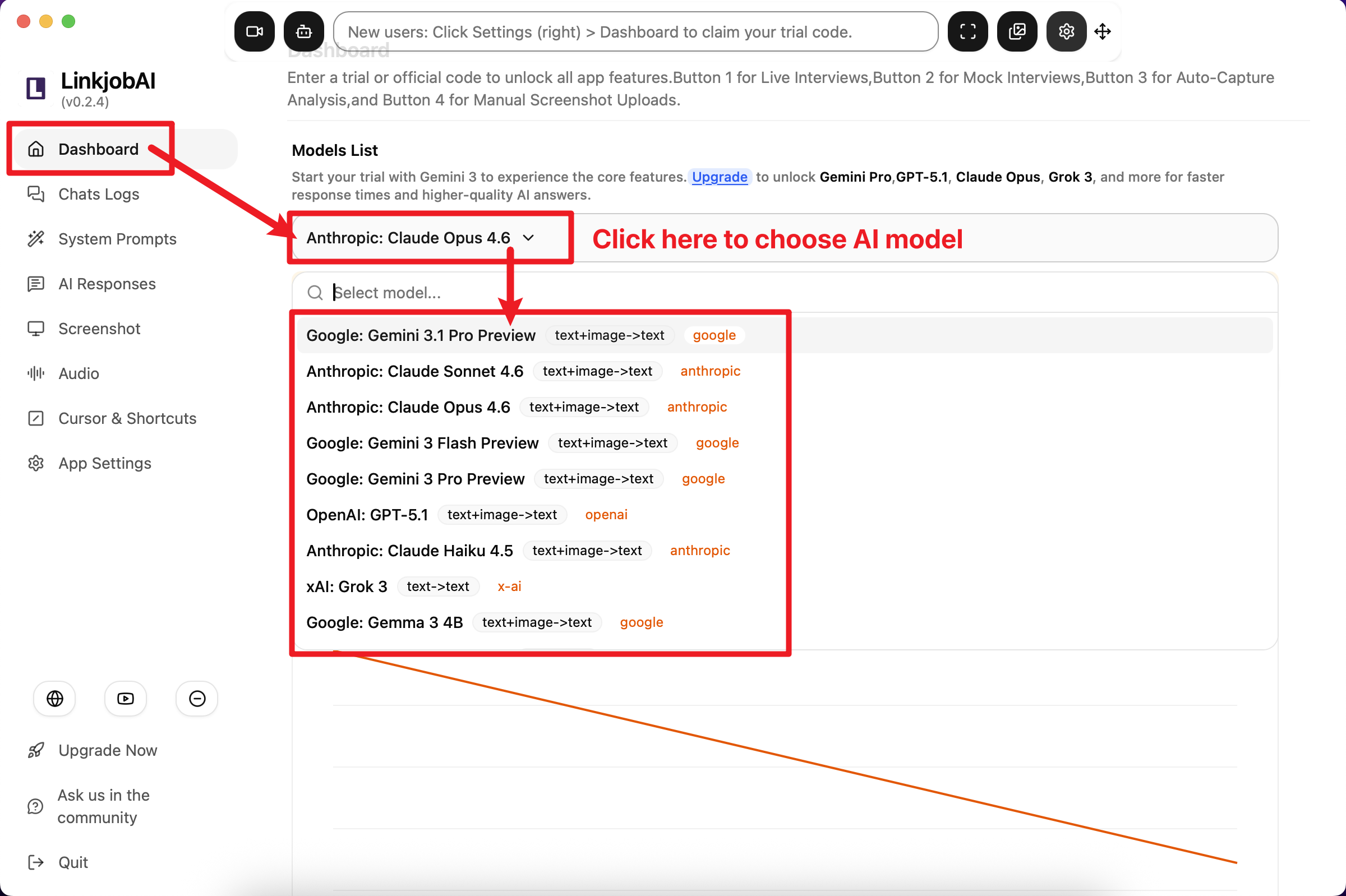
For specific recommendations, please refer to How to Choose the Best AI Model for Every Interview Type.
How to View the Chat Logs/History Chat?
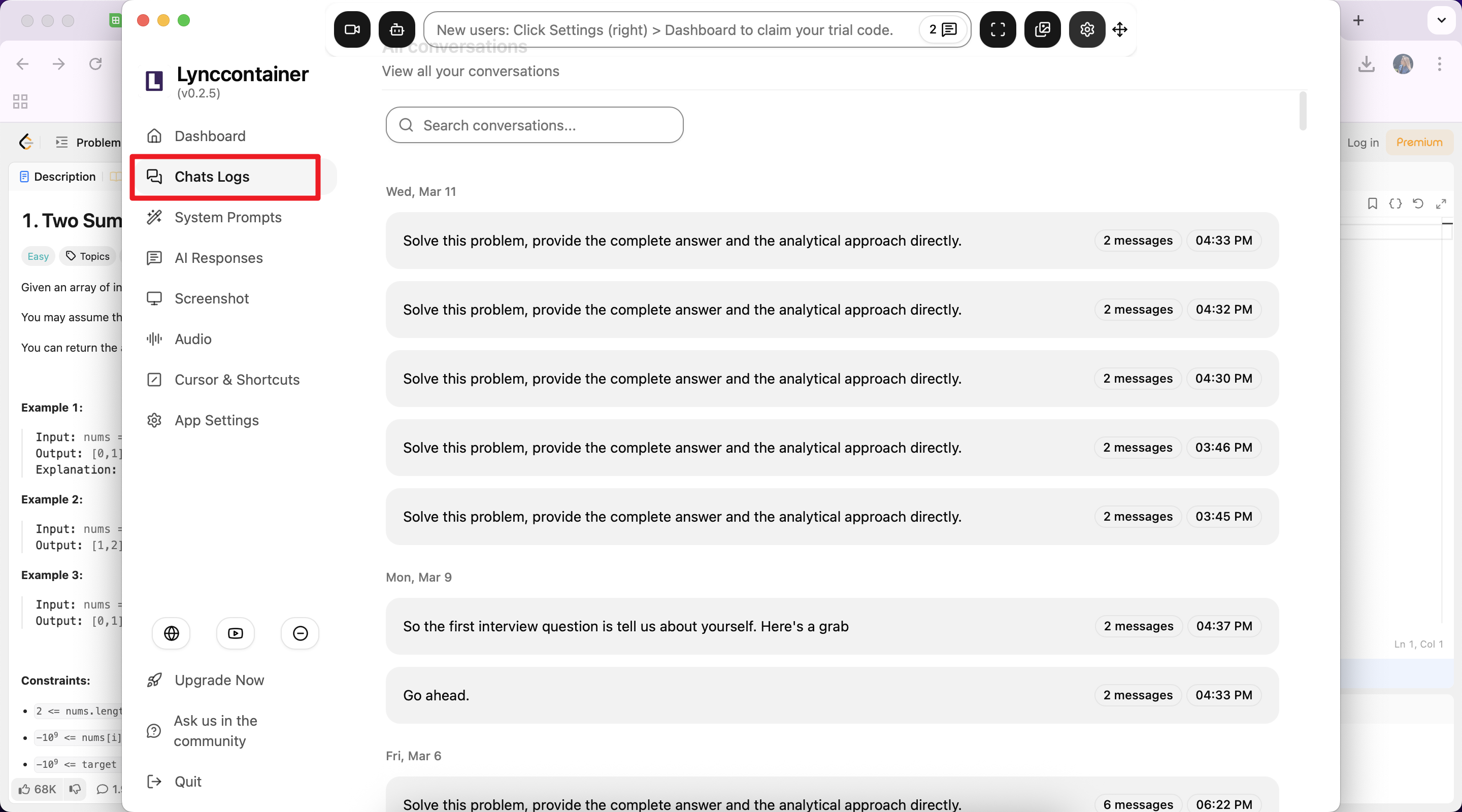
If you want to view old chats during interview, you can click the button in the command bar to expand your chat history:
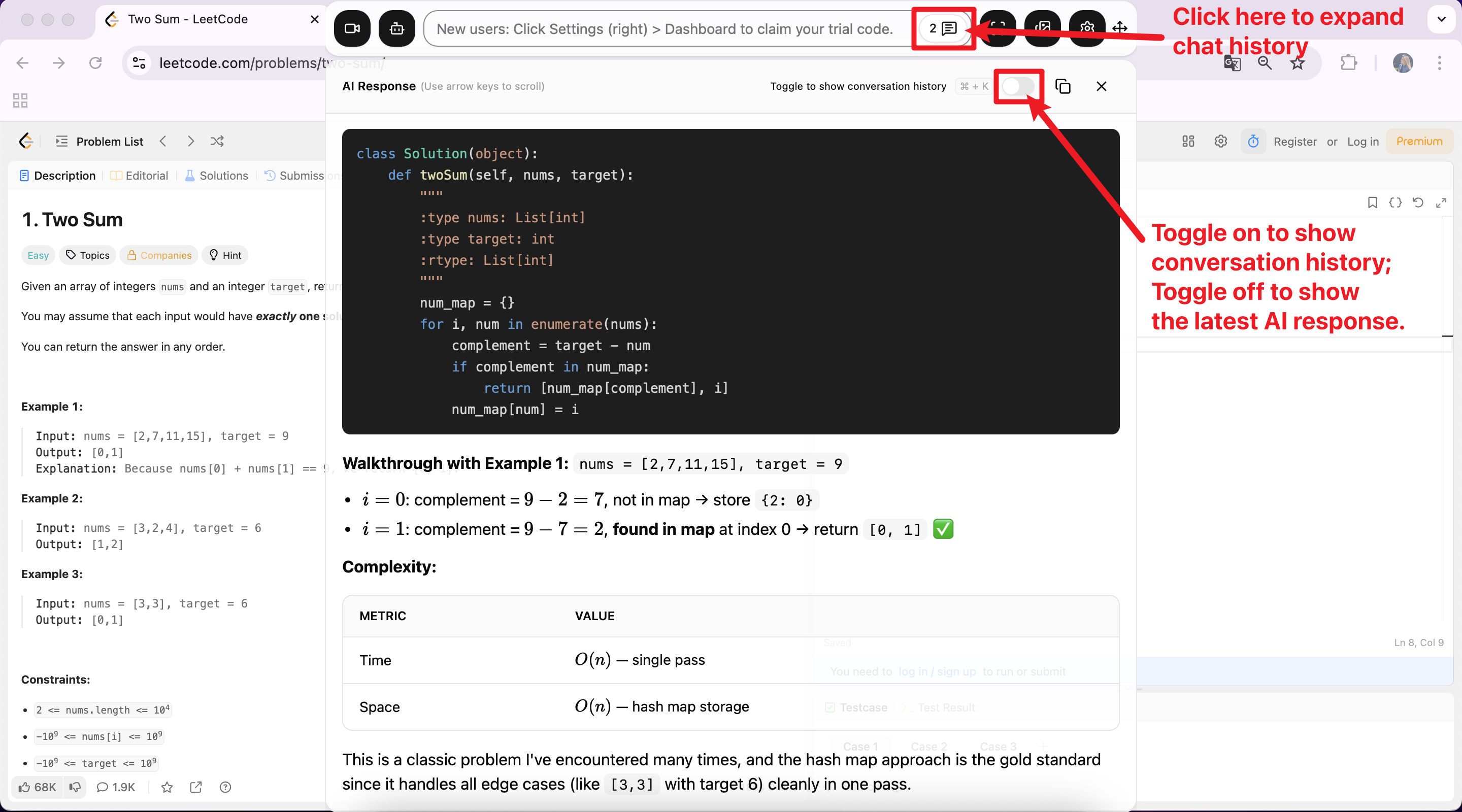
If you want to view old chats after interview, you can check the chat logs in the dashboard:
Can AI Interview Assistant Capture Both Audio and Screen Simultaneously?
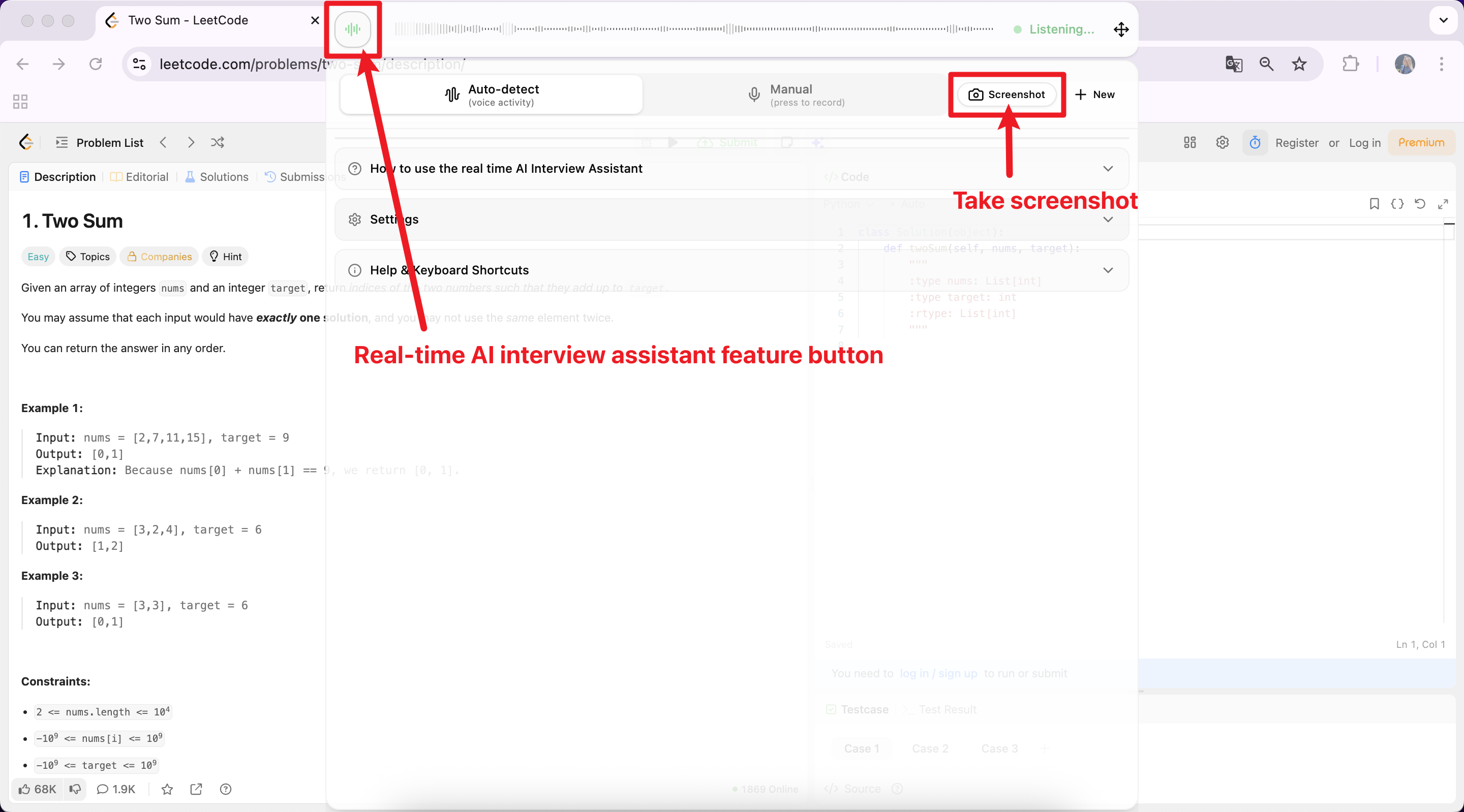
Linkjob.ai can process audio and screen content simultaneously.
When using the Real-time AI Interview Assistant feature, you will find a screenshot button. Once clicked, the screenshot will be sent to the AI along with the next segment of audio.
Can Linkjob.ai Be Used on Other Types of Interview?
Yes, absolutely! Linkjob.ai supports various interview types, including general coding, behavioral interview, case study, pair programming, HireVue, logical and cognitive ability tests, and more.
Can Linkjob.ai take scrolling screenshots? What if a coding problem is longer than the screen?
Linkjob.ai doesn't support scrolling screenshot for now. But you can take a few more screenshots. The AI has context memory and will analyze screenshots together. We will probably develop scrolling screenshot function in the very next versions.
Why Sometimes Answer Generating Velocity is Not Quite Fast or Stucked?
You might want to check your internet connection first.
If your network is stable, try switching to an AI model with faster response times, such as Gemini 3 Flash. It offers a great balance between speed and generation quality.
However, if you are using Claude Opus, keep in mind that while it excels at vision-based reasoning and complex coding tasks, it requires more thinking time. This means that when using the Real-time AI Interview Assistant feature, models like Claude Opus will naturally be slower.
If speed is your priority but you still feel it's lagging, setting the response length to Short can help speed things up:
Why My AI Interview Assistant Can't Response as Fast as ChatGPT?
That’s because Linkjob.ai does more than just normal LLM. When you use the Real-time AI Interview Assistant feature, the AI has to convert the audio into text first before sending it to GPT. There is also an extra step where data is transmitted between Linkjob and GPT’s servers.
Because of this processing and transfer time, it won't feel as fast as typing directly into GPT, but it provides a much more integrated interview experience.
Suggestions to Avoid Any Suspicion or Detection During the Interview?
Firstly, you should read Things You MUST Know Before You Start in the beginning of this guidance.
On the technical side, Linkjob.ai is completely undetectable, so your main focus should be on keeping your behavior natural.
For instance, you can move the Linkjob.ai window directly below your camera to maintain better eye contact. We also recommend using a silent mouse and keyboard to eliminate any clicking sounds while interacting with the app.
Additionally, you can adjust the window transparency or collapse/expand the interface so it doesn't block your view of the interview questions:
How to Hide Linkjob.ai from the Task Manager/Activity Monitor on My Device?
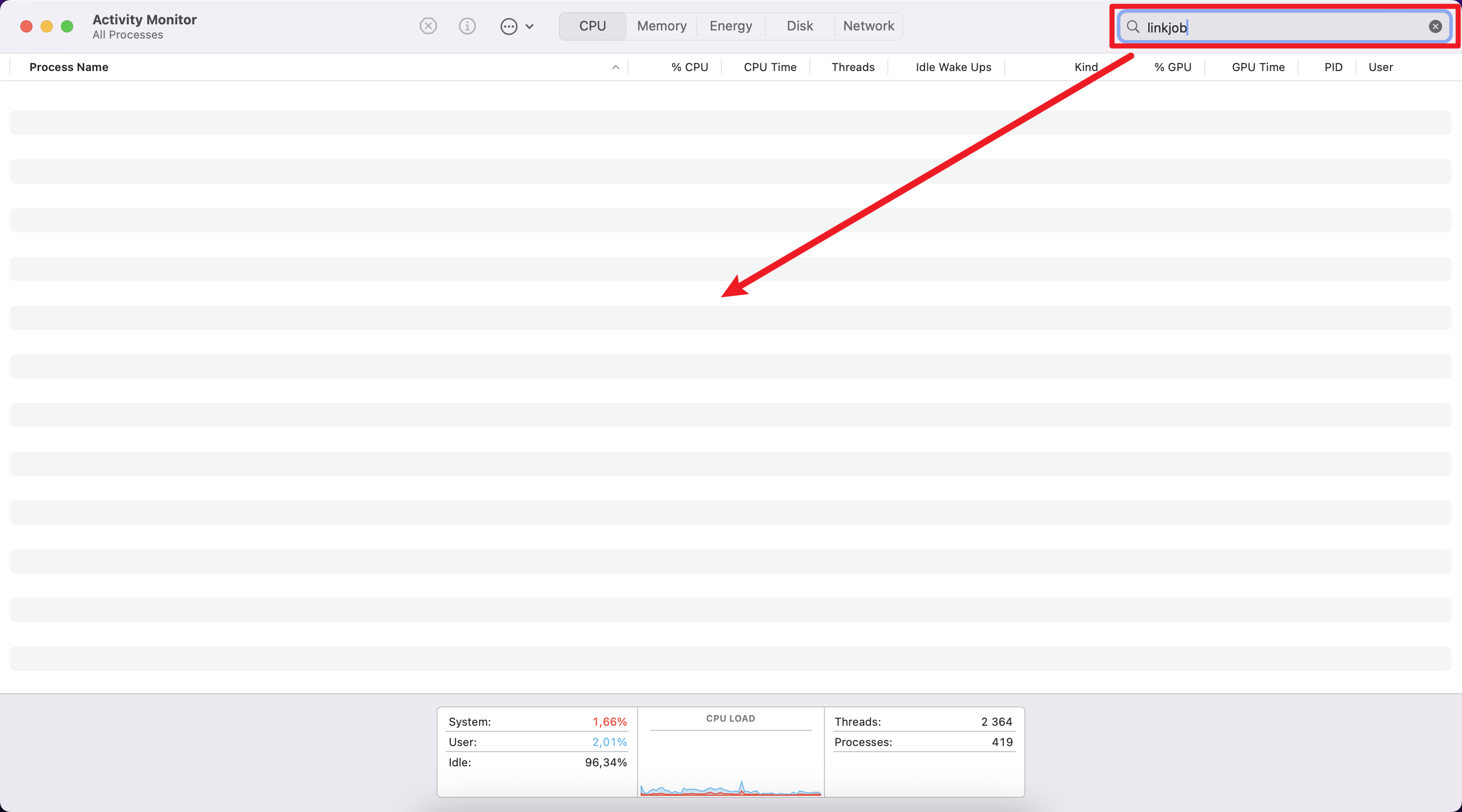
Our tech team has renamed the process, so you won’t find Linkjob.ai in your Task Manager or Activity Monitor at all.
Which Platforms are Supported by Linkjob.ai's Invisible AI Assistant?
Linkjob.ai supports Microsoft teams, Google meet, Webex, Amazon chime, Lark, Slack huddle, Hackerrank, Codility, Codesignal, Coderbyte, Hackerearth, Mercer mettl, Testgorilla, Andersen lab recruiter.ai platform, Talenscio, Hirevue, Vidcruiter, Spark hire, Flowmingo, Mercor, Talview, Onvue, Google chrome, Sherlock ai, Proctorio, Coderpad, Karat, Codepen,etc.
Rest assured, our tool is completely hidden and undetectable on any known platform.
Most coding interviews today take place entirely in your web browser (HackerRank, CoderPad, CodeSignal, Codility, etc.). Modern browsers are deliberately designed as secure sandboxes: code running in one tab is strictly isolated from everything else on your computer. This isolation is not a bug or an oversight — it's a fundamental security feature enforced by both the browser and the operating system.
Because of this sandboxing, interview platforms cannot reliably detect the following activities:
Which app you switched to: When the browser tab loses focus (the "blur" event), the website receives no information about what other application became active.
What other programs are running: Websites have zero access to the list of running processes on your computer. This is a core OS-level security boundary that browsers cannot bypass.
Reading memory of other applications: Accessing another program's memory is strictly prohibited by the operating system for security reasons — not even native applications can do this to each other without elevated privileges.
System-wide keystrokes or mouse clicks: The platform can only see input that occurs inside its own tab. It has no visibility into anything you type or click elsewhere on your computer.
Hidden native windows during screen sharing: Applications specifically designed to remain invisible (e.g., Linkjob AI, overlay-style helpers) simply do not appear in screen shares, screenshots, or recordings when properly implemented.