How to Get Invisible AI Help for Mettl Exam in 2026 Without Getting Caught


Like many other online testing platforms, Mettl has recently significantly strengthened its anti-cheating measures, making its detection system more sophisticated and complex than ever before. Relying on old-school cheating methods—such as using cheat sheets, copying answers from ChatGPT, or outsourcing questions to others—will almost certainly get you caught when you are searching for how to cheat mettle exam. These traditional methods are no longer a match for modern detection mechanisms.
However, a new generation of AI tools can still bypass these filters and provide real-time assistance during live interviews. In this article, I’ll share my tips for staying undetected on Mettl, as well as my specific workflow for leveraging AI.
If you're interviewing on other OA platforms, you might also want to read my articles on How to Cheat on CodeSignal Proctored Tests.
If you want to know how to cheat mettl exam fast in 2026, I get it—sometimes you just need answers quickly. Mettl has stepped up its game with tough security. I see features like:
AI proctoring with facial recognition
Browser lockdown
Candidate photo ID checks
Real-time violation alerts
Live and auto proctors
Detailed reports
However, I successfully passed the Mettl test using Linkjob AI without being detected. Next, I’ll share how to make the most of this stealthy AI interview assistant, what kind of help it can provide during interviews, and how it bypasses anti-cheating measures without being detected.
If you use other platforms for online assessments, feel free to check out the other articles in this series. I’ve also shared detailed guides on How to Cheat HackerRank Tests and How I Used AI to Pass the Interview on Microsoft Teams, complete with step-by-step instructions on how to avoid getting caught.
How to Cheat Mettl Exam? Know Mettl Monitoring Measures First
The platform has a variety of features that can be applied while conducting an online exam to prevent cheating by candidates during the exam.
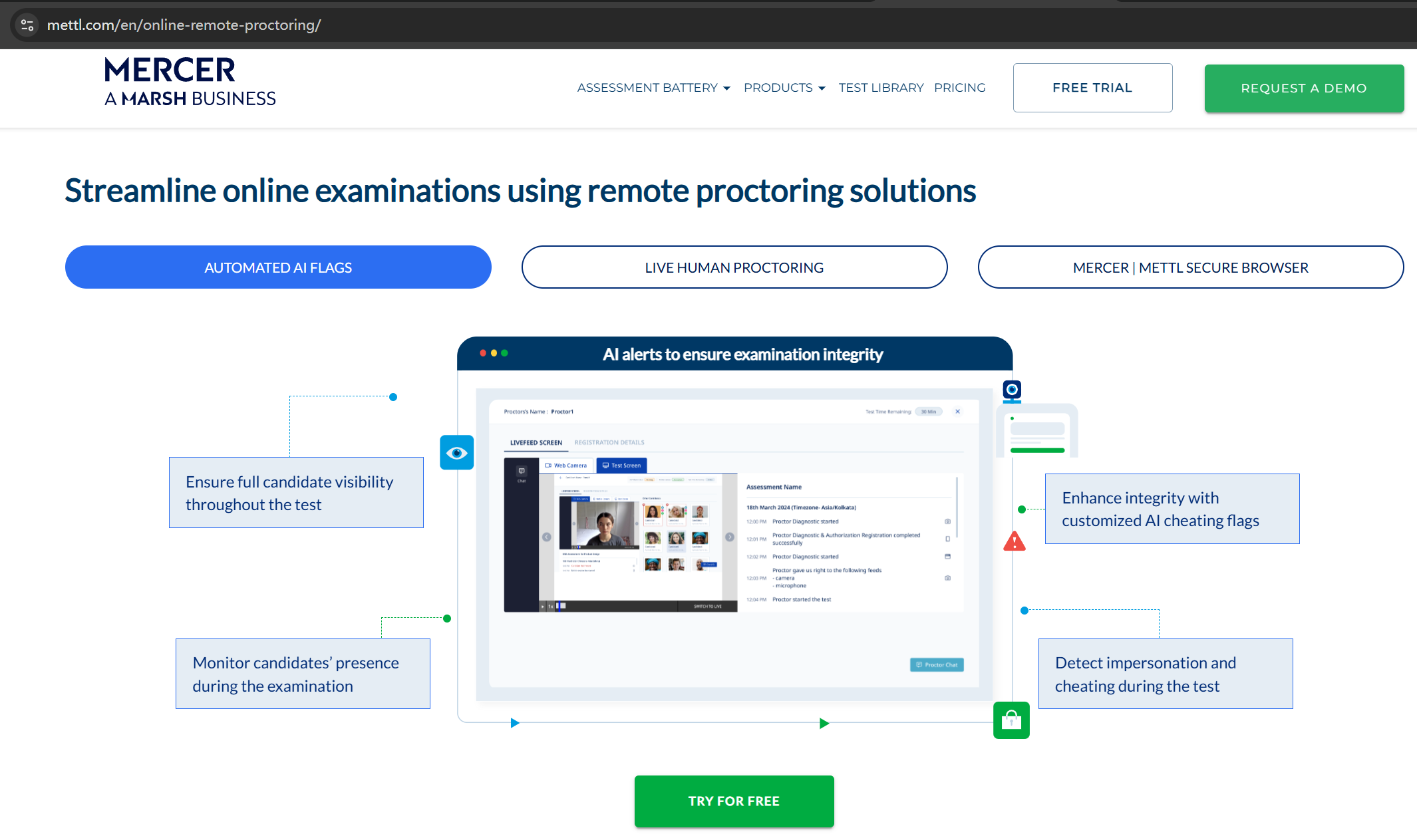
Mettl Secure Browser (MSB)
This browser puts my system into a safe lockdown mode, which prohibits any third-party application in the background that can be used for cheating. For this, I am prompted to install the browser on their system and then proceed with examination.
Browsing tolerance
This feature counts every time I navigate away from the test window to give warnings (optional) if the set limit is exceeded, the test will be terminated. The platform also provides a feature wherein there is an option to show the remaining count of the number of times I navigate away from the test window.
The following are the features available under Browsing Tolerance:
• Not Applicable – After enabling this feature, Browsing Tolerance will not be applicable for that assessment.
• No Warning – After enabling this feature, the test will be terminated without any warning if I navigate outside the test window.
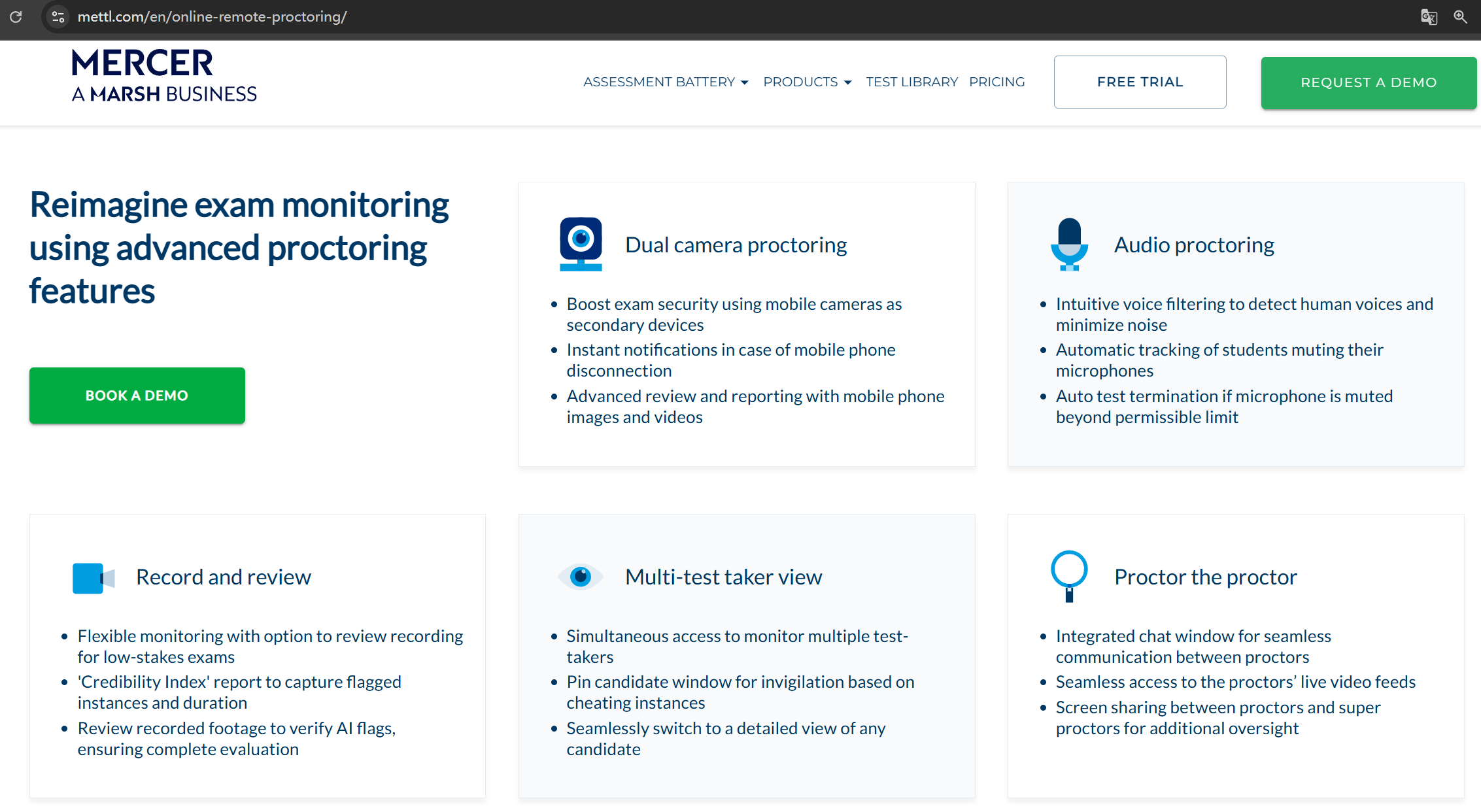
Advanced Visual Proctoring
After enabling this feature, I have to submit a snapshot of their ID card and their face; it also has a feature to “Capture Candidates’ Screen”.
The following are the flags generated by the AI:
FACE_NOT_VISIBLE
ANOTHER_PERSON
AWAY_FROM_WINDOW
CANDIDATE_LOOKING_AWAY
CANDIDATE_FACE_PARTIALLY_VISIBLE
CANDIDATE_NOT_PRESENT
MOBILE_PHONE_DETECTED
• Capture Candidate Screen – This feature captures my screen & Camera feed snapshots at every 60 seconds. Also, along with the reports, interviewers can view my screen snapshots while viewing the live feed of me, too, which captures my face of me at every 60 seconds.
• Candidate Authorization - Candidate authorization is a manual intervention, and the authorizer can allow/block the candidate, which will confirm the candidate’s authenticity.
• Store Recorded Video – This feature allows interviewers to capture the candidate's entire webcam input for the entire test, which can be previewed in the Test-taker’s report.
• Audio Proctoring - While scheduling a proctored test, interviewers can also listen to the audio feed of me while they attempt the test. This feature will detect any human speech and the number of speakers during the test. By default, this option is disabled for all the tests.
• Mandatory 360 Check – This prompts me to show the entire room before taking the test through their webcam.
Detecting code generated via ChatGPT (Generative AI Plagiarism)
To combat the heightened concerns around how one can prevent selecting candidates who could have possibly taken the help of Generative AI tools while attempting tests, Mettl has strengthened its reporting with an additional code quality indicator, namely the AI Sense score. AI Sense is an in-house algorithm that harnesses the power of generative artificial intelligence (AI) to sense and identify instances of AI-generated code.
How to Cheat Mettl Exam Without Getting Caught
If you want to know how to cheat mettl exam in 2026, you need to move fast and stay under the radar. I’ve seen students try all sorts of tricks, but only a few methods work when you face tough proctoring. Let me break down the fastest ways I’ve come across, with tips on what works, what doesn’t, and how to avoid getting caught.
How to Bypass Screen Sharing and Active Tab Detection
According to Mettl’s official support documentation, you’ll need to share your entire screen during the interview, not just a single tab or window. This means traditional solutions won’t work.
To effectively bypass monitoring, one must adopt a desktop-based AI coding assistant. Unlike web tools, these apps function independently of the browser sandbox, placing them entirely beyond Mettl’s reach and technical surveillance. Because they eliminate the need to switch tabs, they are fundamentally undetectable by any active tab tracking.
Moreover, these tools utilize system-level integration to function as a top-level overlay, ensuring they remain invisible to the Mettl platform and providing a secure environment for AI assistance.
Linkjob AI exemplifies this advanced stealth; its interface is so well-hidden that it won't even show up in a standard screenshot.
Consequently, I can only present an official product image to illustrate its functionality. To ensure that the cheating isn’t detected by the exam system, the software even hides its presence in the Dock and menu bar.
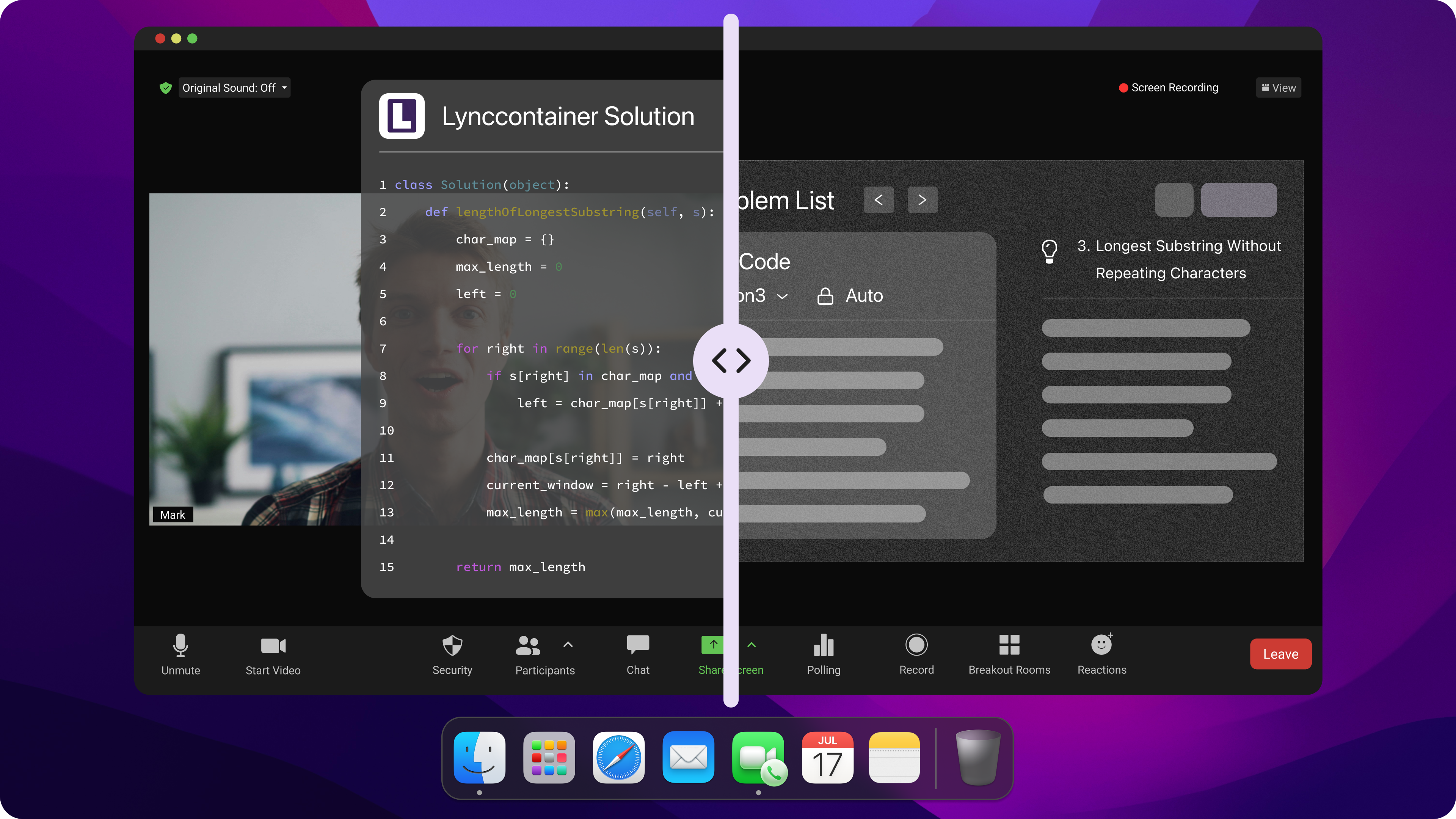
Linkjob AI remains undetected during screen sharing because it runs as a top-level overlay, which is excluded from the screen capture stream. Since it operates on a separate UI layer, Mettl—which runs in the background—cannot detect or render the AI interface.
However, just because my method worked for me doesn’t mean it will work for everyone. Since my computer was already updated to the latest version when I started using this software, and I downloaded the latest version of the product directly from the official website, it has been working without any issues.
If you want to use this product, you should first make sure your computer’s operating system is updated to the latest version and that you download the product directly from the official website; that way, you’re less likely to encounter any bugs.
If you plan to use it during an interview, I strongly recommend testing it with a friend first. The risk of getting caught cheating during an interview is simply too high.
How to Bypass Webcam Monitoring
How to cheat Mettle exam and bypass webcam monitoring? By utilizing an on-screen AI assistant that can directly process the interviewer's audio and analyze my screen content, I no longer rely on external aids like mobile phones or third-party assistance. This ensures my gaze remains fixed on the monitor at all times, maintaining natural eye contact and preventing the webcam from detecting additional people in the room.
To maximize discretion, I position the Linkjob AI interface directly beneath the webcam or over the problem description. This creates the illusion that I am either looking at the interviewer or focused on reading the exam questions.
The adjustable transparency is another significant benefit; I can dim the window so it doesn't obstruct the test material, which I find incredibly convenient.
Evading AI Proctoring
AI proctoring is a big barrier on your journey of how to cheat mettl exam. It scans your face, tracks your movements, and listens for suspicious sounds. I always try to keep my face centered and avoid sudden movements. If you want to fool the AI, you can:
Use a neutral background with good lighting.
Avoid looking away from the screen.
Keep your hands visible and don’t fidget.
Some students use software to mask their webcam feed or run a virtual camera. This can work, but AI sometimes detects glitches or inconsistencies. I suggest practicing before the exam to see how the AI reacts.
Outsmarting Live Proctors
Live proctors watch for anything unusual. I’ve seen students get flagged for simple things like scratching their head or glancing away. Here’s what I do:
Stay calm and act natural.
Respond quickly if a proctor asks you to rotate your webcam or show your surroundings.
Prepare your room so nothing looks suspicious.
If you need to check notes, use quick, subtle gestures. Don’t whisper or make sudden movements. Sometimes, proctors ask for a 360° room scan. I always make sure my setup looks clean and ordinary.
How to Cheat Mettl Exam: Why Traditional Cheating Methods Don't Work on Mettl
Remote Access Tools
I know many students look for ways to get outside help during the exam. Remote access tools let someone else control your computer or see your screen. Here’s how some people try it:
Set up a remote desktop app (like AnyDesk or TeamViewer) before the exam.
Give your helper access to your computer, so they can search for answers or even take the test for you.
Hide the remote session by running it in the background or using a virtual machine.
Key Precautions:
Mettl’s Secure Browser often blocks remote desktop apps.
Webcam monitoring can catch you if you look distracted or talk to someone.
Facial recognition checks make impersonation almost impossible.
I’ve seen students try to use a fake ID or swap logins, but facial recognition usually catches this. If you want to know how to cheat mettl exam with remote tools, you need to be tech-savvy and ready for risks.
Using Hidden Devices
Hidden devices are classic, but Mettl’s proctoring makes them risky. Still, some students try these tricks:
Smartphones or smartwatches: Hide them under the desk or in your lap to search for answers.
Wireless earbuds: Get answers whispered to you by a friend.
Mini cameras or glasses: Stream your screen to someone outside the room.
What usually goes wrong:
Proctors ask for a 360° room scan at the start.
Audio proctoring picks up whispers or device sounds.
If you get caught, you might get banned from future exams.
I’ve heard of students using projectors or mirrored screens, but room scans reveal these setups. Old-school cheat sheets rarely work now because you have to show your desk and surroundings.
Remote Helper Strategies
Some students rely on a helper outside the camera’s view. This can be a friend, family member, or even a hired expert. Here’s what I’ve seen:
Strategy | Description |
|---|---|
In-room helper | Someone sits out of webcam view and whispers answers. |
Live chat with expert | Use a hidden phone to chat with a tutor in real time. |
Bathroom break research | Take a break and check notes or get help outside the room. |
Sharing test content | Snap photos of questions and send them to someone for quick answers. |
Note: Mettl uses both AI and live proctors. They monitor for background voices, unusual movements, and even changes in lighting.
Risks:
Sensitive microphones catch whispers.
Proctors may ask you to rotate your webcam.
Sharing test content is risky and can lead to disqualification.
Circumventing Monitoring Software
I’ve heard about technical tricks that target vulnerabilities in monitoring software. Some people use legitimate Windows tools to hide their activity. Others manipulate system files or use special programs to block monitoring. Here are a few tactics I’ve seen:
Use trusted executables to run hidden processes.
Load custom libraries next to official apps.
Disable monitoring by tweaking system policies.
Suspend proctoring processes using error reporting tools.
These methods require technical skill. If you mess up, you risk crashing your system or getting caught. Mettl updates its software often, so what works today might fail tomorrow.
Common Mistakes to Avoid:
Using advanced gadgets like smartphones or smartwatches.
Running the exam in a virtual machine.
Hiding notes or cheat sheets.
Having someone help in the room.
Searching for answers online.
If you follow these steps, you lower your chances of getting caught. Remember, staying calm and prepared is the best way to avoid detection.
Advanced Covert Tactics: How to Cheat Mettl Exam Environments Silently
When utilizing Linkjob AI during high-stakes technical assessments or proctored interviews, understanding the operational mechanics of how to cheat mettl exam setups isn't just about software—maintaining a natural, professional demeanor is just as vital as the accuracy of the solution. To fully leverage the power of Linkjob AI while ensuring a seamless and undetectable experience, consider these advanced strategic practices.
Critical Behavioral Precautions
To ensure your performance remains above suspicion while using Linkjob AI as your primary framework for how to cheat mettl exam proctors, you must strictly avoid specific triggers that could alert automated monitoring or human reviewers:
Avoid Instantaneous Code Entry: Never paste large, completed code blocks directly into the editor, regardless of the quality of the Linkjob AI output.
Limit Browser Deviations: Frequent movement away from the active testing tab is a primary red flag for modern monitoring software.
Maintain Visual Continuity: Do not leave your seat, switch participants, or allow the webcam to detect multiple faces during the session.
Restrict System-Level Shortcuts: Be cautious with keyboard shortcuts that the browser or proctoring agent might log.
Control Body Language: Keep a composed expression; avoid erratic eye movements or unnatural facial shifts that suggest you are reading from an external source.
Consistent Progression: Avoid long periods of inactivity followed by the sudden appearance of a perfectly formatted solution.
Personalize the Narrative: Don't rely exclusively on raw AI output; ensure your explanations reflect your personal reasoning rather than just technical jargon.
Simulating an Authentic Development Process
The objective is to use the intelligence from Linkjob AI to mirror a genuine coding workflow. When developers look up how to cheat mettl exam environments, they often focus purely on getting the right answer, but robotic typing speeds are what actually trigger flags. I suggest the following tactics to blend in with elite candidates:
Incremental Typing: Enter the code provided by Linkjob AI in small, logical segments rather than all at once.
Realistic Workflow Pauses: Take moments to "reflect," scroll through your code, and even make (then correct) minor typos to simulate a real-world thought process.
Interactive Commenting: Add real-time notes like
// Optimizing this logic for better performanceto demonstrate active engagement.On-the-fly Customization: Adjust variable names and formatting as you go to ensure the final product matches your personal coding style.
Strategic Pace Management
Because Linkjob AI generates results with extreme efficiency, managing how to cheat mettl exam timing constraints requires careful planning of your activity logs to maintain a plausible candidate profile:
Regulated Submission: Never rush to finish. Even if Linkjob AI solves the problem instantly, use a timer to ensure your completion time aligns with the task's difficulty.
Simulated Diligence: Spend extra time "re-examining" instructions and "verifying" your logic to mimic the habits of a thorough developer.
Workflow Gaps: Occasionally, leave a complex part "in progress," move to a different section, and return to it later to create a realistic mental trajectory.
FAQ
Can I use a smartphone during a Mettl exam?
Trying to use a phone on Mettl is a massive red flag. A lot of candidates researching how to cheat mettl exam modules think a second device is a foolproof workaround, but since the platform records my whole session for the recruiter to review later, I always make sure my phone is completely out of sight before I even hit start. It’s just not worth the risk.
What happens if Mettl catches me cheating?
Getting caught could cost me any future interview opportunities with the company I'm applying to. When you look at the reality of how to cheat mettl exam environments, the stakes are simply too high to rely on clunky, amateur methods. That’s why I’m looking for an AI interview assistant that's 100% undetectable to help me with the questions—I really can't afford to mess this up.
How do I avoid getting flagged by AI proctoring?
When figuring out how to cheat mettl exam proctors, the main challenge is staying invisible to their behavioral telemetry. Before the interview, I double-checked to make sure my AI assistant was fully equipped to bypass all of Mettl’s proctoring. During the session, I was super careful with how I used it just to ensure I didn't leave any trace or look suspicious.
See Also
How to Use Tools for Screen Capture Not Detectable by Coderbyte
How I Use AI Assistant in Zoom for Undetectable Help
My Experience Using a LeetCode Interview AI Assistant for Coding
How to Cheat HireVue Interviews with Undetectable AI Assistant
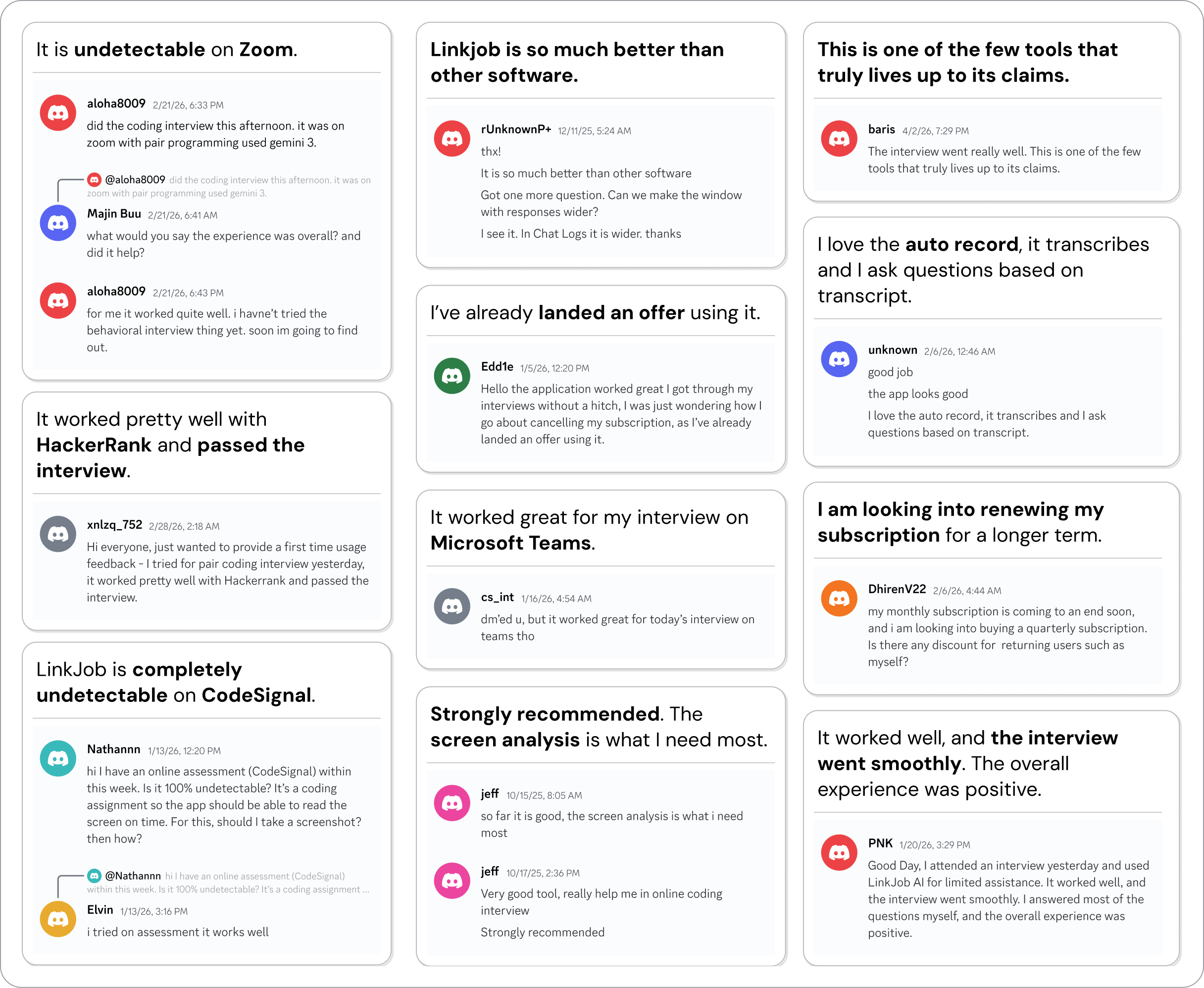
Why People Choose Linkjob AI
Smoother interviews, coding challenges cleared, and job offers landed. See how users describe their experience with Linkjob AI—in their own words.

© Copyright 2026 Linkjob AI - All Rights Reserved.