How to Use AI Tools to Get Invisible Help for Talview Interviews


During my recent flurry of interviews, I’ve encountered many interview platforms, and Talview is one of them. It’s AI-driven, with all interviews and assessments conducted by AI, featuring sophisticated evaluation criteria and anti-cheating measures. However, I discovered that Linkjob, a completely invisible AI interview assistant, can still bypass Talview’s detection.
In fact, during my interview process, I’ve encountered numerous behavioral and technical interview platforms, including HackerRank, Microsoft Teams, Codility, and others. If you’re about to interview on these platforms or are interested in them, I invite you to read my series of articles: getting around that Microsoft Teams cheating detection, best ways to cheat on HackerRank, how to pass Codility assessments using techniques.
In this post, I’ll share Talview’s anti-cheating mechanisms, how Linkjob bypasses detection, and my tips for those who want to know how to cheat on Talview.
How Does Talview Detect Cheating?
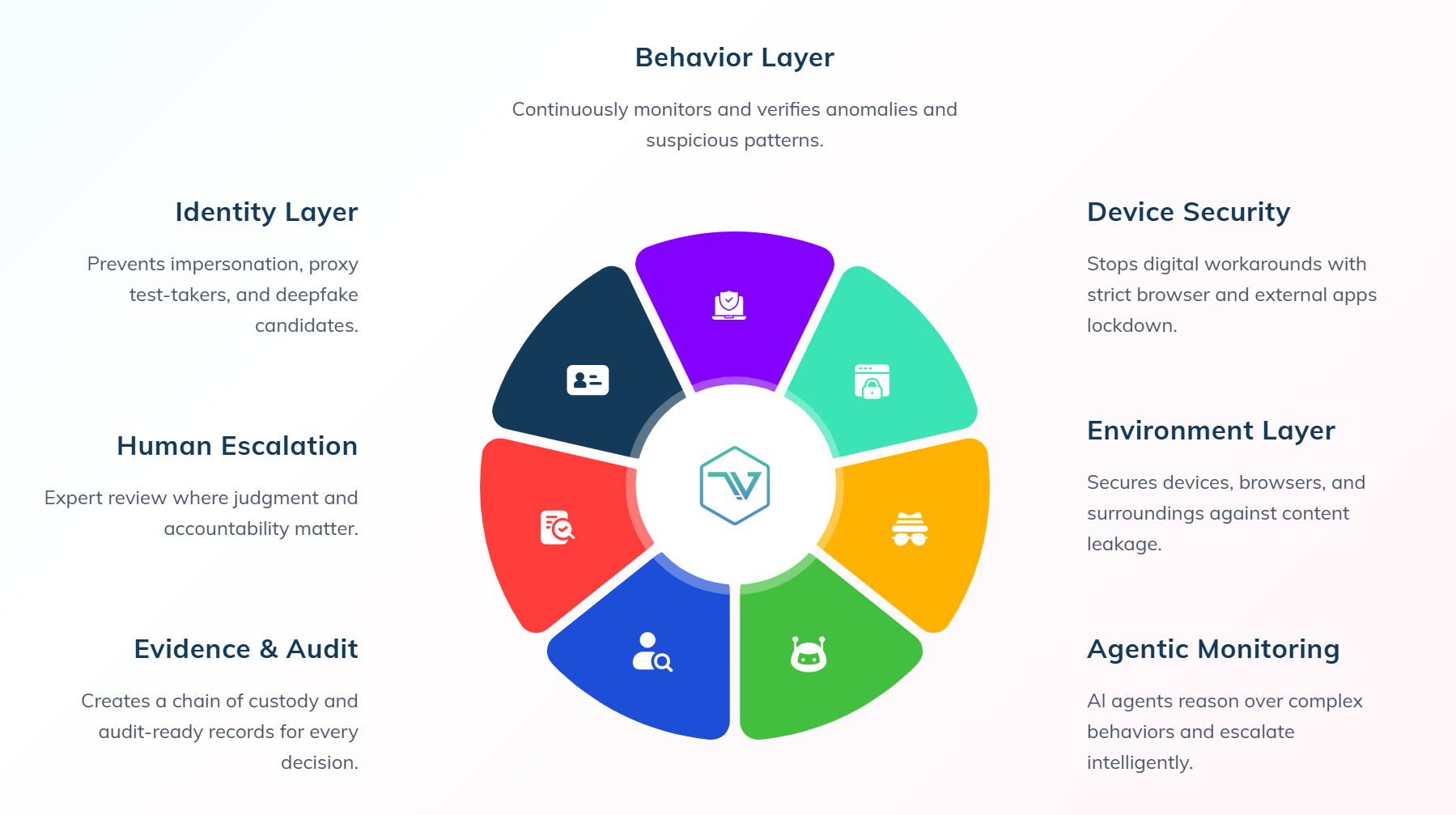
These seven detection methods primarily utilize four types of technology: screen sharing (Behavior Layer), webcam capture and recording (Human Escalation, Evidence&Audit), candidate identity verification (Identity Layer), and tab-switch detection (Device Security, Environment Layer, Agentic Monitoring)
Screen Sharing
Talview’s full-screen sharing requirement is designed to prevent candidates from cheating using browser windows.
Some AI interview assistants are browser-based, and to get real-time answers, you need to keep a tab open to view the answers and transcripts they provide. During a Talview interview, you cannot use such tools, as this will quickly be considered cheating.
However, the Linkjob AI I chose remains hidden even during full-screen sharing, so Talview’s AI interviewer cannot detect it. It listens to the interviewer’s questions, analyzes them, and provides answers based on the prompts—answers that only I can see.
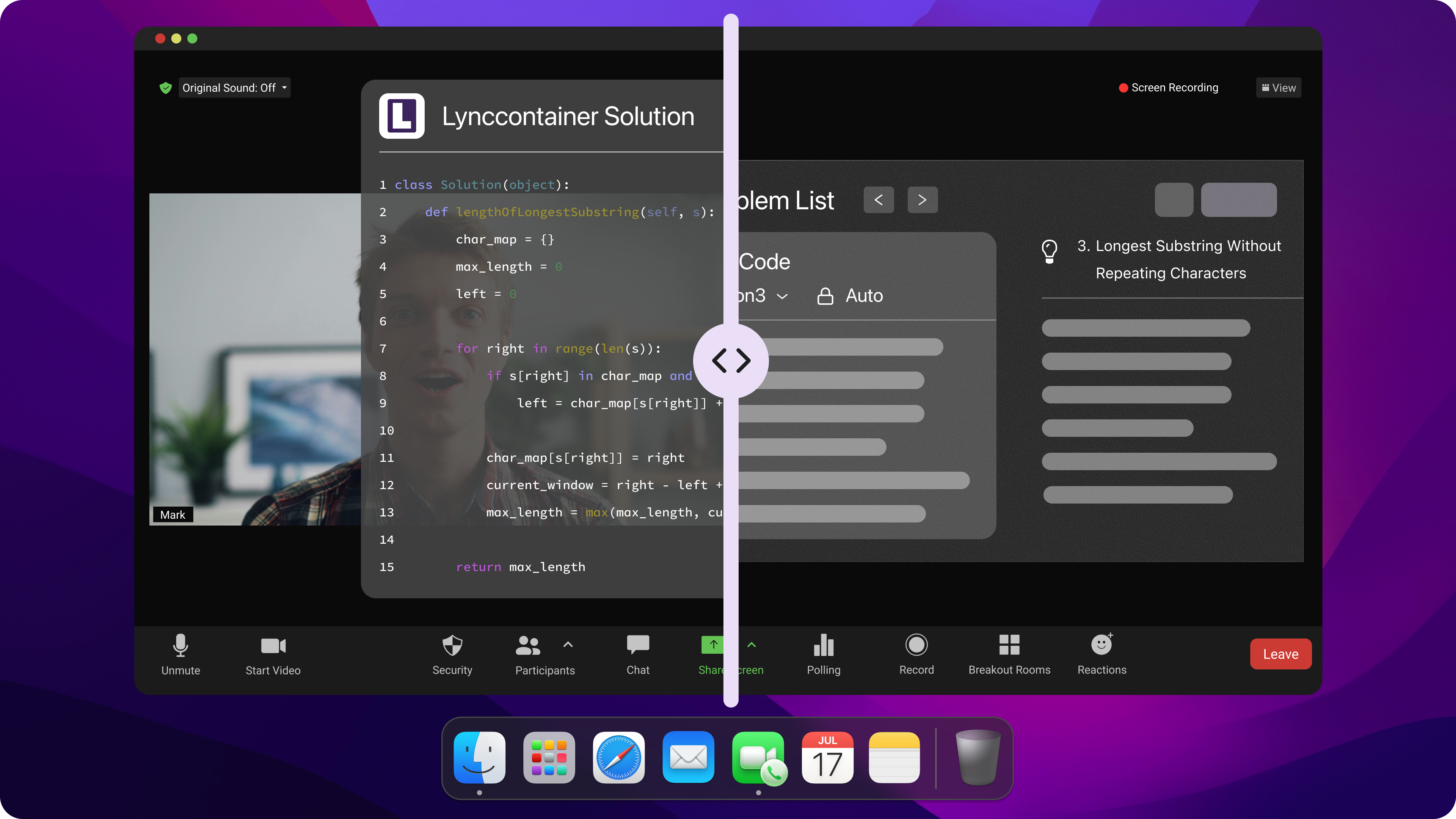
However, to ensure the interview goes smoothly and to avoid any misjudgments, here are a few points to keep in mind during screen sharing:
Frequently tapping the same area of the screen repeatedly: The system may interpret this as unnatural behavior, suggesting that you might be trying to access hidden content or launch assistive tools.
Sharing only a single browser tab instead of the entire screen: When the interview explicitly requires full-screen sharing, this partial sharing mode will immediately trigger an alert, as it hides other windows that may be active.
Displaying icons for non-current applications in the Dock (or taskbar): Icons for closed or background programs (especially those unrelated to the interview) may be viewed as potential distractions or cheating tools.
Webcam Capture and Recording
Talview uses a camera and requires candidates to show their full face. If the interviewer requests it, the platform will also record the interview. This is similar to how Slack Huddle operates and serves as a clever way to prevent cheating during interviews. It prevents candidates from using other devices or their phones to look up answers and allows interviewers to review the recording to identify any suspicious behavior.
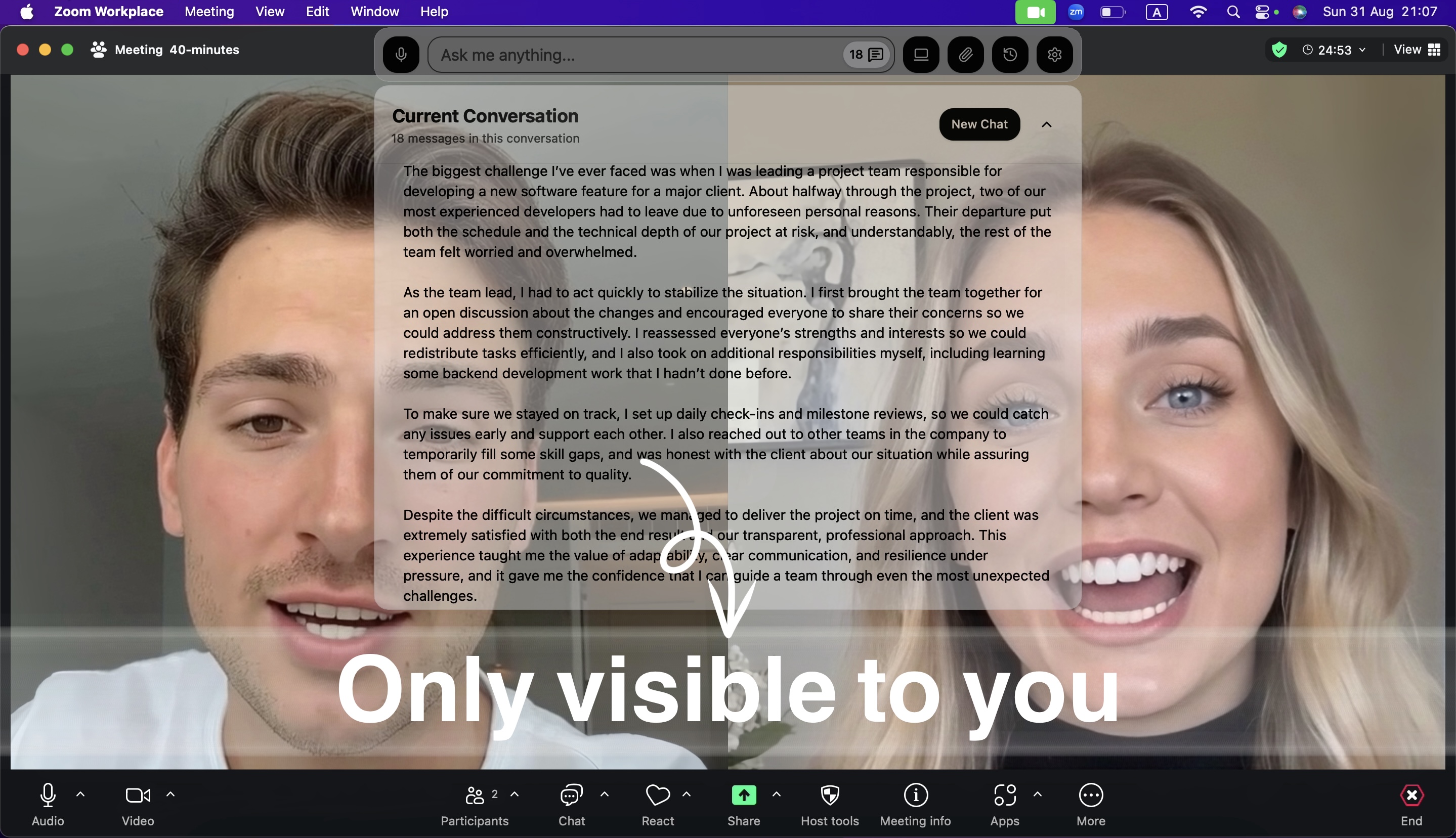
The following behaviors may be considered signs of cheating:
Repeatedly looking down at the screen
Frequently turning your head or moving your body involuntarily
Staring at a single point on the computer screen for an extended period without making eye contact
Attempting to block the camera or interfere with the video feed
Showing signs of panic, guilt, or unusual nervousness.
Note: Maintaining eye contact with the interviewer during the interview—that is, acting naturally—is also an effective strategy. Obviously, this requires more practice.
Candidate Identity Verification
Talview ensures that applicants are who they claim to be, thereby preventing situations involving proxy candidates or fake identities.
This is typically achieved by combining facial recognition with identity verification.
In other words, this is the simplest form of anti-cheating verification. Just like checking an admission ticket before an exam, you simply need to ensure that the person sitting there is actually you, and not someone trying to deceive the interviewer using a fake identity.
Tab-switch Detection
Talview runs in a browser. For security reasons, browsers use a mechanism called a “sandbox” to ensure that actions within one tab do not affect other tabs.
If I switch to a tab to use a web application or browser extension, the system can detect it; however, if I use a standalone application, it goes completely undetected. Due to this sandbox mechanism, using Linkjob goes completely undetected, as it is a software-based AI interview assistant that runs outside the browser’s sandbox.
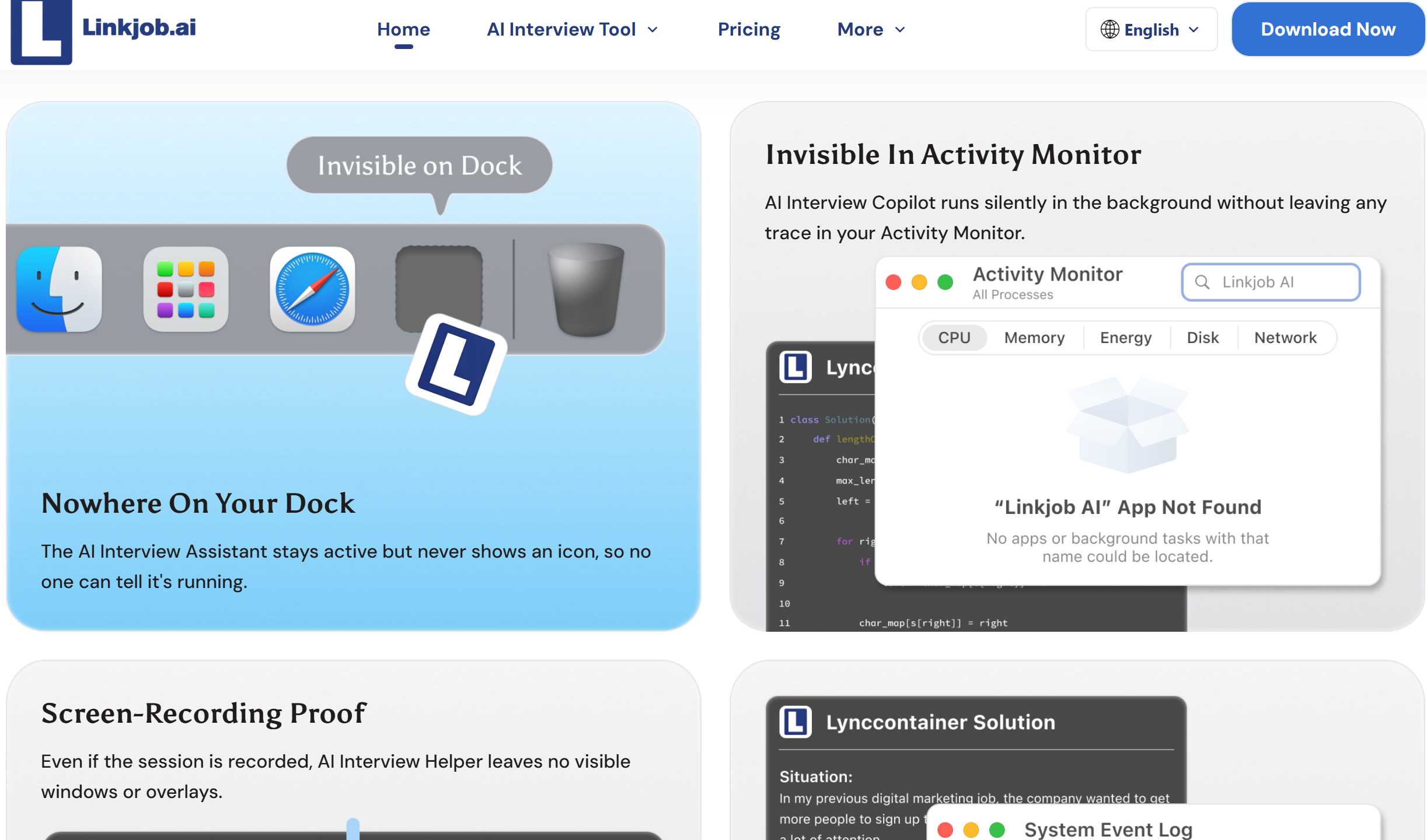
Furthermore, although Talview claims it can detect any unusual software or plugins I use, its privacy policy limits it to detecting only anomalies within the browser. I have also tested this myself, and Talview was unable to detect Linkjob.
How to Cheat on Talview: Two Tactics
Automatic Speech Recognition
Linkjob integrates real-time speech recognition technology, which automatically captures and analyzes questions posed verbally by the interviewer. This allows the AI to generate answers instantly, without requiring any manual input from me.
Set up the prompt in advance so you can use it smoothly during
Additionally, it possesses contextual understanding, ensuring that questions are not treated in isolation. This is particularly useful when the interviewer asks follow-up questions, as the assistant provides coherent and relevant suggestions based on the entire conversation. Whether the interviewer delves into the details of my previous projects or challenges a specific point I’ve made, the AI adapts to the flow of the conversation and immediately provides comprehensive, well-reasoned reference answers. This will also reduce the risk of me being suspected.
Uploading My Resume Before the Interview
I uploaded my resume to Linkjob and conducted a mock interview beforehand so the system could better understand my specific background.
This allows it to provide more personalized, tailored responses. It also helps avoid the risk of Talview AI flagging my answers as inconsistent with my actual circumstances.
Mistakes to Avoid When Cheating on Talview
Technical Errors
I’ve learned that even the best AI tool helping me understand how to cheat on Talview can’t save me if I make simple technical mistakes. Talview’s system blocks unauthorized apps and watches for anything out of the ordinary. I always double-check my setup before the interview. Here are some common technical errors I try to avoid:
I test my internet connection. A weak signal can cause lag or disconnects, which look suspicious.
I close all background processes that I don’t need. This keeps my system running smoothly and avoids detection.
I avoid using browser extensions or plugins that could interfere with Talview’s monitoring.
Tip: I always run a mock interview to spot any technical issues before the real thing. This helps me catch problems early and fix them fast.
Behavioral Red Flags
I know that Talview’s proctors and AI look for certain behaviors that don’t match normal conversation. If I act strangely, I risk getting flagged. Here’s a table of red flags I always watch out for:
Behavioral Red Flags |
|---|
Unusual pauses before responding |
Scripted or overly rehearsed answers |
Delayed reactions that don’t match natural speech |
Shifts in tone or speaking style mid-conversation |
Background cues or noises that contradict the setting |
I practice my answers so I sound natural, not robotic. I keep my reactions quick and genuine. If I need to pause, I do it like I’m thinking, not waiting for a script. I check my background for anything that might seem out of place.
Note: Staying relaxed and acting like myself helps me avoid these mistakes. I always remember that blending in is the best way to stay under the radar.
Success Tips on Cheating in Talview Interviews
Practice and Preparation
I always say that practice makes perfect, especially when using AI tools to cheat on Talview interviews. I spend time running mock interviews with my chosen tool. This helps me get comfortable with the process and spot any weak points. I also coach myself by reviewing my answers and looking for ways to sound more natural.
Here’s what I focus on during practice:
I rehearse feeding questions to the AI tool quickly and smoothly.
I practice rephrasing AI-generated answers in my own words.
I check my camera angle and lighting to make sure everything looks professional.
I time myself to avoid long pauses or rushed answers.
Regular practice boosts my confidence. I notice that the more I practice, the better I get at listening and responding like a real candidate. I use feedback from mock sessions to improve my performance. This routine helps me stay sharp and ready for anything Talview throws at me.
Tip: I always review my setup and answers after each practice session. Small tweaks can make a big difference in the real interview.
Staying Calm While Doing the Talview Cheating
Staying calm during the interview is just as important as preparation. I use a few simple tricks to keep my nerves in check:
I read all the instructions carefully before starting. This helps me avoid silly mistakes.
I manage my time by moving on if I get stuck on a question.
I take deep breaths to relax and focus on one question at a time.
I find that interviewing in a familiar environment, like my own room, helps me feel more comfortable. The AI tools I use often provide tips and feedback, which makes the process less intimidating. When I stay calm, I can think clearly and deliver my answers with confidence.
Here’s a quick look at how anxiety can affect performance:
What Helps Me Stay Calm | Why It Works |
|---|---|
Familiar environment | Makes me feel safe and relaxed |
AI tools with prep tips | Reduces uncertainty and boosts confidence |
Deep breathing and focus | Lowers stress and keeps my mind clear |
Remember: The calmer I am, the more natural and convincing I sound. That’s the key to success in any Talview interview.
I always stick to the basics when using AI tools in Talview interviews. I pick the right tool, set up my environment, and practice until I feel confident. Staying calm helps me sound natural. I avoid technical errors and watch out for behavioral red flags. If I want to maximize my chances, I test everything before the interview.
Remember: Preparation and flexibility keep me safe. I never rush, and I always adapt if something changes.
Practice often
Stay relaxed
Double-check your setup
FAQ
Can Linkjob be used for other types of interviews?
Yes, absolutely. Linkjob supports various interview types, including general, coding, behavioral, case study, pair programming, logical and cognitive ability tests, and more.
Do you have any tips on how to use Linkjob without raising suspicion?
Linkjob can't be detected by technology, so it's important to act naturally. For example, you can put the Linkjob window directly below the camera to make it easier to look at each other's eyes. We also recommend using a silent mouse and keyboard to avoid clicking sounds while using the app. You can also adjust the window's transparency or expand or collapse the interface to make sure it doesn't block your view of the interview questions.
Will the Talview AI notice if I use keyboard shortcuts?
The use of hotkeys won't be detected, as long as you don't directly copy and paste the AI-generated answers during coding sessions. But be careful about the chunks of code you copied and pasted, since the sudden merge of perfect code would be seen as a red flag.
In interview mode, how can I ensure that the app only listens to other users? Will it also pick up my voice and try to respond when I speak?
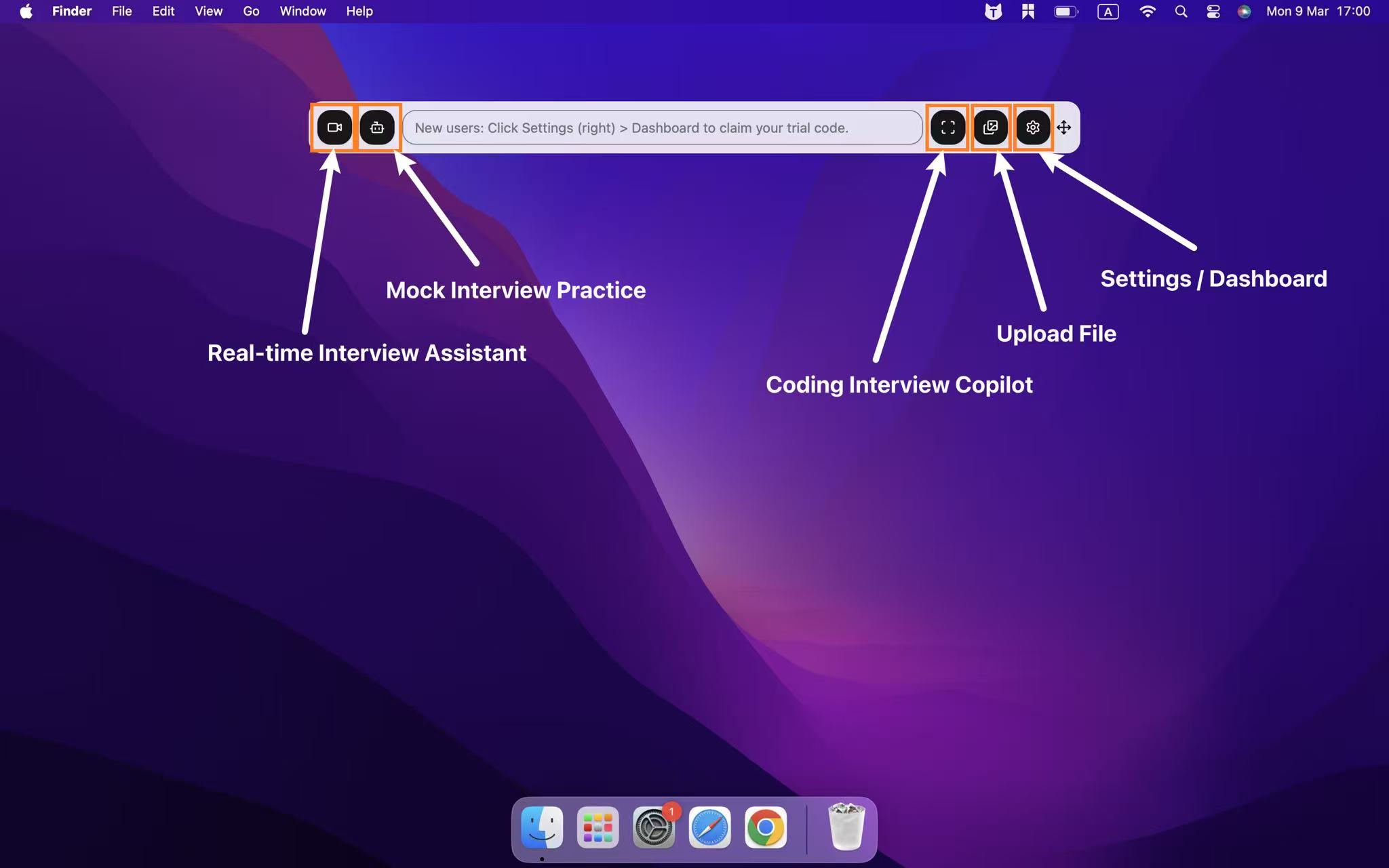
Just to be sure, could you check that you're using the right feature? The first button on the left of the command bar is for the "Live AI Interview Assistant" feature. This feature doesn't listen to your voice, it just monitors the system audio, so that's the interviewer's questions on your computer. If you're using the feature on the second button on the left, which is the mock interview one, that'll only monitor your voice.
What’s the biggest mistake people make when trying to cheat on Talview?
Most people rely too much on AI or outside help. They forget to practice explaining their answers. Interviewers notice when responses sound robotic or rehearsed.
See Also
8 Best Free AI Interview Assistant Tools, 2025 Hands-on Picks
Micro1 How to Cheat: Complete Zara AI Interview Guide
Top 7 Alternatives to Final Round AI I Tried and Recommend
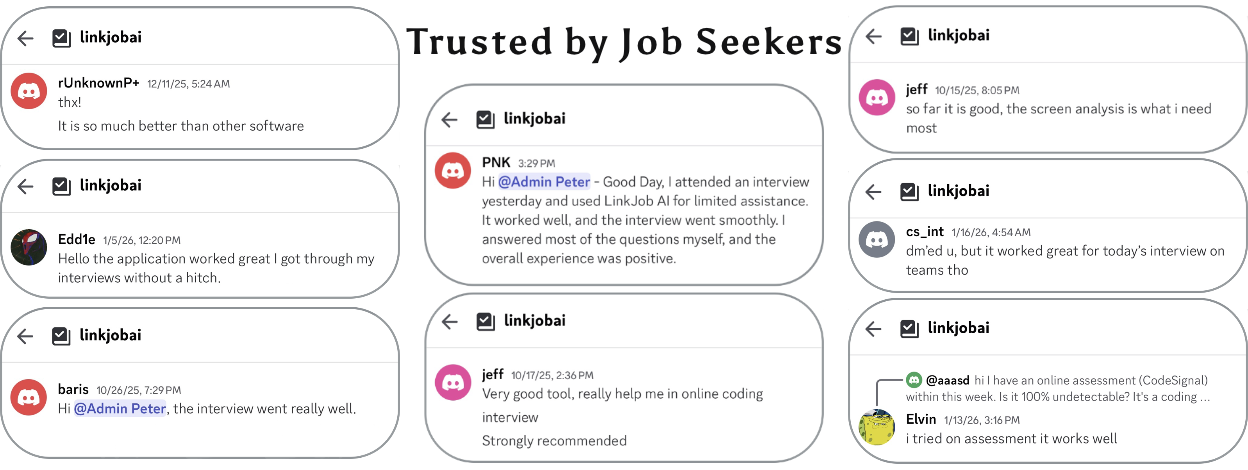
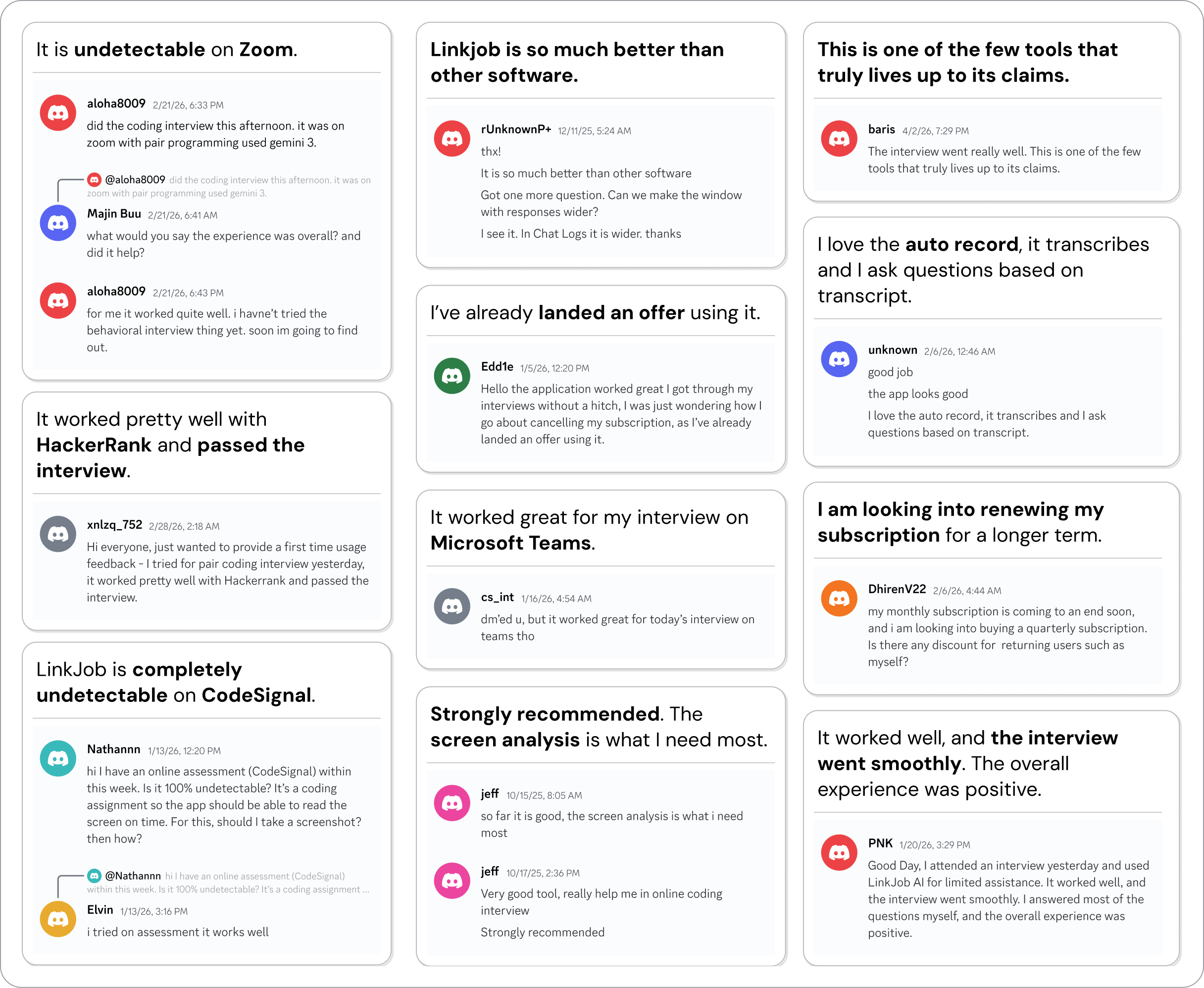
Why People Choose Linkjob AI
Smoother interviews, coding challenges cleared, and job offers landed. See how users describe their experience with Linkjob AI—in their own words.

© Copyright 2026 Linkjob AI - All Rights Reserved.