How I Use AI Assistant in Zoom for Undetectable Help
In today’s competitive job market, how can you stay calm, fluent, and precise in answering every behavioral questions and technical challenge during an hour-long Zoom video interview? Many people are looking for a tool that provides real-time references without being noticed by the interviewer, and is compatible with various interview platforms like HackerRank, CodeSignal, and Codility.
In this article, I will take Linkjob AI as an example to share my personal experience of using an AI interview assistant to get undetectable help. I'll show how to crack Zoom's environment monitoring, avoid the interviewer’s cheating detection, and handle all kinds of tough questions with ease.
Undetectable Zoom Interview AI Assistant
First and foremost, my Zoom interview AI assistant must be undetectable to avoid any accidents under strict proctoring. The AI assistant can bypass most of them through technical means, others—like eye movement or facial monitoring—can be handled by my own acting to make the performance look more natural.
Bypassing Screen Sharing Detection
Screen sharing is the most common and easiest way to get caught cheating. Traditional AI interview tools usually exist as web apps or browser extensions. The moment I start sharing my screen, these interfaces are exposed directly to the interviewer.
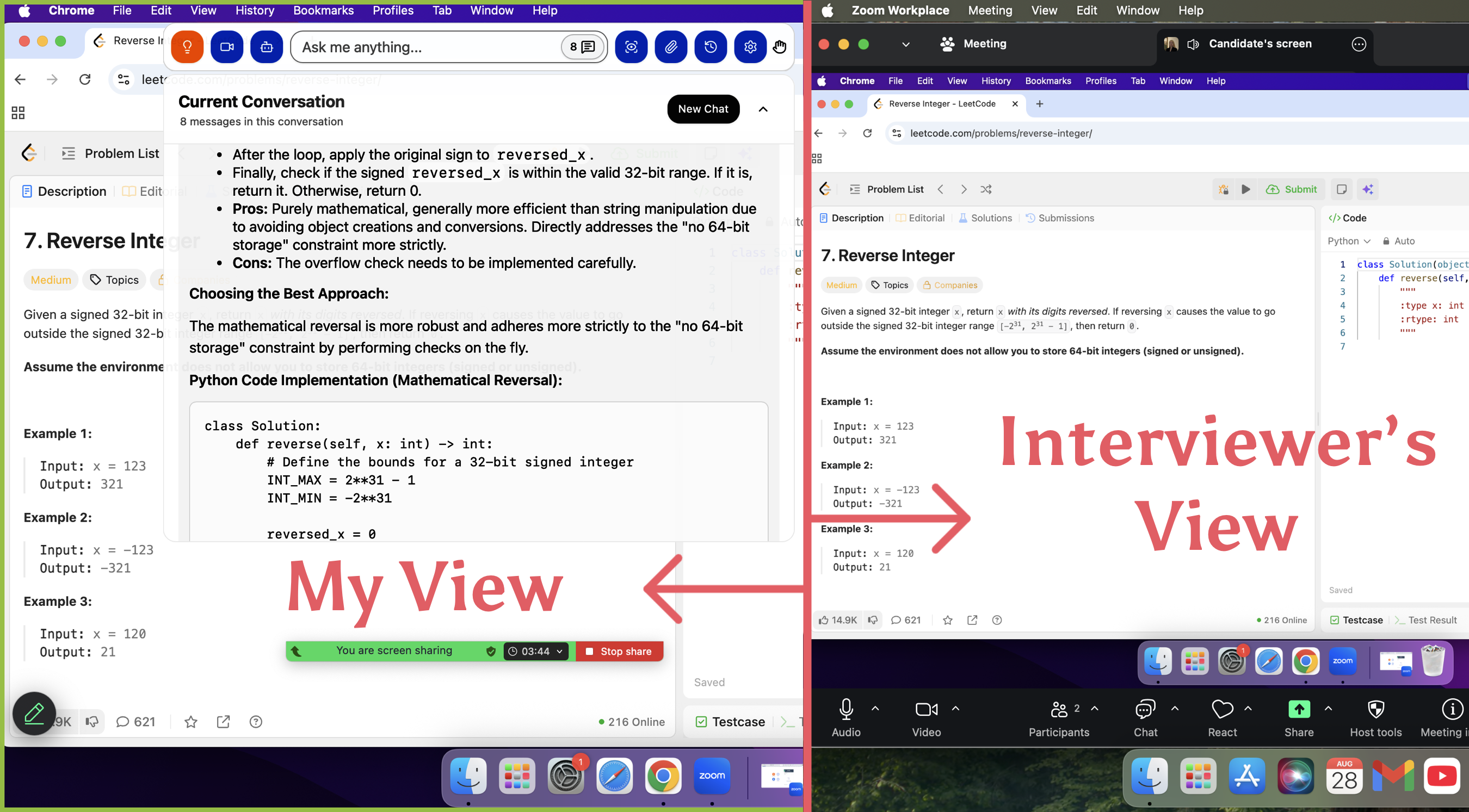
However, unlike regular app windows, Linkjob AI uses System-Level Overlay.When I share my full screen on Zoom, the AI-generated prompts are only visible on my physical monitor as a transparent top-layer window. Zoom’s capturing protocol cannot pick up this specific rendering layer. This means that even if I keep the AI assistant on my desktop to read answers throughout the interview, the interviewer still sees nothing but a clean desktop.
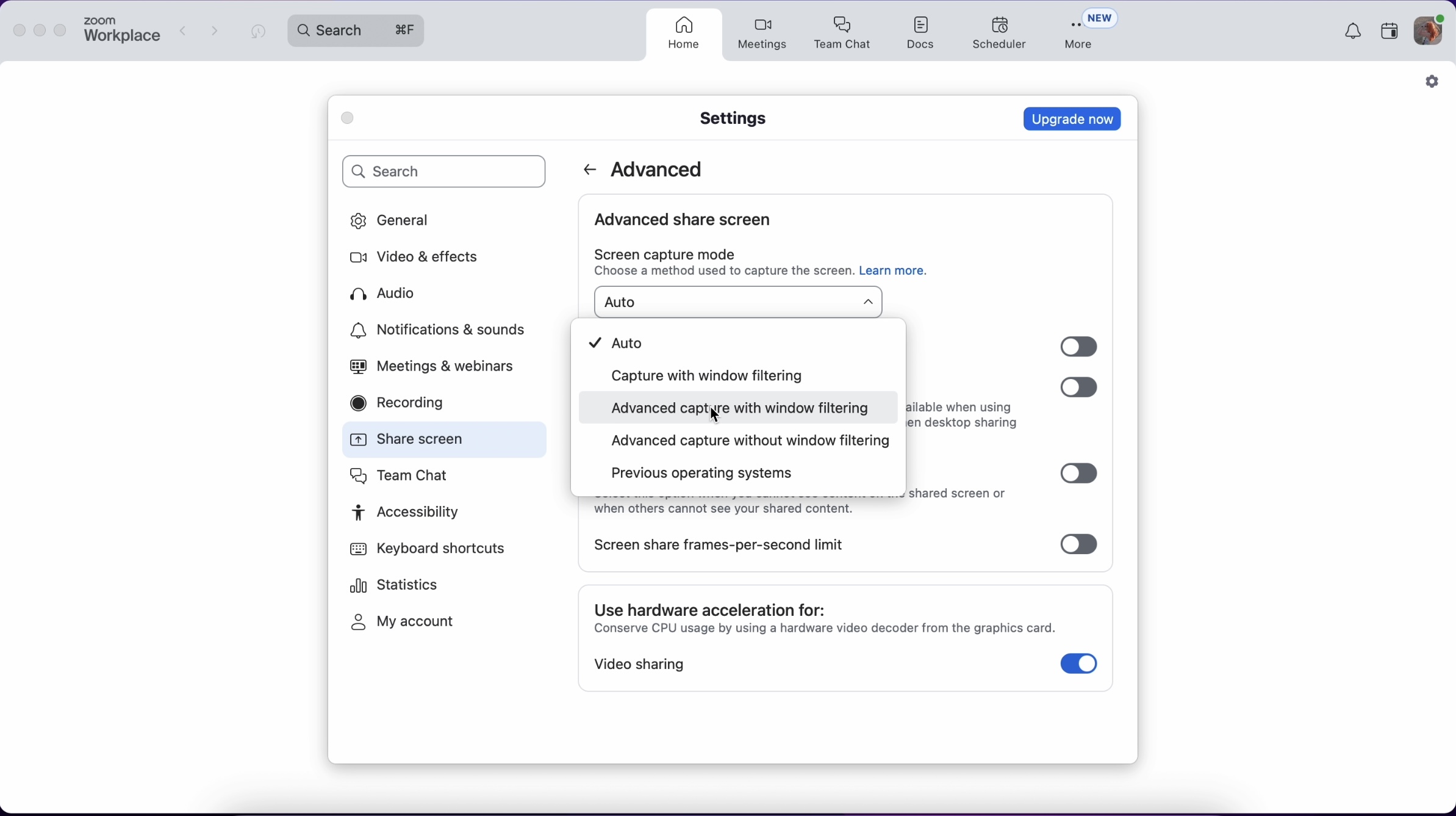
One thing to keep in mind is that you need to adjust a specific Zoom setting before the interview starts. In the Advanced section, you have to change the Screen Capture Mode from the default Auto to Advanced capture with window filtering. Once that is set, the AI assistant becomes completely invisible.
Bypassing Active Tab Detection
Currently, the vast majority of interview platforms like HackerRank, CodeSignal, and Codility are browser-based. Their most common tactic is monitoring the Active Tab. If I click anywhere outside the browser or switch to another tab, the system immediately flags me for cheating or even sends a direct alert to the interviewer.
The reason I insist on using a desktop client rather than a browser extension is to bypass this detection using the Sandbox mechanism:
Interview platforms run inside the browser's sandbox, meaning their permissions are strictly limited to that specific tab. While the platform can detect every action inside the browser, it cannot reach outside the sandbox to scan other independent programs running on my desktop. Since I am using a native desktop application, it runs independently of the browser at the system level. The interview platform simply does not have the authority to access my desktop's process list. Therefore, active tab detection can catch web apps or browser extensions, but it is powerless against a desktop-based product.
Furthermore, because Linkjob AI runs independently and does not require opening extra tabs, my browser environment stays completely clean. There are no suspicious extension signatures for the system to find, so naturally, nothing gets detected.
Bypassing Keyboard and Cursor Activity Detection
Besides the screen, interview platforms also track Keyboard Events and cursor behavior to spot signs of cheating. If I frequently press Alt+Tab to switch pages while the interviewer is speaking or if I use function keys like copy and paste, it'll immediately trigger a red flag in the system.
To avoid this detection, I use two specific features of my AI assistant for interview in Zoom.
First, I use the Real-time Interview Assistant. It automatically transcribes the interviewer's questions and generates answers without requiring manual clicks. I turn on this feature before the interview starts so that I do not need to make any unnecessary movements. If I feel that I might still need to use the mouse, I go into the settings beforehand and set the cursor to invisible.
Second, I use Customizable Global Hotkeys. Most proctoring tools focus on monitoring Ctrl+C, Ctrl+V, or specific trigger keys for known assistive software. However, since Linkjob AI allows for custom hotkeys, I avoid the standard ones and set up my own unique combinations instead. Also, I never copy and paste during the interview because it is too easy to get caught. I always manually type out the answers provided by the AI.
Bypassing Eye-Tracking
Besides the specific checks mentioned above, my biggest concern is actually my eye contact looking unnatural. If I’m constantly staring at a corner of the screen or my eyes are scanning side to side during the interview, the interviewer can tell immediately that I’m reading answers rather than thinking for myself.
Using Linkjob AI, I’ve solved this eye contact issue with a few techniques:
I place the answer box right near the camera’s "blind spot.": Using the floating window feature of the Zoom interview AI assistant, I drag it directly below the webcam, near the top edge of the screen. This way, when I’m reading the AI’s suggestions, my line of sight is almost perfectly aligned with the camera. From the interviewer’s perspective, it looks like I’m looking them straight in the eye with sincerity, rather than sneaking glances elsewhere.
I also take advantage of the transparency effect: I adjust the assistant’s background to be quite transparent, leaving only the text visible. This allows me to see the interviewer’s facial expressions and the AI’s key points at the same time. This visual overlay means I don’t have to switch back and forth between looking at the person and the answers, making the whole conversation much more fluid.
Finally, I scroll the content based on my speaking pace: To avoid having my eyes fixed on one spot for too long, I scroll the answers to keep them at my most comfortable eye level. When I’m "thinking," I’ll occasionally look up and to the side as if I’m organizing my thoughts, then bring my gaze back to the AI prompts just below the camera to continue. This subtle movement of my eyes makes it look like I’m thinking on the spot instead of reading a script.
Using AI Assistant for Interview in Zoom
To level up my interview performance, I also take advantage of a few other handy features within the AI assistant for Zoom interview.
Real-Time Structured Responses
In the high-pressure environment of a Zoom interview, response latency and content quality are paramount. To maintain a natural and fluid dialogue, the AI assistant leverages the most powerful models, ensuring that processing delays are minimized.
For behavioral questions, I utilize precise prompting to guide the AI in generating structured responses based on frameworks such as STAR, PAR, or PREP. This approach ensures logical rigor while allowing me to focus more effectively on building a genuine connection with the interviewer.
Live Screen Capture
For coding problems, I use the Live Screen Capture feature. Instead of me typing out the whole prompt, it just grabs the code directly from my screen. Whether it's a LeetCode-style problem or a system design diagram, the AI sees what I see and gives me the solution, the full code, and optimization tips right away. If one screenshot isn't enough, I just take a few more, and the AI will handle them all together.
Custom AI Prompts
Linkjob AI provides several highly effective AI prompt templates. I can fill these in with my resume and the job description, allowing the AI to generate answers that are much more tailored to my specific background.
To handle potential AST detection during coding interviews, I can provide some of my own code when customizing the prompt. This way, the AI-generated code imitates my personal coding habits rather than looking like typical AI output.
For general questions like behavioral interviews, I can provide the AI with a few examples of how I usually answer. This ensures that the generated responses match my natural speaking style.
Of course, if there are any other specific requirements that aren't covered in the basic settings, I can always handle them through custom prompts. For instance, if I need the AI to handle two different languages during the interview, I can simply give it those instructions.
Mock Interview
The features in Mock Interview are identical to those of the AI interview assistant used during real interviews. Therefore, I recommend using mock interview sessions to get familiar with the AI assistant’s features before the formal Zoom interview.
FAQ
How do you test your Zoom interview AI assistant before a real interview?
I actually asked a friend to help me test it. Together, we checked Linkjob AI's invisibility and the whole range of features. I only started using it in real interviews after making sure everything worked perfectly. Also, it comes with a 20-minute free trial.
When should I launch the AI assistant for my Zoom interview?
To get the best results, you should upload your resume and job description in advance and specify your requirements for the AI’s answers in the prompts. Then, make sure to launch the AI assistant before the interview starts. This ensures you receive better, high-quality real-time responses during the session.
See Also
How to Cheat HackerRank Tests With AI: My 2026 Update
How I Used AI to Pass the Interview on Microsoft Teams
How I Cheat on Codility and Avoid Getting Caught in 2025
How to Use Technology to Cheat on CodeSignal Proctored Exams
How to Use Tools for Screen Capture Not Detectable by Coderbyte
© Copyright 2025 linkjob.ai - All Rights Reserved.