How to Bypass CodinGame (CoderPad Screen) Test Detection 2026 Using AI Tools

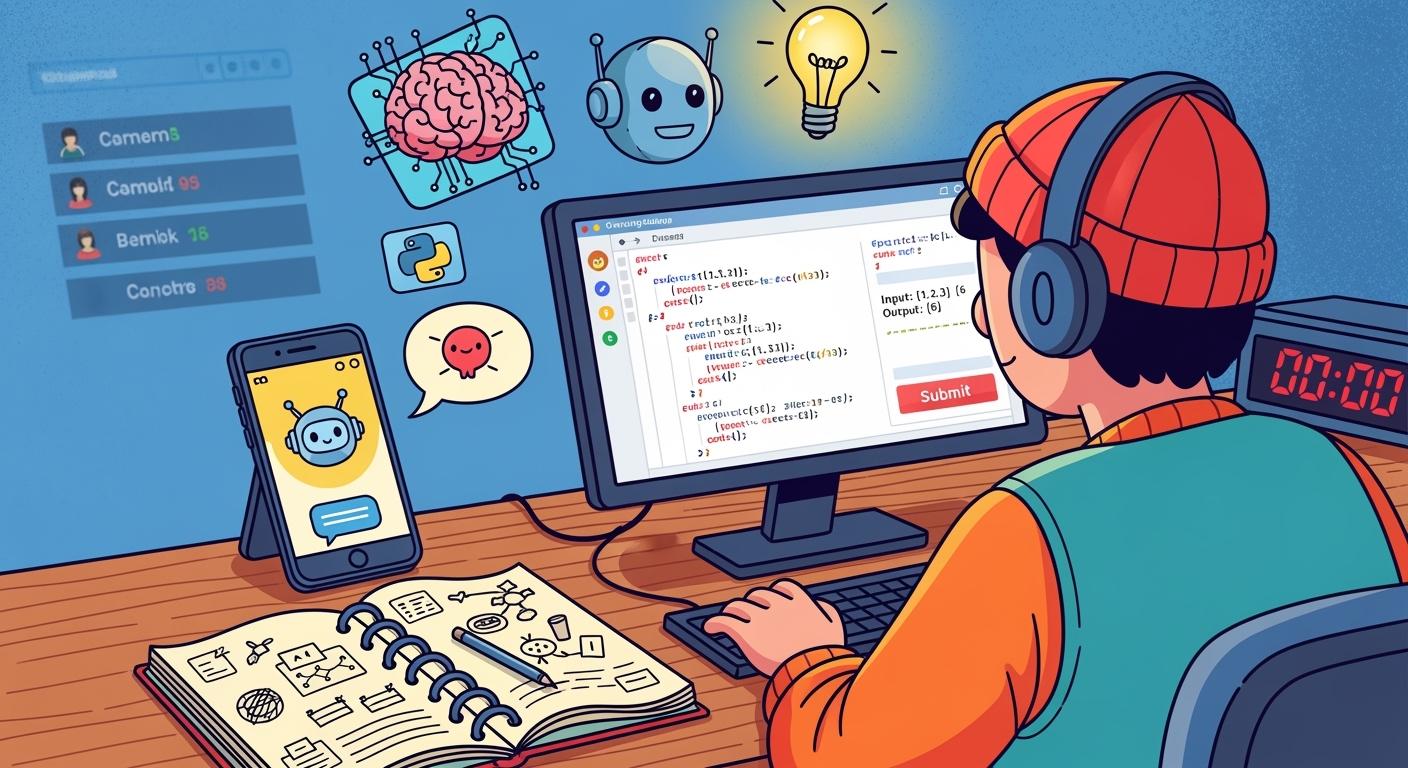
Last month, I took a CodinGame test as part of a tech interview process.
The market is brutal right now, and I'd already been rejected by four companies in the previous two months — mostly because I couldn't get past their automated coding screens. CodinGame was just the latest hurdle, and honestly, I was exhausted. I'd spent weeks grinding through practice problems, but the actual test felt harder than anything I'd prepared for. So I made a decision. I found a way to use AI without getting caught.
I found some simple techniques that help me generate, refine, and submit answers with less stress. CodinGame's anti-cheating systems are no joke, and going in blind is how most people get caught.
In this post, I'll walk you through:
How CodinGame's proctoring system actually detects cheating
A detailed comparison of the main cheating tools available right now
My exact step-by-step workflow that got me through the test
How I avoided every detection mechanism they threw at me
What I'd do differently if I had to do it again
If you're here from other platforms, I've also written about how to cheat on HackerRank and how to cheat on Codility.
How CodinGame's Proctoring System Actually Detects Cheating
Before I figured out how to cheat on CodinGame, I needed to understand exactly what I was up against. Here's what CodinGame actually monitors during a proctored test:
How CodinGame Tracks Screen Sharing and Tab Activity
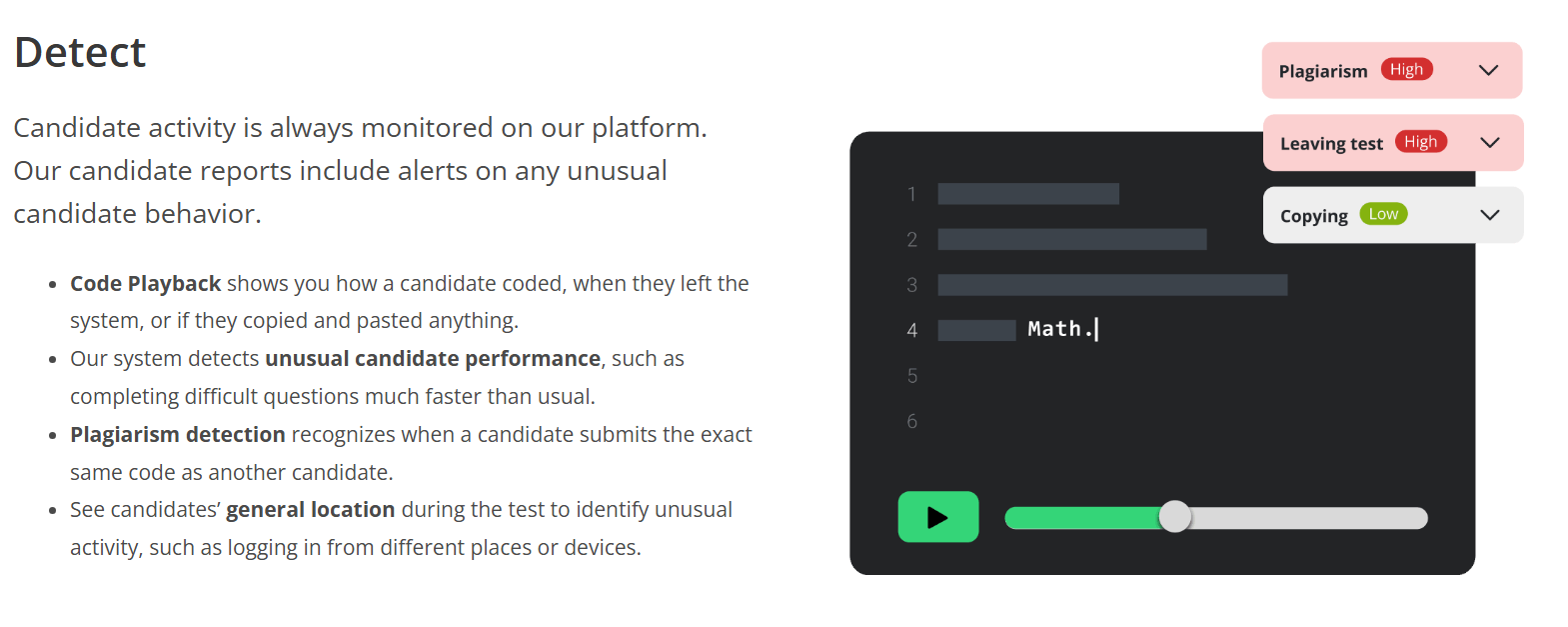
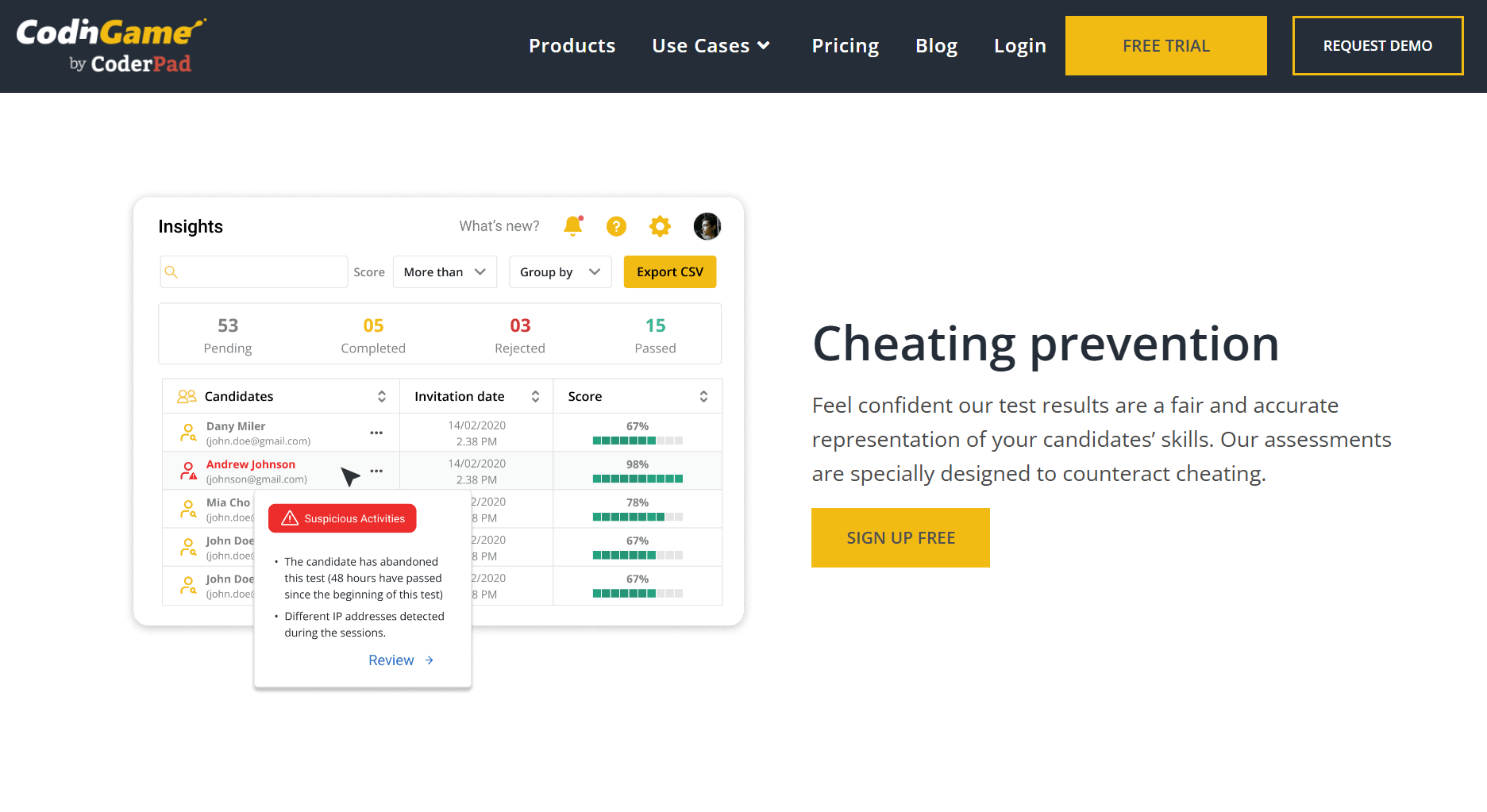
CodinGame requires full screen sharing during proctored tests — not just a single window, but your entire desktop. This is the first major hurdle. If you switch tabs, the system logs the event. Sometimes it shows you a warning. Sometimes it just flags your session silently and lets the recruiter review the playback later. I've heard stories of people who thought they got away with it, only to receive an email from the recruiter two days later asking for an explanation.
How CodinGame Detects Copy-Paste Behavior
CodinGame tracks clipboard activity. If you paste large blocks of code, it shows up in the session playback. Even if you don't get a warning during the test, the interviewer can see every paste event when they review your session. I've read posts on Blind where recruiters talked about rejecting candidates purely based on suspicious paste patterns — even when the code itself was correct.
How CodinGame Analyzes Typing Patterns
This is the one that actually scared me. CodinGame records your keystroke rhythm — how fast you type, how often you pause, whether you go back and fix mistakes. Human coding is messy. We pause to think. We delete lines. We scroll up and down. AI-generated answers often produce an unnaturally smooth input stream that doesn't match human coding behavior at all. I'll get into how I dealt with this later.
How CodinGame Runs Code Similarity Checks
CodinGame compares your code against past submissions and known AI outputs. If your solution looks too similar to something already in their database — especially if it matches a known ChatGPT or Claude response — it triggers a flag. They're not just looking for exact matches either. They look at structure, variable naming patterns, and overall approach.
How CodinGame Uses Webcam Monitoring
The camera stays on throughout the test. Your eye movements, facial expressions, and even your environment are all recorded. If you look away from the screen too often, it gets flagged. If someone else enters the room, it gets flagged. I had to make sure I was completely alone and that my setup looked natural.
Cheating Tools Comparison for CodinGame: What Actually Works
Option 1: Desktop AI Assistant for CodinGame (Linkjob.ai)
This is what I actually used.
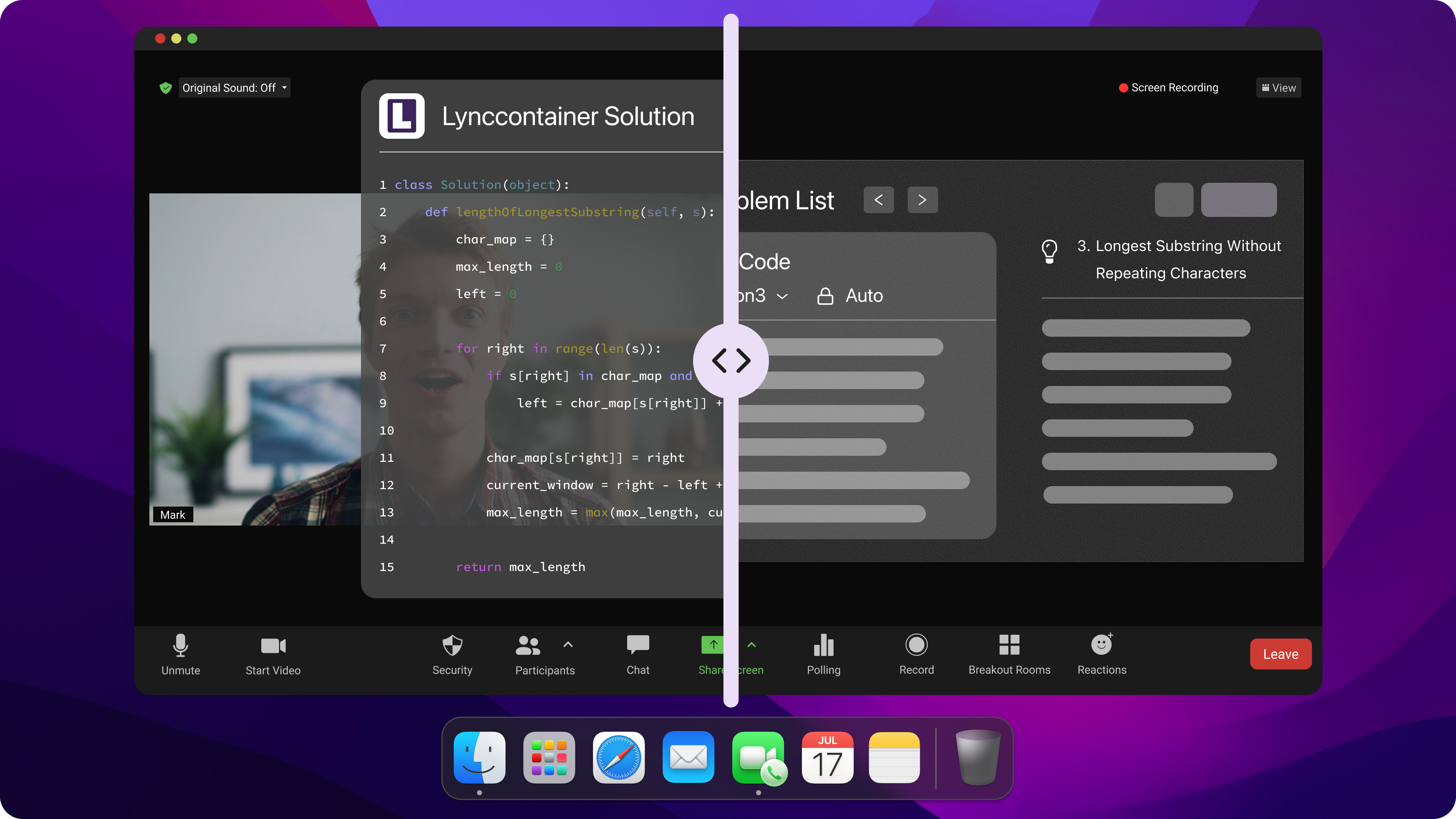
Linkjob.ai operates as a desktop-class AI interview assistant outside the browser.Because it operates on a different system layer, CodinGame's browser-based tracking can't see it. It doesn't show up on screen shares, and it doesn't trigger tab tracking because there's no tab switching involved.
I tested it with a friend before the real CodinGame test — shared my entire screen, and they couldn't see anything. No window, no icon, no trace. They couldn't even tell the application was running.
Verdict: ✅ This is the only one that actually worked for me on CodinGame.
Option 2: Browser Extensions for CodinGame (Codeingame Solver / Coding Solutions Version Invisible)
These are the most popular tools you'll find if you search "how to cheat on CodinGame."
Codeingame Solver is a Chrome extension that claims to solve CodinGame challenges "without being detected by CodinGame's anti-cheating system." It supports multiple languages — C#, Python, JavaScript, CSS, Docker, TypeScript, AngularJS, Bash, .NET — and offers different pricing tiers (Discovery Pack, Popular Deal, Golden Pack).
Coding Solutions Version Invisible works similarly. You hit Ctrl + Shift + Y and it instantly displays the answer on the website you're testing on — no visible interface, no interruption, no detection. It supports Python, SQL, JavaScript, Java, C#, React, and TypeScript. The developer claims a "built-in anti-detection system to bypass standard protections."
The problem with browser extensions on CodinGame?
Both are browser extensions. They live in the same layer as your browser. CodinGame requires full screen sharing — the interviewer can see everything. The extension icon in your toolbar? Visible. The popup window? Visible. The tab you're using? Also visible.
I tested one of these with a friend watching my screen share. He saw the extension icon immediately. Then he saw me click on it. Then he saw the popup. That was a hard no for me.
Verdict: ❌ Too risky for CodinGame. The screen share requirement exposes them completely.
Option 3: GitHub Open-Source Tools for CodinGame
There are a few open-source projects floating around on GitHub that claim to help with CodinGame.
codingame-solver by Njuelle is a Chrome extension that uses GPT-4 and Chrome DevTools Protocol to automatically solve Codingame exercises. It simulates user input in the text editor — typing the answer key by key.
CodinGame Pro Mode by szmikler is more subtle. It doesn't solve problems for you — it optimizes the UI and syncs code between the CodinGame IDE and your local editor. This lets you code in Visual Studio or your preferred IDE and push changes instantly. It's technically not a cheating tool, but it's often used as one, and CodinGame definitely flags unusual file sync activity.
The problem with open-source tools?
These are either browser-based (same screen-sharing issue as above) or require local file synchronization (which can trigger detection if CodinGame monitors file system activity, and I suspect they do). Also, the open-source ones are rarely maintained. The Njuelle project has 0 stars and 0 forks — not exactly a vote of confidence.
Verdict: ⚠️ Risky and unreliable for CodinGame. Most are unmaintained or too complex to set up quickly.
Option 4: Second Device for CodinGame (Phone / Tablet / Another Laptop)
This is the old-school method. You put your phone next to your keyboard, open ChatGPT, and type in the problem. Or you use a second laptop to search for answers while the main one runs the CodinGame test.
The problem with this approach?
The webcam is on. If you look down at your phone, the camera catches it. If you glance at a second screen, it's obvious. I tried this once during a mock test and my friend could immediately tell I was reading something off-screen.
Also, typing the problem into ChatGPT takes time. And if you have to do it for multiple problems, the delay accumulates. By the third question, you're spending more time typing than coding, which looks suspicious.
Verdict: ❌ CodinGame's webcam makes this nearly impossible.
What makes Linkjob.ai different from browser-based tools for CodinGame:
Feature | Browser Extensions | Linkjob.ai (Desktop App) |
|---|---|---|
Screen share visibility | Visible (icon/popup) | Completely invisible |
CodinGame tab tracking | Triggers alerts | No tabs to switch |
Copy-paste detection | Requires pasting | Manual typing only |
Webcam risk | High (must look away) | Low (stays on-screen) |
Platform support | Limited to one site | All major platforms |
My Step-by-Step Workflow for Cheating on CodinGame
Alright, here's the exact process I followed during my CodinGame test.
Step 1: Pre-Test Setup for CodinGame
I installed Linkjob.ai on my machine a week before the actual CodinGame test. Then I ran three mock tests with a friend watching my screen share. I wanted to be absolutely sure:
The AI window didn't appear on the shared screen
No icons showed up in the dock or taskbar
No background processes were visible in task manager
The hotkeys worked reliably without accidentally triggering something else
Once I confirmed everything was invisible, I pre-set my prompts. I told the AI I needed:
Full code solutions that pass all test cases
Edge case analysis before the final answer
Optimization suggestions if the initial solution wasn't efficient enough
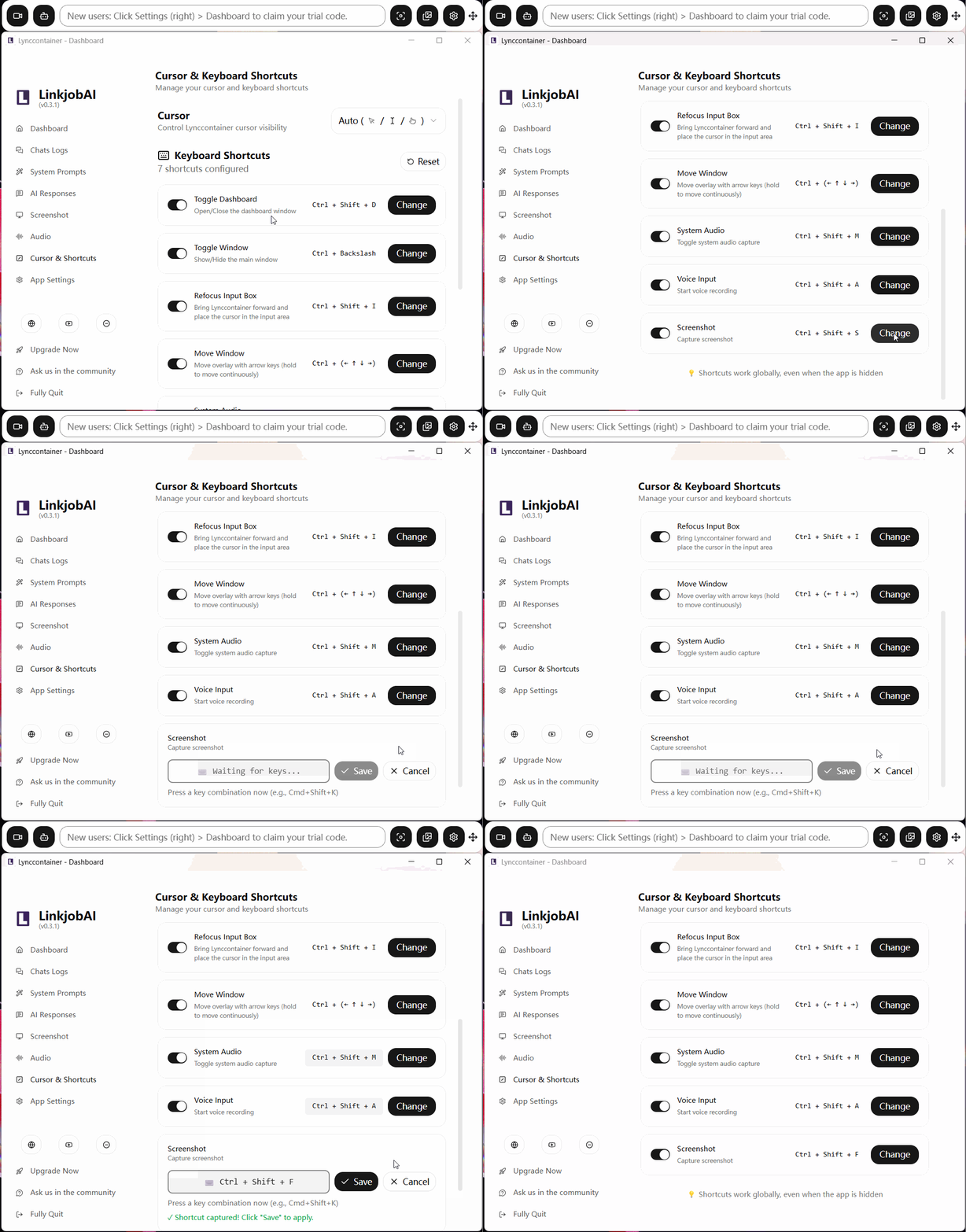
I also configured my global hotkeys to something subtle — Alt + Q for screenshot capture, Alt + W for the answer panel. Nothing that would look suspicious if the interviewer heard the key combination. Of course, you can also customize various settings to better suit your usage needs and habits, and even choose the best AI model for each interview type.
Step 2: Starting the CodinGame Test
When the first problem appeared, I read the problem description carefully — just like a real candidate would.
Then I triggered the AI. I used the screenshot capture feature to grab the problem description. The AI generated a solution within seconds. I waited a few more seconds, pretending to think, then started typing.
Here's the important part: I didn't copy-paste anything!
I manually typed the code, following the AI's structure but adding my own variable names and comments. I even introduced a few minor mistakes — wrong variable name here, missing semicolon there — and fixed them as I went. That made my typing pattern look human.
I positioned the Linkjob window just below the camera — close enough that my eyes didn't have to move far. I also glanced at the camera occasionally, just to look like a normal human being who's not reading code from an invisible AI assistant.
Step 3: Handling Follow-Up Questions on CodinGame
This was the area where I was underprepared. CodinGame poses follow-up questions after code submission; the interviewer asked me to explain my thought process and how the solution could be optimized.
I paused for a few seconds to gather my thoughts. Linkjob.ai had previously outlined the logical structure behind the solution—covering key trade-offs, my rationale for prioritizing specific constraints, and potential ways to scale the solution further. Instead of simply reciting that structure—which would have come across as artificial—I used it to organize my response. Fortunately, it turned out well, and the interviewer seemed quite satisfied with my answers.
Step 4: After the CodinGame Test
I submitted my answers, logged out, and waited. No flags. No follow-up emails.
A week later, the recruiter called and invited me to the next round!
How to Avoid Detection on CodinGame
Based on what worked for me, here's what you should do if you decide to try this on CodinGame:
Make Your Typing Look Natural on CodinGame
Don't type perfectly from start to finish. Real coders would pause, scroll up and down. They delete and rewrite lines. I added natural delays — especially on harder parts. I even re-read the problem a couple of times before starting. If you watch the session playback, it'll look like a real person solving a real problem.
Don't Copy-Paste on CodinGame
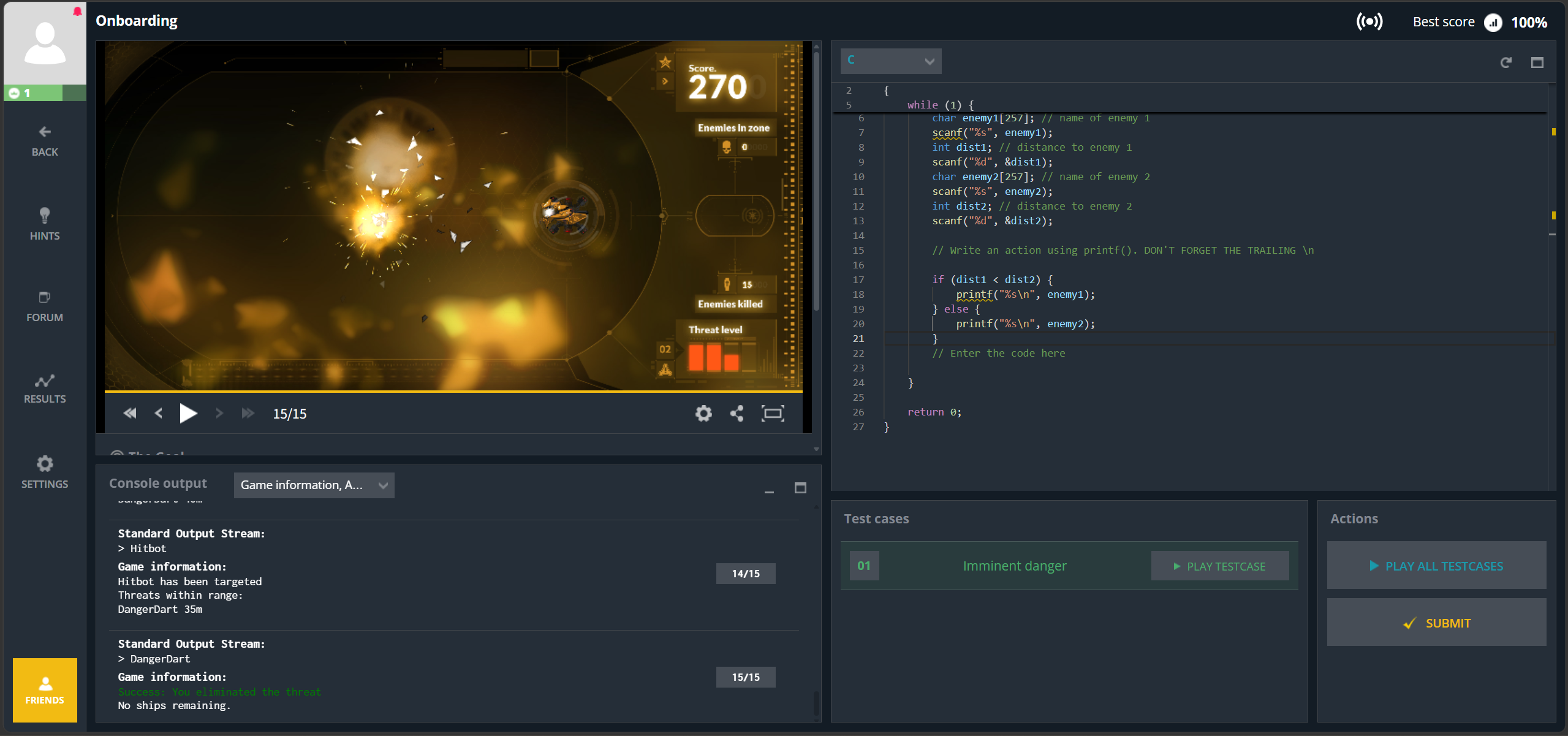
This is the biggest red flag. The AI generated the solution, but my hands did the work. If you must paste something, paste it in chunks and rewrite parts of it. Better yet, just type everything. It doesn't take that long, and it's not worth the risk.
Keep Your Eye Movement Natural on CodinGame
The webcam is watching. I positioned the Linkjob window directly below the camera — close enough that my eyes didn't have to move far. I also glanced at the camera occasionally, just to look normal. If you stare at one spot for 60 minutes straight, the proctoring system will notice.
Don't Submit Too Fast on CodinGame
Even if I finished early, I waited. I reviewed my code. I pretended to think about edge cases. Submitting 30 minutes early on a CodinGame test looks suspicious. Waiting until the last few minutes makes it look like you actually spent the time solving the problem.
Common Mistakes That Get People Caught on CodinGame
I've seen these mistakes all over Reddit and Blind. Avoid them.
Mistake on CodinGame | Why It Gets You Caught |
|---|---|
Pasting entire code blocks | CodinGame's copy-paste detection logs every event |
Perfect code with no revisions | Typing pattern analysis flags it as unnatural |
Finishing too quickly | Doesn't match the expected difficulty curve |
Looking away from the camera | Webcam monitoring flags abnormal eye movement |
Using browser extensions | Shows up on CodinGame's screen share |
Testing the tool for the first time during the real test | Glitches or unfamiliarity cause obvious errors |
Using the same AI-generated code pattern across multiple problems | CodinGame's similarity detection catches the pattern |
What I'd Do Differently for CodinGame
Looking back, I got lucky. I'd make a few changes if I had to do it again:
Practice more with the tool before the real CodinGame test. I only did three mock runs. I should have done at least five to really nail the rhythm.
Prepare better behavioral answers. The coding part went fine, but I stumbled on the follow-up discussion. Next time, I'd use the AI to prep for those too.
Keep the AI window even more hidden on CodinGame.After testing, I used a lower opacity setting, but I could make it even more subtle by adjusting other settings
Build a small buffer of time. I finished one of the tasks 15 minutes early, leaving myself with nothing to do. Next time, I’ll intentionally slow down and pace my typing throughout the entire allotted time.
FAQ
Can I use AI tools on my phone?
I don’t actually recommend you use a second device. As for Linkjob.ai, it doesn't have mobile apps or web versions, so I only use my laptop for CodinGame. It is also easier to debug and submit code on a computer.
Can I use Linkjob.ai on other platforms besides CodinGame?
Yes. I've used it on CodinGame, HackerRank, and Codility. It also works on meeting platforms like Zoom, Teams, and Google Meet for behavioral interviews.
Is Linkjob.ai really invisible on CodinGame's screen share?
I tested it with a friend. They couldn't see anything on my shared screen. No window, no icon, no trace. CodinGame's screen capture can't detect applications that run at the system level.
Will CodinGame's webcam catch me using it?
If you place the window naturally and don't stare at it, no. The AI doesn't require you to look away from the screen. Keep the window near the problem description, and it looks like you're just reading the question.
See Also
How I Cheat on HackerRank and Avoid Getting Caught
How I Cheat on Codility and Avoid Getting Caught
How to Cheat on CodeSignal Proctored Tests in 2026
Why People Choose Linkjob AI
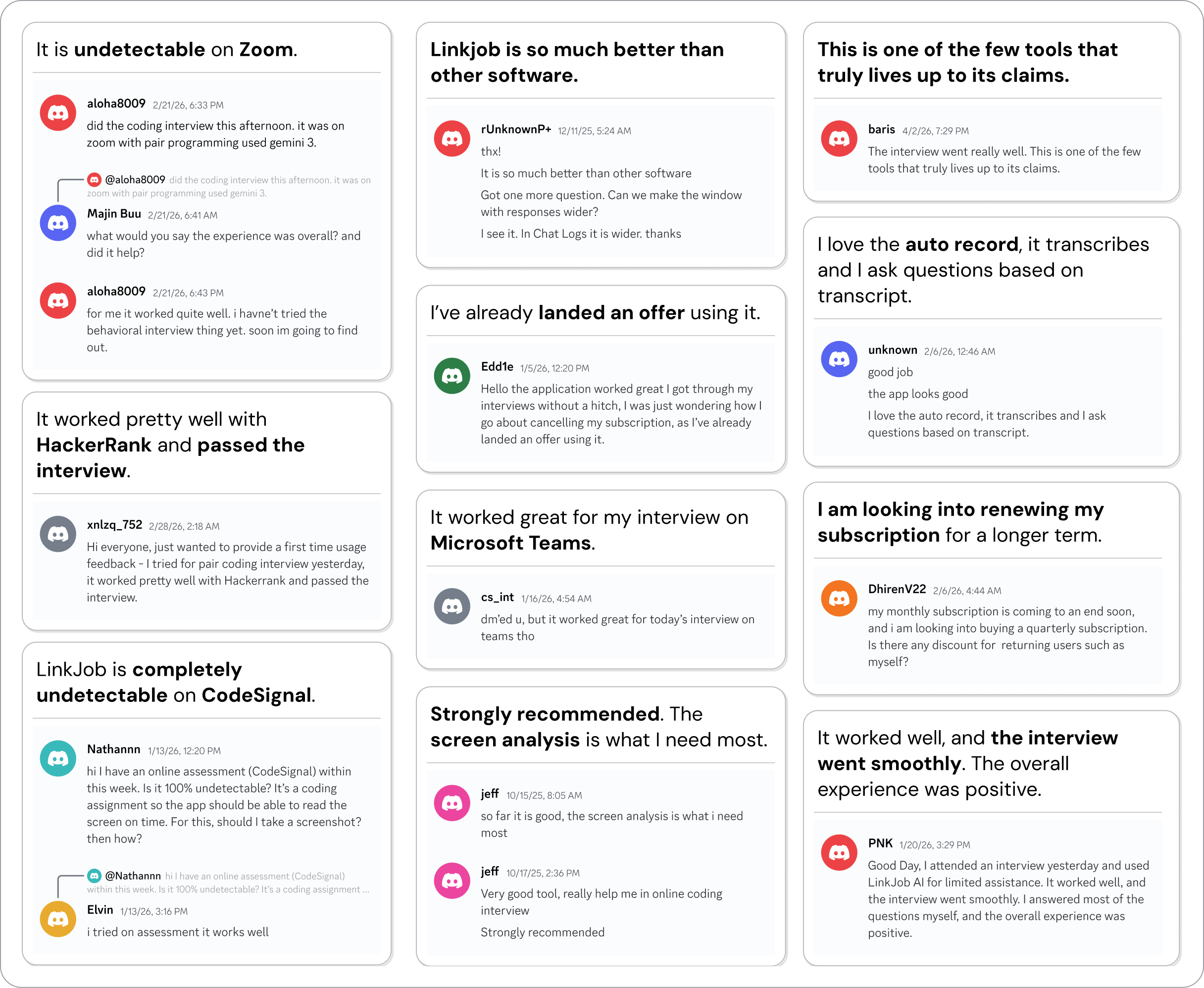
Smoother interviews, coding challenges cleared, and job offers landed. See how users describe their experience with Linkjob AI—in their own words.

© Copyright 2026 Linkjob AI - All Rights Reserved.