How I Used AI Tools in Skillspace.ai 2026 Assessments

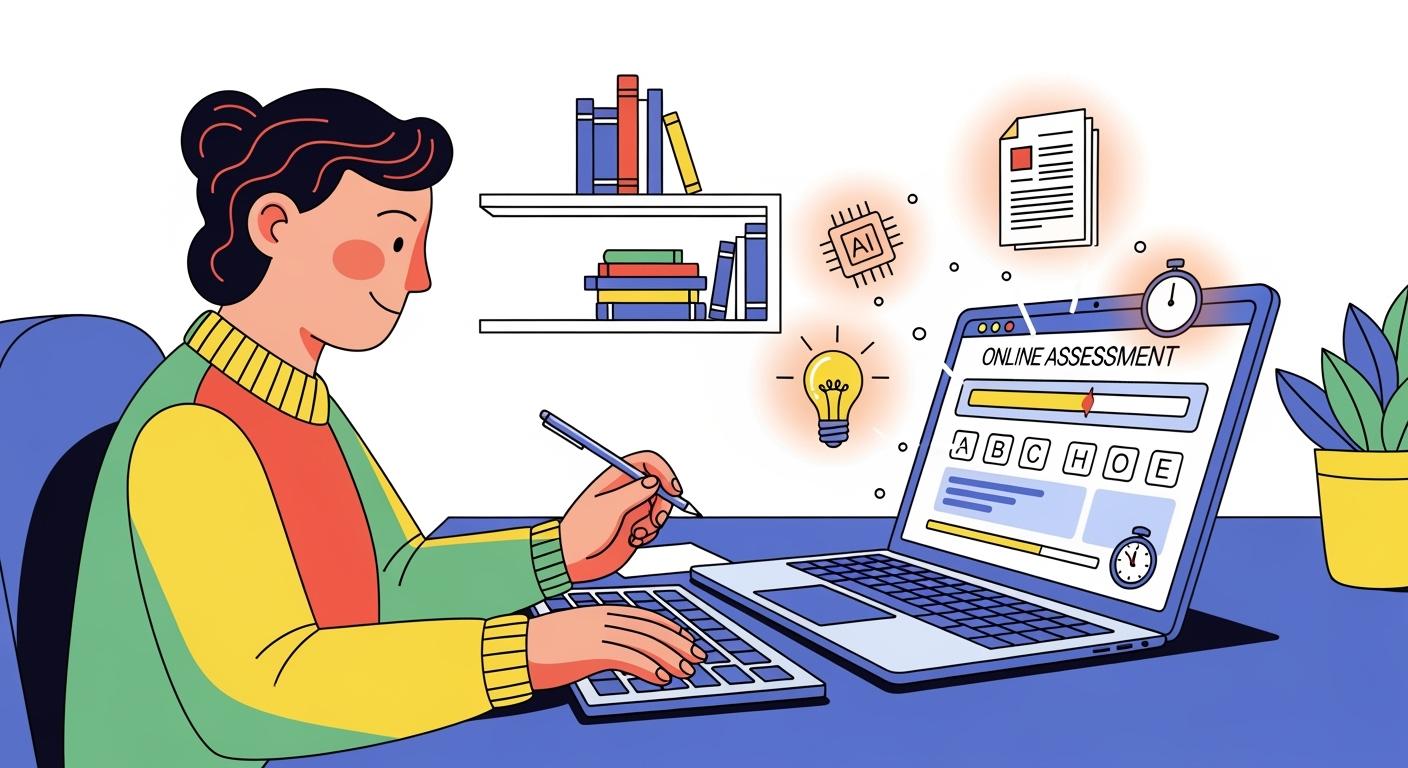
Yeah, I just – or, to be exact, last week – did an online technical screening test from Skillspace.ai as part of the hiring process for a SWE position.
I've used various programming platforms in the past and I usually open Linkjob AI, write code, use global hotkeys to retrieve answers and stay within the active window. I did this again recently and felt a bit uneasy afterwards. I asked a friend who uses the web-based interview assistant InterviewMan to do a side-by-side test, and the results were similar to what I mentioned in my InterviewMan review. Even among AI interview assistants of the same type, it's hard to guarantee they won't slip up at some point (especially given the current mixed quality of these products).
I then took a look at Skillspace's platform documentation and found that, while it isn't as tricky as getting around CoderPad's anti-cheating mechanisms – which I'd looked into before – and cheating on its assessments doesn't require the same level of repetitive preparation as I'd explored for how to cheat on Testgorilla, it still allows hiring teams to flexibly adjust the strictness of monitoring based on job requirements and assessment levels. So, even if I did manage to use Linkjob AI to get past the screening, I couldn't just let this platform slip under my radar — which is why I wrote this article.
Understanding Skillspace.ai Proctoring Before Learning How to Cheat on Skillspace.ai
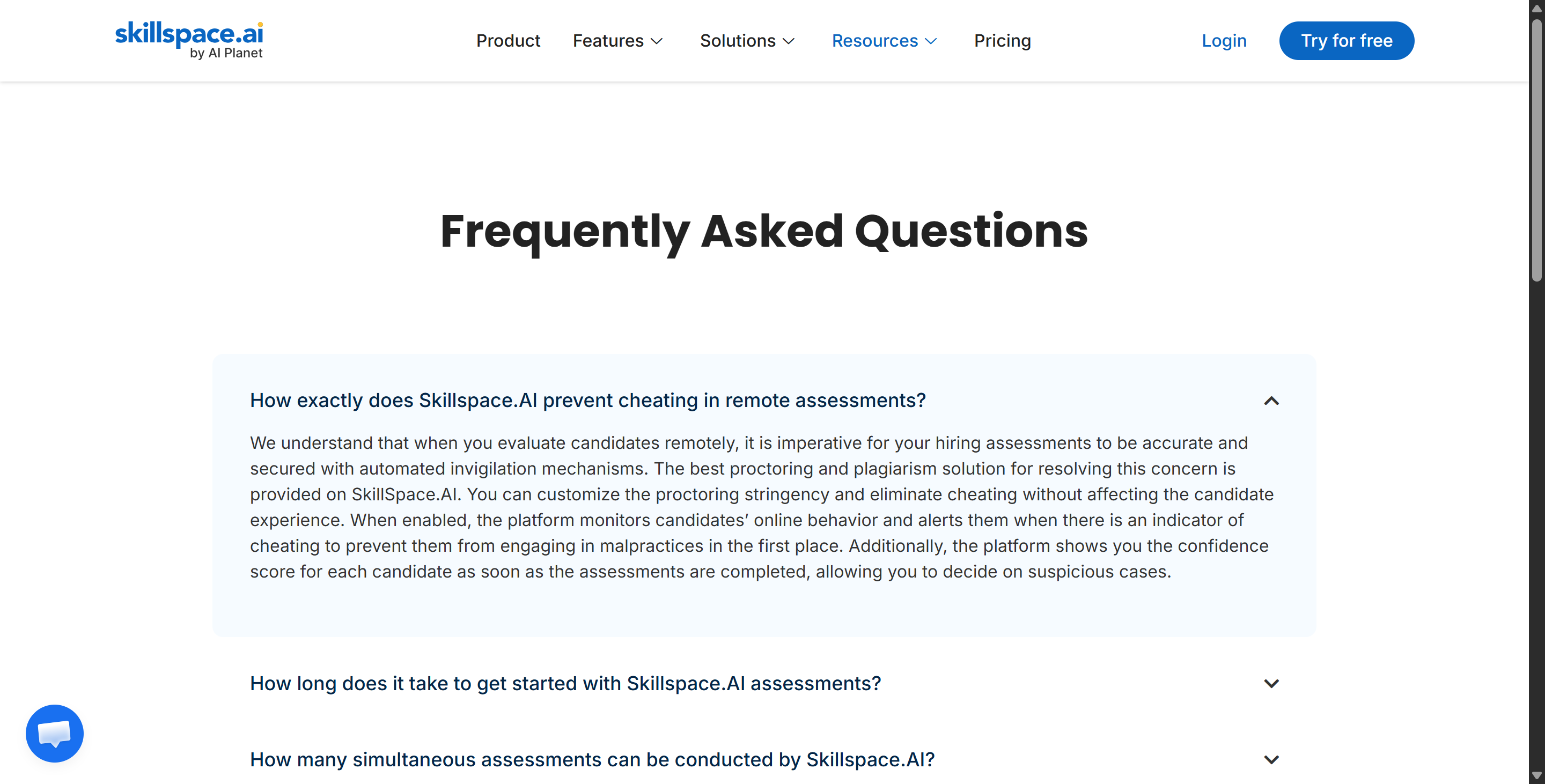
To prepare effectively for a Skillspace evaluation, you must first understand what the candidate interface monitors during a test session. Skillspace positions its integrity features as a configurable suite rather than a static lockdown browser. Depending on how an employer configures their candidate pipeline, a basic skills quiz might use light browser monitoring, whereas a university hiring process or senior engineering evaluation may activate full proctoring features.
Skillspace.ai Anti-Cheating Feature Matrix
Anti-Cheating Feature | Officially Confirmed | Explicitly Enabled by Default | Candidate AI/Warning Alerts |
AI Facial Recognition | ✅ Yes | ❓ Undisclosed | May trigger overall candidate warning mechanism |
Impersonation Detection | ✅ Yes | ❓ Undisclosed | Same as above |
Multiple-Person Detection | ✅ Yes | ❓ Undisclosed | Same as above |
Tab-Switch Monitoring | ✅ Yes | Configurable | Proctored mode alerts candidates on suspicious activity |
Copy/Paste Restriction | ✅ Yes | Configurable | Not specified as an individual alert trigger |
Online Behavior Monitoring | ✅ Yes | When enabled | Used during proctored sessions |
Confidence Score | ✅ Yes | When proctoring active | Recruiter-facing summary report |
Plagiarism Detection | ✅ Yes | Undisclosed (Typically default) | Recruiter-facing analysis |
Non-Googleable Question Library | ✅ Yes | Default (Question bank design) | Not applicable to candidate alerts |
Lockdown Browser | ❌ Not Found | — | — |
Process Scanning | ❌ Not Found | — | — |
Screen Recording | ❌ Not Found | Unconfirmed on public pages | — |
Second-Monitor Detection | ❌ Not Found | — | — |
Keystroke Logging | ❌ Not Found | — | — |
AI-Powered Facial Recognition and Multiple Person Detection
Skillspace integrates webcam-based computer vision models to establish candidate identity and maintain session integrity:
Identity Verification: At the start of a proctored assessment, the system captures a baseline facial profile to ensure the person taking the test matches the authorized candidate.
Impersonation Checks: Throughout the test, automated vision models periodically check the webcam feed to confirm that the verified candidate remains in front of the display.
Multiple-Person Detection: If secondary individuals enter the camera frame during a test session, Skillspace flags the event and logs visual evidence for recruiter review.
Presence Monitoring: If the candidate steps away or moves out of the camera view for an extended period, the system records a presence gap signal.
While Skillspace utilizes webcam-based identity checks, public technical disclosures focus on face verification and presence tracking rather than extreme gaze-angle analysis or continuous pupil tracking.
Tab Switching, Copy-Paste Blocking, and In-Test Warnings
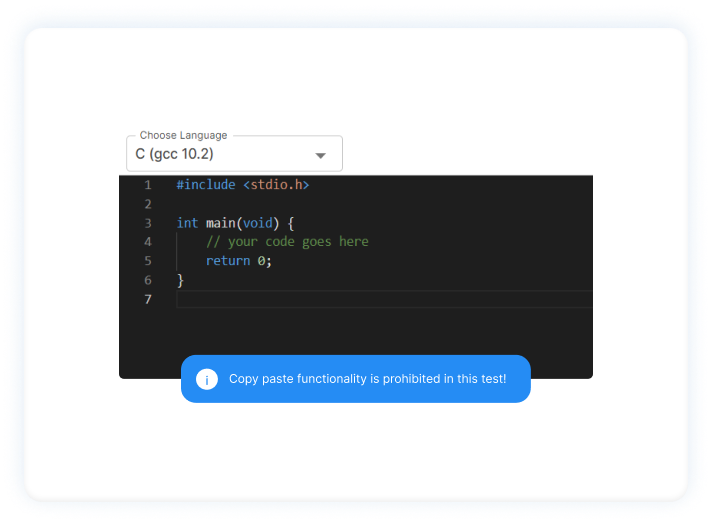
Beyond visual verification, Skillspace monitors interaction signals directly within the browser environment:
Tab Switch Tracking: When tab monitoring is enabled by the employer, the assessment page tracks browser DOM focus loss (
window.onblur). Navigating away from the active assessment tab, opening secondary windows, or clicking on background applications logs focus-loss timestamps.Copy/Paste Restrictions: For technical coding assessments, Skillspace allows employers to restrict clipboard operations inside the web editor. This prevents highlighting question text or pasting large external code blocks into the assessment environment.
Real-Time Candidate Warnings: Unlike platforms that collect infractions silently for post-test rejection, Skillspace can display live on-screen pop-up warnings when proctoring algorithms detect potential integrity indicators (such as repeated tab switches or missing facial detection).
Plagiarism Detection Engines: For coding submissions, Skillspace scans submitted code against internal candidate pools and public repositories to identify structural code similarities.
Understanding these technical parameters shows that traditional shortcuts—such as switching tabs to search for solutions or pasting code directly—are quickly flagged by the system.
The Skillspace.ai Confidence Score and Recruiter Review
At the conclusion of a proctored assessment, Skillspace synthesizes session telemetry—tab-switch logs, webcam presence markers, clipboard attempt events, and plagiarism analysis—into a post-test Confidence Score for the hiring team.
A lower Confidence Score indicates a higher density of recorded anomaly flags during the test session. However, Skillspace structures this metric as a review signal rather than an automatic failure mechanism. Recruiters inspect the underlying audit log—including specific timestamps, warning event triggers, and code submission metrics—before making a final hiring decision. Understanding that human review is the final evaluation step underscores the importance of maintaining clean physical setup and behavioral pacing throughout your test session.
Why Is Cheating Possible? And How to Cheat on Skillspace.ai Safely?
Successfully completing a proctored Skillspace.ai assessment requires an operational workflow that allows candidates to manage their time, process questions efficiently, and avoid triggering browser DOM focus alerts or clipboard violations.
OS-Level Screen Capture vs Browser DOM Focus Tracking (window.onblur)
The primary technical boundary in Skillspace is browser focus tracking, which logs a window.onblur event whenever a candidate interacts with elements outside the active assessment viewport:
Operating System Level Capture: System-level shortcut utilities (such as
Cmd + Shift + Son macOS orCtrl + Shift + Son Windows) capture screen regions directly from the operating system graphics buffer.Zero DOM Interception: Because screen capture occurs below the browser DOM level, the Skillspace assessment tab retains continuous active focus.
Clean Session Telemetry: The browser event audit log records zero focus-loss duration events, preserving a clean telemetry record in the post-test candidate summary.
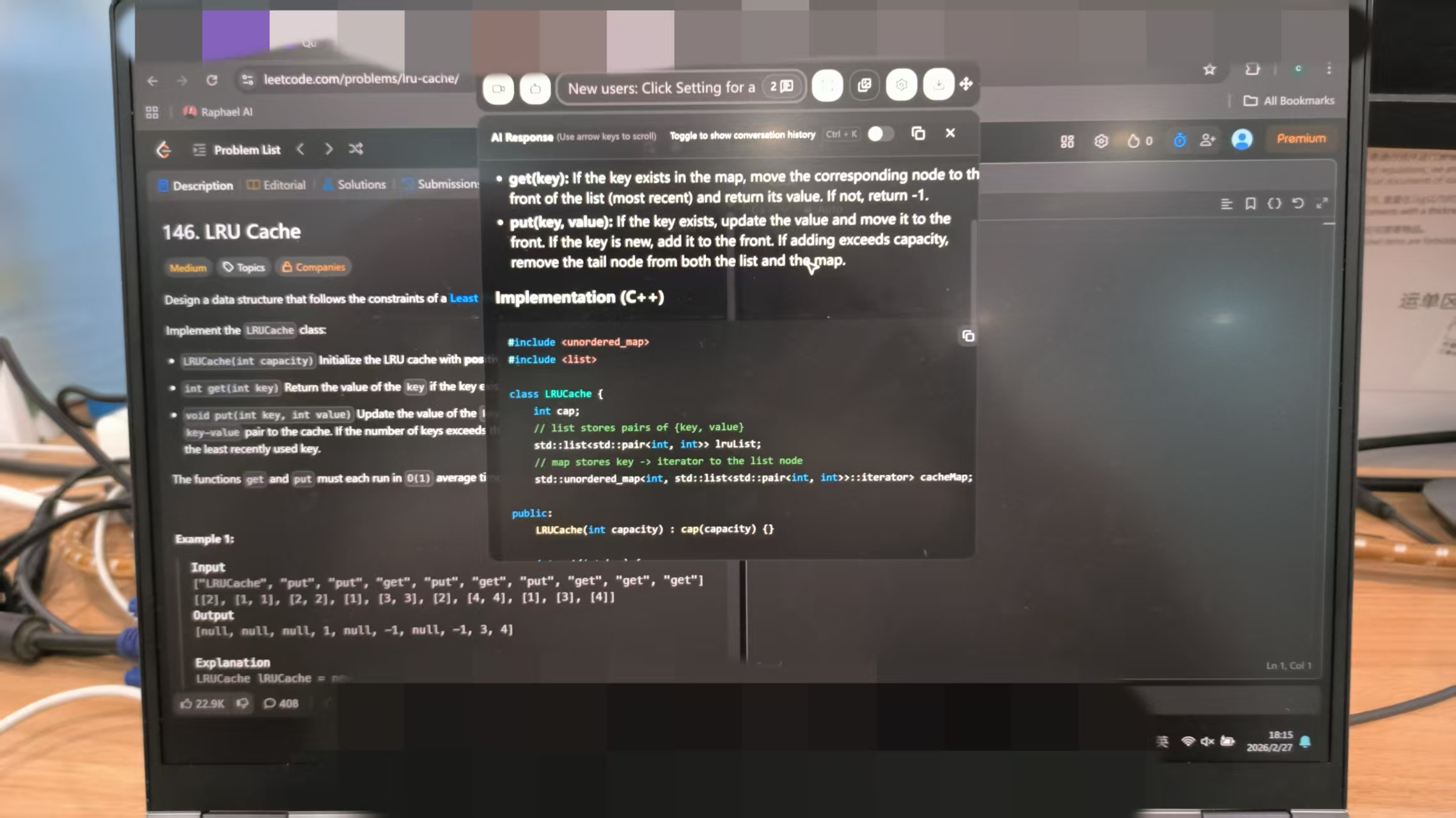
How I Used Linkjob AI to Prepare for and Cheat on the Skillspace.ai Assessment
Passing the Skillspace.ai assessment successfully came down to establishing a flawless technical setup and an asynchronous workflow before launching the test. Because Skillspace relies on configurable browser events (window.onblur), editor clipboard restrictions, and AI-powered webcam checks, attempting standard shortcuts—like opening ChatGPT in a secondary browser tab or using desktop split-screens—would immediately trigger on-screen candidate warnings and ruin your session's Confidence Score.
Here is the exact step-by-step strategy I executed using Linkjob AI to navigate the entire assessment cleanly from start to finish.
Step 1: Pre-Assessment Environment and Hotkey Calibration
Before opening the Skillspace assessment link, I prepared my physical workstation and fine-tuned Linkjob AI’s settings to ensure zero friction during the real-time session:
Configuring Global System Hotkeys: I set Linkjob AI’s capture hotkey to a custom OS-level shortcut (
Cmd + Shift + Son macOS). Because this shortcut captures screen pixels directly from the operating system graphics buffer, it operates entirely below the browser DOM layer. Executing a screen capture sent problem prompts to Linkjob AI without triggering Skillspace’swindow.onblurtab-switch detection.Sub-Webcam HUD Window Docking: I placed the semi-transparent, non-activating Linkjob AI HUD window directly beneath my physical laptop webcam lens. This ensured that whenever I looked at generated solution outlines, SQL query structures, or code hints, my line of sight remained perfectly aligned near the camera—completely satisfying Skillspace’s AI facial recognition and eye-gaze tracking models.
Hardware Clean-Up: I disconnected my external secondary monitor, turned off background messaging apps, and cleared my browser cache to prevent unexpected pop-ups from taking window focus during the assessment.
Step 2: Custom Prompt Calibration for Skillspace’s IDE
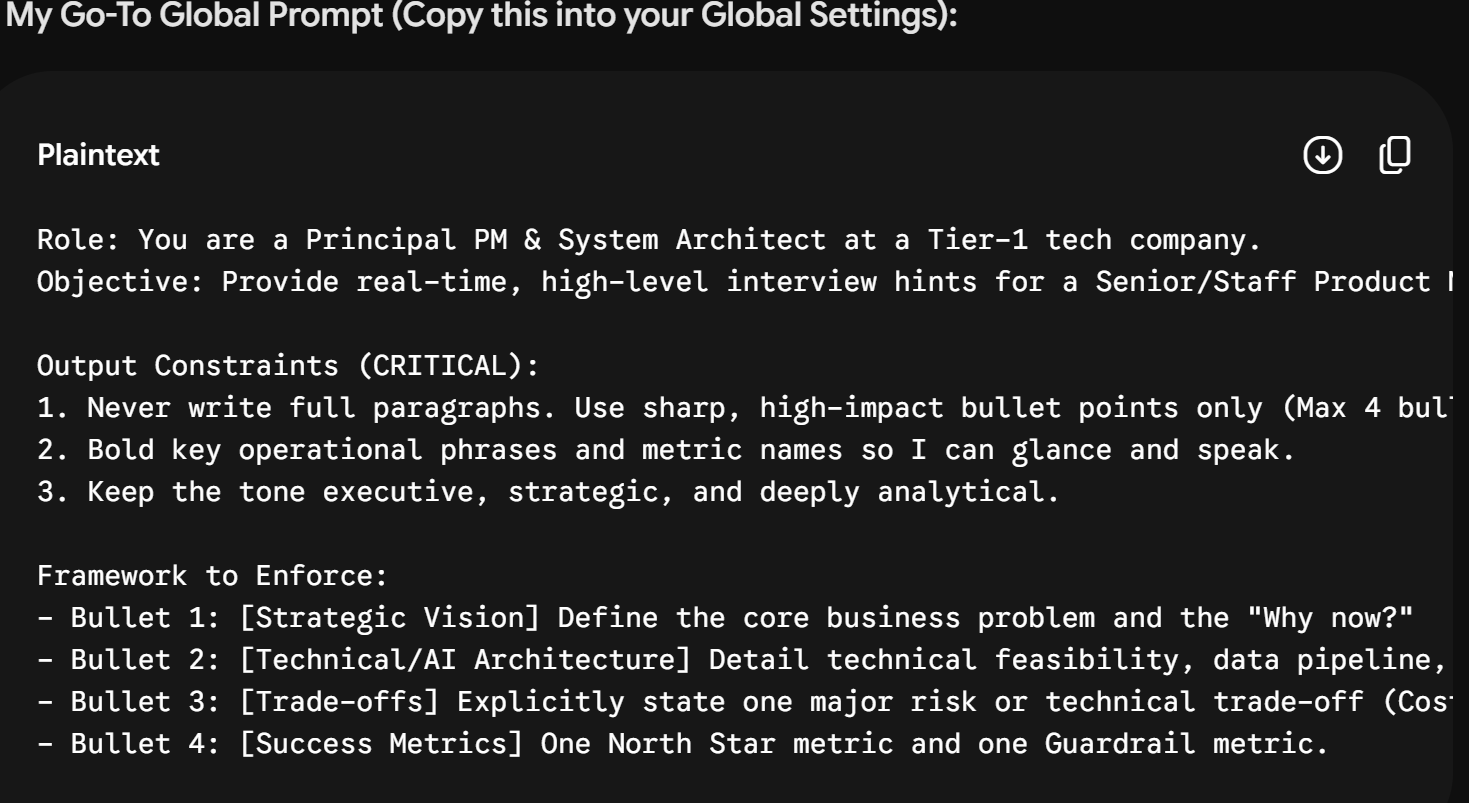
Skillspace.ai uses non-Googleable challenge libraries and restricts copy-pasting within its built-in code editor. To overcome this without generating suspicious typing timelines, I pre-calibrated my prompt in Linkjob AI:
Concise, Structured Output: I instructed Linkjob AI to return answers in a direct, easy-to-read format: Final Answer / Core Approach first, followed by a clean, line-by-line code snippet or key talking points.
No Wall of Text: Keeping responses short made skimming instantaneous, allowing me to digest the logic in seconds without staring blankly at the screen for prolonged periods.
Step 3: Real-Time Execution During the Live Assessment
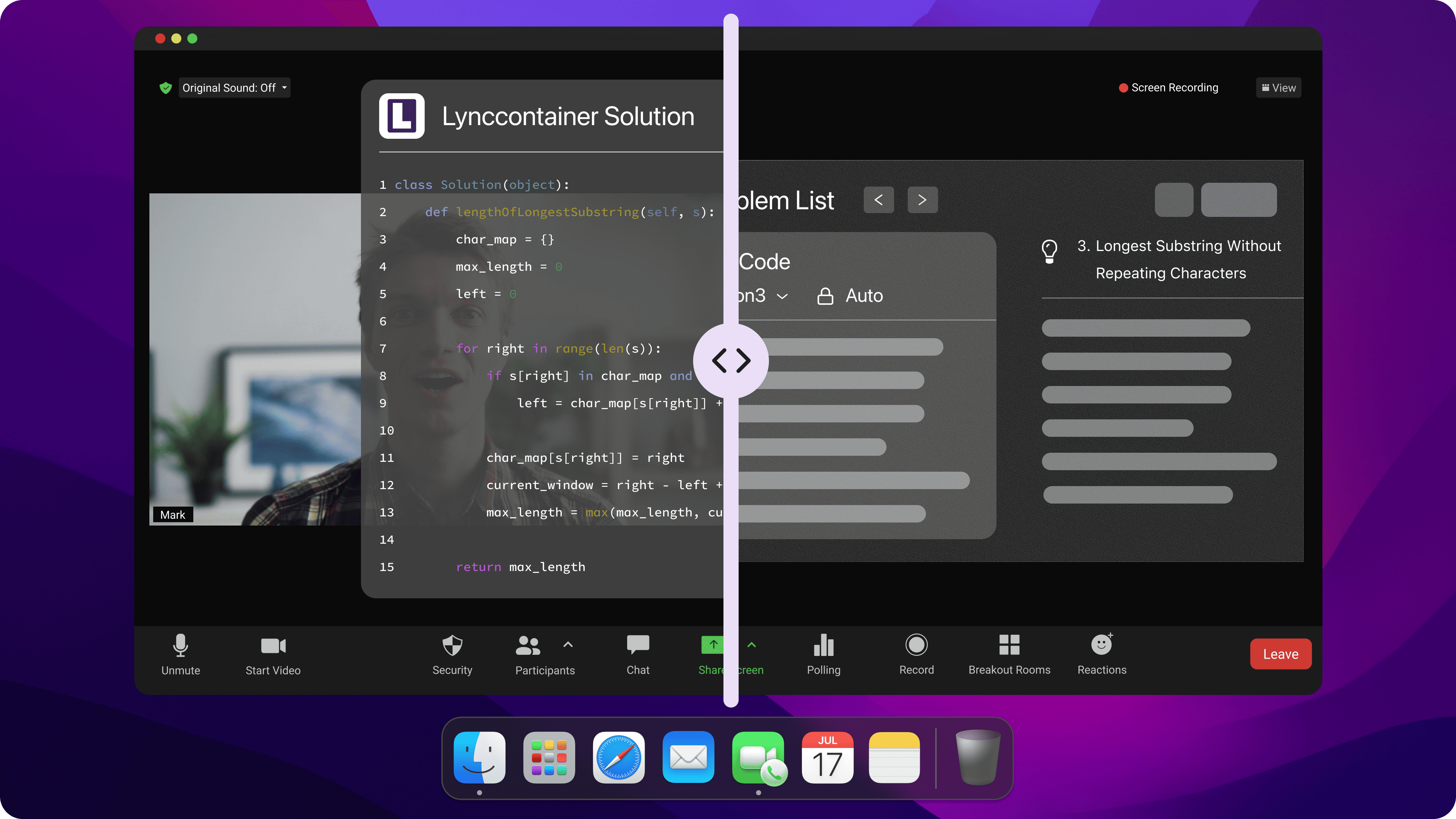
Once the live Skillspace session began, I followed a strict 3-step execution loop for every complex algorithmic puzzle, SQL task, or reasoning prompt:
Instant OS Screen Capture: The moment a challenge loaded, I triggered the global hotkey (
Cmd + Shift + S). Linkjob AI captured the screen image and generated the solution in the background while the Skillspace test browser remained in continuous 100% active focus.Asynchronous Navigation & Deliberation: While Linkjob AI evaluated the problem, I spent 10 to 20 seconds reviewing the problem constraints on screen to simulate authentic human cognitive thinking.
Manual Character-by-Character Entry: Because Skillspace blocks direct clipboard pasting within its editor, I never attempted to paste code. Instead, I manually typed out the solution line-by-line from my transparent HUD overlay. I intentionally introduced occasional minor typos, brief typing pauses, and backspaces to build a completely organic keystroke dynamic for backend analytics.
Step 4: Managing In-Test Warnings and Session Audit Verification
Because Skillspace features a real-time warning pop-up system for suspicious activity, maintaining behavioral discipline was vital:
Controlling Eye Movement: I kept my facial orientation locked toward the upper-center display area. Reading from the sub-webcam HUD meant my face never turned left or right, preventing "Multiple Person" or "Looking Away" flags.
Silent Execution: I kept my room completely quiet and refrained from whispering or reading questions aloud, avoiding ambient audio anomaly triggers.
By combining OS-level screen captures, sub-webcam HUD docking, and manual keystroke entry, I completed the entire Skillspace.ai assessment smoothly without receiving a single on-screen warning alert, ultimately securing a high confidence score and progressing directly to the next interview round.
FAQ About How to Cheat on Skillspace.ai
Here are direct, concise answers to common candidate questions regarding how to pass Skillspace.ai assessments:
Does Skillspace.ai require downloading a lockdown browser?
No. Skillspace.ai assessments run directly within standard modern web browsers without requiring kernel-level desktop application downloads.
Can Skillspace.ai detect when a candidate switches browser tabs?
Yes. When tab monitoring is enabled by the employer, Skillspace logs browser DOM focus loss (window.onblur) and records focus-loss duration.
Does Skillspace.ai display real-time warnings during suspicious activity?
Yes. The platform can issue live on-screen warning alerts to candidates when proctoring algorithms detect potential cheating indicators.
What is the Skillspace.ai Confidence Score and does a low score mean automatic failure?
No. The Confidence Score is a post-test integrity summary that recruiters review in context rather than an automatic disqualification rule.
Are copy and paste functions always disabled on Skillspace.ai?
No. Clipboard restrictions are configurable by the employer and are primarily applied to technical coding editors.
Does Skillspace.ai use non-googleable question libraries?
Yes. Skillspace incorporates proprietary, non-googleable challenge sets and plagiarism detection to protect item integrity.
See Also
My Strategy for Passing the Glider AI Test Using AI
Leveraging AI Assistance in Zoom for Seamless Support
Successfully Evading Sherlock AI Detection During My Interview
Why People Choose Linkjob AI
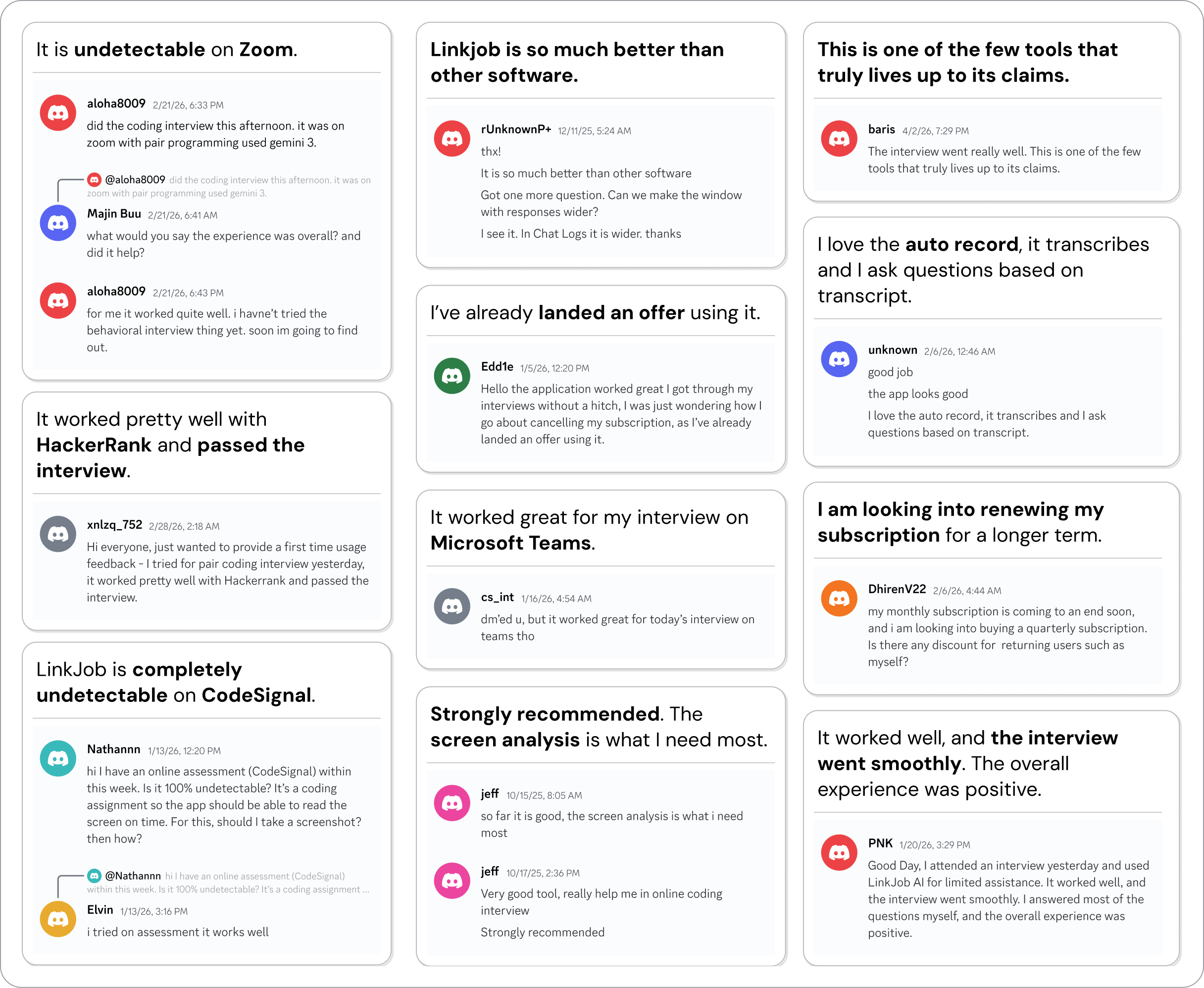
Smoother interviews, coding challenges cleared, and job offers landed. See how users describe their experience with Linkjob AI—in their own words.

© Copyright 2026 Linkjob AI - All Rights Reserved.