Invisible AI Interview Assistant: How Linkjob AI Works

It's normal to feel anxious when you're waiting on job offers, visa sponsorship, or technical interviews. There's a lot of competition for software engineering, quantitative finance, and product management positions right now. Online coding challenges on platforms like HackerRank, CodeSignal, CoderPad, and LeetCode, along with live, proctored video interviews done on Zoom, Google Meet, and Microsoft Teams, make it hard for job seekers to make mistakes.
If you are considering an invisible AI interview assistant, the most pressing question on your mind is simple and urgent: "Is it truly 100% invisible? This interview is crucial for my career—how can I be certain I won't get flagged?"
To understand how, you have to know how these systems try to find third-party tools, why old browser extensions and basic window-masking features don't work anymore, and how Linkjob AI totally gets around those old browser sandbox mechanisms to become completely invisible.
This video provides useful context on how AI interview assistants operate and the technical detection mechanisms used by modern coding platforms in 2026.
The Technical Reality: How Browser Sandboxes Work in 2026
To understand why Linkjob AI remains completely invisible, you must first understand the fundamental security boundary built into every modern web browser: the Browser Sandbox.
┌────────────────────────────────────────────────────────────────────────┐
│                        THE BROWSER SANDBOX                             │
│                                                                        │
│   ┌────────────────────────────────────────────────────────────────┐   │
│   │  Web Page Context (HackerRank / CodeSignal / CoderPad)         │   │
│   │                                                                │   │
│   │  • Listens to DOM Events (window.onblur, document.hidden)       │   │
│   │  • Monitors Copy / Paste Clipboard Events                      │   │
│   │  • Tracks Keydown / Keyup Event Listeners                      │   │
│   │  • Captures Browser Tab Viewport via HTML5 Canvas API          │   │
│   └────────────────────────────────────────────────────────────────┘   │
└───────────────────────────────────┬────────────────────────────────────┘
                                    │  SECURITY BARRIER
════════════════════════════════════╧═════════════════════════════════════
┌────────────────────────────────────────────────────────────────────────┐
│                     OPERATING SYSTEM (OS) LAYER                        │
│                                                                        │
│   ┌────────────────────────────────────────────────────────────────┐   │
│   │  Linkjob AI OS Engine                                          │   │
│   │                                                                │   │
│   │  • Direct Display Driver Rendering Hooks                       │   │
│   │  • OS-Level Screen Capture Pipeline                            │   │
│   │  • Mechanical Cursor & Click Pass-Through Architecture         │   │
│   │  • Disguised Background Process Signatures                      │   │
│   └────────────────────────────────────────────────────────────────┘   │
└────────────────────────────────────────────────────────────────────────┘
When you take an Online Assessment or live coding test on a browser-based platform (such as HackerRank, CodeSignal, CoderPad, or LeetCode), the platform runs JavaScript code inside your web browser (Google Chrome, Microsoft Edge, Mozilla Firefox, or Apple Safari).
What Web Proctoring Scripts Can See
Browser-based proctoring scripts operate within the Document Object Model (DOM). Because JavaScript inside a web page is restricted by browser security policies, these scripts can only monitor activity that occurs directly within the browser window:
Focus Shifts (
window.onblur&document.onvisibilitychange): The moment you click away from the coding editor, switch browser tabs, or select a secondary application window, the browser fires anonblurorvisibilitychangeevent. The platform logs this as "Candidate lost window focus" or "Tab switch detected".Keystroke & Input Dynamics: Web pages monitor how text is entered into the code editor. Sudden block-pasting of large code snippets without corresponding individual keydown events triggers automated plagiarism flags.
DOM-Based Canvas Capture: Some platforms attempt to capture the visible web page viewport using HTML5 Canvas APIs or WebRTC screen streams initiated inside the browser tab.
What Web Proctoring Scripts CANNOT See
By design, web browsers isolate web pages inside a restricted execution sandbox. Web pages and browser-based JavaScript engines have zero access to operating system processes, low-level display rendering channels, hardware memory, or desktop applications running outside the browser sandbox.
Why Legacy Tools Get Caught Inside the Sandbox
Many basic AI tools or browser extensions make the mistake of running inside the browser layer or using basic window overlays. When you click on a browser extension pop-up or a floating window overlay, the browser immediately registers a focus loss event.window.onblur). Furthermore, basic browser extensions inject scripts directly into the web page's DOM, allowing proctoring platforms to detect their presence instantly.
How Linkjob AI Operates Entirely Outside the Sandbox
Linkjob AI was architected from the ground up as a native operating-system-level engine rather than a browser extension. It operates completely outside the sandbox mechanism of Chrome and other modern browsers.
Because Linkjob AI runs directly at the OS graphics driver and hardware abstraction layer, your browser remains entirely unaware of its existence. From the perspective of HackerRank, CodeSignal, or CoderPad, your cursor never leaves the code editor, your window never loses focus, and no external extensions are active.
One Thing May Be Sensitive to Invisible AI Interview Assistants…
There's one more thing to keep in mind: Once you start the interview process—whether by enabling screen sharing or clicking "Start" in the OA system—no matter which stealth AI interview assistant you're using, please keep the following in mind:
Don't click the settings button again.
Don't use Cmd/Ctrl + \ to toggle the app on and off.
Try to set everything up and test it in advance. For example, you could do a test video call with a friend using full-screen sharing.
Our dev team has found that if you do this (like clicking Settings to adjust your settings again), the proctoring system is likely to detect that you've left the current active tab and flag you for cheating.
Addressing Your Core Safety Concerns About The Invisible AI Interview Assistant
To give you complete peace of mind during high-stakes interviews, let's break down the four core invisible features of Linkjob AI through the exact questions candidates ask before going live.
Question 1: "Will My Screen Share or Video Recording Show the Overlay to the Interviewer?"
"During my technical interview, I have to share my entire screen over Zoom or Google Meet while solving a live coding problem. If the interviewer records the meeting or watches my stream, will they see Linkjob AI's suggestions or answer cards?"
The Answer: Completely Invisible to Screen Sharing & Screenshot Captures
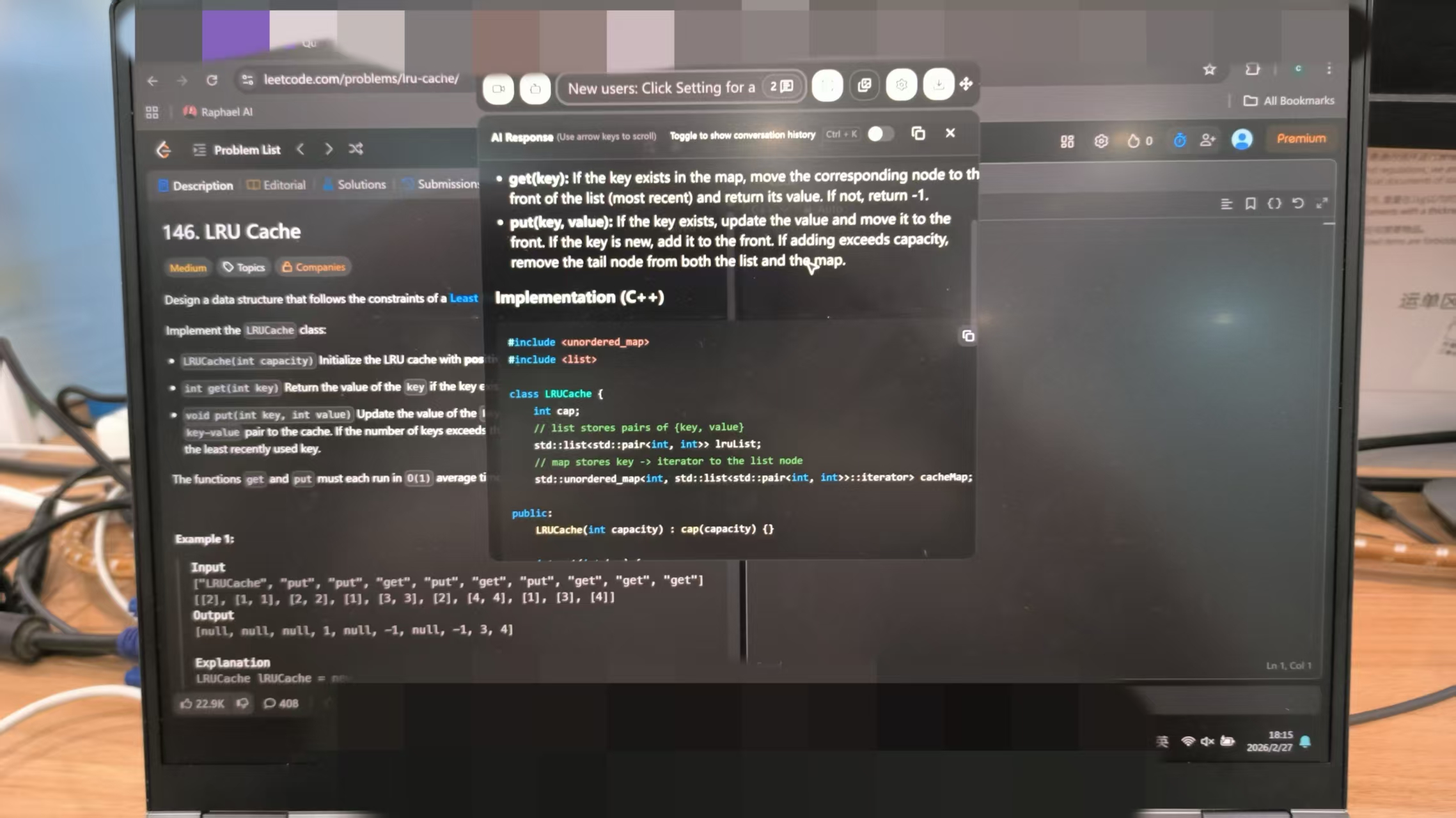
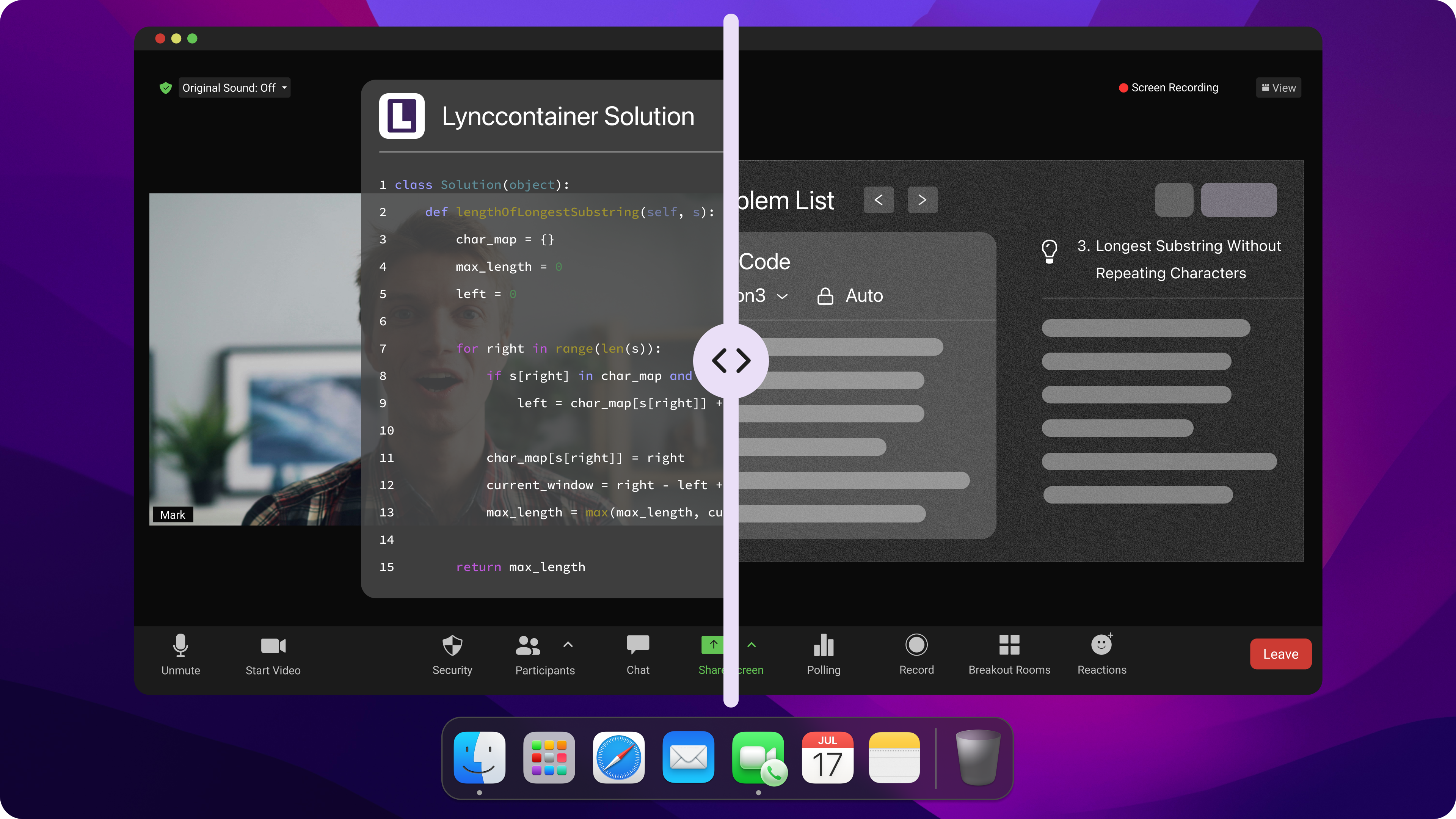
No. Linkjob AI is 100% invisible to all video conferencing software, screen recording tools, and native screenshot hooks.
When you share your desktop on Zoom, Google Meet, Microsoft Teams, Webex, or Discord, or when the software for proctoring automatically takes background screenshots of your monitor, the screen capture engine requests a frame buffer from your operating system's graphics pipeline:
┌────────────────────────────────────────────────────────────────────────┐
│                   GRAPHICS PIPELINE & SCREEN CAPTURE                   │
├────────────────────────────────────────────────────────────────────────┤
│                                                                        │
│  [ Primary Desktop Framebuffer ] ──► [ OS Screen Capture API ]        │
│          │                              (Zoom / Teams / Meet)          │
│          │                                        │                    │
│          ▼                                        ▼                    │
│  [ Hardware Layer Overlay Hook ]          [ Recorded Stream Output ]   │
│          │                                (Sees ONLY your Code Editor, │
│          ▼                                 Web Browser & Desktop)      │
│  [ Physical Monitor Display ]                                          │
│  (Sees Code Editor + Linkjob AI)                                       │
│                                                                        │
└────────────────────────────────────────────────────────────────────────┘
Linkjob AI utilizes OS-level display driver hooks that intercept rendering calls beneath standard capture APIs. It draws its floating UI directly onto your physical monitor's display buffer using excluded window attributes and low-level graphics flags.
What Your Physical Monitor Shows: You see your code editor, browser, and Linkjob AI's transparent, real-time code solutions streaming seamlessly on your screen.
What the Interviewer & Recorder See: The screen-sharing video stream captures your IDE and browser, but completely skips the Linkjob AI rendering layer. The overlay simply does not exist in the recorded output stream.
Whether you share an individual application window or your entire primary monitor screen, Linkjob AI remains totally invisible to the interviewer.
Question 2: "What Happens If the Interviewer Asks Me to Show My Desktop, Dock, or Taskbar?"
"Interviewers often ask candidates to share their whole screen, and sometimes my dock or taskbar is visible at the bottom of the screen. Will an app icon reveal that I am running an AI interview copilot?"
The Answer: Completely Invisible in the macOS Dock & Windows Taskbar
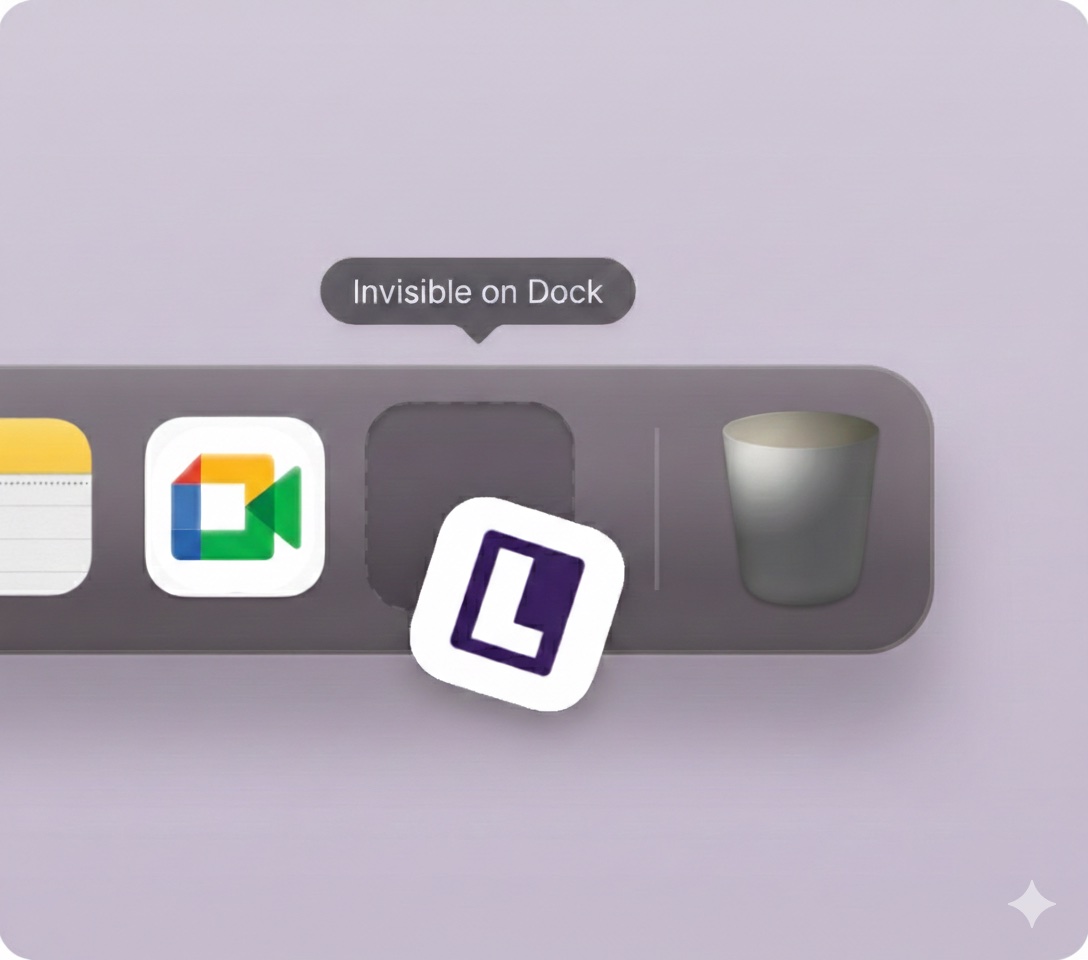
No. Linkjob AI runs in full background tray/ghost mode. It leaves zero visual footprints across your operating system user interface.
┌────────────────────────────────────────────────────────────────────────┐
│                    VISUAL INTERFACE FOOTPRINT CHECK                    │
├───────────────────────────────┬────────────────────────────────────────┤
│ System Component              │ Linkjob AI Visibility Status           │
├───────────────────────────────┼────────────────────────────────────────┤
│ macOS Dock Icon               │ ❌ 100% Invisible (No App Icon)        │
│ Windows Taskbar Button        │ ❌ 100% Invisible (No Taskbar Item)    │
│ Application Switcher          │ ❌ Excluded from Cmd+Tab / Alt+Tab     │
│ System Tray / Menu Bar        │ ❌ Silent Ghost Execution Mode         │
└───────────────────────────────┴────────────────────────────────────────┘
Standard desktop applications register an application badge in the macOS Dock or a process window button in the Windows Taskbar upon launch. If an interviewer looks at your taskbar during a screen share, seeing an active application called "Interview Assistant" or "Copilot" would immediately raise red flags.
Linkjob AI modifies its OS window attributes upon launch:
Dock & Taskbar Removal: It suppresses all taskbar and dock window registration flags, ensuring that no icon appears at the bottom or top of your display.
App Switcher Exclusion: When you cycle through open applications using
Cmd + Tab(macOS) orAlt + Tab(Windows), Linkjob AI is completely omitted from the application switcher grid.Clean Workspace Appearance: Even if an interviewer asks you to minimize all windows and reveal your bare desktop, your screen appears completely clean, with no open tool windows or taskbar indicators.
Question 3: "What If an Interview Platform or Candidate Monitoring Script Scans My Active Processes?"
"Some proctoring systems scan background applications running on the computer. If they check Activity Monitor on Mac or Task Manager on Windows, will they see a process named 'Linkjob AI'?"
The Answer: No Process Named "Linkjob AI" in Activity Monitor or Task Manager
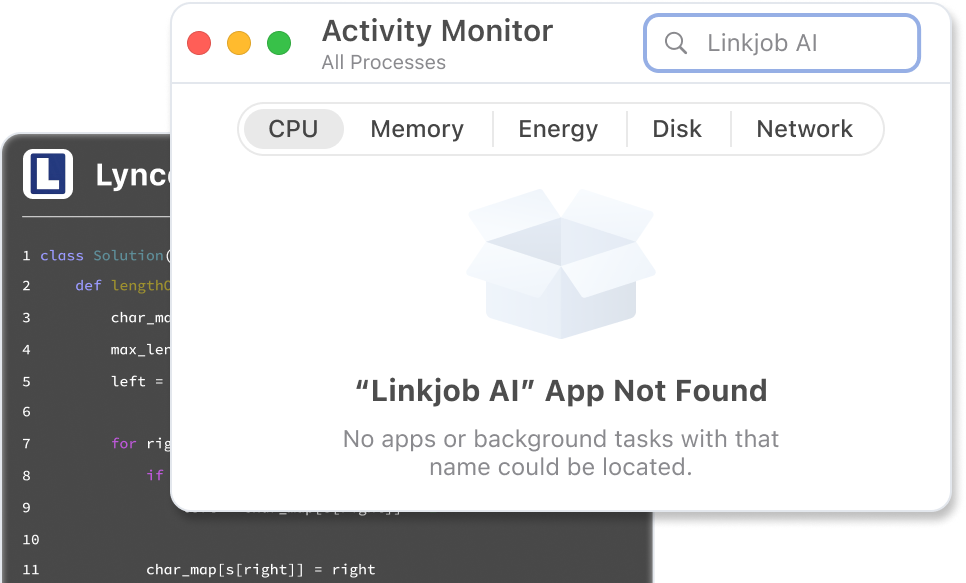
No. Linkjob AI operates silently without leaving any identifiable process signatures or app names in your operating system's activity monitors.
┌────────────────────────────────────────────────────────────────────────┐
│                   PROCESS LIST INSPECTION COMPARISON                   │
├────────────────────────────────────────────────────────────────────────┤
│                                                                        │
│  [ Standard Cheating App ] ──► Process List: "InterviewCoder.exe"     │
│                                              (FLAGGED IN < 500MS)      │
│                                                                        │
│  [ Linkjob AI Engine ]     ──► Process List: Disguised Background      │
│                                              Daemon Signature          │
│                                              (CLEAR / UNDETECTED)      │
│                                                                        │
└────────────────────────────────────────────────────────────────────────┘
Proctoring software and enterprise assessment tools frequently scan the running process list on a machine. Basic interview tools run under executable names like InterviewCoder.exe or AI_Copilot.app, which process scanners match against blacklists in less than 500 milliseconds.
Linkjob AI eliminates this vulnerability through advanced binary signature obfuscation:
No Identifiable String Matches: There aren't any processes called "Linkjob AI" or "Interview Assistant" running on your device.
Disguised Daemon Execution: The app runs in the background, following system specs and working seamlessly with standard operating system daemons (like system graphics or background audio drivers). This makes it hard to tell the app apart from the system.
Zero Suspicious Resource Spikes: Linkjob AI uses a lightweight native kernel with extremely low memory and CPU usage, so it won't cause any abnormal spikes in process resource consumption that you might see in Activity Monitor or Task Manager.
Question 4: "What Happens When I Move My Mouse or Click on the Linkjob AI Overlay? Won't It Steal Window Focus and Trigger onblur?"
"If the AI displays a code solution or structured talking points, I need to look at it or scroll through it. If I hover my mouse or click on the Linkjob AI overlay, won't my web browser lose focus and report a tab switch or window blur event to HackerRank?"
The Answer: Mechanical & Cursor Pass-Through Architecture
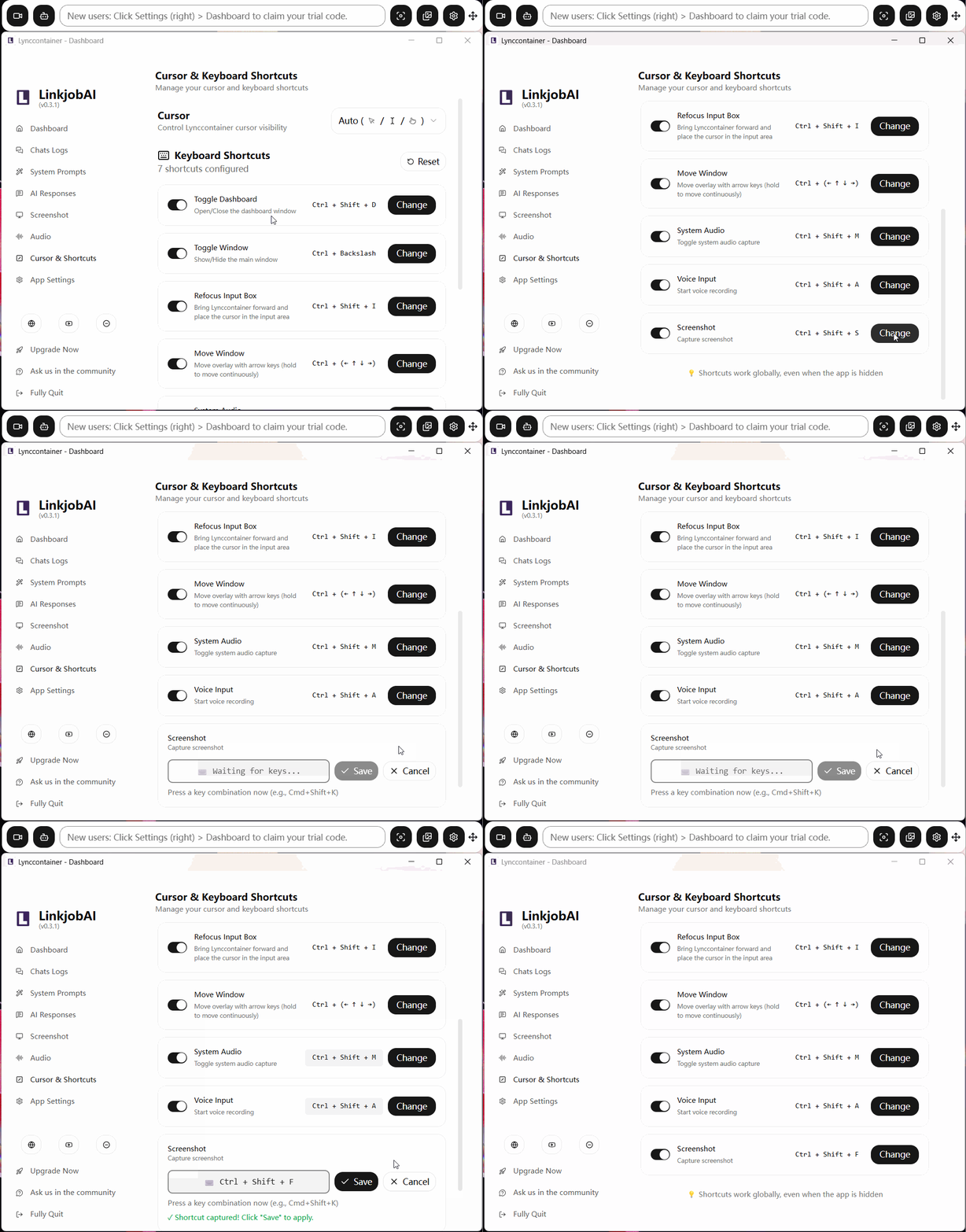
No. Linkjob AI features advanced mechanical pass-through and click-through technology: Even when your cursor hovers or clicks on Linkjob AI, your system and apps won't detect it. No focus shifts. No flags. No traces.
┌────────────────────────────────────────────────────────────────────────┐
│                    CURSOR & FOCUS EVENT FLOW COMPARISON                │
├────────────────────────────────────────────────────────────────────────┤
│                                                                        │
│  LEGACY OVERLAY TOOL:                                                  │
│  [ User Clicks Overlay ] ──► System Shifts Window Focus to Tool        │
│                                   │                                    │
│                                   ▼                                    │
│                              Browser Fires `window.onblur` Event       │
│                                   │                                    │
│                                   ▼                                    │
│                              [ FLAGGED BY HACKERRANK / CODESIGNAL ]    │
│                                                                        │
│ ────────────────────────────────────────────────────────────────────── │
│                                                                        │
│  LINKJOB AI MECHANICAL PASS-THROUGH:                                   │
│  [ User Clicks / Hovers ] ──► OS Pass-Through Intercepts Hardware Event│
│                                   │                                    │
│                                   ▼                                    │
│                              Window Focus REMAINS in Web Browser       │
│                                   │                                    │
│                                   ▼                                    │
│                              [ 0 BLUR EVENTS / 0 FLAGS / 0 TRACES ]    │
│                                                                        │
└────────────────────────────────────────────────────────────────────────┘
The Focus Shift Trap in Standard Tools
On proctored coding platforms like HackerRank, CodeSignal, CoderPad, and LeetCode, JavaScript listens continuously for browser focus loss events. The instant your mouse clicks on any window or overlay floating above the web page, the operating system shifts active window focus away from the browser. The browser immediately fires window.onblur, recording a focal switch violation.
How Linkjob AI Solves the Focus Trap
Linkjob AI implements OS-level mouse and keyboard pass-through hooks (WS_EX_TRANSPARENT click-through channels and message forwarding):
No Focus Theft: Clicking, scrolling, or hovering over the Linkjob AI overlay transfers no OS window focus. Your web browser retains 100% active primary focus at all times.
No DOM Event Triggers: Because active window focus never leaves the browser window, no
onblur,visibilitychange, or mouse-leave events are ever emitted.Flawless Typing Continuity: You can continue typing code directly into the LeetCode or CoderPad editor while simultaneously interacting with or reviewing Linkjob AI's overlay without experiencing cursor stutters, focus loss, or input interruptions.
Architectural Comparison Matrix: Linkjob AI vs So-called Invisible AI Interview Assistant
To see how Linkjob AI compares against browser extensions and legacy desktop overlays, review the architectural breakdown below:
Security & Stealth Dimension | Legacy Browser Extensions | Standard Desktop Overlays | Linkjob AI (2026 Engine) |
Sandbox Isolation | ❌ Operates Inside Browser DOM (High Risk) | ⚠️ Partial OS Boundary | 100% Native OS Layer Outside Sandbox |
Screen Share Protection | ❌ Visible in Full-Desktop Capture | ⚠️ Inconsistent Window Flags | 100% Invisible to Zoom / Meet / Teams / Recorders |
Dock & Taskbar Footprint | ❌ Displays Active Extension Badge | ⚠️ Shows Open App Window Icon | 100% Invisible in Dock, Taskbar & App Switcher |
Activity / Task Manager | ❌ Scannable Browser Process | ❌ Named Executable (Easy Blacklist) | Disguised Background Process (No String Matches) |
Cursor & Click Focus Safety | ❌ Steals Focus (Triggers | ❌ Causes Window Blur Events | Mechanical Pass-Through (Zero Focus Shift / Zero Flags) |
Real-Time Code Streaming | ❌ Severe Latency (~20s - 30s) | ⚠️ 4.0s - 7.0s Delay | Sub-1.8s Instant Multimodal Streaming |
What If Your Interview Requires Installing a Dedicated Proctoring App?
While Linkjob AI delivers total stealth across all web browser environments, you may encounter special interview rounds that require dedicated desktop proctoring software.
┌────────────────────────────────────────────────────────────────────────┐
│                   ASSESSING INTERVIEW ENVIRONMENTS                     │
├────────────────────────────────────────────────────────────────────────┤
│                                                                        │
│  BROWSER-BASED INTERVIEWS & ONLINE ASSESSMENTS (OAs)                   │
│  • Platforms: HackerRank, CodeSignal, CoderPad, LeetCode, TestGorilla  │
│  • Video Calls: Zoom, Google Meet, Microsoft Teams, Webex              │
│  • Status: 100% INVISIBLE & GUARANTEED SAFE                            │
│                                                                        │
│ ────────────────────────────────────────────────────────────────────── │
│                                                                        │
│  DEDICATED INSTALLED PROCTORING DESKTOP APPLICATIONS                   │
│  • Examples: LockDown Browser, Proctorio Desktop, Honorlock App       │
│  • Status: REQUIRES INDIVIDUAL VERIFICATION WITH SUPPORT TEAM          │
│                                                                        │
└────────────────────────────────────────────────────────────────────────┘
The Difference Between Browser Assessments and Installed Proctoring Apps
Most interviews in the software and tech field these days are done through browsers (more than 95% of them actually). If you're interviewing or taking an online assessment on a browser like Google Chrome, Microsoft Edge, or Safari on platforms like HackerRank, CodeSignal, CoderPad, or LeetCode, or via standard video conferencing tools like Zoom, Google Meet, or Microsoft Teams, you can use Linkjob AI without any concerns. It'll be completely invisible, undetectable, and safe!
Dedicated, Installed Proctoring Desktop Clients: Some professional testing environments require candidates to download and install a custom app on their computer, like Respondus LockDown Browser, Honorlock desktop client, or an enterprise-specific proctoring installer. These desktop apps inspect the system in different ways. Sometimes they install kernel drivers or perform strict, system-wide process audits.
Do Not Guess—Verify with the Linkjob AI Support Team
Because different dedicated proctoring apps use varying levels of security inspection, you should never guess or take unnecessary risks with a critical job interview.
If your upcoming interview says you have to install a third-party proctoring app, please contact the Linkjob AI support team before the interview starts. Our engineering team tests all the major proctoring environments and keeps a log of what's compatible, so we can quickly check if your specific setup is secure.
You can get immediate, real-time support from our technical team through any of the following official channels:
💬 Join our Discord Community: Get instant advice and verified setup guidance from engineers and candidate community members in the official Linkjob AI Discord Server.
📱 Connect via WhatsApp: Chat directly with our priority technical support team on Linkjob AI WhatsApp Support.
📩 Submit a Request via Contact Page: Send your interview platform details directly through our official Linkjob AI Contact Page.
Our team will quickly review the proctoring requirements for your specific company and testing platform, providing you with exact, step-by-step confirmation so you can enter your interview with 100% confidence.
Final Takeaway: Get Ready to Ace Your Next Interview!
If you want to ace those high-stakes technical interviews in 2026, you're going to need to be prepared, have solid technical skills, and the right technological tools. Linkjob AI runs outside the browser sandbox, renders content behind screen capture hooks, hides taskbar traces, keeps background processes invisible, and utilizes a direct-pass mechanism. All of this is done to deliver the safest and most invisible AI interview assistant experience available today.
Set up your background, practice your communication skills, and let Linkjob AI be your secret tech support tool to help you land your next job.
FAQ
Can video conferencing tools detect Linkjob AI during screen sharing?
Linkjob AI’s invisible app was developed using native desktop APIs. When you're sharing a screen in real-time, the operating system hides any overlay windows from the recording process. So, video conferencing platforms won't detect that you've enabled the AI interview assistant.
Does this software work properly during online coding interviews?
Yeah, the system was designed to support all real-time interview scenarios. When you're working on a coding challenge during the interview, the overlay window appears on top of the browser interface. This will help you improve your interview performance.
Any tips on how I should prepare for the interview?
I suggest using Linkjob AI's AI mock interview tool before your actual interview. You can run a mock session to fine-tune your speaking pace.
Will Linkjob AI's invisible AI interview app lag during the interview?
In some versions, I can't rule out this possibility. But as the development team's been working on the software, they've made a lot of improvements to the current desktop client to make sure it's running smoothly. If you run into any problems, get in touch with the support team. They'll be able to figure out if the issue is due to a version bug, configuration, or something else.
See Also
How I Got Invisible AI Help for Codility and Avoided Getting Caught in 2026
How to Outsmart HackerEarth Proctoring in 2026
How to Get Invisible AI Help for HackerRank With AI Assistant: My 2026 Updates
How to Get Invisible Help for TestGorilla With AI: My 2026 Update
Fuck LeetCode with Invisible AI Coding Interview Copilot | Linkjob.ai
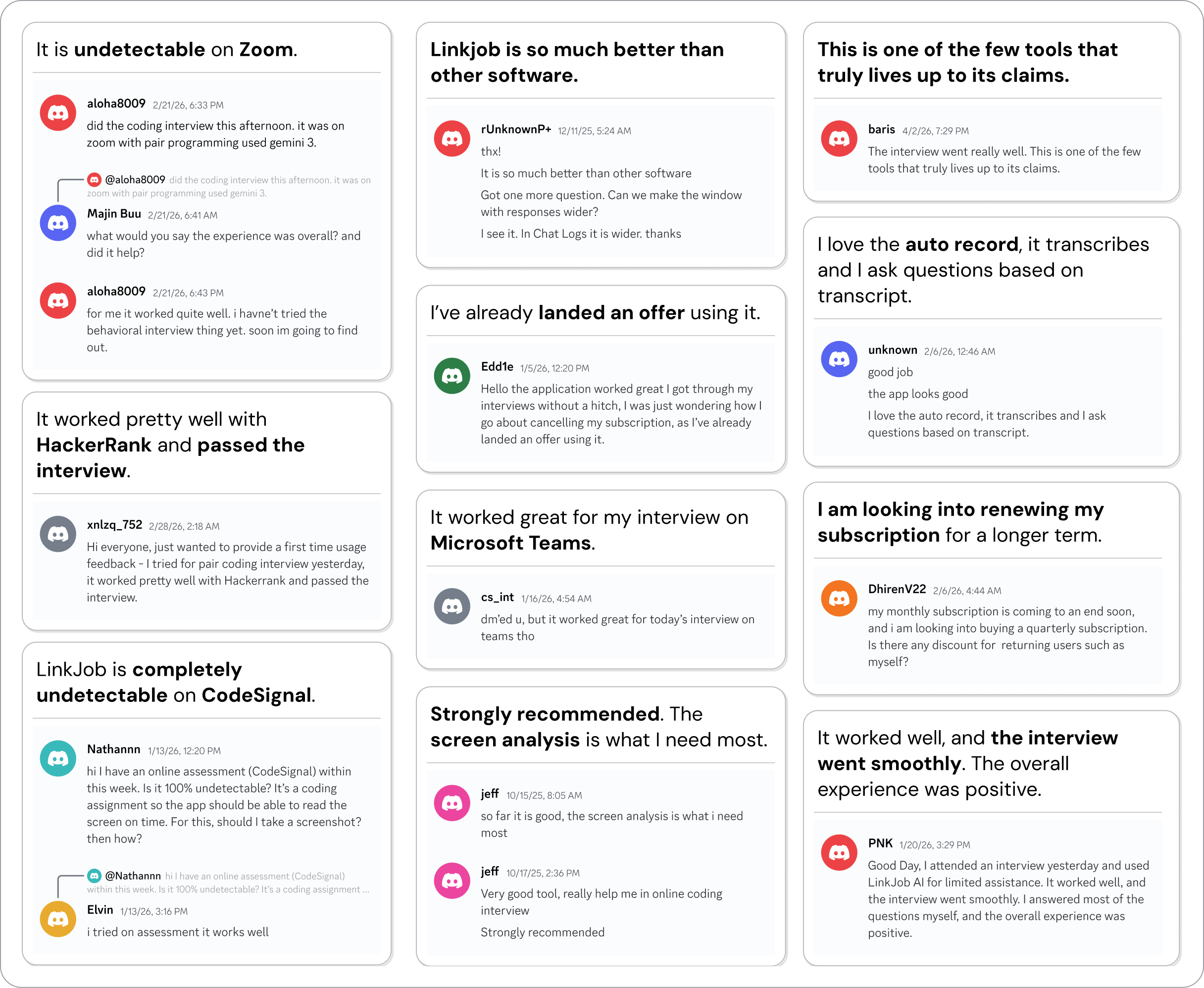
Why People Choose Linkjob AI
Smoother interviews, coding challenges cleared, and job offers landed. See how users describe their experience with Linkjob AI—in their own words.

© Copyright 2026 Linkjob AI - All Rights Reserved.