How to Get Invisible AI Help For HirePro Assessments


I've known for a long time that lots of folks want to figure out how to beat HirePro without getting caught—'cause I was one of them. Luckily, I actually passed both the OA test and the behavioral interview using some sneaky tricks.
I totally get it—some of you are probably thinking about how to cheat on CoderPad tests or how to cheat on TestGorilla's security measures. I've got some insights from my experiences with these platforms that might help.
I'm putting this article together to share my secret technique for successfully bypassing HirePro's proctoring system: Linkjob AI. I know that choosing a high-tech AI assistant for interviews might sound a bit expensive, but I'll show you why it's worth it in this article.
Understanding the Proctor: How HirePro Detects Cheating
When I first took online assessments with HirePro, I realized their proctoring system is much more advanced than most platforms. They use a mix of AI and software monitoring to catch anyone trying to cheat. Let me break down the main features I’ve seen.
AI Face Verification & Gaze Tracking
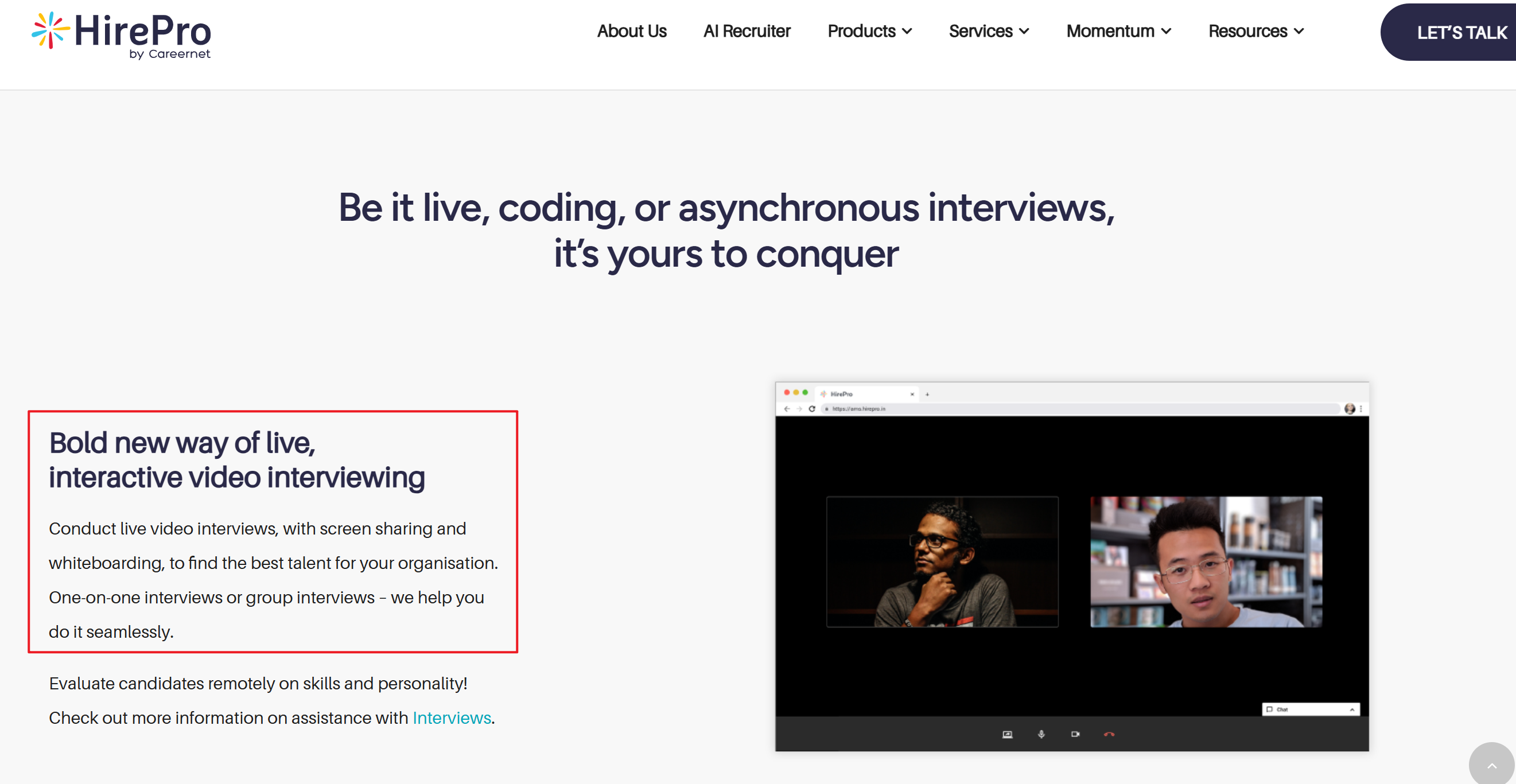
After I let the HirePro browser extension use my webcam, it automatically checked three things using something called an "automated computer vision script." I had to let them install the extension before the job interview. Here's the info I found on their website:
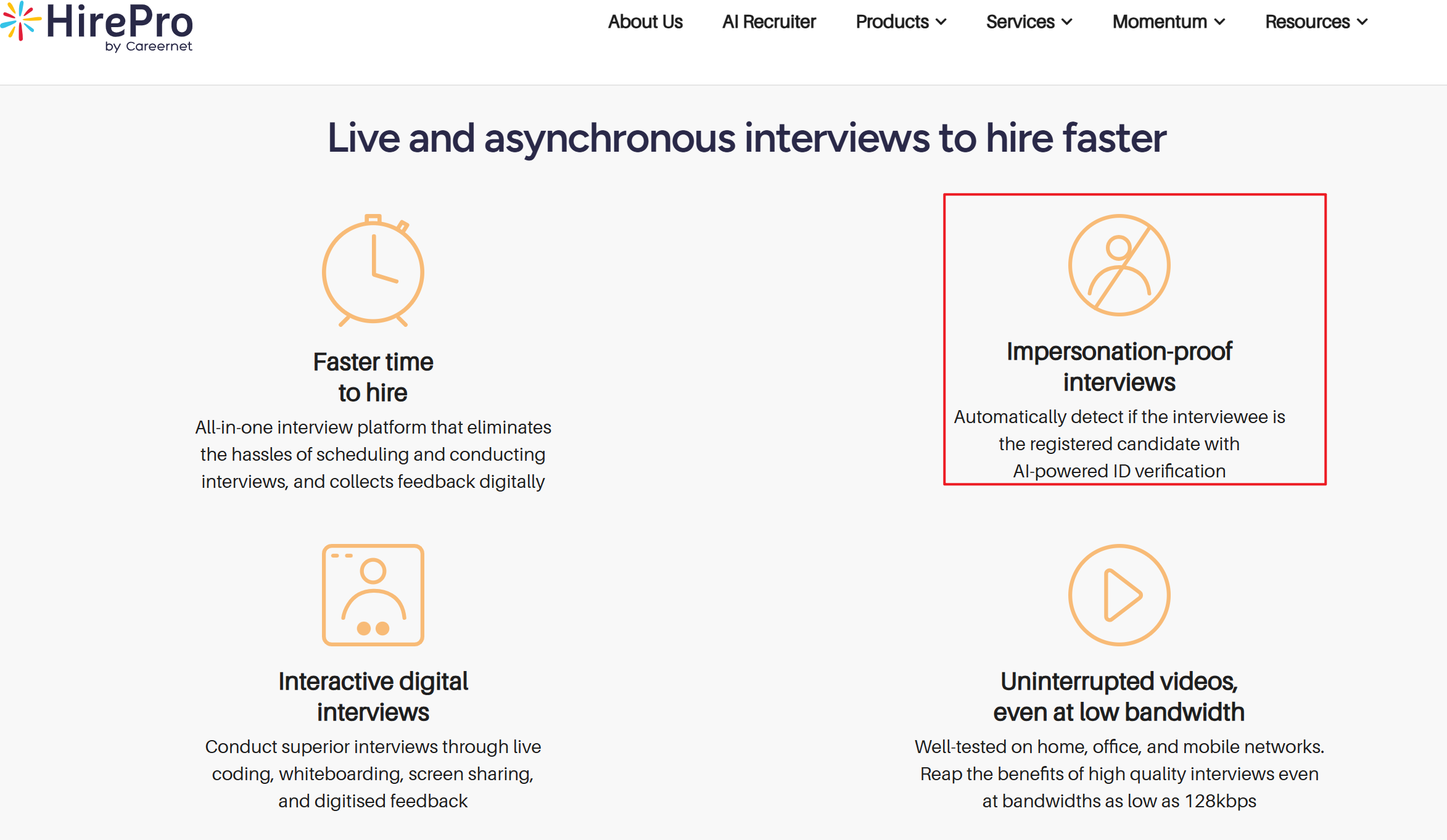
Continuous Biometric Matching: Before the assessment started, they asked me to present a photo ID. The proctor said the system would record my facial landmarks and check continuously during the exam to make sure I didn't leave my seat or have someone else take the exam instead of me.
AI Gaze and Head Pose Tracking: I only found info about this on the official website after the interview ended. I've heard the algorithm checks the angle of my head and the position of my eyes relative to the middle of the monitor. If I'm looking down (like at my phone on my lap) or sideways (like at a second screen), AI will automatically flag that part of my recording as suspicious.
Object and Ambient Audio Detection: I've heard that HirePro uses a real-time object detection model to find smartphones, laptops, or other hardware in the frame. At the same time, the mic records background noise and whispers off-camera that hint at off-screen assistance.
How HirePro Logs Tab Switches & Clipboard Activity
If a recruiting company chooses the standard, installation-free configuration, then HirePro will rely entirely on the browser's DOM and native HTML5 APIs to lock down the testing environment, which is what I ran into.
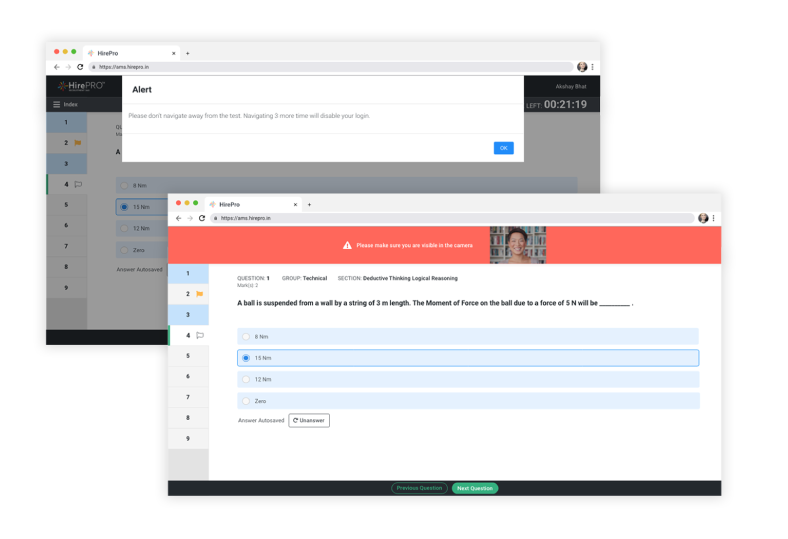
Focus Traps: The browser client keeps an eye on when the focus changes. As soon as I click outside the active testing window or switch to a different tab, the system logs a navigation violation and displays a pop-up alert.
Keyboard Tracking: HirePro totally turns off copy and paste. When I try to drag and drop text or inject code into the interactive terminal, the script blocks the input and flags it as a violation. I tried this once and the proctor gave me a warning right away, even though we both knew I'd accidentally pasted a set of wrongly formatted data.
Why Desktop Kiosk Systems Block Dual Monitors
I haven't run into this myself, but I've heard that HirePro makes things more secure for critical technologies or executive positions by having people install a "Security Exam Browser" (SEB).
System Resource | Secure Exam Browser (SEB) Restriction Policy |
System Shortcuts | Disables |
Background Processes | Force-terminates remote-desktop applications (TeamViewer, AnyDesk), communication software (Discord, Slack), and screen recorders. |
Video Outputs | Restricts dual monitors. The application refuses to launch until any secondary HDMI or DisplayPort connections are physically unplugged. |
Hardware Permissions | Disables active Bluetooth modules, preventing the use of hidden wireless earpieces or external hardware receivers. |
Once SEB is activated, it puts my computer into a highly restricted mode. It hooks directly into the operating system's kernel, so I can't access the desktop, run parallel terminal windows, or run third-party software. You can't get around this restriction with standard software-based tricks; you need to do a system-level bypass.
How to Cheat on HirePro: The Stealth AI Tool Setup
When I started looking for how to cheat on HirePro, I realized that most traditional cheating methods do not work anymore. Knowing what you are up against is only half the battle. If you are serious about figuring out how to cheat on HirePro assessments cleanly, you have to realize that typical tricks—like running a secondary monitor or taping paper notes to your screen—are bound to fail.
To bypass this highly secure system, you need a setup that operates entirely outside of the proctor's tracking capabilities. This is where a stealth AI interview tool setup comes into play.
Bypassing Browser DOM: Why Traditional Extensions Fail?
Many candidates mistakenly believe they can bypass HirePro by using standard Chrome extensions or running ChatGPT in a split-screen browser window. This is an incredibly dangerous trap.
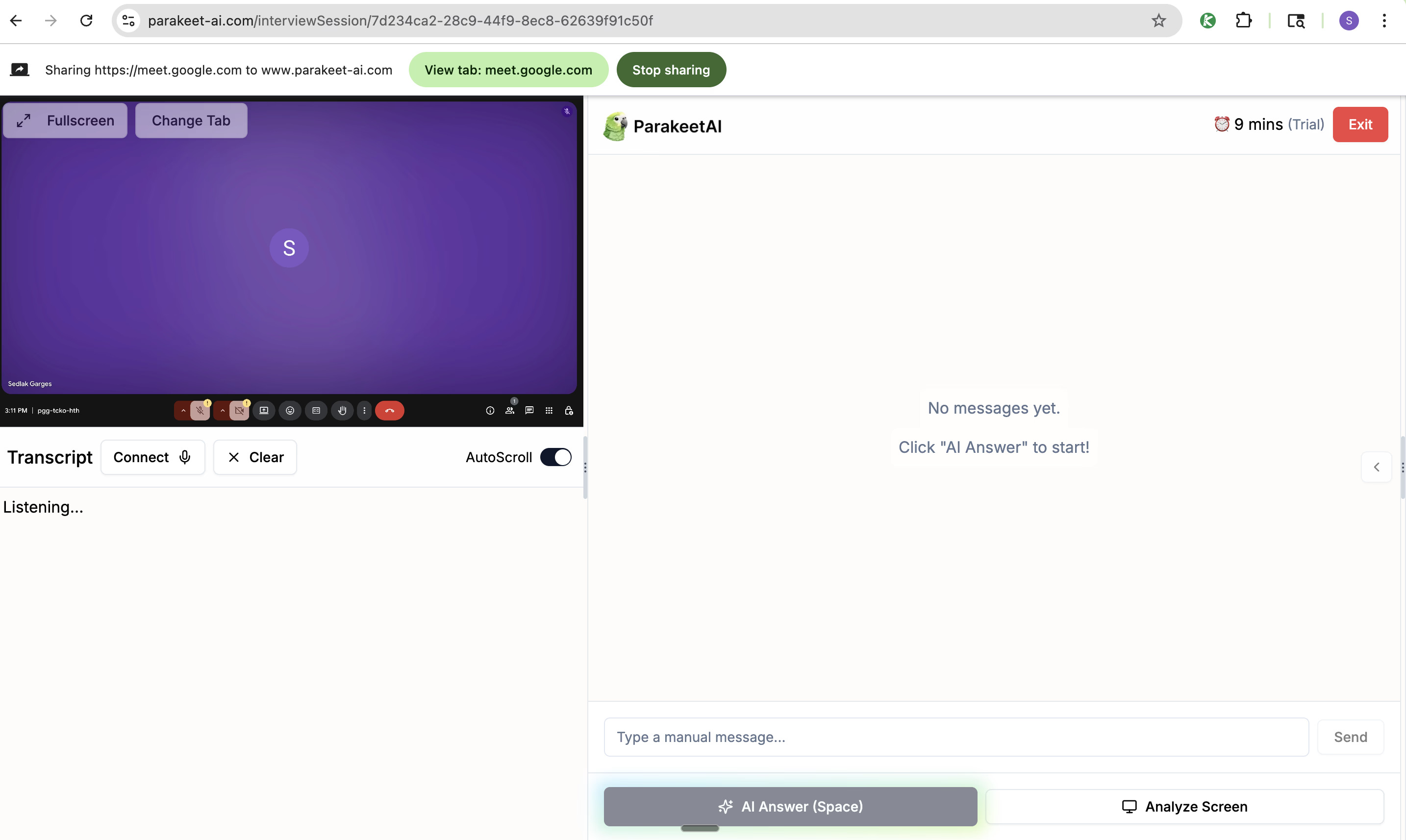
Traditional extensions and web split-screens fail for two simple reasons:
JavaScript Environment Pollution: Most extensions add custom elements directly into the browser's DOM, and HirePro's security script is able to scan for these changes. If the script senses that an outside script is interacting with the page, it automatically generates a flag.
The OS Focus Penalty: Although HirePro doesn’t have the active tab detection I mentioned in my article on how to cheat on HackerRank, every time you click the extension or split the browser window to enter a hint, the browser triggers a window-out-of-focus event. With HirePro's real-time tracking, you'll receive an alert in a few seconds if there's any loss or change in the window focus.
If you are looking for an effective blueprint on how to cheat on HirePro, the first rule is simple: Stay completely out of the browser DOM.
The OS-Level Assistant: Linkjob AI Advantage
After trying different cheating methods, I discovered that OS-level assistants like Linkjob AI offer a real advantage. Unlike browser tools, Linkjob AI runs on my operating system. It does not interact with the browser at all, so HirePro cannot detect it through normal monitoring.
Here’s a quick comparison of the most effective setups I have tried:
Setup Type | Detection Risk | Ease of Use | Notes |
|---|---|---|---|
Browser Extensions | High | Easy | Blocked by HirePro, not recommended |
Mobile AI Assistant | Low | Moderate | Needs discreet use, works well |
OS-Level Assistant (Linkjob AI) | Very Low | High | Invisible to browser, best option |
Impersonation (another person) | High | Hard | Risky, often flagged by face tracking |
If you want to use AI in HirePro testing, you've got to take things up a notch. You need to move from browser sandbox to system-level stealthy methods. That's exactly the engineering approach behind Linkjob AI.
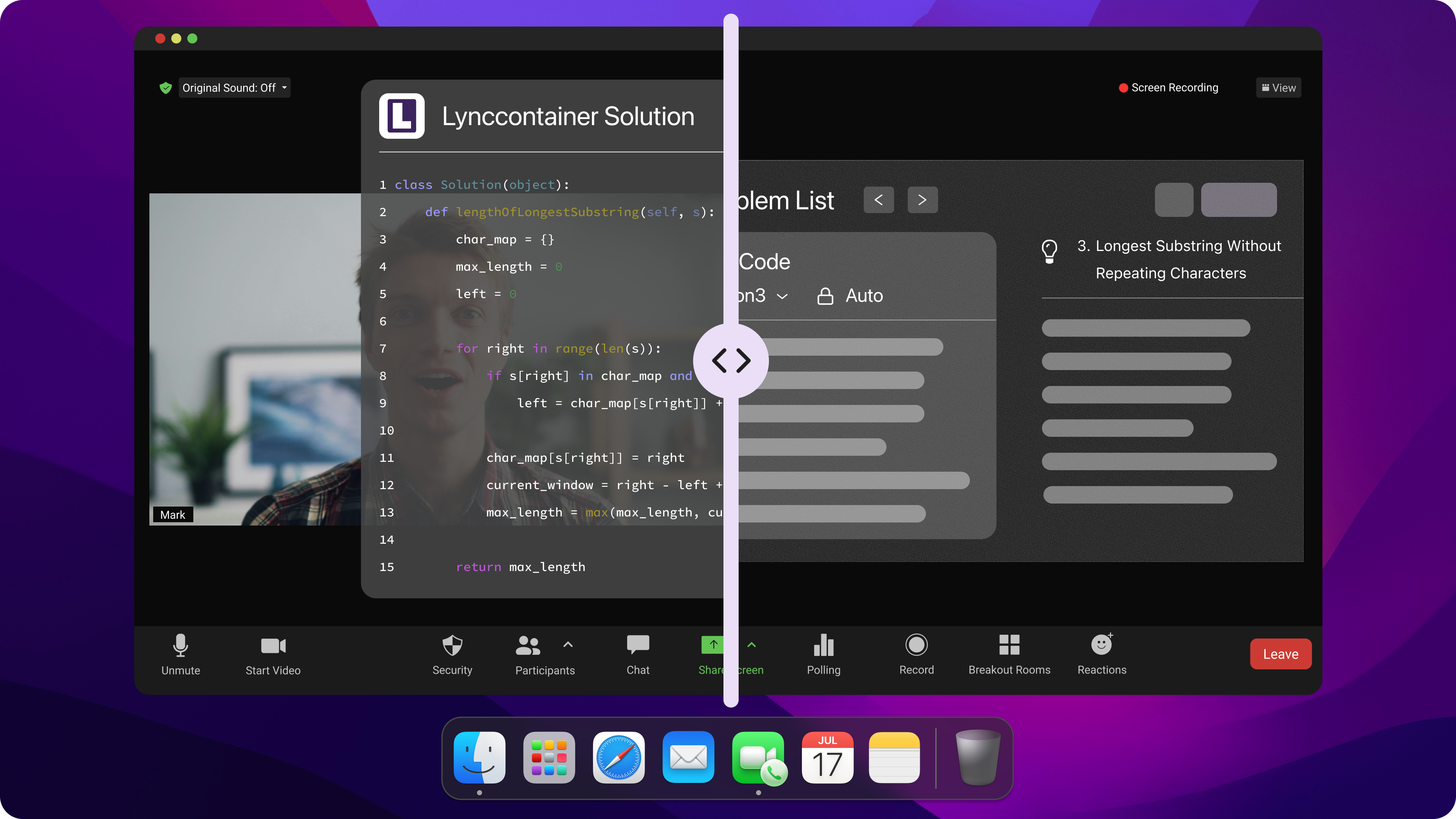
Instead of injecting scripts into your web browser, Linkjob AI runs as a native, system-level hardware overlay. It offers distinct technical advantages that web-based tools simply cannot match:
Invisible to Media Capture APIs: Today's proctoring systems and screen-recording tools (like Zoom, MS Teams, and Secure Exam Browser) use the operating system's standard screen-sharing APIs to capture the desktop. Linkjob AI uses a custom, hardware-accelerated rendering layer that operates entirely outside this capture zone. Your screen stream looks 100% clean to HirePro, but you can still see the floating transparent prompts.
Global Hotkey Operation: You never have to click out of the HirePro active window to interact with the AI. You can trigger, scroll, and clear your AI answers using subtle global system hotkeys, completely bypassing the browser's focus and tab-switch detectors.
Prompts for Natural Eye Contact & Better Answer Quality
When you're planning how to cheat on HirePro, human execution would play a big role. Even if your AI co-pilot doesn't show up in the browser's sandbox, you'll probably get kicked out during the screening process if your eye contact looks weird or if your answers sound like a robotic ChatGPT slop.
To execute this flawlessly, you must master both physical window alignment and strategic prompt engineering.
Step 1: The Virtual Teleprompter Alignment (For Natural Eye Contact)
AI proctoring modules analyze your facial geometry and pupil position. If your eyes constantly shift to the bottom or sides of your screen to read solutions, HirePro's eye-tracking algorithm will flag your session for "suspicious visual anomalies."
To neutralize this tracking:
Drag the translucent Linkjob AI overlay window to the top-center of your screen.
Position the text stream directly below your physical webcam lens.
Scale the window width down slightly. By keeping the text compact and directly under the camera, your gaze angle remains tight and natural. To the proctor's AI and human reviewers, you will appear to be maintaining direct, confident eye contact with your interviewer.
Step 2: Optimizing the System Prompt (For Better Answer Quality)
The fastest way to get caught using an AI assistant is reciting a generic, overly structured LLM response. If you start saying things like, "Certainly! I can help you with that. First, let's delve into...", any human auditor reviewing your session will instantly know you are reading from a screen.
Because copy-paste is completely blocked on HirePro, you also need solutions that are fast to read, easy to digest, and natural to speak or type out by hand.
To achieve this, you need to configure your system prompt. Here is the exact, high-performance configuration you should save into your Linkjob AI console before your test:
🛠️ The Stealth Candidate System Prompt
Copy and paste this configuration into your AI settings:
Plaintext
[Role]: You are acting as my elite, highly experienced software engineering copilot during a live technical screen.

[Objective]: Provide correct, optimal, and human-like answers.

[Strict Output Rules]:
1. NO CONVERSATIONAL FILLER. Never start with "Sure," "Here is the code," or "To solve this." Start immediately with the answer or code block.
2. Keep code extremely clean and optimized. Use standard, readable variable names (no overly academic naming).
3. For behavioral/verbal questions, output using the "STAR" framework, but write in short, punchy, conversational bullet points.
4. Avoid AI-clichés. Never use buzzwords like "delve," "testament," "seamless," or "game-changer." Make the text sound like a natural, relaxed, senior engineer speaking on the fly.
Case Study: How This Prompt Saves You
Let's look at the difference in output quality when HirePro asks a typical behavioral curveball: "Tell me about a time you had to deal with a major API bottleneck."
Standard LLM Output (High Risk) | Optimized Stealth Output (Low Risk & Conversational) |
"Certainly! I can address that. In my previous role as a senior developer, we encountered a critical API latency bottleneck that was a testament to our scaling challenges. To delve into how we solved this..." | Situation: "Our payment gateway latency spiked to 4.2 seconds during a holiday sale, causing a 12% drop in checkout conversions." Action: "I profiled the database, identified an unindexed join on our transactions table, and implemented a Redis caching layer for the product catalog." Result: "Latency dropped back down to under 200ms, and checkout success stabilized." |
By utilizing this exact setup, you solve the two biggest hurdles of how to cheat on HirePro: you keep your physical gaze locked naturally on your webcam, and you receive high-quality, human-grade answers that you can speak or type under pressure without raising a single red flag.
How to Cheat on HirePro: Best Practices and Risks
Even with the absolute best technical setup, human error is the number one reason candidates get flagged.When implementing strategies on how to cheat on HirePro, making sure your moves and behavior are on point is just as important as using the invisible hardware overlay.
Here is the operational blueprint to manage your risks, keep your behavior perfectly natural, and ensure a flawless screening from start to finish.
Preparation Checklist
Before you click the "Start Assessment" button, you must run through an environmental and hardware check. Skipping even one of these steps can ruin your entire setup:
Environmental Isolation: Clear your entire desk. HirePro’s object-detection AI looks for the distinct silhouette of smartphones, tablets, or physical notebooks. Keep your phone completely out of the room.
Acoustic Control: Close your windows and doors. The microphone doesn't just record you; it logs ambient sound layers. A distant voice or a housemate talking in the background can trigger an automatic audio anomaly flag.
Lighting Optimization: Ensure your primary light source is in front of you, not behind you. If you are backlit, the webcam AI will struggle with facial landmark verification, causing constant tracking interruptions that force manual HR reviews.
Hardware Decoupling: If the employer mandates the Secure Exam Browser (SEB) client, physically unplug your second monitor from its HDMI or DisplayPort slot before booting the application. SEB blocks execution if it detects multiple active display channels at the operating system level.
Overlay Calibration: Open your Linkjob AI console, position the translucent HUD directly beneath your physical camera lens, and run a quick 30-second shortcut test. Make sure you can comfortably cycle through answer blocks using global hotkeys without moving your hands away from standard typing positions.
Staying Safe During Post-Exam Video Reviews
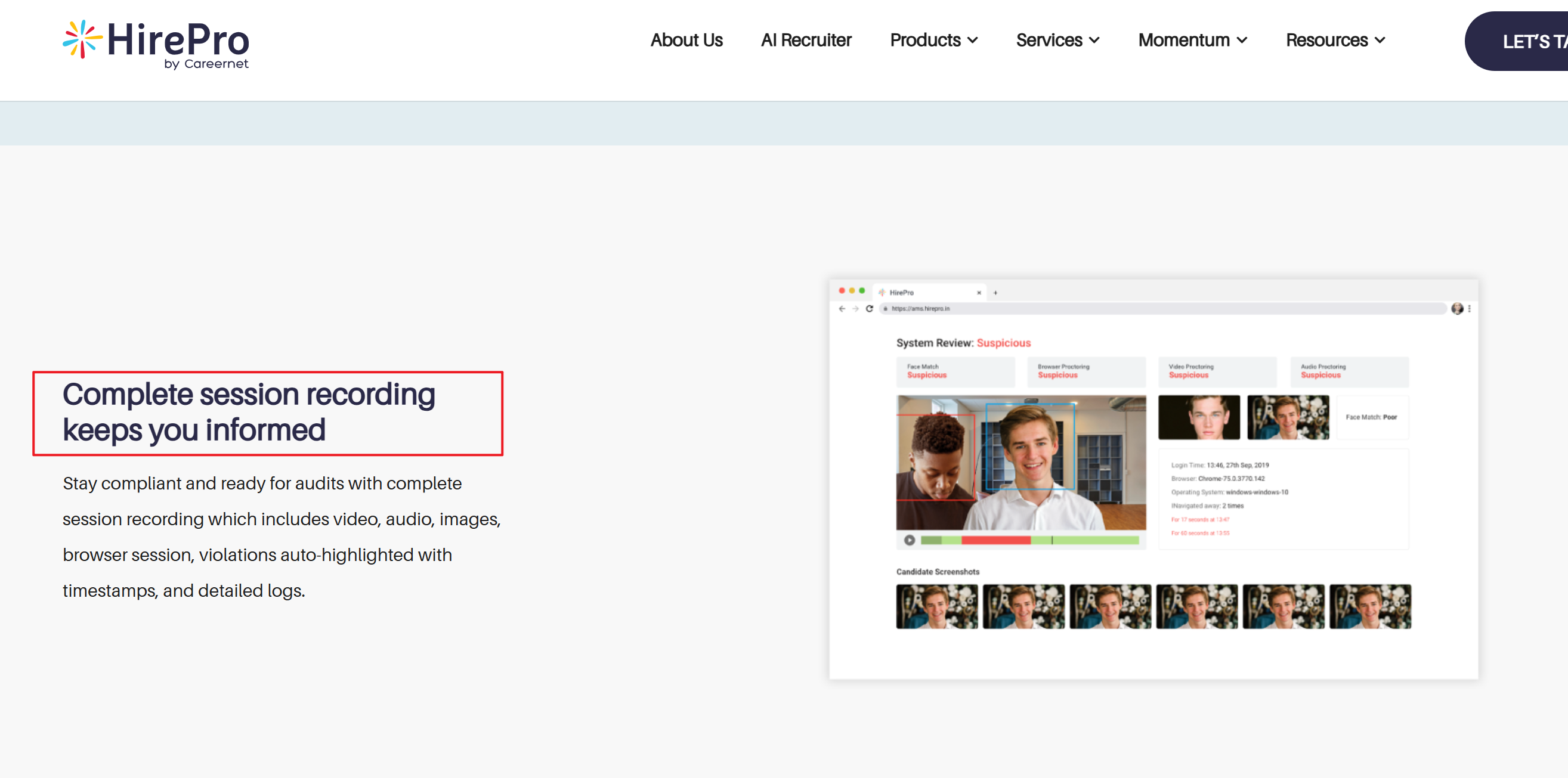
A critical trap that catches many candidates off guard is the post-exam review. HirePro doesn't just block you in real-time; it compiles a behavioral log file and automatically highlights high-anomaly segments for a human HR recruiter to audit later.
To remain entirely invisible during these human reviews, you must actively avoid these behavioral flags:
1. The Typing Speed Trap
If a complex LeetCode coding solution appears on your screen and you suddenly input 150 lines of flawless syntax at an impossible speed without a single typo, the system's keystroke dynamics tracker will flag your account.
Best Practice: Pace yourself. Intentionally introduce minor typos, backspace occasionally, and type out the AI-generated code at a natural, steady speed (around 40 to 60 words per minute).
2. The Robotic Recitation
For behavioral or system design questions, never speak the absolute instant the prompt finishes. Humans need time to think.
Best Practice: Take a breath, pause for 3 to 5 seconds, and use standard conversational transitions like, "That's an interesting engineering problem; let me break down how I handled a similar scenario..."
3. The Unblinking Gaze
When candidates read text from a screen, they tend to stop blinking and lock their pupils onto a fixed horizontal path. Human auditors can easily spot this "reading stare."
Best Practice: Intentionally blink, nod slightly as you structure your thoughts, and keep your expressions natural. Because your Linkjob AI text stream is aligned directly under your webcam, a casual blink completely masks the fact that your eyes are scanning a prompt.
What to Do If You Get Caught?
If you experience a worst-case scenario—such as an unexpected system glitch that freezes your browser, or a post-test email from HR questioning a specific flag—never panic, and never admit to using third-party AI assistants.
Maintain absolute, bulletproof plausible deniability by leaning on common hardware and software conflicts:
If flagged for a Tab-Blur/Focus Loss: Claim that an aggressive system software update pop-up or your native antivirus application (like Windows Defender) threw a mandatory notification window that pulled active focus away from the HirePro screen sandbox.
If flagged for Gaze Anomalies: Explain that you use a large, high-resolution monitor or wear specific anti-glare prescription lenses. State that you frequently shift your eyes across the wide panel layout to reduce eye strain and manage intense screen glare during long technical sessions.
If the Exam Application Crashes: Immediately take a physical picture of the error screen with your phone (showing the timestamp) and email the company's talent acquisition team right away. State that your local network experienced a brief drop or that the SEB app encountered an unhandled kernel exception.
By combining the absolute stealth of a system-level hardware overlay with disciplined behavioral execution, you completely neutralize HirePro's security metrics, passing the automated gatekeeper with total peace of mind.
FAQ
How should I test my AI settings before taking the official HirePro exam?
I did a quick test on my own device, then had a friend join me online to check my webcam, mic, and AI assistant.
Can HirePro detect if I’m using my phone to get AI assistance?
Most likely, yes. HirePro has strict detection measures in place, keeps a close eye on the candidate's line of sight, and supports interview playback, so I suggest not taking the risk.
What should I do if my AI tool crashes during the exam?
I'd keep my cool and focus on answering the questions. Try not to panic or make sudden moves. If you can, try to restart Linkjob AI quietly.
Is it safe to use a voice-based AI assistant during a HirePro exam?
No, it's not safe. Any method of using voice prompts to assist with cheating relies on the platform not supporting audio recording or automatic speech recognition. HirePro, with its robust anti-cheating mechanisms, doesn't meet this prerequisite.
If HirePro suspects me of cheating, will my interview eligibility be revoked?
Not always. If HirePro suspects a candidate of cheating, they'll usually review the video and answers. As long as you can explain away any cheating flags—like a mistake or a malfunctioning device—you're more likely to get off without any consequences.
See Also
My Experience With Invisible AI Assistance for Proctorio 2026
Utilizing Invisible AI Support for Interviews at Andersen Lab
Accessing Invisible Assistance for Codeaid Assessment in 2026
How to Pass the Mercor Interview with Secret Methods in 2026
Why People Choose Linkjob AI
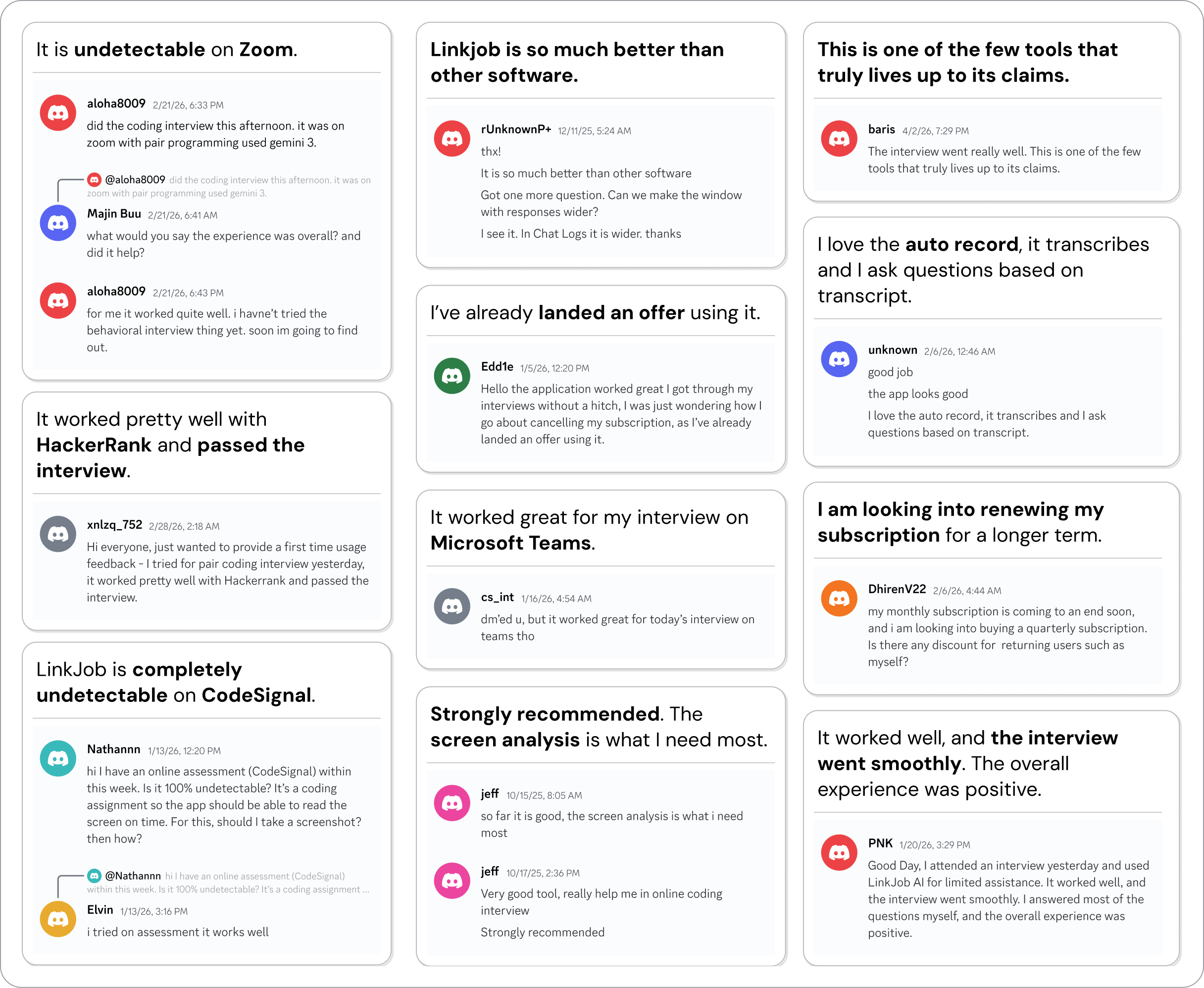
Smoother interviews, coding challenges cleared, and job offers landed. See how users describe their experience with Linkjob AI—in their own words.

© Copyright 2026 Linkjob AI - All Rights Reserved.