Does HackerRank Use Camera? What to Know Before Your Test


TL;DR: Does HackerRank use camera to check if candidates are cheating? Yes, it's not just about that feature, and the settings can be different for each interview.
Given that I’ve previously researched many topics similar to “Does HackerRank detect Cluely” and“Can Codility detect tab switching,” the other day, when I was looking at the link for the technical assessment invitation, I had a question: Does HackerRank use camera while I'm writing code? The short answer is yes, it can, but it depends on how the hiring company sets up the test. HackerRank has a built-in feature called "Image Analysis" that uses your webcam to take regular snapshots during the assessment. The website doesn't mention that it records continuous video, even though there's a code playback feature.
Not all employers use Image Analysis. When recruiters set a test, they can choose to enable camera proctoring to verify your identity and make sure you're taking the test on your own. This is just one thing you can do with a webcam.
In the next few sections, I'll explain how webcam monitoring actually works, which behaviours trigger warnings on the recruiter's dashboard, how to check in advance whether an online assessment requires a webcam, and how to deal with technical glitches so you can focus entirely on writing clean code.
Does HackerRank Use Camera for Every Coding Assessment?
When candidates ask does HackerRank use camera for every test, they’re usually relieved to learn that camera monitoring is entirely optional for employers. Basically, this means that HackerRank provides a technical toggle for proctoring, and the hiring team controls that toggle.
So, even though HackerRank might not use a camera during your online assessment, you won't always know if they will use one during your specific interview.
Whether you face a webcam depends heavily on the company's hiring culture, the stage of the interview pipeline, and the seniority of the role. According to the official HackerRank Proctoring Guidelines, administrators can toggle proctoring settings on a test-by-test basis.
I'll sum it all up like this: "You can customise the exam settings for each one. Administrators can choose to enable webcam image capture, tab-switching tracking, or copy-and-paste restrictions based on their organisation's security requirements."
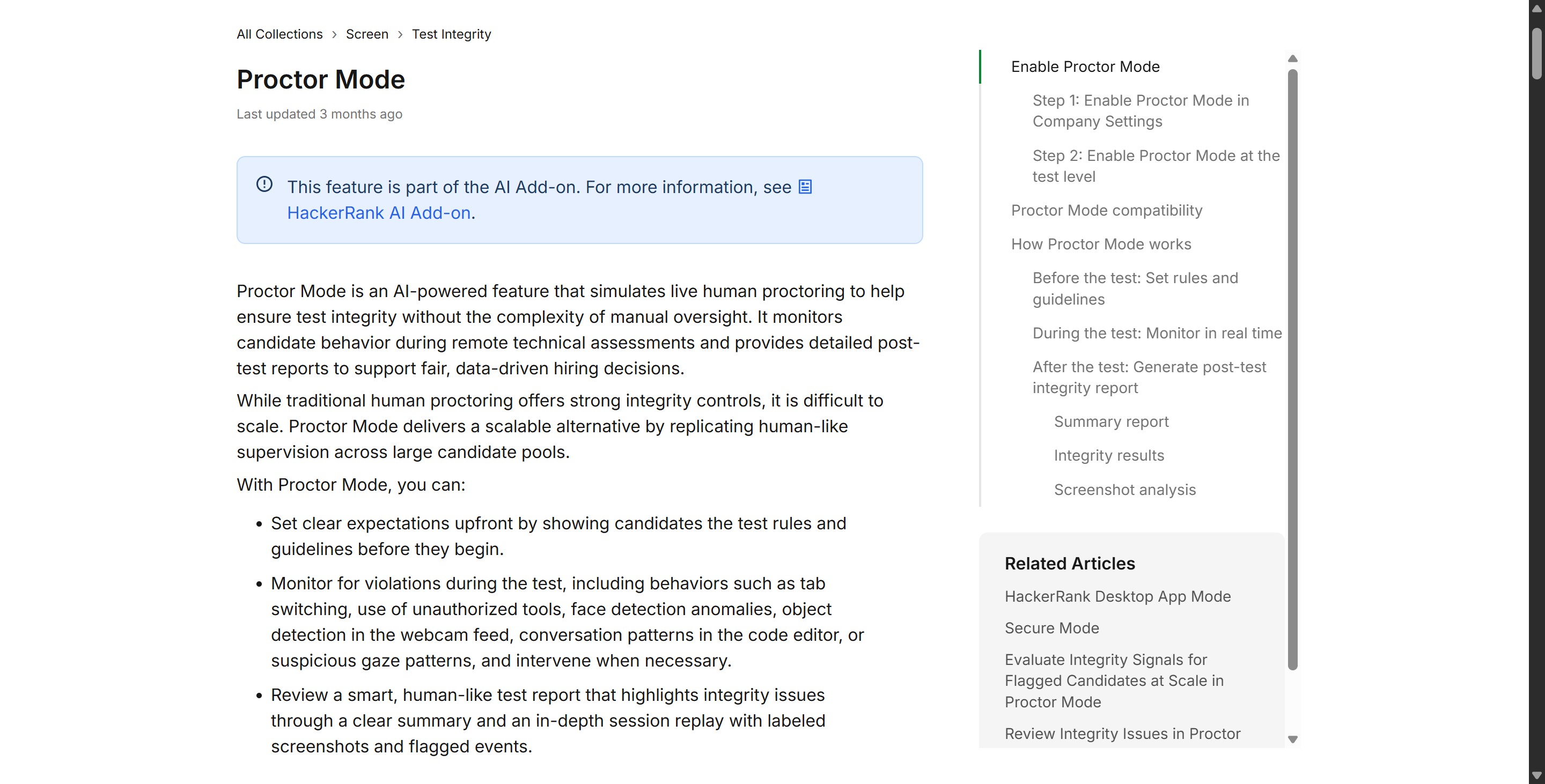
In fact, most of the early-stage screening assessments for thousands of candidates – which are also the most common type of OA – don't include webcam monitoring to reduce candidate resistance and lower the dropout rate.
But for high-risk assessments, like those involving financial institutions, government contractors, or final-round evaluations, all security measures are usually enabled.
To give you a more detailed picture of the different scenarios, I've put together a table showing how different types of employers usually set up their assessment security measures:
Assessment Scenario | Typical Proctoring Level | Webcam Required? | Primary Security Focus |
University / Grad Mass Screening | High | Yes | Identity verification and preventing group collaboration |
Early-Stage Startup Take-Home | Low | No | Code quality, practical problem-solving, and speed |
Enterprise / FAANG Initial Screen | Medium to High | Often | Plagiarism detection, tab tracking, and baseline snapshots |
Senior / Staff Engineer Evaluation | Low to Medium | Rarely | Architectural design and system logic rather than strict surveillance |
Live Pair Programming (CodePair) | Live Video | Optional / Contextual | Real-time communication via Zoom, Teams, or built-in video |
So, does HackerRank use camera on your specific test? Actually, you don't have to guess blindly. Before you get going with the coding environment, the welcome screen will clearly list all the valid monitoring requirements.
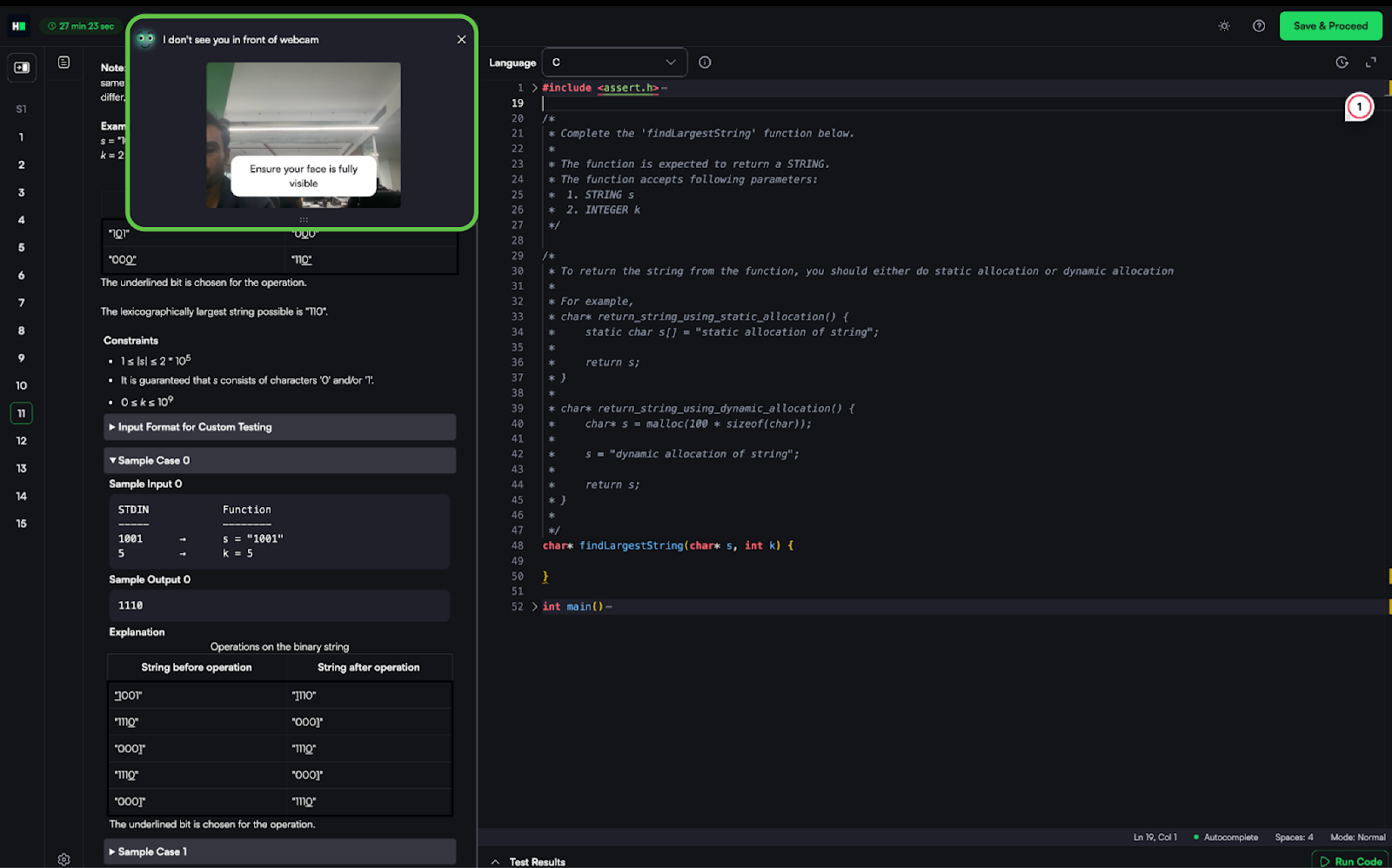
If the employer has enabled the "Image Analysis" feature, the system will ask you to grant camera access and take a baseline photo before showing the first coding prompt.
If you go straight to the IDE from the instructions page and you don't get a browser permission prompt, then it's pretty likely that webcam monitoring won't be enabled for this online assessment.
But this won't work if you need to click on a new test invitation link halfway through the assessment. If so, it's probably just an error in the interviewer's settings, like not checking the "gaze detection" feature. So, the most recent invitation link and its pop-up window should be the final thing to check.
How Does HackerRank Use Camera and Image Proctoring?
To get our heads around the platform's privacy and technical limitations, we need to take a close look at how it works: how does HackerRank use camera hardware once you grant permission?
The official documentation says that most people think that HackerRank uses automated, periodic still-image capture technology combined with artificial intelligence to do proctoring. There's a chance that photos from your online assessment and your document navigation history might be checked by hand afterwards, but this usually depends on things like the employer's subscription plan.
Some users might be checked by hand more strictly, while in other cases, the employer's team has more trust in HackerRank's integrity reports, meaning there are very few follow-up reviews.
According to the Image Proctoring and Image Analysis, the system captures static images at randomized intervals—Other documents say this interval should be between 5 and 15 seconds—and uploads them to the candidate report for post-exam review.
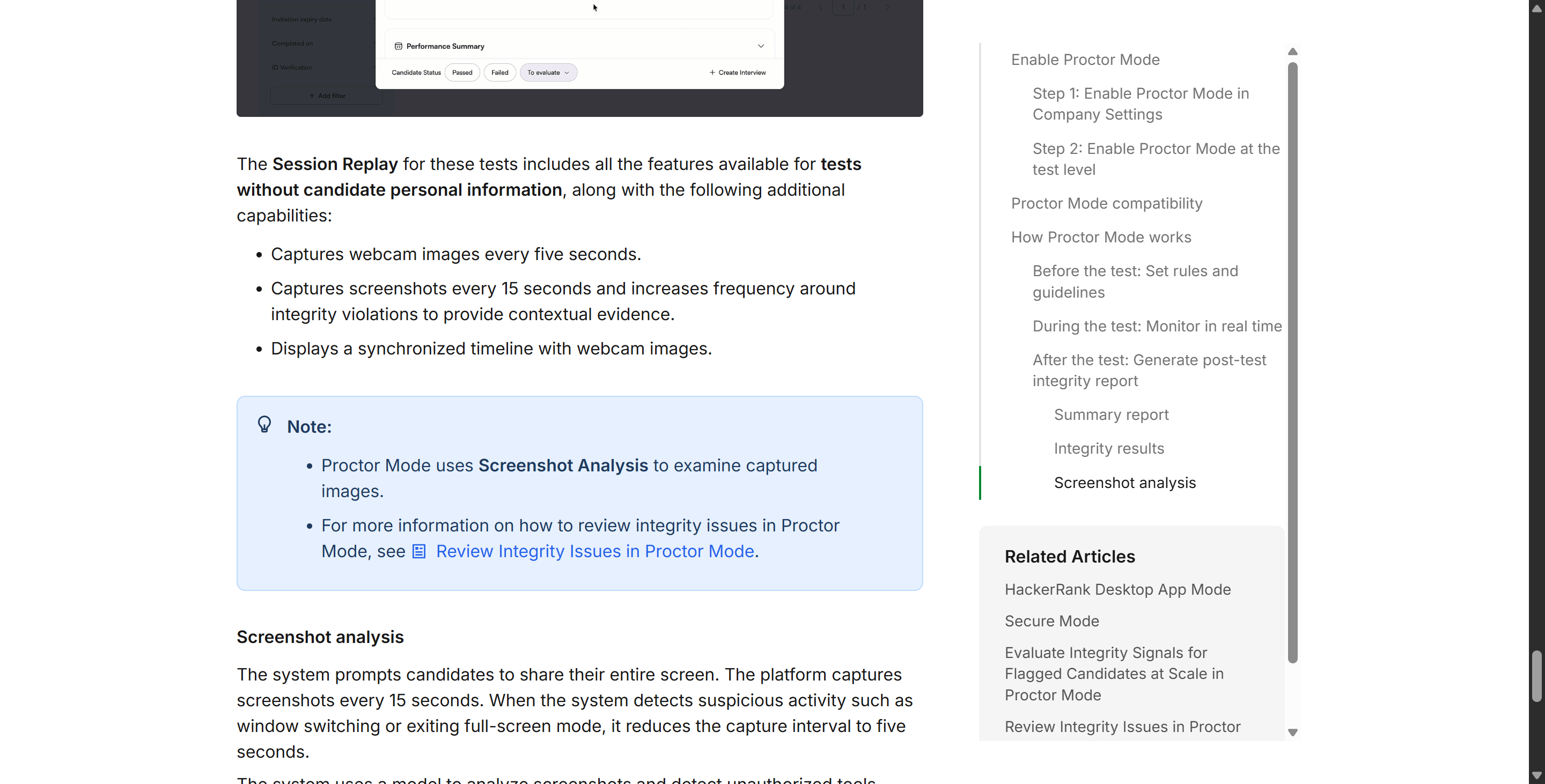
"When webcam proctoring is enabled, the platform captures periodic still images of the candidate through their web browser. It does not record continuous video or capture ambient audio during standard asynchronous assessments."
What Does HackerRank Use Camera Snapshots to Detect?
The AI engine behind HackerRank's image analysis scans each snapshot to spot any anomalies that might indicate cheating. When evaluating how does HackerRank use camera data to flag suspicious behavior, the algorithm categorizes findings into four states:
Snapshot Status | What the AI Detects in the Frame | Impact on Candidate Report |
Clear / Normal | Exactly one face is clearly visible and matches the baseline ID photo. | Green status; no alert generated for the recruiter. |
No Face Detected | The chair is empty, the candidate leaned completely out of frame, or the lens is covered. | Yellow/Red flag; marks the exact timestamp the candidate disappeared. |
Multiple Faces | Two or more distinct faces appear in the background or foreground. | High-priority Red flag; strongly suggests unauthorized in-person help. |
Face Mismatch / Low Light | The face cannot be verified due to pitch-black lighting, heavy glare, or a different person sitting down. | Yellow flag; prompts the hiring manager to manually inspect the photo gallery. |
Does HackerRank Use Camera Audio or Microphone Access?
When I was going through the documents, I was mainly worried about whether the platform would listen in on my room.
But after having a look at some documents and doing my best to make sense of it all, I can now answer this question pretty quickly: If you are wondering does HackerRank use camera alongside your microphone during a standard, self-paced coding challenge, the answer is no.
Standard assessments only ask for video input (
navigator.mediaDevices.getUserMedia({ video: true })) via the browser. You can talk to yourself, read the problem description aloud, or have background noise without triggering an audio alert because they don't request audio permissions.The only exception is HackerRank CodePair, a real-time, synchronous interview tool that lets you chat face-to-face with an engineer while editing code together. When you're on a CodePair call, both your camera and mic will be on because you're all in a live video call together, just like on Google Meet or Zoom.
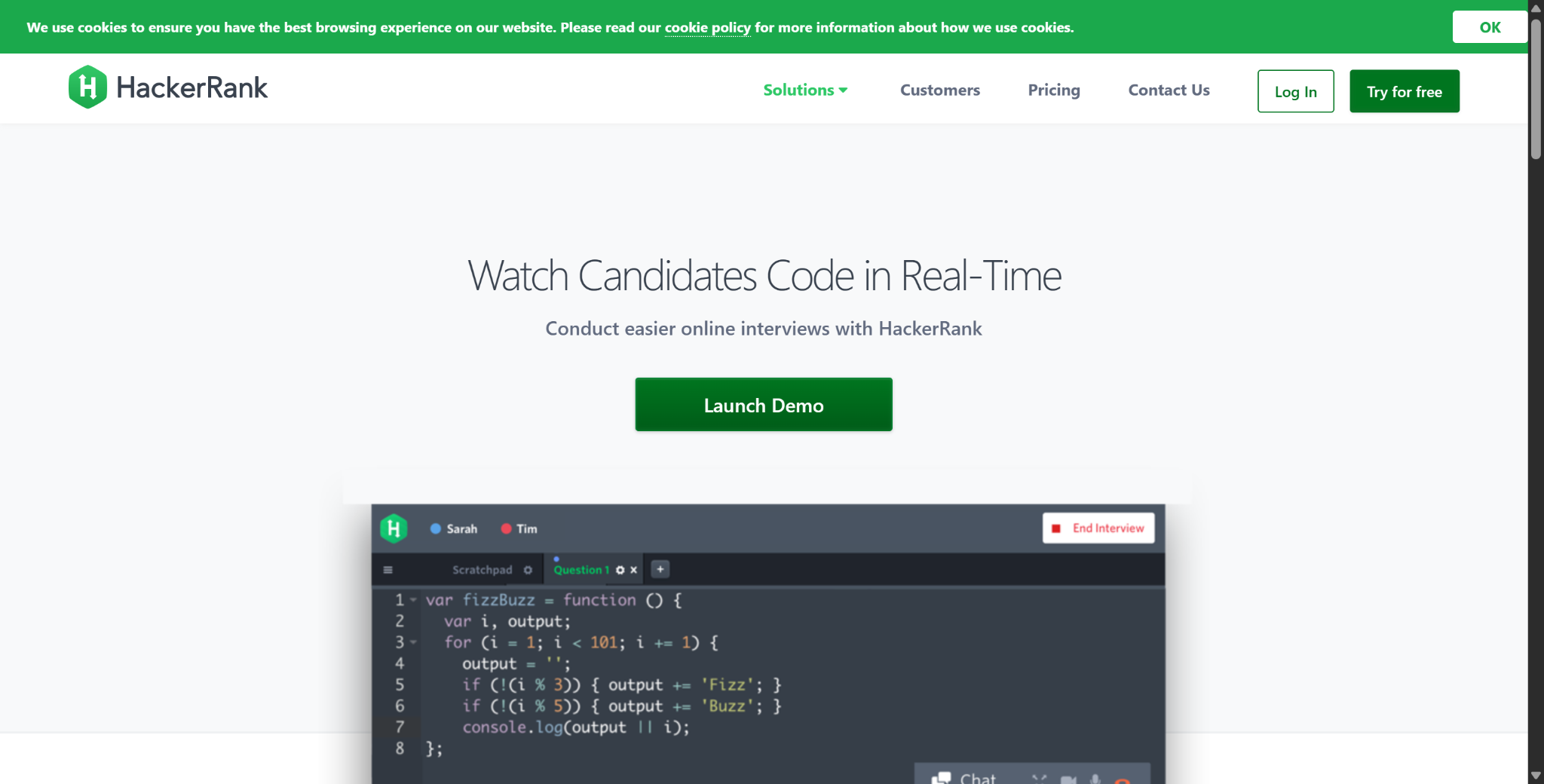
Beyond the Lens: Other Signals Tracked Alongside Your Webcam
If you focus solely on the question of “Does HackerRank use camera?”, you might inadvertently overlook the broader HackerRank proctoring ecosystem. To be honest, I reckon that most candidates who are flagged during the tech assessments aren't caught because their webcams were detected. It's more likely that they'll be caught by browser-level telemetry and code analysis engines.
Even if a company turns off webcam monitoring, HackerRank still keeps an eye on various behaviours and environmental signals within the browser tab. The platform uses these signals and any available webcam snapshots to create a complete timeline of your session. This is the HackerRank session replay feature I told you about.
Tracking Mechanism | How It Works Technically | What Triggers a Warning Flag |
Tab & Window Focus ( | JavaScript event listeners monitor whether the assessment tab is the active foreground window. | Clicking onto another browser tab, opening a local application, or clicking onto a secondary monitor. |
Copy-Paste Logging | Tracks clipboard events ( | Pasting large blocks of code from an external source that were not typed inside the editor. |
Full-Screen Enforcement | Forces the browser into full-screen mode before displaying questions. | Pressing |
Keystroke & Code Playback | Records every code edit and keystroke sequentially over time. | Sudden appearance of a complete, bug-free 50-line algorithm in under ten seconds with zero revisions. |
IP & Network Telemetry | Logs the network address and session connection metadata. | Simultaneous logins from two different geographic locations or abrupt residential proxy switching. |
According to the HackerRank Plagiarism Detection Whitepaper, the platform utilizes MOSS (Measure of Software Similarity) alongside proprietary AI models to compare your submitted code against millions of past submissions and popular public repositories.
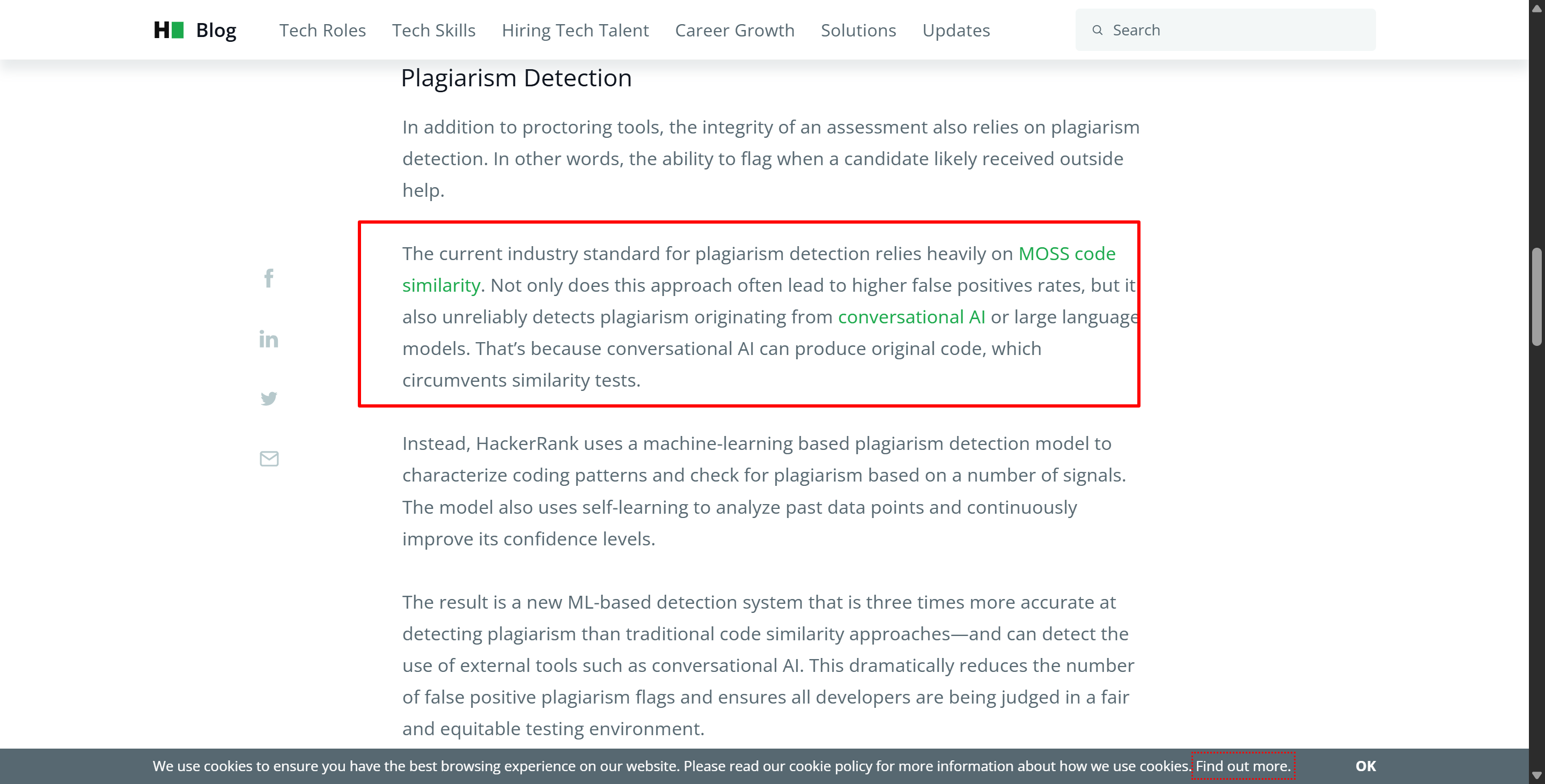
"Our similarity detection engine analyzes the abstract syntax tree (AST) of submitted solutions, looking past superficial variable renaming or comment formatting to identify structural code duplication."
Why does this matter when asking does HackerRank use camera? This is because recruiters will cross-check these timelines:
If your browser history shows you leaving the active window for three minutes at 2:14 p.m. and then pasting 40 lines of code at 2:17 p.m.,
the hiring manager will immediately review the camera snapshots taken between then.
If the snapshots show you intently staring at a second monitor or typing on your phone, it'll immediately make the hiring manager think that this is you.
How Does HackerRank Use Camera Permissions Across Browsers?
HackerRank runs entirely in your browser, so you don't need to download anything extra (unless you're using the latest HackerRank app, in which case you'll be notified in advance), and it only accesses your hardware through the security sandboxes of modern web browsers.
Understanding how does HackerRank use camera permissions in Chrome, Firefox, Edge, and Safari explains both what the platform can see and why technical glitches occasionally happen.
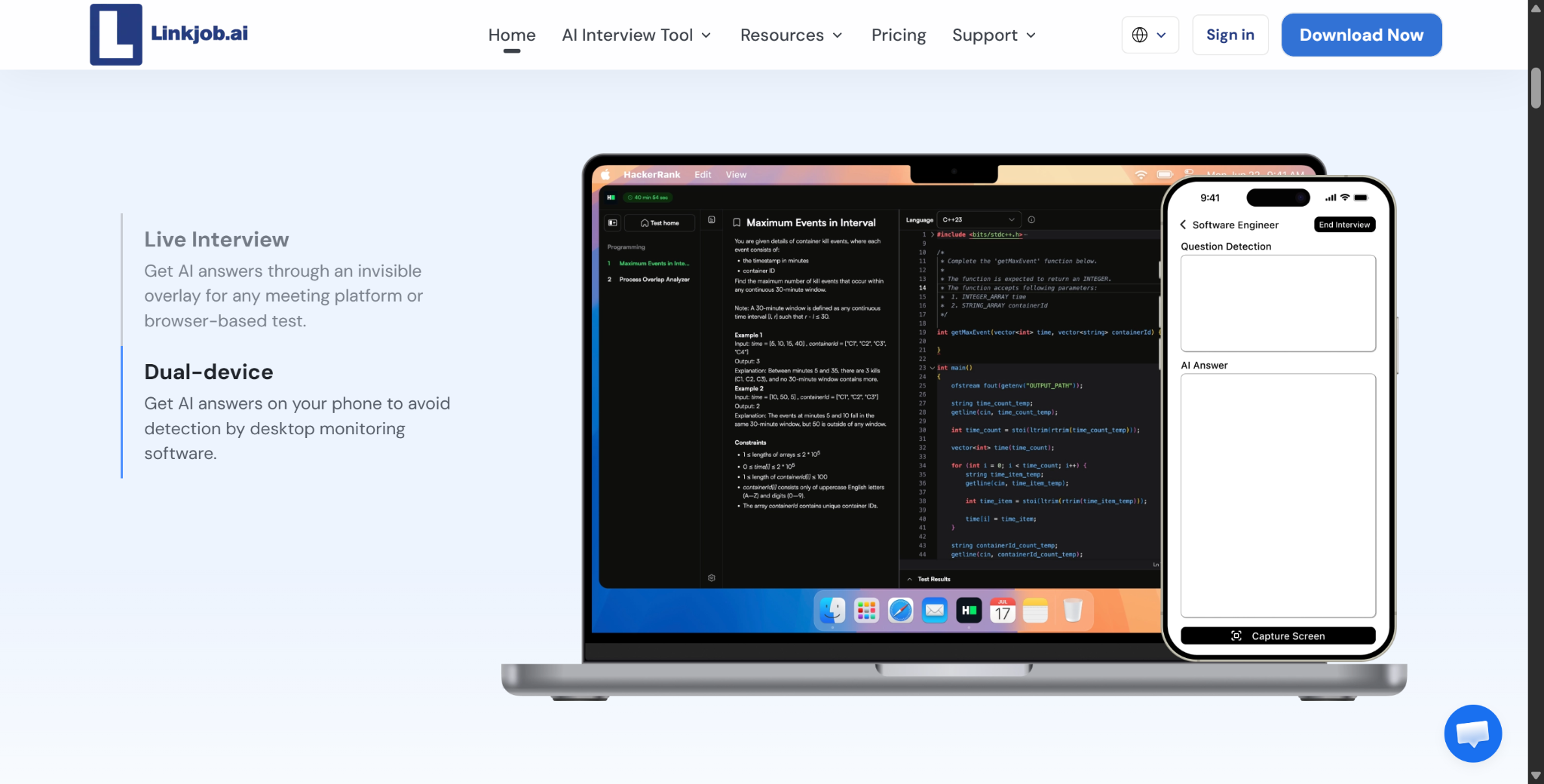
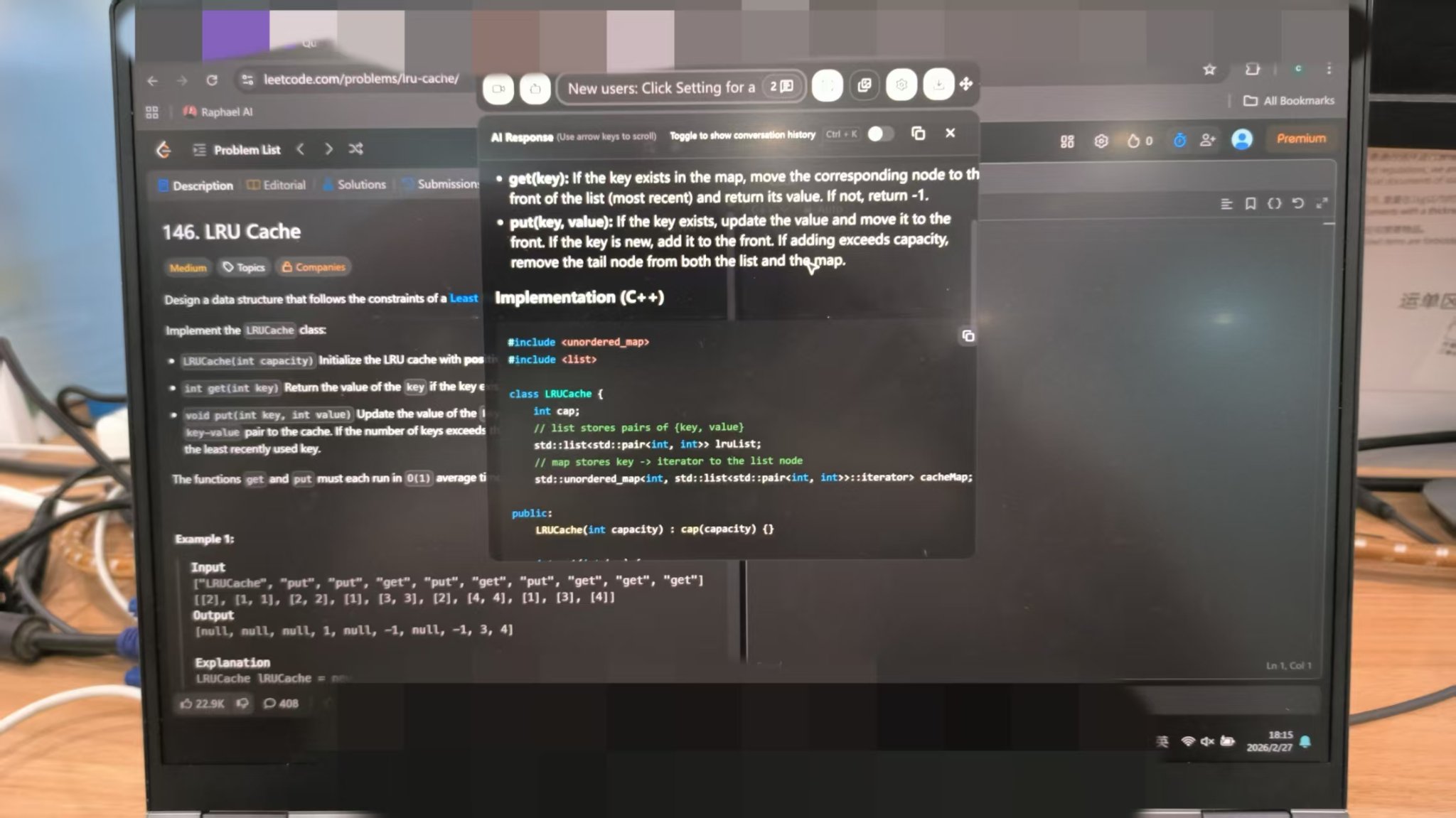
When you click "Start Test" during a proctored assessment, the webpage uses the standard WebRTC API request. Then your browser will intercept this request and show a system prompt asking if you'll allow hackerrank.com to access your camera. Even if you end up in full-screen mode, using other tools like Linkjob AI, a stealth desktop assistant, is usually fine.
If you want to cheat while being proctored by the HackerRank app, it's better to run Linkjob AI on a second device (specifically, using the latest Linkjob AI mobile interview copilot). But you'll need to be careful about how you hold your phone to avoid detection of multiple devices and to keep your facial expressions natural.
Browser-Level Boundaries and Hardware Indicators
Because the evaluation runs within a standard browser sandbox, it can't bypass the operating system's privacy controls. Here's how hardware works in the main environments:
Hardware LED Indicator: When you start the test on HackerRank, the green or white light next to the camera lens will turn on and stay on while the camera is recording.
Single camera stream: The browser only lets you use the video input device you pick from the drop-down menu. It can't capture footage from multiple connected cameras at the same time.
Desktop Screen Recording Is Disabled by Default: Unless a recruiter's switched on a separate browser screen-sharing prompt (which forces Chrome or Firefox to pop up a window asking you to select "Full Screen" or "Tab"), camera permissions only access the physical camera facing you and won't access your desktop display.
What Recruiters Actually See When HackerRank Uses Camera Proctoring
A lot of stress comes from wondering who looks at those awkward, mid-thought photos of you staring at your screen. So, how does HackerRank use camera galleries to present data to the hiring team, and do engineers actually sit around scrolling through hundreds of pictures of your face?
To be honest, hiring managers and technical recruiters hardly ever look at your camera gallery unless they get an automated warning about it.
When you submit an assessment, HackerRank will generate a summary report. Your score, test case pass rate, and execution time are all at the top of the report. And right below that is a "Proctoring & Integrity" summary badge.
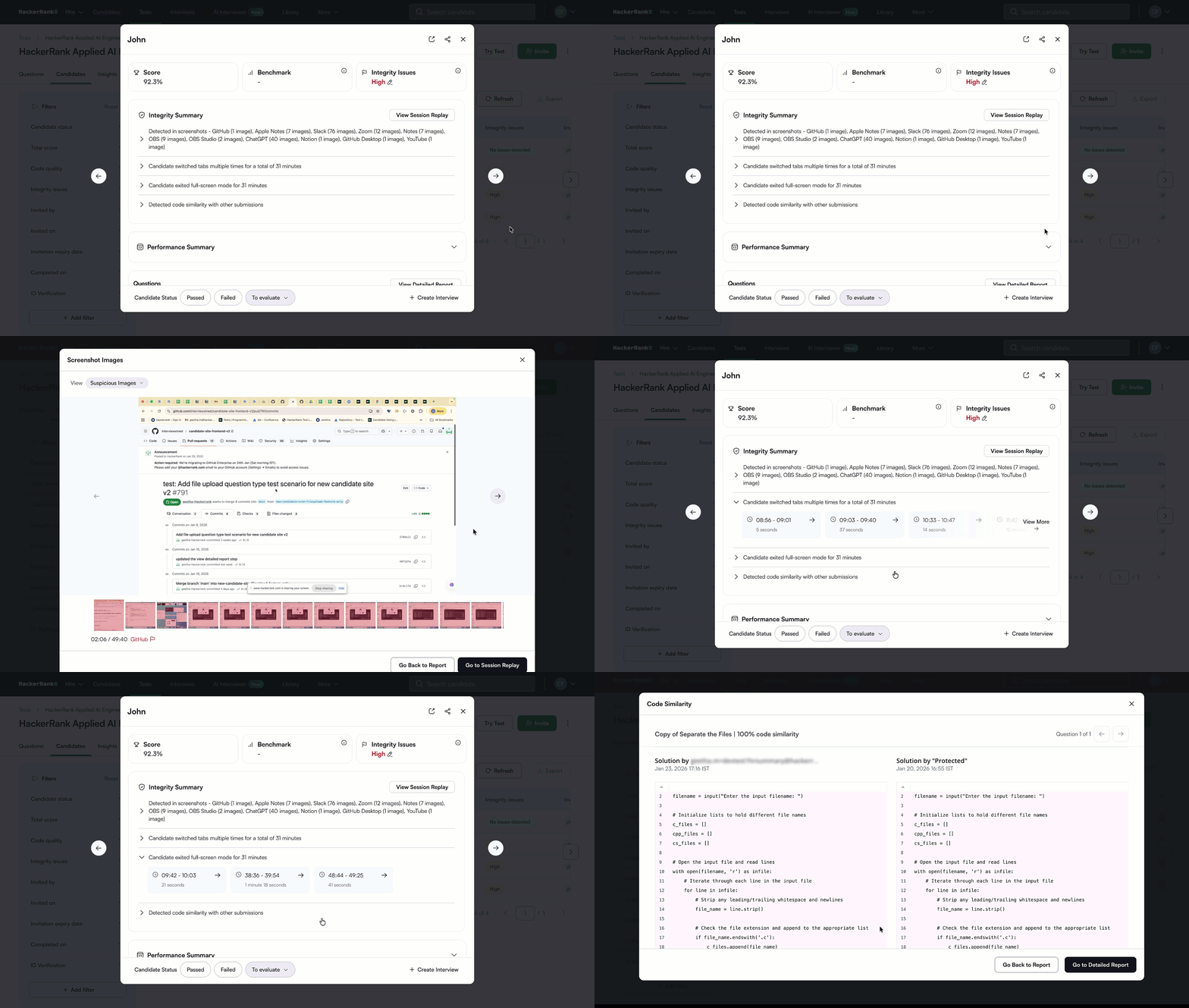
If your test session is clean – meaning there's always just one face in the frame, you don't switch tabs a lot, and your code passes the plagiarism check (just as it did when I used Linkjob AI) – the proctoring badge will display a green checkmark. When most recruiters see this green checkmark, they'll skip the photo gallery and go straight to reviewing your code architecture.
But if the system flags anything unusual, the recruiters will expand the "Proctoring" tab. Here's how they evaluate the visual evidence:
Recruiter Dashboard View | What It Displays | How Hiring Managers Interpret It |
Baseline vs. Session Strip | Side-by-side comparison of your initial ID snapshot and random thumbnails from the exam. | Checks that the person who started the test is the exact same person who finished it. |
Flagged Incident Filter | A filtered view showing only the snapshots where the AI detected multiple faces or an empty chair. | Saves the recruiter from viewing 150 normal photos; lets them immediately inspect the 3 flagged frames. |
Synchronized Code Timeline | A playback scrubber linking code snapshots with webcam photos at the exact same minute. | Verifies whether a candidate was away from the keyboard during a long pause or actively reading external notes. |
According to GDPR and CCPA data retention standards outlined in the HackerRank Data Security Documentation, these snapshots are stored securely on encrypted cloud servers and are only accessible to authorized members of the hiring organization.
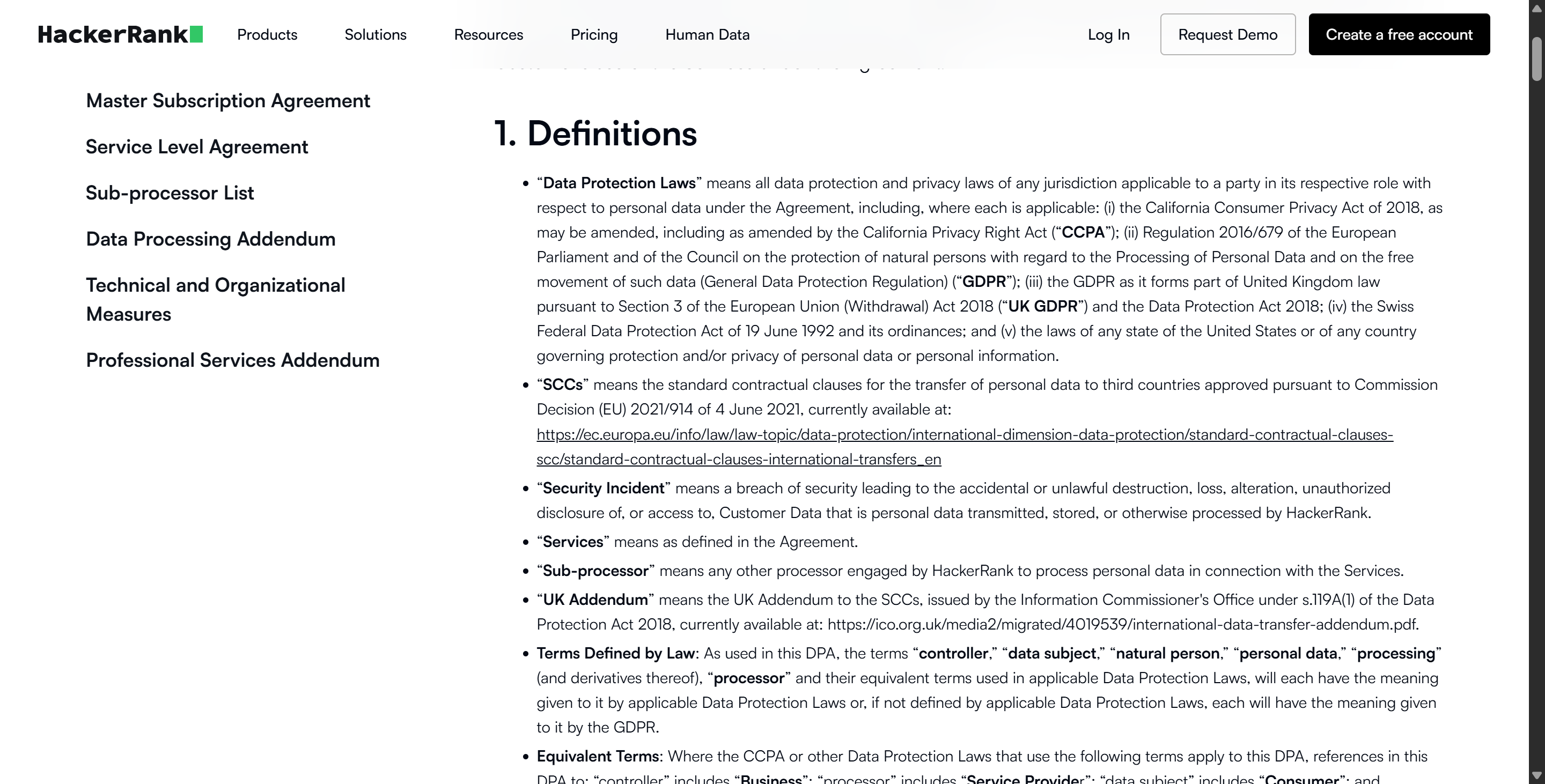
"Customer assessment data, including proctoring images, is encrypted at rest and in transit, and is automatically purged or anonymized in accordance with the enterprise customer's configured data retention schedule."
Best Practices When Taking a Camera-Proctored Assessment
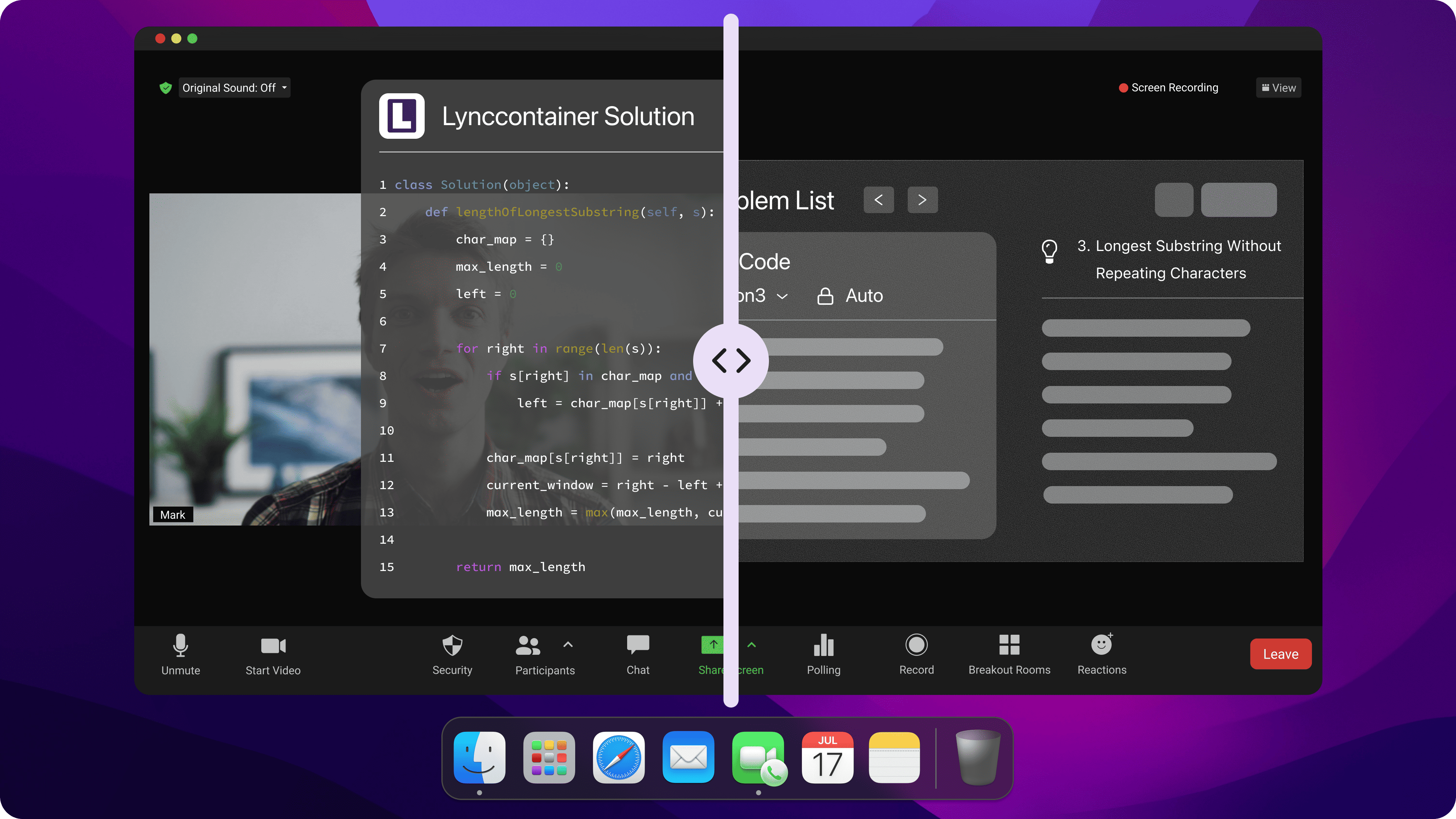
To keep your integrity report in good shape and make sure no one can see you using Linkjob AI, just set up your workspace with these handy adjustments before clicking the link:
Clear the background behind you: Just sit with your back against a plain wall or a closed door. Even a movie poster, a framed family photo, or a TV screen in the background can sometimes trick facial recognition algorithms, triggering a "multiple faces" alert.
Light your face from the front: Try not to sit right in front of a bright window. If you've got strong backlighting, your face will end up as a dark silhouette, and you'll get warnings like "Light too dim / Face cannot be verified" throughout the session. Put your desk lamp right in front of you or behind your screen.
Use the scratch paper within the camera's view: Many people worry that looking down at a physical notebook to draw a binary tree or a dynamic programming table will make it look like they're looking at a smartphone. If your test instructions allow for scratch paper, quickly show a blank sheet to the camera at the start of the test and place your notebook near the keyboard so that you remain within the camera's field of view while writing.
Hide other devices: Even if you don't drag your browser window to a second screen, turning your head 45 degrees to the left or right can make it look like you're reading a document off-camera. Just make sure you unplug any extra monitors. If you're using the HackerRank desktop app, just position your phone parallel to the camera filming your face and make sure you can clearly see the answers on it.
Test in Advance: I remember Peter telling me once that I need to open Linkjob AI before I open the HackerRank or other online assessment links. I also asked about one thing, which is that once the online assessment starts, you can't open the settings page; otherwise, the overlay will be captured in a full-screen screenshot. You really need to start tweaking your AI interview assistant as soon as possible.
Reset Hotkey Combinations and Avoid Repetition: Change your hotkeys to more suspicious ones, and mix up screen-analysis shortcuts and mouse clicks. This'll help minimise the risk of being flagged because of your keyboard activity patterns.
Does HackerRank Use Camera FAQs
Does HackerRank Use Camera Without Asking for Permission First?
No, HackerRank cannot activate your webcam without explicitly prompting you and receiving browser-level permission before the assessment begins.
Does HackerRank Use Camera to Record Continuous Video?
No, during standard self-paced coding assessments, the platform only captures periodic still snapshots every 10 to 30 seconds rather than recording continuous live video.
Does HackerRank Use Camera and Microphone Together in Standard Tests?
No, standard automated assessments only request webcam image access and do not record microphone audio unless you are in a live CodePair video interview.
Can I Take a Test Without a Webcam if Proctoring Is Enabled?
Depends on the employer's settings; some companies make webcam access mandatory to open the test, while others allow you to proceed after logging a warning on your report.
Does HackerRank Track Eye Movement Through the Camera?
No, the platform's AI checks for face presence, missing faces, and multiple people in the frame, rather than using biometric gaze-tracking software.
Will Looking Down at Scratch Paper Trigger a Webcam Violation?
No, briefly glancing down to write on scratch paper is normal, provided your face remains mostly visible in the frame and you do not completely disappear from view.
Can HackerRank See My Screen Through the Webcam Permission?
No, granting camera access only allows the browser to use your physical webcam; viewing your screen requires a separate explicit screen-sharing permission prompt.
How Long Do Employers Keep Webcam Snapshots After the Test?
Snapshots remain attached to your candidate report until the hiring company deletes the record or their automated data retention policy purges the assessment data.
See Also
My 2026 Strategy: Using AI to Ace Microsoft Teams Interview
My 2026 Tricks for Invisible AI Assistance During CodeSignal Proctored Tests
My 2026 Success Story: Acing the BCG X CodeSignal Assessment
Snapchat 2026 Interview Process: Format and Questions I Encountered
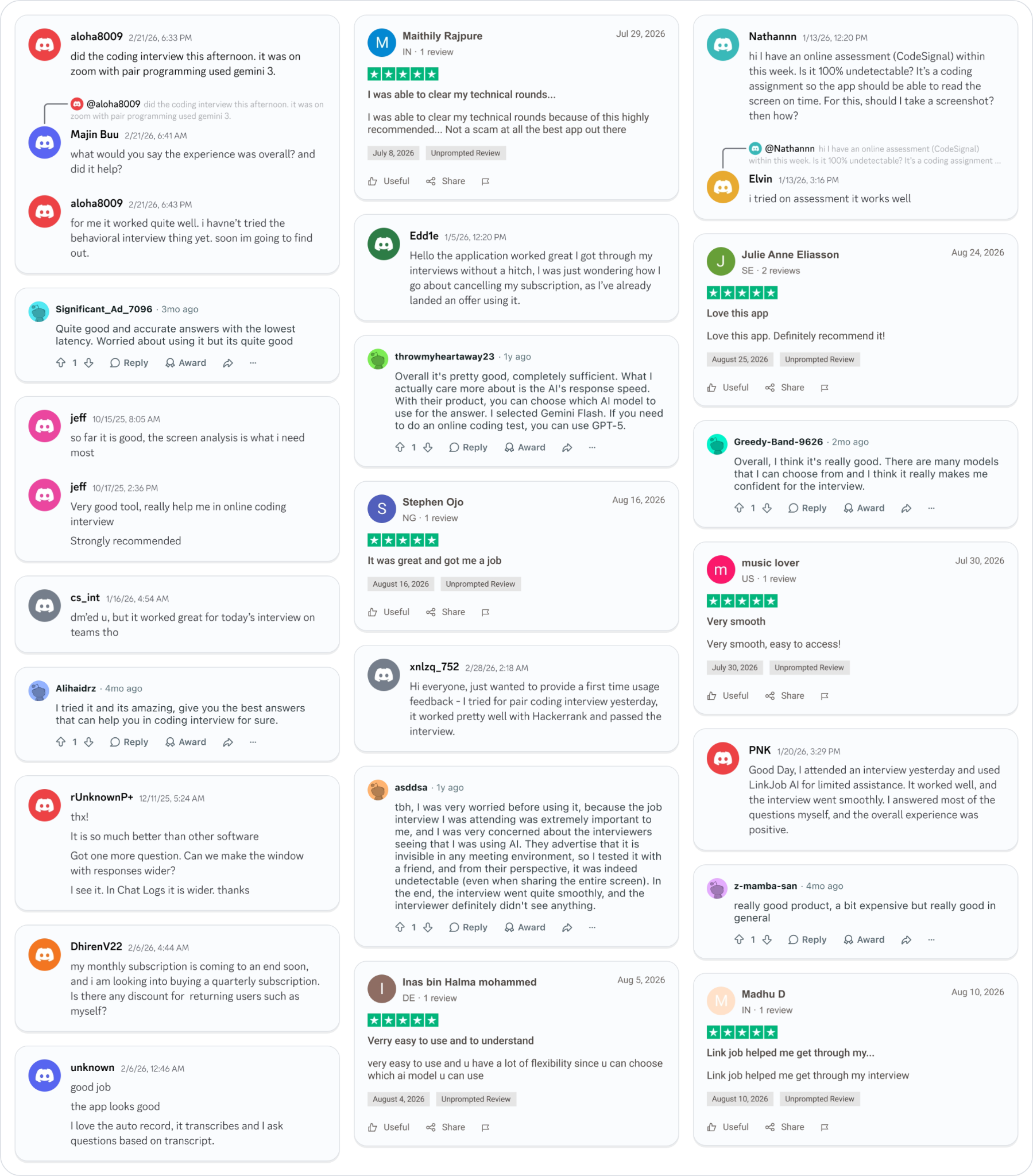
Why People Choose Linkjob AI
Smoother interviews, coding challenges cleared, and job offers landed. See how users describe their experience with Linkjob AI—in their own words.
© Copyright 2026 Linkjob AI - All Rights Reserved.