How to Cheat on Exam.net


If you're searching for "how to cheat on Exam.net," you are definitely not alone. Online exams have exploded in popularity, and the temptation to find shortcuts is real. During the pandemic, confirmed cheating rates in higher education hit 7.2%, and nearly 45% of students admitted to cheating in online summative exams. But Exam.net's security system is far more sophisticated than most people realize. This article breaks down common cheating methods, the comprehensive defense mechanisms employed by platforms, and the specific ways AI interview assistants like Linkjob.ai can help.
Common Methods Used to Cheat on Exam.net
I've talked to many students who tried all kinds of creative tactics on Exam.net. Here are the most prevalent approaches.
1. Remote Access and Proxy Test-Takers -- Exam.net's Safe Exam Browser Kills This Completely
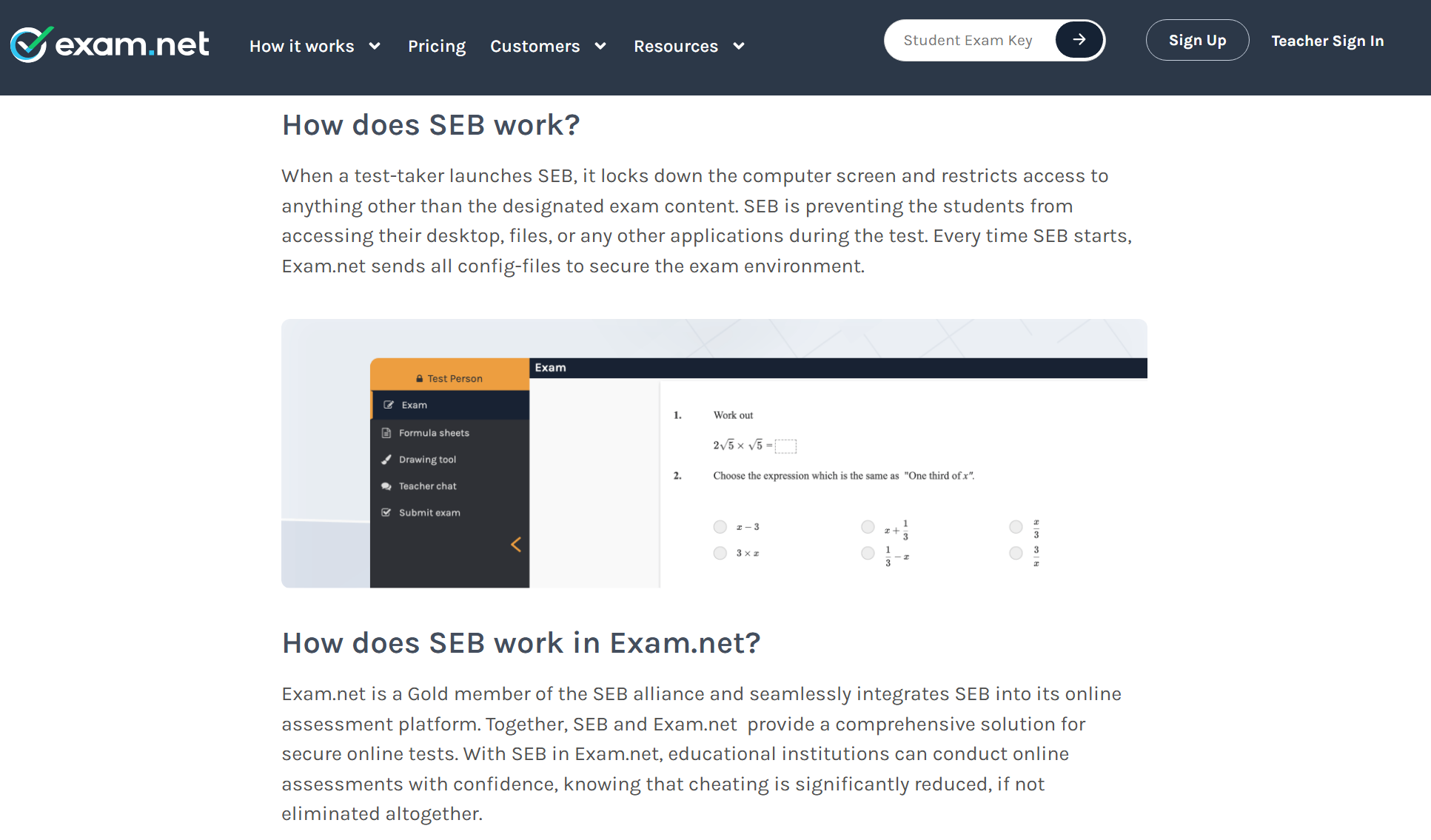
Some students use TeamViewer or AnyDesk to let someone else control their computer during an Exam.net exam. However, Exam.net's High Security Mode requires students to install Safe Exam Browser (SEB) or the Exam.net app. SEB is an open-source lockdown browser designed specifically for digital examinations – it locks down the computer screen and prevents access to external websites or applications. Once SEB launches, students cannot access their desktop, files, or any other applications. Remote control software simply cannot run in this Exam.net environment.
2. Split-Screen and Secondary Devices -- Exam.net's Window-Blur Detection Triggers Instant Alerts
The classic trick: keep the Exam.net test on your main screen while using a second device outside the webcam's view to search for answers. Exam.net's exam focus mode alerts teachers whenever a student leaves the exam window. In Medium Security mode, teachers can monitor students' screens in real time. In High Security Mode, students are blocked from leaving the Exam.net exam window until submission. Split-screen is practically impossible in High Security Mode.
3. Cheat Sheets and Hidden Notes -- Exam.net's Monitoring Catches Physical Clues
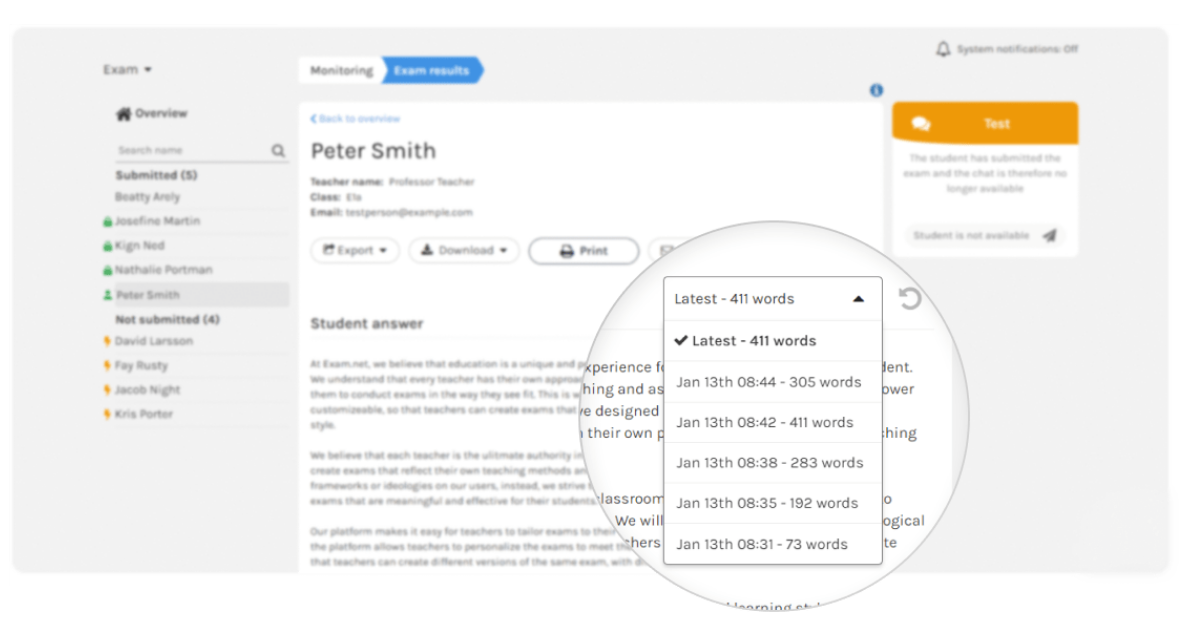
Notes hidden in water bottles, under keyboards, inside wristbands, or audio played through Bluetooth earbuds. The platform recommends using video conferencing solutions for remote exams to monitor students from the side, detecting any third devices or notes. Teachers can also view students' answer progress and text growth patterns on Exam.net in real time or after submission.
4. Impersonation and Outside Help -- Exam.net's Identity Verification Is Strengthening
Some hire proxies to take the Exam.net exam. In 2025, Exam.net introduced "Student verification in class" to ensure the right student is taking the exam, reducing impersonation risk. Outside help is also caught by in-class monitoring or video proctoring.
A Covert Method to Cheat on Exam.net – Linkjob.ai
All the traditional methods above are either directly blocked by Exam.net's technology or carry extremely high risk – cameras, microphones, and behavior logs can expose you at any moment on Exam.net.
So is there a smarter way?
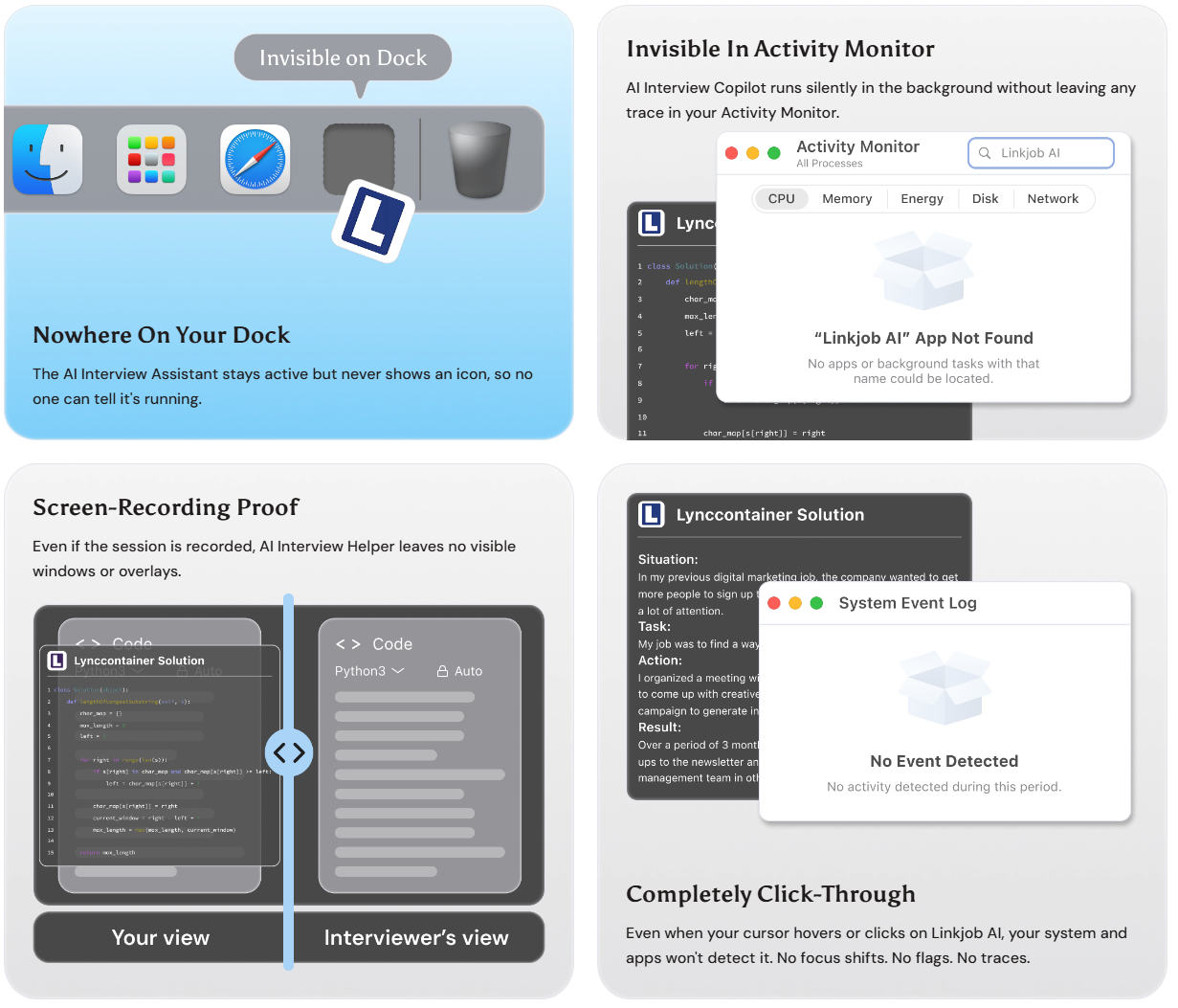
What really struck me during use is that Linkjob.ai isn't like those browser extensions – it's a pure desktop AI interview assistant that doesn't depend on a browser at all. It binds deeply with the OS, hovering as a transparent film right at the front of the screen, yet remains completely invisible at the system level – no trace in the Dock, menu bar, Activity Monitor, or Task Manager.
Most reassuringly, during screen sharing, the other side can't see it because it runs on a layer that's excluded from the screen capture stream – even Exam.net's recording can't pick it up.
But which layers can it actually penetrate on Exam.net?
Let's first understand Exam.net's full defensive system, then map it layer by layer.
How to Cheat on Exam.net: What About Its Anti-Cheating System
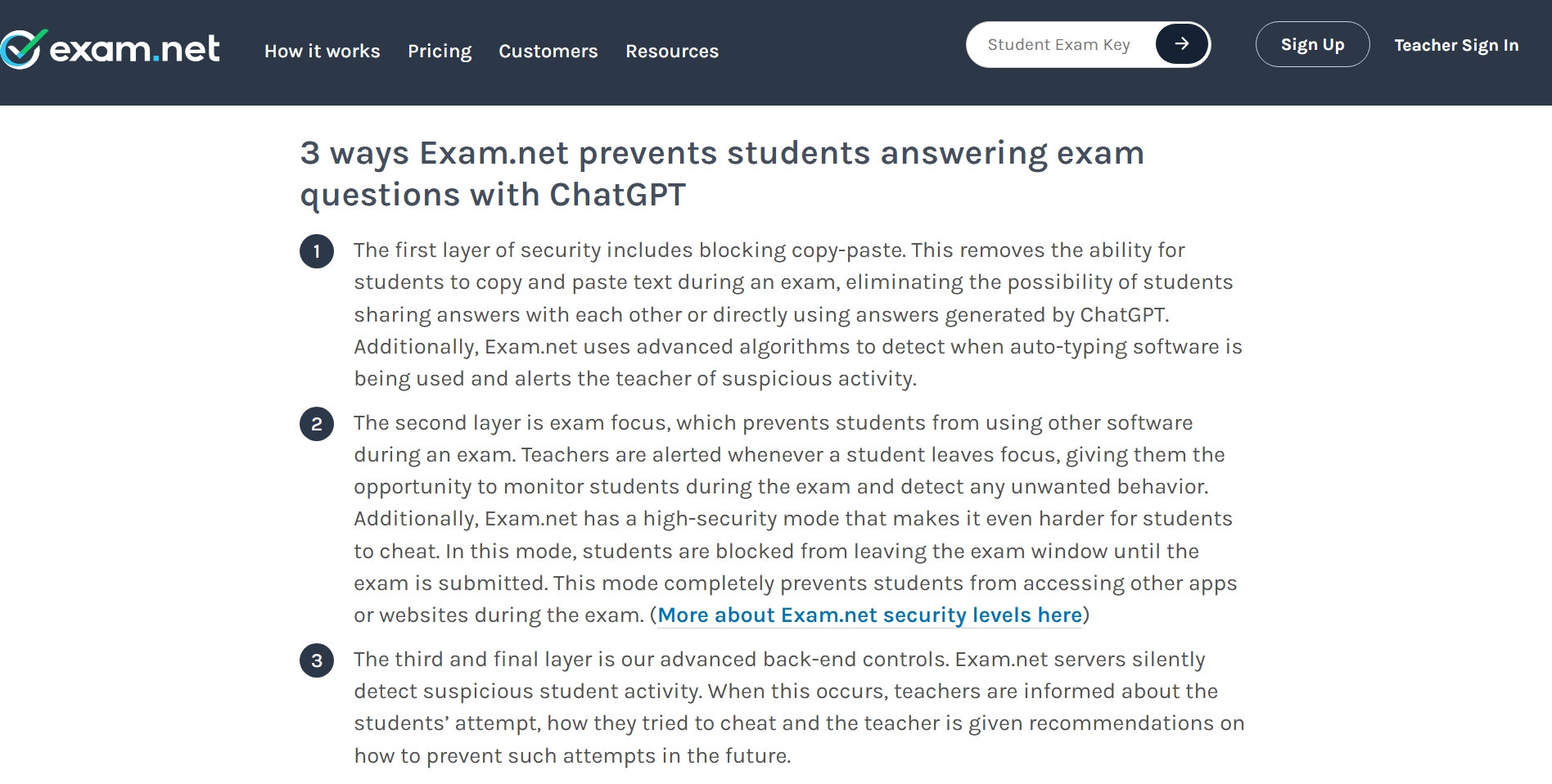
Exam.net's security is built on three distinct layers.
Layer 1: Copy-Paste and Auto-Typing Blocking
This is Exam.net's most basic layer:
Copy-paste is completely disabled:
Students cannot copy or paste any text during an Exam.net exam, eliminating the possibility of sharing answers or directly pasting ChatGPT-generated content.
Auto-typing detection:
Exam.net uses advanced algorithms to detect auto-typing software and alerts teachers to suspicious activity.
This layer targets browser-level operations – any copy, paste, or auto-typing behavior that relies on browser APIs will be blocked by Exam.net.
Layer 2: Focus Mode and High Security Mode
Focus Mode (Medium Security):
Teachers are alerted when a student leaves full-screen mode on Exam.net. Screen recording can be enabled to monitor student screens.
High Security Mode:
Students are completely locked into the Exam.net exam window until submission. This requires installing Safe Exam Browser (SEB) or the Exam.net app. SEB locks down the entire device, blocking access to any other apps, websites, or system functions.
SEB anomaly detection:
Since 2025, Exam.net has enhanced detection of unusual or modified versions of SEB.
Layer 3: Server-Side Backend Cheat Detection
Silent detection: Exam.net servers silently detect suspicious student activity in the background.
Real-time notification: When suspicious activity is detected, teachers are immediately informed – including what the student attempted on Exam.net, how they tried to cheat, and recommendations for prevention.
Behavioral pattern analysis: Teachers can view how answers were generated and how text grew on Exam.net – the best way to discover manual copying.
Most AI interview assistants struggle to bypass this layer, but you can use some techniques to avoid being detected.
Which Layers Can Linkjob.ai Actually Bypass on Exam.net?
Now to the core question: how many of Exam.net's defense layers can Linkjob.ai actually survive?
Let's Review How Linkjob.ai Works
As mentioned earlier, Linkjob.ai is a desktop app, not browser-based. It runs as a system-level overlay, invisible during screen sharing and window-switch detection on Exam.net. It doesn't even appear in Task Manager or Activity Monitor – which means Exam.net's Layer 2 device lockdown is nearly ineffective against it.
Layer-by-Layer Bypass Analysis Against Exam.net
Layer 1: Exam.net's copy-paste & auto-typing blocking
✅ Fully bypassed
Linkjob.ai does not rely on copy-paste. It identifies Exam.net questions via screenshots, generates answers through AI models, and the student types answers manually. Since it triggers no copy-paste or auto-typing behavior,
Exam.net's Layer 1 is completely ineffective against Linkjob.ai.
Layer 2: Exam.net's Focus Mode & SEB lockdown
✅ Partially bypassed, depends on security level
Medium Security Mode:
The platform only detects window switches and tab changes.
Linkjob.ai, as a system-level overlay, doesn't switch windows or open new tabs, so it won't be detected by Exam.net. Screen recording won't capture it either, as it runs on a layer excluded from the screen capture stream.
High Security Mode (SEB) :
SEB locks down the entire device and blocks any other applications from running. Linkjob.ai, as a standalone desktop app, could potentially be blocked by SEB, since SEB disables all non-exam applications.
However, if Linkjob.ai is already running before SEB launches and persists as a system-level overlay, it might survive – but this depends on the specific SEB version and Exam.net's SEB anomaly detection.
You need to pay close attention to the details.
This is the layer AI Interview Assistant cannot evade on Exam.net.
Text growth patterns: If you suddenly type a formatted answer within seconds after minutes of inactivity on Exam.net, this pattern will be flagged.
Answer style consistency: AI-generated answers tend to be overly perfect, inconsistent with your usual writing style on Exam.net.
Abnormal answering rhythm: If all complex questions are perfectly answered in extremely short time while simple questions take longer, Exam.net will recognize this pattern.
Therefore, when using an AI interview assistant, you should pay attention to controlling your answering pace, intentionally incorporating some hesitation and mistakes, and flexibly chose the best ai model for interviews. This makes it harder for the invigilator to detect.
Actual Success Rates and Obstacles on Exam.net Cheating
Cheating Method | Exam.net Defense Layer | Can Linkjob.ai Bypass? |
|---|---|---|
Pasting ChatGPT answers | Layer 1: Copy-paste disabled | ✅ Bypassed (manual typing) |
Switching tabs for answers | Layer 2: Focus Mode | ✅ Bypassed (no tab switching) |
Remote control software | Layer 2: SEB lockdown | N/A (SEB blocks it) |
Split-screen or second device | Layer 2: Window lockdown | ✅ Bypassed (system overlay) |
Advice For Cheating on Exam.net
Of course, if your academic level is high enough to pass Exam.net's test on your own merits, you naturally won't need much help from such tools – they are merely icing on the cake.
But if you genuinely feel that this Exam.net exam is critical for you and you have to seek some external assistance, then never use those clumsy and obvious methods – like directly copy-pasting on Exam.net, frequently switching screens, or leaving your phone on the desk. These approaches carry enormous risk on Exam.net and are almost guaranteed to get you caught.
The smart way is to understand Exam.net's boundaries, choose a truly discreet AI interview assistant, and carefully control your behavioral rhythm so that everything looks natural and reasonable on Exam.net.
FAQ About Exam.net Cheating and Linkjob.ai
Is SEB required for Exam.net's High Security Mode?
Yes. High Security Mode requires students to install Safe Exam Browser (SEB) or the Exam.net app. SEB locks down the entire device, blocking access to any other applications or websites.
Can Linkjob.ai run in Exam.net's SEB environment?
Theoretically yes – if it's already running before SEB launches and persists as a system-level overlay.
Can Exam.net directly detect AI-generated answers?
Exam.net doesn't directly detect AI content, but it identifies anomalies through behavioral pattern analysis (text growth patterns, answering rhythm) and teacher review. If your answer style is noticeably different from your usual work, or if you answer abnormally fast, Exam.net may flag you, so pay attention to it.
If I manually type AI-generated answers, will Exam.net find out?
Possibly. Exam.net's Layer 3 analyzes your behavioral patterns, not the answers themselves. It's recommended to simulate a realistic answering rhythm – pause appropriately, make occasional edits, and avoid entering complete answers all at once on Exam.net.
See Also
Strategies to Navigate Synap Assessment's Cheating Prevention Tactics
Securing Undetectable AI Assistance for Mettl Exam 2026
How I Boost My Grades Using Online AI Exam Assistant in 2026
Finding Unseen Support for Codeaid Assessment in 2026
My Experience Overcoming eSkill Test Misconduct Detection 2026