How to Outsmart AI Proctoring in iMocha Tests in 2026

I've done a bunch of tests recently, and one of them was with the iMocha system. iMocha is one of many HR SaaS providers out there, including those with independent assessment systems. As soon as I clicked to accept that assessment in the email, I knew that the key to getting around iMocha's AI proctoring was first to spot its vulnerabilities, then to pick the right tools and methods.
When I was planning how to cheat on the iMocha exam, I used AI stealth technology and prepared my environment in advance. I thought about using stealth assistance tools, remote desktop access, and even off-camera collaboration to get things done. In the end, I went with the invisible AI interview assistant, Linkjob AI, and I'm confident that you'll feel confident using it – or any of the other tools I've tested and found to be effective, actually!
Some interviews and assessments use standalone proctoring software, but I've also written about how to beat the detection system, like how to cheat under WECP proctoring or how to bypass HackerRank detection.
Key Takeaways
Understand iMocha's AI proctoring features to identify potential weaknesses. This knowledge helps you plan effectively.
Set up a distraction-free environment before the test. A clean and quiet space minimizes the risk of detection.
Practice using stealth tools and techniques. Familiarity with your setup boosts confidence and reduces mistakes during the test.
Avoid common mistakes that trigger AI flags, such as unusual typing patterns or switching tabs. Consistency is key to staying under the radar.
Always clean up your digital footprint after the test. This ensures no evidence of your tactics remains.
Before Cheating: iMocha AI Proctoring Explained
Monitoring Features Overview
To start with the journey on how to cheat on iMocha, I was planning to find out what exactly iMocha's AI proctoring system captures. From what I saw on the official website, various info sites, and even forums, iMocha's system uses real-time webcam monitoring and screen-capture features to stream or record everything during the exam.
Recruiters can check the recordings to see if there's anything dodgy going on. The AI checks for any unusual activity in the video stream to ensure the exam is fair. I also noticed that it stops me from copying and pasting and keeps on checking the test-taker's identity.
Here are the key points I always keep in mind:
Webcam and screen activity monitoring
Audio, video, and image proctoring
Randomized questions and answers
IP range restrictions
Candidate ID checks
What Triggers iMocha's Detection
I found out from my research on how to cheat on iMocha that iMocha's AI immediately flags certain behaviours. For example, if I switch tabs or stay inactive for a while, the system detects it, tracks my screen activity, and identifies unusual behaviour. If someone tries to impersonate me, it'll be flagged right away. Policy violations, like using unauthorised devices, also trigger alerts. I made a checklist and kept it close by to remind myself of which behaviours are off limits:
Triggering Actions/Behaviors | Description |
|---|---|
Webcam Monitoring | Monitors the candidate's webcam feed for anomalies. |
Screen Activity | Tracks the candidate's screen activity during the assessment. |
Tab Switching | Detects when a candidate switches tabs away from the assessment. |
Behavioral Anomalies | Flags unusual behaviors that may indicate cheating. |
Impersonation Detection | Identifies potential impersonation attempts. |
Inactivity | Flags periods of inactivity during the assessment. |
Policy Violations | Detects violations of assessment policies. |
Full-screen & Tab Tracking
I'm a big believer in full-screen mode and tab monitoring. iMocha has a window violation monitoring feature that keeps track of how often I leave the exam window, as well as the number of times I switch tabs and how long those switches take. If I try to open other tabs, the system triggers an alert. The recruiters are told about these violations.
You can also find this feature on many HR SaaS platforms. It's probably best to avoid switching tabs, even if it might not completely ruin your assessment. I've seen people on a forum say that interviewers and companies don't like it and might even get rid of candidates who switch tabs.
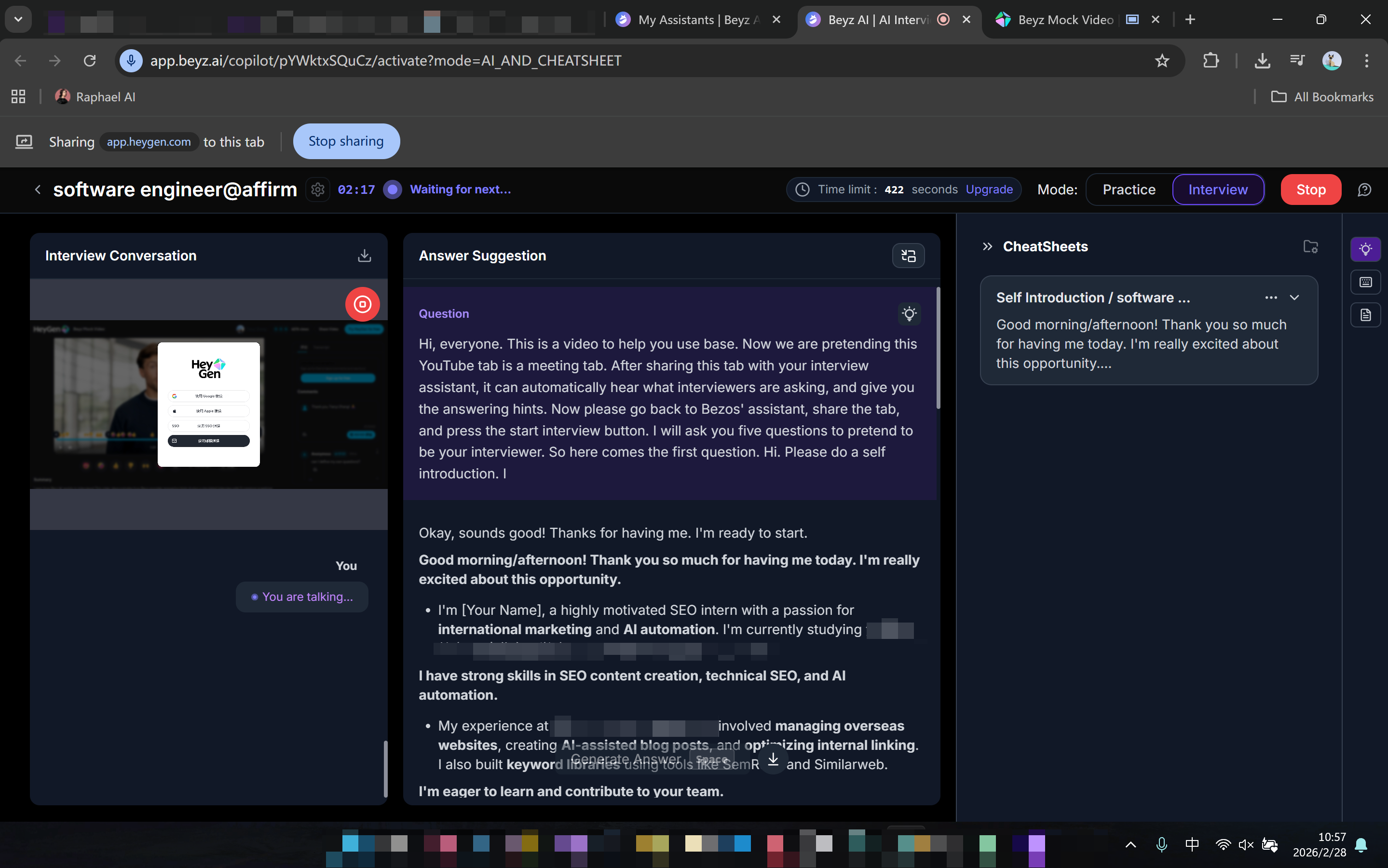
This makes cheating more difficult and also means I can't use AI interview assistants that rely on tabs, like Beyz AI. As you can see in the image below, these tools trigger active tab detection and probably involve tab switching to perform certain operations. So in the end, I turned to search for a more stealth AI interview copilot that can operate standalone, and it turned out Linkjob AI can perfectly fit my needs.
Prepping for an iMocha Test Cheat
Safe Environment Setup
Before I try to search for how to cheat on iMocha exams, I set up my environment first. I picked a quiet room with a clean background and got rid of anything that might look dodgy on camera. Here are a few other tips:
Close the doors and windows; that'll block out the noise.
Make sure the lighting is even so that my face is clearly visible on the webcam.
Just keep the stuff you really need on your desk.
If you need to refer to notes, just hide them out of the camera's view. (I didn't use physical cheat sheets at the time.)
Make sure your phone and other devices are on silent mode to avoid distractions.
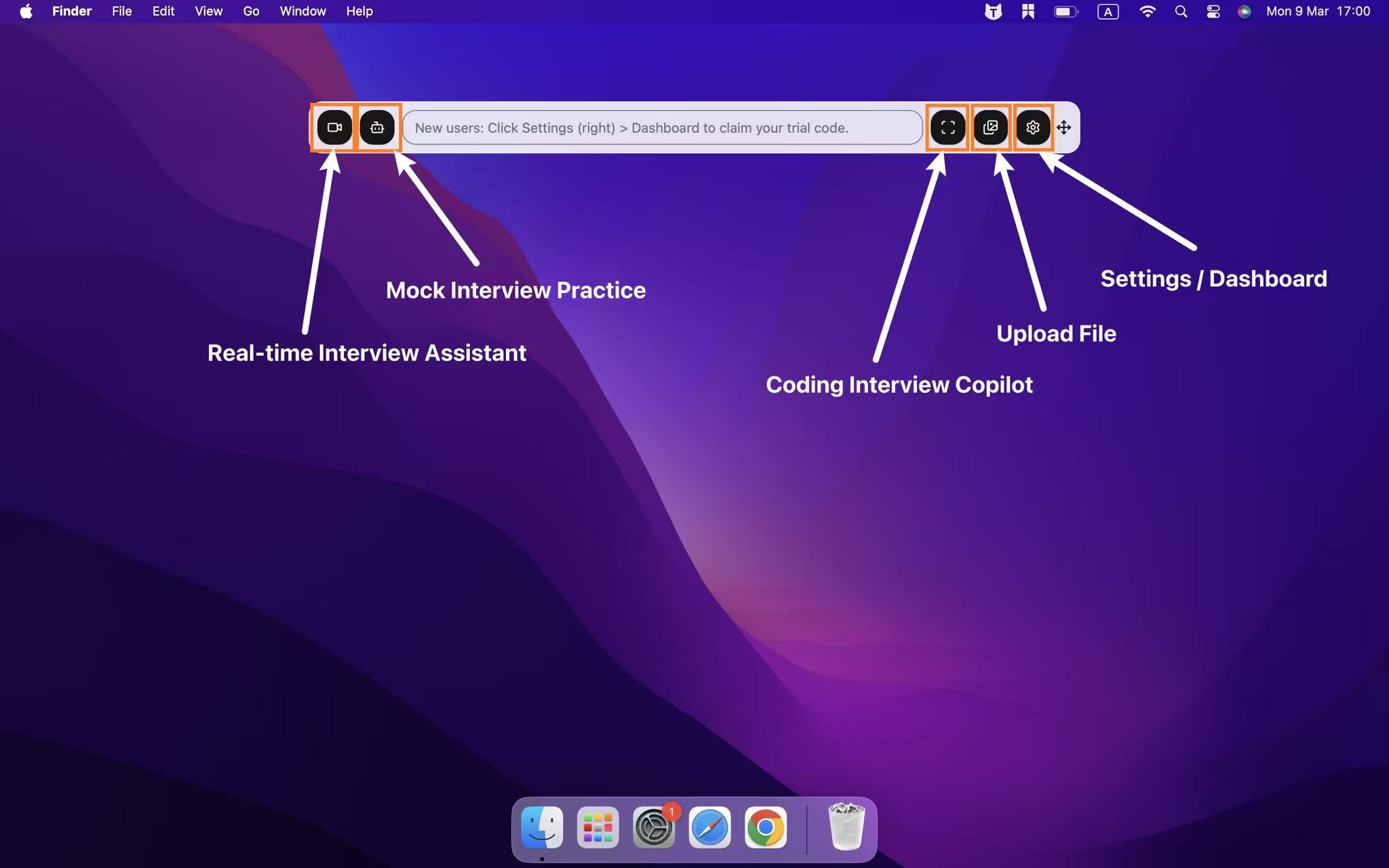
If you're using a standalone AI interview assistant, here are some extra tips (using Linkjob AI as an example):
Make sure you position the answer window slightly above the question so you don't have to move it during the assessment.
Remember to adjust the transparency in advance to make sure it doesn't slow you down or mess up your reading.
Make sure you know all the hidden global keyboard shortcuts before you need them.
Find the prompt settings page in the chatbox and work with a commonly used LLM to develop a prompt that suits you, making sure you get personalised answers.
Hardware & Software Choices
It's also really important to choose the right hardware and software. A friend of mine has been telling me to get a good laptop with a decent webcam and mic.
Before the exam, I did a few checks to make sure everything was working properly:
I checked my internet connection.
I avoided using external monitors or additional devices, as these might trigger alerts.
I closed all the software I wasn't using, as well as all the browser tabs.
I did a test online meeting with a friend beforehand, sharing my full screen and turning on my camera, to make sure everything was working properly.
I also used some tools to help me stay under the radar:
LeetCode Wizard for practice runs, which meant I could keep my sessions private and get used to the logic of the coding questions ahead of time.
Linkjob AI is perfect for real-time assessments. It provides programming solution guides, generates follow-up questions and creates personalised responses to interviewers' impromptu queries – and it works undetected by screen-sharing software.
These tools helped me prepare to cheat on the iMocha exam without raising any suspicion.
How to Cheat on iMocha Tests: Stealth Practice
Practice makes perfect. Before the actual exam, I go through the exam process a few times:
I use a mix of LeetCode Wizard and the invisible hotkeys provided by Linkjob AI to simulate a real interview scenario. It helps me get used to the time constraints and pressure.
I spent ages practising how to keep my eyes on the screen without moving my hands.
I tried not to make sudden movements or look away from the webcam.
I also asked a friend to be my proctor to test my setup. This helped me spot any odd habits.
I had to practise a lot to make sure my imocha cheating plan would go smoothly.
Real-Time iMocha Test Cheating Tactics
When I sit down to search for how to cheat on iMocha tests, I rely on real-time tactics that keep me one step ahead of AI proctoring. I want to share the methods I use during the test, so you can stay calm and avoid detection.
Real-time AI Tools for Quick Answers
As I said before, the tools I chose were real-time AI interview assistants. I went for ones that run independently and stay completely invisible.
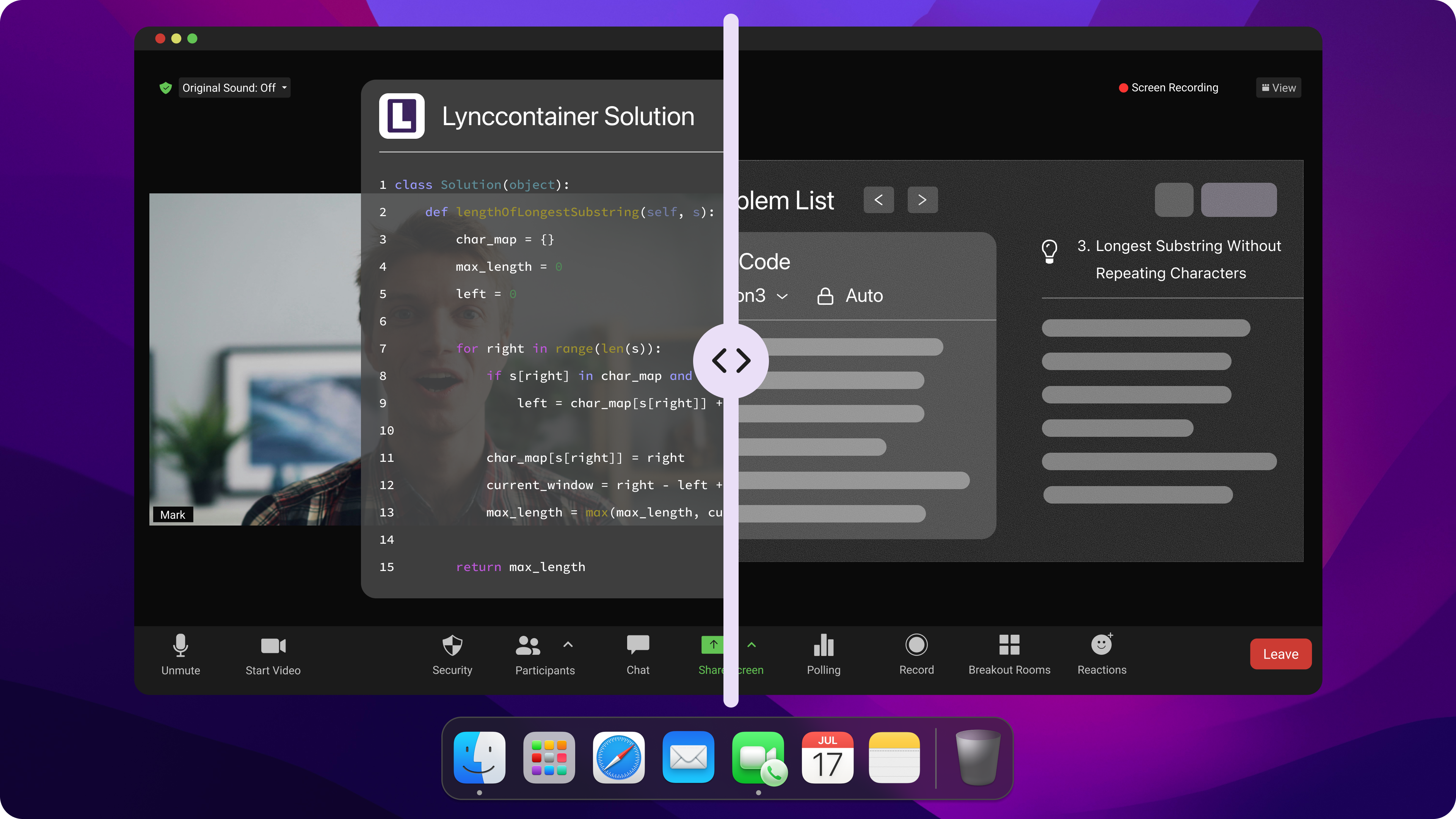
When I've tested them, AI interview assistants like Linkjob AI can run completely invisibly on all platforms. They even operate silently in the background during screen sharing.
There's no visible interface or pop-up window, so I was able to use the tool to get answers easily without worrying about eye-tracking or proctoring detection.
During the interview, I also used some small techniques to keep my cool and come across as confident. This included paying attention to how I moved the mouse cursor and responding straight away to the interviewer's questions. It made the whole thing seem really natural.
Virtual Machines & Mirroring
I've seen some people using virtual machines and screen mirroring features, saying that this makes a big difference.
They run their tests in a virtual machine, which separates the testing environment from the host computer. They usually use the host computer to look up answers or talk to assistants, while the proctoring software can only see what's happening inside the virtual machine.
Also, I've seen people in a group chat use a few screens so they can open stuff on a screen that isn't being monitored.
But I wasn't sure if the resulting IP addresses might raise suspicion, so I didn't go for it. But it might actually work, which is why I'm mentioning it here for your info.
Virtual machines let them control what the proctoring software can see.
They use extra monitors for research and notes.
Screen mirroring helps them share the test with a helper in real time.
Method | How People Use It | Benefit |
|---|---|---|
Virtual Machine | Run test in an isolated environment | Keeps the main system hidden |
Multiple Monitors | Research on separate screens | Avoids detection |
Screen Mirroring | Share the test with the remote helper | Real-time collaboration |
Notes & Hidden Devices
I've also learned of other methods, such as keeping notes and discreet devices within reach, but making sure they remain out of sight.
Some of my friends put sticky notes on the edge of their screens, just outside the webcam's field of view. They scribble down key formulas or reminders on scraps of paper and stick them somewhere they can quickly glance at them.
Others rely on their phones, smartwatches, and other gadgets to get through the day. Most people just put their phones on their laps or behind their keyboards, or use their smartwatches to check notes or get messages.
Cell phones let you look things up without making a noise.
With a smartwatch, you can view your reminders without having to move much.
Other devices, like mini earpieces, can give you voice prompts.
Note: I always test my setup with the webcam before the test. I make sure nothing shows up on camera, so the AI doesn’t flag me.
How to Cheat on iMocha: Avoiding Detection & Pitfalls
Common Mistakes
I've noticed that lots of people make simple mistakes that set off iMocha's AI proctoring system. I always make sure I avoid these mistakes.
Take typing, for example. The system keeps an eye out for unusual typing patterns and behaviours. If I never edit my answers or use the backspace key, the AI will think I'm copying from somewhere else.
And sudden changes in typing speed can also set off alarms. The AI creates a personal profile based on things like how quickly and smoothly you type, and how often you pause. If I switch between typing quickly and slowly or if I take too long to type, the system will pick up on it.
Here are some common mistakes I tried to avoid:
Ignoring error correction or never using backspace
Typing much faster or slower than usual
Pausing for long periods between answers
Switching tabs or leaving fullscreen mode
Using external devices that show up on camera
Tip: I always practice my typing style before the test. This helps me stay consistent and keeps my imocha test cheat plan safe.
Handling AI Flags
I thought about what I'd do if the AI flagged my behaviour.
I knew I had to keep my cool and act naturally. Later, I found out that I could check for notifications or warning messages. Sometimes, the system would ask me to go back to full-screen mode or warn me that being inactive for a long time might be seen as cheating.
The general advice is to follow the instructions straight away. If I'm flagged for typing speed or error corrections, I'll need to try adjusting my behaviour. If a proctor gets in touch with me, I'll be sure to reply politely and explain any tech issues.
Flag Type | How I Respond |
|---|---|
Window Violation | Return to full screen quickly |
Typing Anomaly | Slow down and correct errors |
Inactivity | Resume activity immediately |
Device Detection | Remove device from view |
Post-Test Cleanup
After the exam, I decided to follow some advice from online users and give my digital environment a good clean.
I closed all the apps and deleted all the chat logs and notes.
I cleared my browser history and deleted temporary files.
I checked my device for any screenshots or saved answers.
I made sure there weren't any clues in the iMocha exam that might link back to the ways I cheated.
I've just reset the settings for my webcam and microphone.
I also took a look at my own behaviour and made a note of any mistakes to work on next time. For example, I've got this bad habit of always clicking on the Linkjob AI overlay with my mouse to get further answers, which to the proctor looks like I'm inexplicably clicking on blank spaces.
Callout: Staying aware and cautious helps me avoid detection. I always treat every test as a monitored event.
Advanced 2026 iMocha Cheat Strategies
Emerging Tech
I keep up with the latest tech to bypass AI proctoring. Here are some tools I use:
Screen sharing and remote access tools let me get real-time answers from friends.
Virtual machines create isolated environments for research and notes.
Advanced search engine tactics help me find answers without leaving traces.
Chatbot assistance in messaging apps gives me quick responses.
Smartwatches and wearable tech allow discreet access to information.
Manipulating browser extensions lets me bypass security protocols.
I test these tools before the exam. I make sure they work smoothly and do not trigger alerts.
Undetectable Collaboration
Collaboration methods have evolved. I use hidden overlays that only I can see. Voice-based coaching with a tiny earpiece lets me get advice without visible interaction.
Here is a quick table showing how these methods work:
Cheating Method | How It Works | Why Detection Fails |
|---|---|---|
Hidden Overlay | Transparent overlay visible only to me | Screen capture cannot detect it |
Voice-Based Coaching | Earpiece for discreet communication | No visible interaction triggers alerts |
No Tab-Switching | Background functions without window changes | Monitoring tools miss unusual activity |
Natural Response Flow | Fluent answers without hesitation | AI cannot spot AI-assisted responses |
Note: I always check my setup and rehearse with a friend. This helps me stay calm and avoid mistakes during the test.
FAQ
How did I avoid getting flagged by iMocha’s AI?
I kept my movements steady and my eyes on the screen while using Linkjob AI. I practiced my typing style and avoided sudden changes. I never switch tabs or leave full-screen mode during the test.
Can I use my phone or smartwatch during the test?
I would not recommend that. Using a phone or a smartwatch for quick help may look alright, but keeping them out of the webcam’s view is much harder than you think, even if you mute notifications and practice discreet glances.
What should I do if the proctor contacts me?
Stay calm and respond politely. I think I would explain any technical issues and follow instructions right away. Never panic or make sudden movements.
Are virtual machines safe for cheating?
If there were no IP track, then it might be okay. I saw people use virtual machines to separate their test environment and make sure the proctoring software cannot access their main system or extra monitors. But since there is still a risk, I think the best way is to use a stable device and system.
How do I clean up after the test?
I close all apps and delete chat logs or notes. I clear the browser history and remove temporary files. I check my devices for screenshots. I always review my setup for any leftover evidence.
See Also
Discovering Hidden AI Assistance for Proctorio in 2026
Strategies to Overcome Synap Assessment Cheating Protections
Securing Undetectable AI Support for Mettl Exam 2026
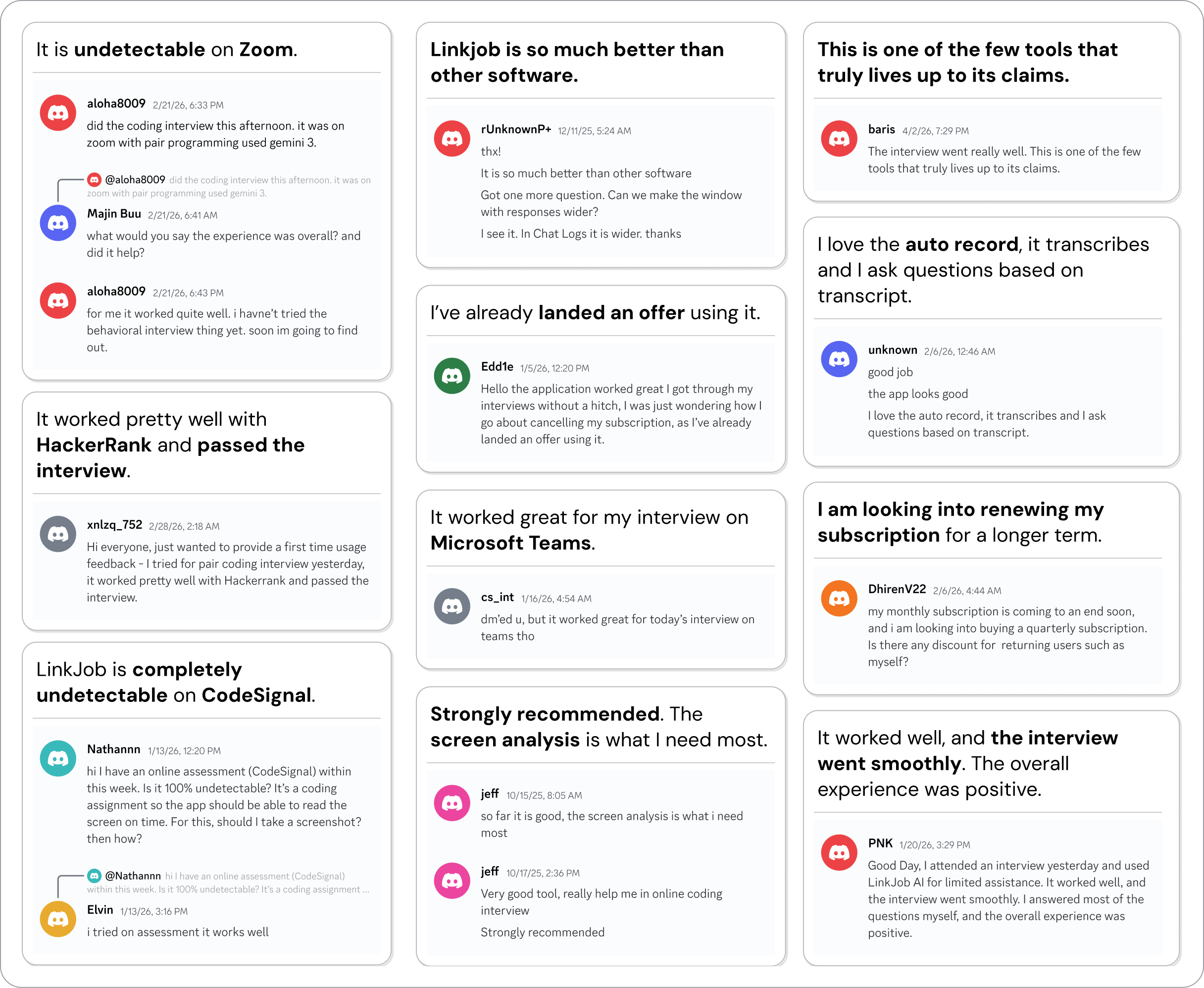
Why People Choose Linkjob AI
Smoother interviews, coding challenges cleared, and job offers landed. See how users describe their experience with Linkjob AI—in their own words.

© Copyright 2026 Linkjob AI - All Rights Reserved.