How Does Codility Detect Cheating in 2026? All 9 Proctoring Layers Explained and How I Scored 100%

Whenever I receive a Codility CodeCheck online assessment or a live Codility CodeLive interview link from companies like Microsoft, Tesla, Barclays, DRW, Marshall Wace, Intel, or Zalando, the very first technical question I investigate is: "How does Codility detect cheating?" Unlike platforms where you can see hidden test cases fail in real time and keep tweaking your code, Codility combines a ruthless "blind submission" grading engine (Correctness + Performance evaluated only after you permanently lock your task) with a multi-layered anti-cheat architecture that records every keystroke, focus switch, clipboard paste, Abstract Syntax Tree (AST) similarity match, and optional webcam or screen stream.
When I prepared for my 2026 Codility assessments—including the rounds I shared in passing the 2026 Tesla Codility test, my 2026 Barclays Codility test experience, and solving the DRW Codility assessment—I inspected Codility's browser DOM listeners, recruiter Timeline Slider reports, and 2026 proctoring documentation. What I discovered is that Codility does not rely on a single check: instead, it operates nine distinct browser, clipboard, structural, visual, and behavioral detection layers. Candidates who switch tabs to prompt ChatGPT, paste code from a local VS Code window, or submit an unoptimized O(N^2) algorithm get caught by either the integrity timeline or the hidden O(N) performance grader.
Instead of risking an external paste flag, a focus-loss marker, or a 0% Performance score, I built my workflow around Linkjob AI—running it in Dual-Device Mode (where I scan a QR code to open Linkjob AI on my phone's mobile webpage, turn off the desktop answer-display toggle so my computer monitor has zero on-screen UI, and trigger screenshots remotely from my phone mounted 1 inch below my webcam lens) for proctored tests, and using its Desktop Floating Window Mode (pre-configured before the test with zero focus-stealing clicks or hotkeys) for standard web-page tests. Below is my complete, in-depth 2026 breakdown of how Codility assessments work, all 9 technical layers Codility uses to detect cheating, my standalone 5-rule technical bypass blueprint, how Linkjob AI evades every detection layer, and 3 real Codility Python, Bug-Fixing, and PostgreSQL tasks I solved with a 100% score.
How Codility Assessments Work in 2026 (And Why Blind Submission Traps Candidates)
Before examining the nine anti-cheat layers, you must understand how Codility CodeCheck (asynchronous online assessments) and Codility CodeLive (live technical interviews) operate—and why Codility's grading architecture itself acts as a trap for unprepared candidates:
1. The "Blind Submission" Grading Trap (Example Tests vs. Evaluation Tests)
While You Are Coding (
Example TestsOnly): When you click the "Run" button inside the Codility IDE, Codility only executes your code against the 1, 2, or 3 tiny example inputs printed in the problem statement (N = 5orN = 8). Passing the Example Tests guarantees0%of your final score.After You Click "Submit Task" (
Correctness+PerformanceEvaluation Tests): The instant you click "Submit Task", your code is locked permanently—you can never reopen or edit that task. Only after submission does Codility grade your solution against hidden Correctness Tests (boundary cases, empty arrays, negative numbers, integer overflow bounds) and hidden Performance Tests (N = 100,000to1,000,000,000with strict sub-second CPU limits).Why Raw ChatGPT Solutions Score 40% to 50%: Standard LLM prompts frequently generate an intuitive
O(N^2)solution that passes all 3 tiny Example Tests in0.01seconds. The candidate clicks Submit assuming they got 100%, and receives a 45% total score (100% Correctness,0% Performance) because every large input timed out (TIMEOUT ERROR).
2. Codility CodeCheck (Async OA) vs. Codility CodeLive (Live Collaborative Interview)
Codility CodeCheck: The timed 60-to-120-minute take-home assessment (typically 2 to 4 tasks) where the hiring team receives an interactive Candidate Report containing your task scores, Timeline Slider replay, focus-loss markers, paste attribution, AST similarity results, and any configured webcam/screen recordings.
Codility CodeLive: The live collaborative IDE and whiteboard used during 45-to-60-minute video interviews over Zoom, Microsoft Teams, or built-in video, where an engineer watches your cursor and eye movements in real time while Codility logs focus and paste events in the background.
How Does Codility Detect Cheating in 2026? All 9 Detection Layers Explained
To understand what employers actually see on your post-test Candidate Report, here is a complete technical breakdown of all nine anti-cheat and proctoring layers inside the 2026 Codility platform:
1. Layer 1: The Recruiter "Timeline Slider" (Keystroke & Snapshot Playback)
Every Codility CodeCheck report features an interactive Timeline Slider right below your submitted code:
Periodic Buffer Diffs: Every few seconds—and every time you click "Run"—Codility saves a diff snapshot of your code editor buffer. When a recruiter or engineering manager drags the slider from
00:00to40:00, they watch your solution evolve line by line.Character-Velocity (CPS) Spikes: If you write your code in an external IDE or use a macro script that dumps
1,200characters into the editor in 2 seconds, the Timeline Slider jumps fromdef solution(A): passto a finished 40-line algorithm in a single frame—creating an unmistakable vertical velocity spike on the timeline bar.
2. Layer 2: Internal vs. External Clipboard Paste Diffing (paste & insertFromPaste)
As I covered in my dedicated investigation on whether Codility can detect copy and paste, Codility tracks the exact origin of every pasted string:
Internal Shadow Clipboard Buffer: Codility maintains an internal session history of every text snippet copied or cut (
Ctrl + C/Ctrl + X) inside the Codility Monaco editor during your active test.External Paste Highlighting: When you press
Ctrl + V(Cmd + Vor right-click Paste), Codility compares the incomingClipboardEventpayload (inputType === "insertFromPaste") against its internal session buffer. Moving a helper loop you already typed inside Codility is treated as normal internal refactoring. Pasting code that originated outside the Codility editor (from VS Code, PyCharm, or ChatGPT) triggers an immediate External Paste Marker on the Timeline Slider, showing the exact pasted block and timestamp.
3. Layer 3: Browser Tab-Switch & OS Window Focus-Loss Tracking (window.onblur & visibilitychange)
Codility's browser client attaches continuous event listeners to window.onblur, window.onfocus, and document.visibilitychange:
What Triggers an Out-of-Focus Marker: Pressing
Alt + Tab(Cmd + Tab), switching browser tabs, clicking onto a second monitor, clicking a non-stealth overlay window, or clicking a system notification banner immediately strips OS focus from the browser (document.hasFocus() === false) and records an "Out of Focus" interval on your Timeline Slider.The "Switch-and-Paste" Sequence: While Codility notes that an isolated focus-loss marker does not automatically prove misconduct, an Out-of-Focus interval of 45 seconds followed within 3 seconds of
window.onfocusby a multi-line External Paste event forms a linked integrity sequence that hiring managers flag immediately.
4. Layer 4: Cross-Candidate AST "Similarity Check" & LLM Signature Database
Even if you type every character manually with zero focus loss and zero paste events, Codility runs every submitted solution through its Abstract Syntax Tree (AST) Similarity Engine:
Normalized Control-Flow Hashing: Codility strips out comments, whitespace, and variable names (
i,left,curr_sum) and converts your code into a normalized syntax tree, comparing it against tens of thousands of historical submissions for that exact Codility task ID across all customers, plus a fingerprint database of default outputs from GPT-4o, Claude, and DeepSeek.Boilerplate LLM Tell-Tales: Default AI outputs often include textbook docstrings, identical helper function structures, or step-by-step comments (
# Step 1: Initialize prefix sum array). Submitting those unedited structures raises your Similarity Score above Codility's plagiarism review threshold.
5. Layer 5: Configurable Screen Proctoring (Screen Snapshots vs. Continuous Screen Recording)
In my technical breakdown of whether Codility records your screen, I documented the exact difference between Codility's default settings and employer-enabled Screen Proctoring:
Disabled by Default, Mandatory When Enabled: While Screen Proctoring is off by default on basic templates, enterprise employers can enable Periodic Screen Snapshots or Continuous Screen Recording (
navigator.mediaDevices.getDisplayMedia()) before sending out your test link.What Employers See: When enabled, Codility requires Chrome (or Chromium Edge/Opera) and records the shared display surface (
"monitor"), making any visible split-screen window or standard desktop app visible in the candidate report video.
6. Layer 6: Configurable Video Proctoring, Webcam Snapshots & Veriff ID Verification (getUserMedia)
As I detailed in my guide on whether Codility uses your camera, Codility separates visual proctoring into two configurable modules that you will always be notified about before starting the timer:
Veriff Identity Verification: When enabled by banks or enterprise employers, you must select your ID document country/type, photograph the front and back of your government ID, and take a live selfie before Task 1 unlocks.
Webcam Snapshots & Continuous Video/Audio Proctoring: When Video Proctoring is active, a recording indicator stays visible next to your test timer while Codility captures periodic webcam snapshots (especially around flagged focus/paste events) or continuous webcam video and microphone audio—allowing reviewers to check for multiple people in the room, a second laptop, or sustained off-screen eye gaze.
7. Layer 7: Codility's "Device Integrity" Check & Multi-Monitor Detection (window.screen.isExtended)
Multi-Monitor Hardware Enumeration: In Chromium browsers,
window.screen.isExtendedreturnstruewhenever a second display is connected via HDMI, DisplayPort, USB-C, or Apple Sidecar/AirPlay, without requiring a permission prompt.Device Integrity Desktop Scanner: For high-security assessments, Codility introduced its Device Integrity feature designed to scan for known non-stealth cheating processes and unauthorized screen overlays running in standard user space.
8. Layer 8: Outbound copy Event Tracking & Hidden DOM Prompt Watermarks (Ctrl + C)
Task Description
copyListeners: Highlighting the problem description in the left pane and pressingCtrl + Cfires a DOMcopyevent that logs a prompt-copy timestamp.Hidden CSS Prompt-Injection Traps: Many 2026 Codility tasks embed hidden CSS-clipped or zero-width spans inside the HTML task description. Highlighting the prompt and pressing
Ctrl + Ccopies those invisible instructions into your clipboard, forcing an external LLM to include a specific watermark variable name (such ascod_buf_9) that exposes AI usage upon submission.
9. Layer 9: Behavioral Telemetry ("Custom Test Cases" Usage & Bug-Fixing Line-Diff Validators)
Zero Custom Test Runs Flag: Next to the "Run" button, Codility provides a "Custom test cases" tab and logs every custom input you execute. Submitting a 45-line optimal algorithm on the first try without running a single custom edge-case test—especially after an Out-of-Focus marker—is treated by engineering managers as a behavioral indicator of external assistance.
Bug-Fixing Task Modification Limits: On Codility's famous Bug-Fixing ("Aveline") Tasks, the prompt gives you a broken 20-line function and instructs you to modify at most 1 to 3 lines. Candidates who paste the prompt into ChatGPT and copy back a completely rewritten function get scored
0%by Codility's line-diff validator!
How to Bypass Codility Cheating Detection in 2026 (Technical Blueprint)
As I first explored in how I got invisible AI help for Codility, passing all nine layers of Codility's 2026 detection suite—while scoring 100% Correctness and 100% Performance—requires a disciplined workflow that leaves zero digital or visual trace.
1. Why Common "Codility Cheating Workarounds" Fail
Why Coding in Local VS Code and Pasting Fails: Leaving the browser (
window.onblur) for 25 minutes and pasting 40 lines (insertFromPaste) leaves your Timeline Slider blank for 25 minutes followed by a single External Paste spike—giving the hiring manager zero proof that you wrote the code yourself.Why Pasting 2 Lines at a Time Fails: Pasting 2 or 3 lines every 20 seconds logs 15 separate External Paste markers paired with 15 Out-of-Focus markers on your Timeline Slider.
Why Second Monitors Fail: Plugging in a second monitor flips
window.screen.isExtendedtotrue, clicking it fireswindow.onblur, and looking 30 degrees sideways is caught on Video Proctoring snapshots.
2. My 5-Rule Technical Blueprint for 100% Scores With Zero Flags on Codility
Once you understand how an invisible AI interview assistant works outside the browser sandbox, you can follow these five rules on every Codility assessment:
Rule 1: Single Native Physical Monitor (
window.screen.isExtended === false): Disconnect all external HDMI/DisplayPort monitors and disable Apple AirPlay / Sidecar before opening the Codility invitation link.Rule 2: Zero External
Ctrl + C, Zero ExternalCtrl + V, & Zerowindow.onblur: Never highlight and copy the task description (Ctrl + C), never paste from an external clipboard (Ctrl + V), and never click outside the active Codility browser tab.Rule 3: Co-Axial Smartphone Placement 1 Inch Below the Webcam Lens: For Video/Screen Proctored tests, read your reference solution from a smartphone mounted 1 inch directly below your webcam lens so your eyes stay aligned with the camera and your computer desktop stays 100% free of visible windows.
Rule 4: Personalized Manual Typing + 4 Custom Edge-Case Runs: Type your concise 15-to-25-line optimal
O(N)solution manually by hand using your own variable names, and run at least 4 custom test cases (minimumN, duplicate values, negative bounds, monotonic arrays) in the bottom console before clicking Submit.Rule 5: Check
NAssumptions & Bug-Fixing Line Limits First: Always verify the maximum value ofNin the bottom assumptions paragraph (N <= 100,000requiresO(N)orO(N log N)), and on Bug-Fixing tasks, only modify the exact 1 or 2 buggy lines rather than rewriting the function.
How I Use Linkjob AI to Evade Every Codility Detection Layer Safely (Dual-Device Mode vs. Web Floating Window)
To neutralize all nine Codility detection layers while guaranteeing 100% Performance on hidden large-input tests, I use my undetectable AI interview assistant in one of two operating modes depending on how the employer configured the Codility link:
1. Point-by-Point: How Linkjob AI Defeats Codility's 9 Detection Layers
Defeating Layer 1, Layer 2, Layer 3, & Layer 8 (Timeline Slider, External Pastes,
window.onblur, & Prompt Copy Traps): Linkjob AI captures the Codility task passively at the OS display level without touching the browser DOM or system clipboard. I never pressCtrl + C, never pressAlt + Tab, and never pressCtrl + V—resulting in0Out-of-Focus markers,0External Paste markers, and a smooth manual typing progression on the Timeline Slider.Defeating Layer 4 & Layer 9 (AST Similarity,
O(N)Performance, & Bug-Fixing Limits): Linkjob AI automatically reads the exactN <= 100,000complexity constraint (or the 2-line modification limit on Bug-Fixing tasks) and outputs a concise 15-to-25-line optimalO(N)solution plus custom test inputs for me to run in the bottom console.Defeating Layer 5, Layer 6, & Layer 7 (Screen Proctoring, Video Proctoring, & Device Integrity): In Dual-Device Mode, my computer monitor has zero visible floating UI, defeating full-screen recording, periodic screenshots, and desktop window checks while keeping my eye gaze pointed straight at the webcam lens.
2. Choosing Between Dual-Device Mode and Desktop Floating Window Mode on Codility
Depending on whether my Codility invitation has Video/Screen Proctoring enabled or is a standard web-page test, I choose between two modes in my real-time AI interview assistant:
Mode 1: Dual-Device Mode (My #1 Setup for Proctored Codility CodeCheck & Live CodeLive Rounds):
QR Code Pairing & Turning Off Desktop Answer Display: Before opening the Codility link, I launch the Linkjob AI desktop client, grant accessibility permissions, scan the QR code on the desktop dashboard with my phone to open Linkjob AI in my phone's mobile webpage, and turn off the desktop answer-display toggle. My computer monitor has zero on-screen UI, so Codility's continuous screen recording and periodic screenshots capture nothing but my clean Codility browser tab.
Triggering Screen Capture Remotely From the Mobile Webpage (Zero Computer Activity): As soon as Task 1, 2, or 3 loads on my screen, I tap the capture button directly on my phone's mobile webpage. The desktop client captures the problem statement silently in the background using my pre-set prompts—requiring zero mouse clicks, zero keystrokes, and zero
Ctrl + Con my testing computer (0window.onblurevents).Reading the
O(N)Solution 1 Inch Below the Webcam: Within seconds, the optimalO(N)code and edge-case checklist appear solely on my phone's mobile webpage, mounted 1 inch directly below my webcam lens. I look straight toward the camera while typing the concise solution manually by hand into Codility.
Mode 2: Desktop Floating Window Mode (For Standard Web-Page Codility CodeCheck Tests): When taking an unproctored, standard web-page Codility CodeCheck test (where Video and Screen Proctoring are off) and I want to view the AI solution directly on my main monitor, I use the Desktop Floating Window Mode right on my primary screen while obeying two strict rules:
Complete All Configuration Before Opening the Codility Link (Never Click Settings Mid-Test): Before opening the Codility tab, I launch the Linkjob AI desktop app, select my programming language (Python 3, C++, Java, C#, or PostgreSQL), upload my resume, and position the semi-transparent OS-level floating window beside my code editor pane. Once the Codility test starts, I never click the "Settings" button or any interactive menu inside the floating window. Clicking a settings menu on a desktop app can cause the operating system to shift window focus away from the browser (
window.onblur). Finishing all settings beforehand keeps the floating overlay passive while the Codility tab retains 100% active focus as I type my code manually.Never Press
Cmd + \orCtrl + \to Toggle the Floating Window During the Test: Linkjob AI provides a global shortcut (Cmd + \on macOS orCtrl + \on Windows) to hide or show the floating window. During an active Codility test, I never pressCmd + \orCtrl + \to toggle the app open or closed. Pressing global window-visibility hotkeys mid-test can momentarily interrupt the browser's active window state. Instead, I leave the floating window open in its fixed spot from minute 0 until after I submit the final task and close the Codility tab.
3 Real Codility Tasks I Solved With 100% Correctness & 100% Performance
Here are three real 2026 Codility tasks from recent Codility test questions and assessments—covering an O(N) prefix-sum array task, a 1-line Bug-Fixing task, and a PostgreSQL window-function task—that I solved with a 100% score by typing manually.
1. Task 1 (Microsoft & Tesla Codility Classic): Number of Fair Indexes Splitting Two Arrays Into Four Equal Sums
The Problem Prompt: You are given two arrays
AandBeach consisting ofNintegers (N <= 100,000). An indexK(1 <= K <= N - 1) is named fair if the four subarraysA[0 .. K-1],A[K .. N-1],B[0 .. K-1], andB[K .. N-1]all have the exact same sum. Return the total number of fair indexes.Why
O(N)Running Prefix Sums BeatO(N^2)Slicing: Callingsum(A[:K])inside a loop takesO(N^2)time (10^10operations) and scores0%on Codility's Performance tests. Notice that for the four halves to be equal,total_Amust equaltotal_B, both must be even, and at indexK,pref_Aandpref_Bmust both equaltotal_A // 2! Maintaining running sumspref_aandpref_bsolves the entire problem in 18 lines ofO(N)Python.My 100% Correctness & 100% Performance Hand-Typed Python Solution:
def solution(A: list[int], B: list[int]) -> int:
    total_a = sum(A)
    total_b = sum(B)

    if total_a != total_b or total_a % 2 != 0:
        return 0

    target = total_a // 2
    pref_a = 0
    pref_b = 0
    fair_count = 0

    for i in range(len(A) - 1):
        pref_a += A[i]
        pref_b += B[i]
        if pref_a == target and pref_b == target:
            fair_count += 1

    return fair_count

if __name__ == "__main__":
    print(solution([0, 4, -1, 0, 3], [0, -2, 5, 0, 3]))  # 2 (K=2 and K=3)
Complexity Breakdown:
O(N)time andO(1)auxiliary space, passing allN = 100,000Performance tests in0.05seconds.
2. Task 2 (Barclays & DRW Codility Bug-Fixing Task): Fixing a Binary Search Boundary Bug Under a 2-Line Modification Limit
The Problem Prompt: You are given a function
solution(A, X)that is supposed to return the index at which integerXoccurs in a sorted non-decreasing arrayAofNintegers (or-1ifXdoes not occur inA). However, the implementation contains a bug. You may modify at most 2 lines of code (you cannot add or delete lines).The Broken Starter Code:
def solution(A: list[int], X: int) -> int:
    N = len(A)
    if N == 0:
        return -1
    l = 0
    r = N - 1
    while l < r:
        m = (l + r) // 2
        if A[m] > X:
            r = m - 1
        else:
            l = m
    if A[l] == X:
        return l
    return -1
Why It Loops Infinitely & The Exact 1-Line Fix: When
l = 0andr = 1, integer divisionm = (l + r) // 2evaluates to0(m == l). IfA[m] <= X, theelsebranch executesl = m(l = 0), leavinglandrunchanged forever (TIMEOUT ERRORon[1, 2],X = 2)! Biasing the midpoint upward by changingm = (l + r) // 2tom = (l + r + 1) // 2on that single line guaranteesm > lon every iteration and scores100%while modifying only 1 line of code:
def solution(A: list[int], X: int) -> int:
    N = len(A)
    if N == 0:
        return -1
    l = 0
    r = N - 1
    while l < r:
        m = (l + r + 1) // 2
        if A[m] > X:
            r = m - 1
        else:
            l = m
    if A[l] == X:
        return l
    return -1
3. Task 3 (Codility SQL Task): Consecutive High-Value Card Transfers Alert
The Problem Prompt: In PostgreSQL, you have a table
transfers (transfer_id INT, account_id INT, transfer_time TIMESTAMP, amount INT). Write a SQL query that returns the distinctaccount_id(ordered ascending) of every account that has made at least 3 consecutive transfers (ordered bytransfer_time ASCfor that account) where each of the 3 transfers hadamount >= 1000.My 100% Scoring Hand-Typed PostgreSQL Solution:
WITH consecutive_checks AS (
    SELECT
        account_id,
        amount AS curr_amt,
        LAG(amount, 1) OVER (
            PARTITION BY account_id
            ORDER BY transfer_time ASC
        ) AS prev_amt_1,
        LAG(amount, 2) OVER (
            PARTITION BY account_id
            ORDER BY transfer_time ASC
        ) AS prev_amt_2
    FROM transfers
)
SELECT DISTINCT
    account_id
FROM consecutive_checks
WHERE curr_amt >= 1000
  AND prev_amt_1 >= 1000
  AND prev_amt_2 >= 1000
ORDER BY account_id ASC;
My 4-Step Verification Routine Before Clicking "Submit Task" on Any Codility Test
Because Codility locks your code permanently the moment you click "Submit Task", I follow this 4-step routine on every problem:
Step 1: Unplug External Monitors & Configure Linkjob AI Before Opening the Link: Disconnect secondary displays (
window.screen.isExtended === false). For Video/Screen-Proctored tests, scan the QR code to open Linkjob AI on your phone's mobile webpage and turn off the desktop answer display; for unproctored web tests, position the Desktop Floating Window beforehand and never click Settings or pressCmd + \/Ctrl + \mid-test.Step 2: Type All Code Manually With Zero External
Ctrl + CorCtrl + V: Build your solution in natural stages inside the Codility editor so the Timeline Slider shows a progressive build with zero External Paste flags.Step 3: Run 4 Custom Edge Cases in the Bottom Console: Test
N = 0or1, all-negative values, duplicates, and extreme bounds in the "Custom test cases" tab to catch off-by-one bugs before blind evaluation and record natural debugging telemetry.Step 4: Remove All Debug
print()Statements: Leaving aprint()call inside a100,000-element loop exceeds the stdout limit and causes an immediateTIMEOUT ERRORon Codility's hidden Performance tests.
Top Questions Candidates Ask About "How Does Codility Detect Cheating" (FAQ)
1. How does Codility detect cheating during online assessments?
Codility combines nine detection mechanisms: the recruiter Timeline Slider (keystroke and snapshot playback), internal vs. external clipboard paste diffing (insertFromPaste), window.onblur tab-switch tracking, cross-candidate AST code similarity checks, optional Screen Proctoring (getDisplayMedia), optional Video Proctoring and Veriff ID verification (getUserMedia), Device Integrity and multi-monitor checks (window.screen.isExtended), prompt copy watermarks, and custom test-case behavioral logs.
2. Does Codility always record your screen and webcam?
No. Codility documents Video Proctoring and Screen Proctoring as optional features that are disabled by default and must be configured by the employer before you start. If enabled, Codility notifies you on the welcome screen, requests Chrome camera/screen permissions, and displays a recording indicator next to the timer.
3. Can Codility tell if I coded in VS Code and pasted my solution at the end?
Yes. Even if you wrote the code yourself in VS Code, leaving the Codility tab (window.onblur) for 25 minutes and pressing Ctrl + V at the end leaves your Timeline Slider blank for 25 minutes followed by a single large External Paste marker—which hiring managers treat identically to pasting from ChatGPT.
4. Why did my code pass Codility's "Run" button but still get a 45% score?
Clicking "Run" only tests your code against 1 to 3 tiny Example Tests (N <= 10). After you click "Submit Task", Codility runs hidden Correctness Tests and Performance Tests (N = 100,000 to 1,000,000,000). An O(N^2) solution passes the Example Tests in 0.01 seconds but fails 100% of the Performance Tests with TIMEOUT ERROR.
5. How does Linkjob AI's Dual-Device Mode evade Codility's cheating detection?
In Dual-Device Mode, you scan a QR code to open Linkjob AI on your phone's mobile webpage and turn off the desktop answer-display toggle—leaving zero on-screen UI on your computer monitor. You trigger screenshots remotely from your phone's mobile webpage button with zero computer clicks, read the concise O(N) solution 1 inch below your webcam lens, and type it manually with 0 focus-loss or paste flags.
6. Can I use Linkjob AI's desktop floating window on unproctored Codility tests?
Yes. For standard web-page Codility CodeCheck tests where screen recording is not required, you can view the solution on Linkjob AI's desktop floating window on your main monitor and type it manually into Codility—as long as you finish all settings before opening the link, never click the Settings button mid-test, and never press Cmd + \ or Ctrl + \ while the test is active.
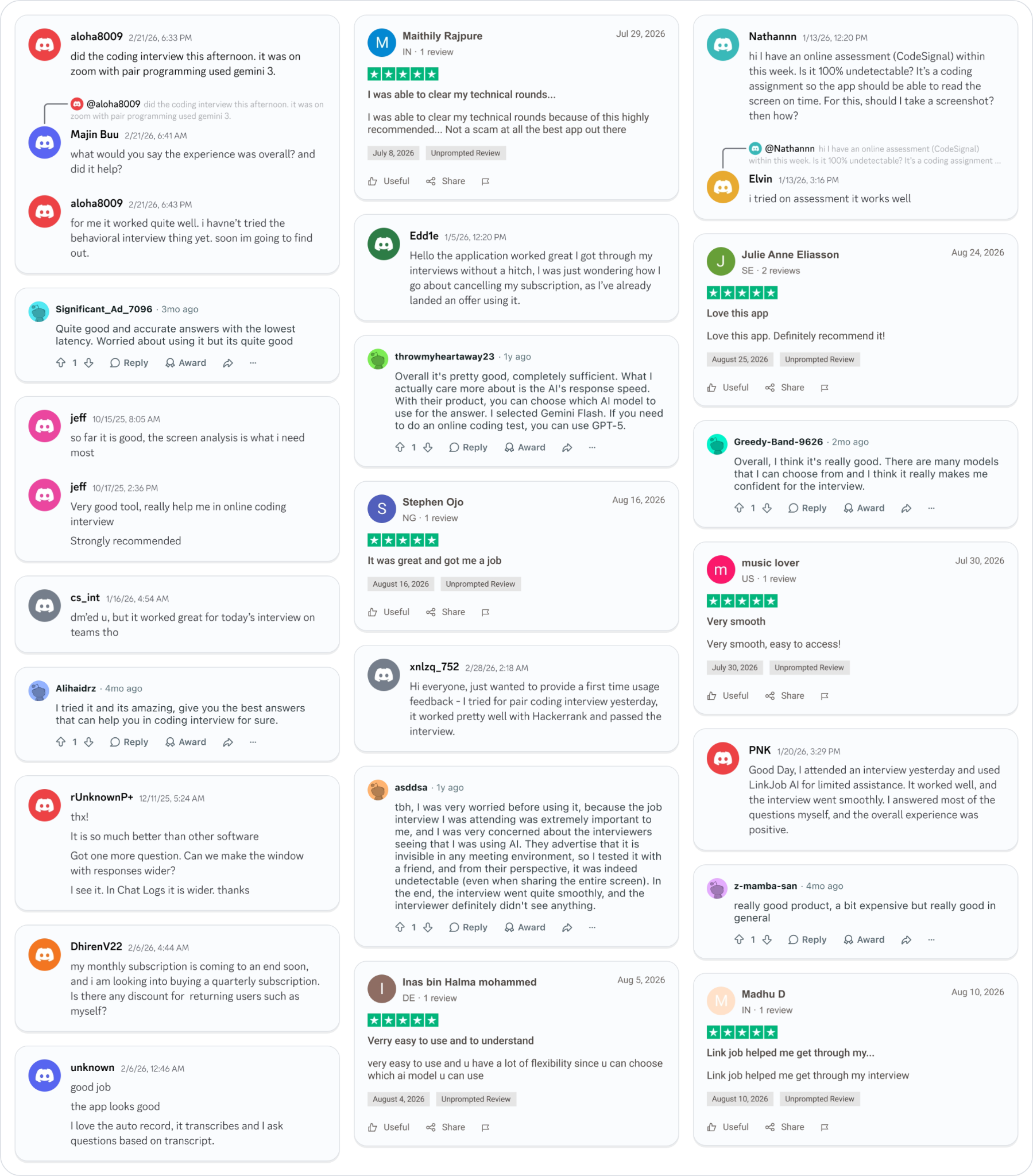
Why People Choose Linkjob AI
Smoother interviews, coding challenges cleared, and job offers landed. See how users describe their experience with Linkjob AI—in their own words.

© Copyright 2026 Linkjob AI - All Rights Reserved.