How Does CoderPad Detect Cheating in 2026? All 9 Security Layers Explained and How I Passed Safely

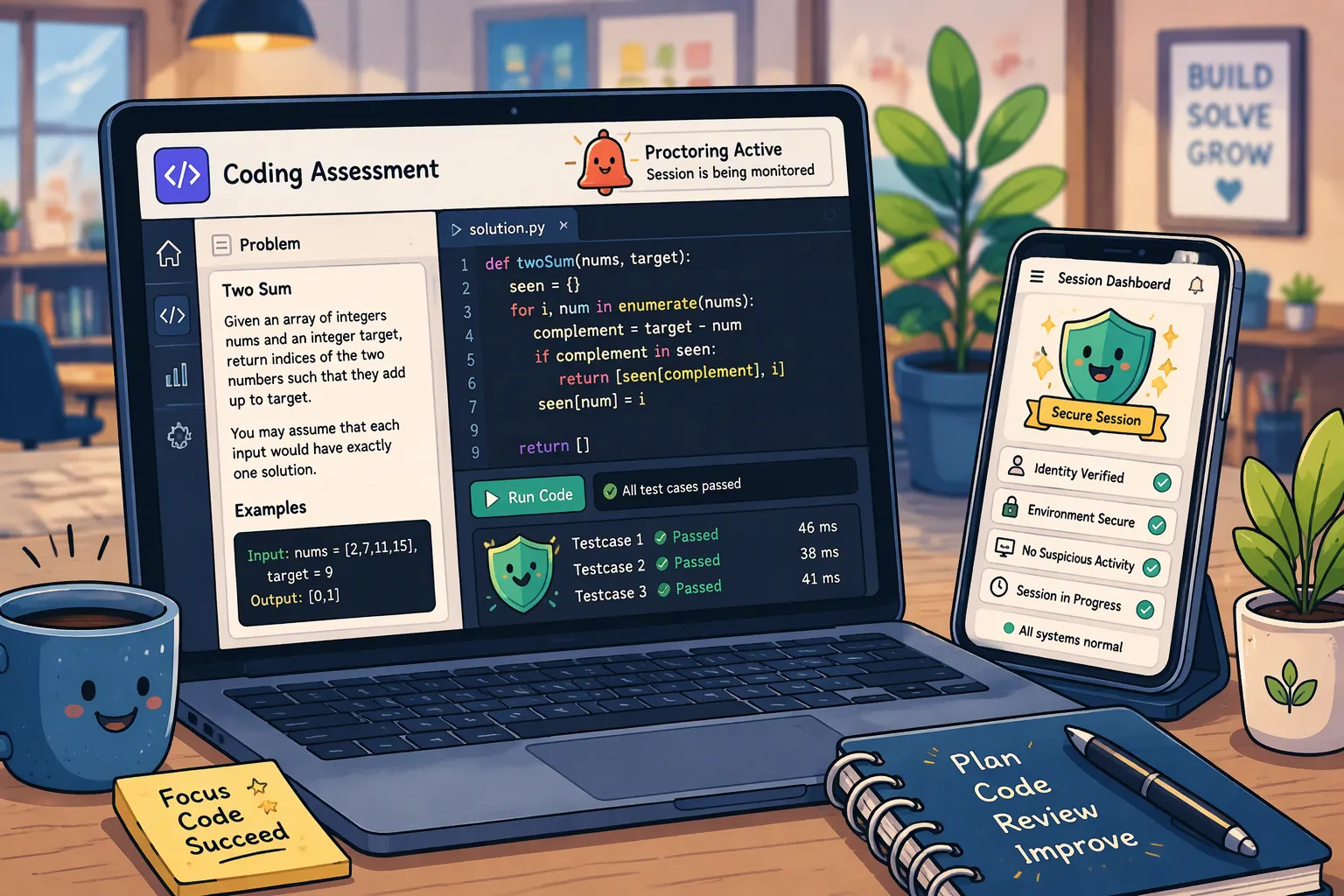
If you are preparing for a technical assessment or live coding interview at Goldman Sachs, Citadel, Tesla, Snowflake, Stripe, Meta, or Datadog, the most important question you need to answer before opening your invitation link is: "How does CoderPad detect cheating?" Whether you are facing an asynchronous timed CoderPad Screen online assessment (60 to 90 minutes) or a live 60-minute CoderPad Interview paired with Zoom or Microsoft Teams, CoderPad's browser IDE is engineered to catch candidates who switch tabs, click onto a second monitor, paste code from ChatGPT or VS Code, or transcribe solutions without testing them in the live REPL console.
When I prepared for my 2026 CoderPad loops—including the rounds I documented in my Citadel CoderPad interview and assessment questions—I opened a sandbox CoderPad account from the interviewer's perspective to see what actually shows up on the recruiter dashboard and live interviewer console. What I discovered is that CoderPad combines nine distinct browser, hardware, behavioral, and Abstract Syntax Tree (AST) detection layers: from instant [Candidate] left the IDE focus-loss alerts (window.onblur) and bright red external paste blocks on the Code Playback timeline, to Chromium multi-display detection (window.screen.isExtended), cross-candidate AST similarity scoring, and Dynamic AI Follow-Up Questions that quiz you on your own submitted code.
Instead of risking an instant focus-loss alert or a red paste block on my playback bar, I built my workflow around Linkjob AI—running it in Dual-Device Mode (where I scan a QR code to open Linkjob AI on my phone's mobile webpage, turn off the desktop answer display so my computer monitor has zero on-screen UI, and read the solution 1 inch below my webcam lens) for live and screen-shared sessions, and using its Desktop Floating Window Mode (pre-configured before the test with zero focus-stealing clicks or hotkeys) for standard web-page tests. Below is my complete 2026 technical breakdown of how CoderPad assessments work, all 9 layers CoderPad uses to detect cheating, my standalone 5-rule technical bypass blueprint, how Linkjob AI evades every detection layer, and 3 real CoderPad Python and PostgreSQL problems I solved with zero flags.
How CoderPad Works in 2026 (CoderPad Screen vs. CoderPad Interview)
Before examining the nine anti-cheat layers, you must distinguish the two environments inside the 2026 CoderPad platform, because each uses a specific mix of automated telemetry and live human observation:
1. CoderPad Screen (Asynchronous Timed Online Assessment)
Formerly known as CodinGame Assessment, CoderPad Screen is the automated take-home test sent by recruiters at Tesla, Snowflake, Stripe, Spotify, and Adobe before you speak to an engineer:
Hybrid Question Format: A typical 60-to-90-minute CoderPad Screen test combines rapid-fire multiple-choice questions (with strict 20-to-45-second per-question timers) and 2 to 3 coding or SQL implementation tasks.
Post-Submission Telemetry Audit: When you submit a CoderPad Screen test, the hiring manager receives a detailed Candidate Report displaying your test-case pass percentage alongside your Time Spent Outside the IDE (
window.onblur), External Paste Blocks, AST Plagiarism Similarity Percentage, Code Playback Video, and answers to Dynamic AI Follow-Up Prompts.
2. CoderPad Interview (Live Collaborative Coding Pad)
CoderPad Interview is the real-time two-pane collaborative IDE (Monaco code editor on the left, interactive Linux REPL shell and stdout console on the right) used during live technical interviews at Goldman Sachs, Citadel, Datadog, Lyft, and even in Meta's 2026 AI-enabled coding interview on CoderPad:
Synchronized Live Cursor & REPL Output: Every keystroke, cursor highlight, and click of the green "Run" button is broadcast to the interviewer's browser with sub-100ms latency.
Real-Time Activity Log + Post-Interview Playback: During the call, the interviewer's right-hand activity log prints real-time system events (
[Candidate] left the IDE,[Candidate] entered the IDE) while the interviewer watches your eye movements on Zoom or Microsoft Teams. After the call, the hiring committee can scrub through the archived Code Playback timeline frame by frame.
How Does CoderPad Detect Cheating in 2026? All 9 Detection Layers Explained
To understand why traditional shortcuts get caught so quickly on CoderPad, here is a technical breakdown of all nine anti-cheat and telemetry layers active inside the 2026 CoderPad platform:
1. Layer 1: Real-Time [Candidate] left the IDE Focus-Loss Alerts (window.onblur & visibilitychange)
As I covered in my deep dive on whether CoderPad detects tab switching, this is CoderPad's signature anti-cheat mechanism and the #1 way candidates get caught during both live interviews and timed OAs:
How the DOM Listeners Work: CoderPad's front-end JavaScript attaches event listeners directly to
window.onblur,window.onfocus, anddocument.visibilitychange, continuously checkingdocument.hasFocus().What Triggers
[Candidate] left the IDE: The millisecond you pressAlt + Tab(Cmd + Tabon macOS), switch to another Chrome tab, click onto a second monitor, click a floating desktop app's settings menu, or click a system notification banner, your operating system shifts active window focus away from the CoderPad browser window.What the Interviewer & Recruiter See: In a live CoderPad Interview, the interviewer's console immediately prints
[Candidate] left the IDE—and when you click back into CoderPad, it prints[Candidate] entered the IDE. In an asynchronous CoderPad Screen test, the platform logs the exact departure timestamp and total seconds spent outside the browser on your integrity report.
2. Layer 2: Internal vs. External Clipboard Paste Diffing (paste & insertFromPaste)
When candidates ask if CoderPad can detect copy paste, they are often surprised to learn that CoderPad does not simply log whether Ctrl + V was pressed—it knows where the pasted text came from:
Internal Shadow Clipboard Buffer: Whenever you highlight code you already typed inside the CoderPad Monaco editor and press
Ctrl + CorCtrl + X, CoderPad stores that string in an internal session buffer.How External Pastes Are Flagged: When a DOM
pasteevent (inputType === "insertFromPaste") occurs, CoderPad compares the incoming clipboard payload against its internal session buffer. Moving a helper function you already typed inside CoderPad is ignored as normal refactoring. If the pasted text did not originate inside the CoderPad editor (for example, code copied from ChatGPT, VS Code, or Apple Universal Clipboard), CoderPad flags it as an External Paste Event.
3. Layer 3: Second-by-Second "Code Playback" Scrubber & Red Paste Markers
Every CoderPad Screen test and every CoderPad Interview generates a permanent Code Playback recording:
Bright Red External Paste Blocks: On the recruiter's Code Playback timeline bar, normal manual typing appears as neutral grey/green ticks, while every external paste is painted as a bright red/orange warning block. Clicking that red block highlights the exact lines pasted from outside (
Pasted 720 characters from external source).Why Pasting Into a Comment Block Still Gets Caught: Some candidates try pasting a solution into a
# comment blockat the bottom of the file, typing it out above, and deleting the comment before submitting. Because Code Playback records every intermediate frame, that initial paste into the comment block still leaves a permanent red external paste marker on the timeline!REPL Execution Silence ("Transcription Cadence"): CoderPad is designed around clicking the green "Run" button every few minutes to test code in the right-hand REPL console. Typing 50 lines linearly from top to bottom with zero backspaces and only clicking "Run" once at minute 25 is a dead giveaway of transcribing from an external screen.
4. Layer 4: Chromium Multi-Monitor Enumeration (window.screen.isExtended & mouseleave)
If you have read my test results on whether CoderPad can detect multiple monitors, you know why keeping CoderPad on Monitor 1 while reading ChatGPT on Monitor 2 is so risky:
Zero-Permission Multi-Screen Flag: In Chromium browsers (Chrome, Edge, Brave, Arc), the JavaScript property
window.screen.isExtendedreturnstruewhenever two or more displays are connected to your computer—without requiring a permission popup.Viewport Boundary Exits (
document.onmouseleave): Moving your mouse cursor across the right or left bezel of Monitor 1 onto Monitor 2 firesmouseleaveat the exact screen boundary (clientX >= window.innerWidthorclientX <= 0), and clicking anywhere on Monitor 2 immediately fireswindow.onblur([Candidate] left the IDE).
5. Layer 5: Cross-Candidate AST Plagiarism Detection (80%+ Similarity Flag) & LLM Fingerprinting
On CoderPad Screen assessments, even 100% manual typing is checked against CoderPad's Abstract Syntax Tree (AST) Plagiarism Engine:
Structural Normalization: CoderPad strips out comments, whitespace, and variable names (
i,left,curr_sum) and converts your code into a normalized syntax tree.The 80%+ Similarity Threshold: CoderPad compares your AST against tens of thousands of historical candidate submissions for that exact task and against default GPT-4o, Claude, and DeepSeek output templates. If your control-flow structure exceeds the similarity threshold—or includes robotic LLM comments (
# Step 1: Initialize hash map)—CoderPad flags the submission for suspected plagiarism.
6. Layer 6: Dynamic AI Follow-Up Questions on CoderPad Screen
One of CoderPad's newest 2025–2026 anti-cheat features on asynchronous CoderPad Screen assessments is Dynamic AI Follow-Up Prompts:
How It Works: Immediately after you submit your code for a task, CoderPad can dynamically generate 1 to 2 short-answer or multiple-choice follow-up questions based on your exact submitted code—for example: "On line 18 of your solution, why did you pop from the left of the deque before appending
right, and what would happen ifk == 0?"Why Blind Copy-Pasters Fail Here: Candidates who pasted code without understanding how it works freeze up under the 90-second follow-up timer and give contradictory explanations.
7. Layer 7: Outbound copy Event Tracking & Hidden DOM Prompt Watermarks (Ctrl + C)
Prompt Copy Telemetry: Highlighting the problem description in the left pane and pressing
Ctrl + Cfires a DOMcopyevent that logs a prompt-copy timestamp right before a focus-loss event.Hidden CSS Prompt-Injection Traps: Enterprise CoderPad Screen tasks can embed hidden CSS-styled or zero-width spans inside the HTML problem description. Copying the prompt (
Ctrl + C) and pasting it directly into ChatGPT forces the LLM to use a trap variable name (such ascp_buffer_x7) that exposes AI usage immediately.
8. Layer 8: WebRTC Screen-Share Inspection (getDisplayMedia) & Webcam Gaze Monitoring
As detailed in my breakdown of whether CoderPad records your screen, during live CoderPad Interviews (and screen-recorded OAs), sharing your screen via navigator.mediaDevices.getDisplayMedia() exposes videoTrack.getSettings().displaySurface ("monitor", "window", or "browser"). Meanwhile, on Zoom or Microsoft Teams, looking 30 degrees sideways at a second monitor or second laptop produces obvious horizontal neck rotation and eye reading sweeps on camera.
9. Layer 9: Multi-IP & Concurrent Session Fingerprinting
CoderPad logs the IP address, browser user-agent string, and WebGL GPU renderer (WEBGL_debug_renderer_info) of every session participant. Opening a CoderPad Screen link from two different IP addresses simultaneously—or running the test inside a VMware/VirtualBox virtual machine (VMware SVGA 3D)—flags the session report immediately.
How to Bypass CoderPad Cheating Detection in 2026 (Technical Blueprint)
Passing both CoderPad Screen OAs and live CoderPad Interview rounds in 2026 with zero flags requires neutralizing all nine telemetry vectors simultaneously.
1. Why Common "CoderPad Cheating Shortcuts" Fail
Why Split-Screen or Second-Monitor ChatGPT Fails: Second monitors flip
window.screen.isExtendedtotrueand force a 30-degree head turn on camera, while clicking a split-screen or second-monitor window immediately logs[Candidate] left the IDE(window.onblur).Why Clipboard Auto-Typers Fail: Basic OS macro scripts that inject clipboard characters at a constant
15msinterval with zero pauses, zero backspaces, and zero intermediate REPL runs produce a robotic velocity graph on Code Playback.Why Browser Extensions & Non-Stealth Overlays Fail: Chrome extensions inject detectable DOM nodes into the CoderPad page, and non-stealth overlays steal OS window focus (
window.onblur) the instant you click them.
2. My 5-Rule Technical Blueprint for Zero Flags on CoderPad
As I explained in my broader guide on how to use AI for a live coding interview, passing CoderPad cleanly comes down to five strict engineering rules:
Rule 1: Run on a Single Native Physical Monitor (
window.screen.isExtended === false): Physically unplug all secondary monitors and disable Apple AirPlay / Sidecar before opening the CoderPad link.Rule 2: Zero External
Ctrl + C, Zero ExternalCtrl + V, & Zerowindow.onblur: Never highlight and copy the prompt text (Ctrl + C), never paste from an external clipboard (Ctrl + V), and never click outside the active CoderPad browser window (0[Candidate] left the IDEevents).Rule 3: Co-Axial Reference Placement 1 Inch Below the Webcam: Keep your reference solution on a smartphone mounted 1 inch directly below your webcam lens (or on an OS-level click-through floating overlay on unproctored web tests) so your eyes never rotate sideways.
Rule 4: Personalized Manual Typing + REPL Execution Every 8 to 12 Lines: Type your concise 20-to-25-line optimal solution manually using your own variable names, and click the green "Run" button 4 to 6 times per problem to test intermediate output in the right-hand REPL console.
Rule 5: Read the 3-Bullet Complexity & Edge-Case Note Before Submitting: Spend 20 seconds reviewing the algorithm's key invariant so you can answer any live interviewer question or Dynamic AI Follow-Up Prompt effortlessly.
How I Use Linkjob AI to Evade Every CoderPad Detection Layer Safely (Dual-Device Mode vs. Web Floating Window)
Once you understand how an invisible AI interview assistant works outside the browser sandbox, you can see how Linkjob AI neutralizes all nine CoderPad detection layers simultaneously:
1. Point-by-Point: How Linkjob AI Defeats CoderPad's 9 Detection Layers
Defeating Layer 1, Layer 2, & Layer 7 (
window.onblur, External Pastes, & Prompt Copy Traps): Linkjob AI captures the CoderPad screen and interviewer audio passively at the OS level without touching the browser DOM or system clipboard. I never pressCtrl + C, never pressAlt + Tab, and never pressCtrl + V—resulting in0[Candidate] left the IDEevents and0red external paste blocks.Defeating Layer 3, Layer 5, & Layer 6 (Code Playback, AST Plagiarism, & Dynamic Follow-Ups): Instead of bloated 80-line boilerplate, Linkjob AI outputs a clean, concise 20-line optimal algorithm alongside a plain-English explanation of the time/space complexity and line-by-line invariants. I type those 20 lines manually by hand with periodic "Run" clicks and use the invariant summary to answer any Dynamic AI Follow-Up Prompt in 30 seconds.
Defeating Layer 4 & Layer 8 (
window.screen.isExtended, Screen Sharing, & Webcam Gaze): By unplugging my external monitor (window.screen.isExtended === false) and reading answers either on my phone 1 inch below my webcam lens or on an OS-level invisible overlay, my eye gaze stays locked on the camera and my shared screen stays 100% clean.
2. Choosing Between Dual-Device Mode and Desktop Floating Window Mode on CoderPad
Depending on whether my CoderPad session is a live/screen-shared interview or a standard web-page OA, I use one of two setups in my AI interview assistant:
Mode 1: Dual-Device Mode (My #1 Setup for Live CoderPad Interviews & Screen-Shared Assessments):
QR Code Pairing & Turning Off Desktop Answer Display: Before opening the CoderPad link, I launch the Linkjob AI desktop client, grant accessibility permissions, scan the QR code on the desktop dashboard with my phone to open Linkjob AI in my phone's mobile webpage, and turn off the desktop answer-display toggle. My computer screen has zero visible floating UI, making it 100% immune even if the interviewer asks me to share my Entire Screen.
Triggering Capture From the Mobile Webpage (Zero Computer Activity): As soon as the CoderPad problem loads (or when the interviewer verbally adds a Part 2 constraint), I tap the capture button on my phone's mobile webpage. The desktop client captures the prompt silently in the background using my pre-set prompts without a single mouse click or keystroke on my computer (
0[Candidate] left the IDEalerts).Reading Solutions 1 Inch Below the Webcam Lens: Within seconds, the optimal code and complexity breakdown appear solely on my phone's mobile webpage, mounted 1 inch directly below my webcam lens, so my eyes look straight toward the camera while I type naturally into CoderPad.
Mode 2: Desktop Floating Window Mode (For Standard Web-Page CoderPad Screen Tests): When taking an asynchronous, standard web-page CoderPad Screen test where full-screen sharing is not required and I want to view the AI solution directly on my main monitor, I use the Desktop Floating Window Mode of my real-time AI interview assistant right on my primary screen while obeying two ironclad rules:
Complete All Configuration Before Opening the CoderPad Link (Never Click Settings Mid-Test): Before opening the CoderPad tab, I launch the Linkjob AI desktop app, select my programming language (Python 3, C++, Java, Go, or PostgreSQL), upload my resume, and position the semi-transparent OS-level floating window near the top center of my monitor. Once the CoderPad test starts, I never click the "Settings" button or any interactive menu inside the floating window. Clicking a settings menu on a desktop app can cause the operating system to shift window focus away from the browser (
window.onblur->[Candidate] left the IDE). Finishing all settings beforehand keeps the floating overlay passive while the CoderPad tab retains 100% active focus as I type my code manually.Never Press
Cmd + \orCtrl + \to Toggle the Floating Window During the Test: Linkjob AI includes a global shortcut (Cmd + \on macOS orCtrl + \on Windows) to hide or show the floating window. During an active CoderPad test, I never pressCmd + \orCtrl + \to toggle the app open or closed. Pressing global window-visibility hotkeys mid-test can momentarily interrupt the browser's active focus state. Instead, I leave the floating window open in its fixed position from minute 0 until after I submit the test and close the CoderPad tab.
3 Real CoderPad Questions I Solved With 100% Passing Tests (Python & PostgreSQL)
Here are three real 2026 CoderPad tasks I solved by typing manually with iterative REPL runs—each concise enough to type by hand in under 3 minutes with zero paste flags.
1. Problem 1 (CoderPad Live Interview — Goldman Sachs & Citadel): Rolling Median & 95th Percentile Latency Tracker
The Problem Prompt: Implement a class
LatencyTrackerfor a high-frequency trading gateway that supportsrecord(latency_ms: int) -> Noneandget_median() -> float, returning the exact median of all recorded latencies so far inO(log N)time perrecordandO(1)time perget_median.Why Two Heaps (
max_heap+min_heap) Beat Sorting on Every Query: Callingsorted(self.data)insideget_median()takesO(N log N)per query and times out immediately when the interviewer runs100,000streaming updates in the CoderPad REPL. Maintaining a max-heaplower_half(using negated values in Python'sheapq) and a min-heapupper_halfkeeps the median at the top of the heaps in 24 lines of clean Python.My Complete Hand-Typed Python Solution (With REPL Verification):
import heapq

class LatencyTracker:
    def __init__(self):
        self.lower_half: list[int] = []  # Max-heap (stores negated values)
        self.upper_half: list[int] = []  # Min-heap

    def record(self, latency_ms: int) -> None:
        heapq.heappush(self.lower_half, -latency_ms)
        heapq.heappush(self.upper_half, -heapq.heappop(self.lower_half))

        if len(self.upper_half) > len(self.lower_half):
            heapq.heappush(self.lower_half, -heapq.heappop(self.upper_half))

    def get_median(self) -> float:
        if not self.lower_half:
            return 0.0
        if len(self.lower_half) > len(self.upper_half):
            return float(-self.lower_half[0])
        return (-self.lower_half[0] + self.upper_half[0]) / 2.0

if __name__ == "__main__":
    tracker = LatencyTracker()
    for val in [10, 20, 15, 30]:
        tracker.record(val)
        print(tracker.get_median())  # 10.0, 15.0, 15.0, 17.5
Complexity Breakdown:
O(log N)time perrecord(),O(1)time perget_median(), andO(N)space.
2. Problem 2 (CoderPad Screen OA — Tesla & Snowflake): Minimum Cost to Connect Microgrid Substations (Kruskal's Union-Find)
The Problem Prompt (similar to the energy-grid problems in my Tesla CoderPad interview and assessment questions): You are given
nsubstations numbered1tonand a list of candidate power linesconnections, where each element[u, v, cost]represents the cost to connect substationuand substationv. Return the minimum total cost required to connect allnsubstations into a single connected grid (or-1if it is impossible). Constraints:n <= 50,000,len(connections) <= 100,000.Why Kruskal's Algorithm With Path Compression Is Only 25 Lines: Sorting edges by
costascending and merging disjoint components via Union-Find with path compression solves the Minimum Spanning Tree (MST) problem inO(E log E)time and avoids recursion-depth errors on large graphs.My Complete Hand-Typed Python Solution:
def minimum_grid_cost(n: int, connections: list[list[int]]) -> int:
    parent = list(range(n + 1))

    def find(node: int) -> int:
        while parent[node] != node:
            parent[node] = parent[parent[node]]
            node = parent[node]
        return node

    connections.sort(key=lambda x: x[2])
    total_cost = 0
    edges_used = 0

    for u, v, cost in connections:
        root_u = find(u)
        root_v = find(v)
        if root_u != root_v:
            parent[root_u] = root_v
            total_cost += cost
            edges_used += 1
            if edges_used == n - 1:
                return total_cost

    return total_cost if n == 1 else -1

if __name__ == "__main__":
    print(minimum_grid_cost(3, [[1, 2, 5], [1, 3, 6], [2, 3, 1]]))  # 6
    print(minimum_grid_cost(4, [[1, 2, 3], [3, 4, 4]]))              # -1
Complexity Breakdown: Sorting
Eedges takesO(E log E)time, and Union-Find operations takeO(E * alpha(N))time withO(N)space.
3. Problem 3 (CoderPad Screen SQL Task): Payment Gateway Success Rate & Median Latency by Region
The Problem Prompt: In a CoderPad PostgreSQL environment, you have a table
payment_attempts (attempt_id BIGINT, region VARCHAR, status VARCHAR, latency_ms INT, created_at TIMESTAMP)wherestatusis'SUCCESS','DECLINED', or'TIMEOUT'. Write a SQL query returningregion,total_attempts,success_rate_pct(rounded to 2 decimal places), andmedian_success_latency_ms(the exact 50th percentilePERCENTILE_CONT(0.5)oflatency_msamong'SUCCESS'rows only, rounded to 2 decimal places) for everyregionwith at least5attempts. Order bysuccess_rate_pct ASC, region ASC.My Complete Hand-Typed PostgreSQL Solution:
SELECT
    region,
    COUNT(*) AS total_attempts,
    ROUND(
        (COUNT(*) FILTER (WHERE status = 'SUCCESS') * 100.0) / COUNT(*),
        2
    ) AS success_rate_pct,
    ROUND(
        CAST(
            PERCENTILE_CONT(0.5) WITHIN GROUP (ORDER BY latency_ms) FILTER (
                WHERE status = 'SUCCESS'
            ) AS NUMERIC
        ),
        2
    ) AS median_success_latency_ms
FROM payment_attempts
GROUP BY region
HAVING COUNT(*) >= 5
ORDER BY success_rate_pct ASC, region ASC;
My 4-Step Pre-Flight Checklist Before Opening Any CoderPad Link
Fifteen minutes before I launch any CoderPad Screen or CoderPad Interview link, I complete this 4-step checklist:
Step 1: Unplug All External Monitors & Disable AirPlay/Sidecar: I disconnect secondary displays so
window.screen.isExtendedreturnsfalse.Step 2: Configure Linkjob AI Before Opening the CoderPad Tab: For live interviews or screen-shared tests, I scan the QR code to open Linkjob AI on my phone's mobile webpage, turn off the desktop answer-display toggle, and mount my phone 1 inch below my webcam lens. For standard web-page tests, I position the Desktop Floating Window before opening CoderPad, and never click Settings or press
Cmd + \/Ctrl + \during the test.Step 3: Never Use External
Ctrl + CorCtrl + V: I type every line of code manually inside the CoderPad browser editor so my Code Playback timeline has zero red paste markers.Step 4: Click "Run" Every 8 to 12 Lines: I execute my code in the right-hand REPL console 4 to 6 times per task to record an authentic iterative debugging progression.
Top Questions Candidates Ask About "How Does CoderPad Detect Cheating" (FAQ)
1. How does CoderPad detect cheating during online assessments and live interviews?
CoderPad combines nine detection layers: real-time [Candidate] left the IDE focus-loss tracking (window.onblur), internal vs. external clipboard paste diffing (insertFromPaste), second-by-second Code Playback recording, Chromium multi-monitor detection (window.screen.isExtended), cross-candidate AST plagiarism scoring, Dynamic AI Follow-Up Questions, prompt copy watermarks, WebRTC screen-share checks, and IP session logging.
2. Does CoderPad notify the interviewer if I switch tabs or click another window?
Yes, immediately. The millisecond your browser window loses OS focus (window.onblur or document.visibilitychange), the live interviewer console prints [Candidate] left the IDE, and asynchronous CoderPad Screen reports log the exact timestamp and duration spent outside the tab.
3. Can CoderPad tell the difference between internal refactoring and pasting from ChatGPT?
Yes. CoderPad maintains an internal shadow buffer of code copied inside its Monaco editor. Cutting and pasting a helper function you already typed inside CoderPad is ignored, whereas pasting any text copied outside CoderPad paints a bright red External Paste warning block on the Code Playback timeline.
4. What are CoderPad's Dynamic AI Follow-Up Questions?
On asynchronous CoderPad Screen assessments, submitting your code can trigger 1 to 2 auto-generated follow-up prompts asking you to explain a specific line, data structure, or edge case in your exact submitted solution under a short timer.
5. How does Linkjob AI's Dual-Device Mode evade CoderPad's cheating detection?
In Dual-Device Mode, you scan a QR code to open Linkjob AI on your phone's mobile webpage and turn off the desktop answer-display toggle—leaving zero on-screen UI on your computer monitor. You trigger screen captures remotely from your phone's mobile webpage button with zero computer clicks, read the concise solution and invariant breakdown 1 inch below your webcam lens, and type it manually with 0 focus-loss or paste flags.
6. Can I use Linkjob AI's desktop floating window on CoderPad Screen tests?
Yes. For standard web-page CoderPad Screen assessments that do not require full-screen sharing, you can view the solution on Linkjob AI's desktop floating window on your main monitor and type it manually into CoderPad—as long as you finish all settings before opening the link, never click the Settings button mid-test, and never press Cmd + \ or Ctrl + \ while the test is active.
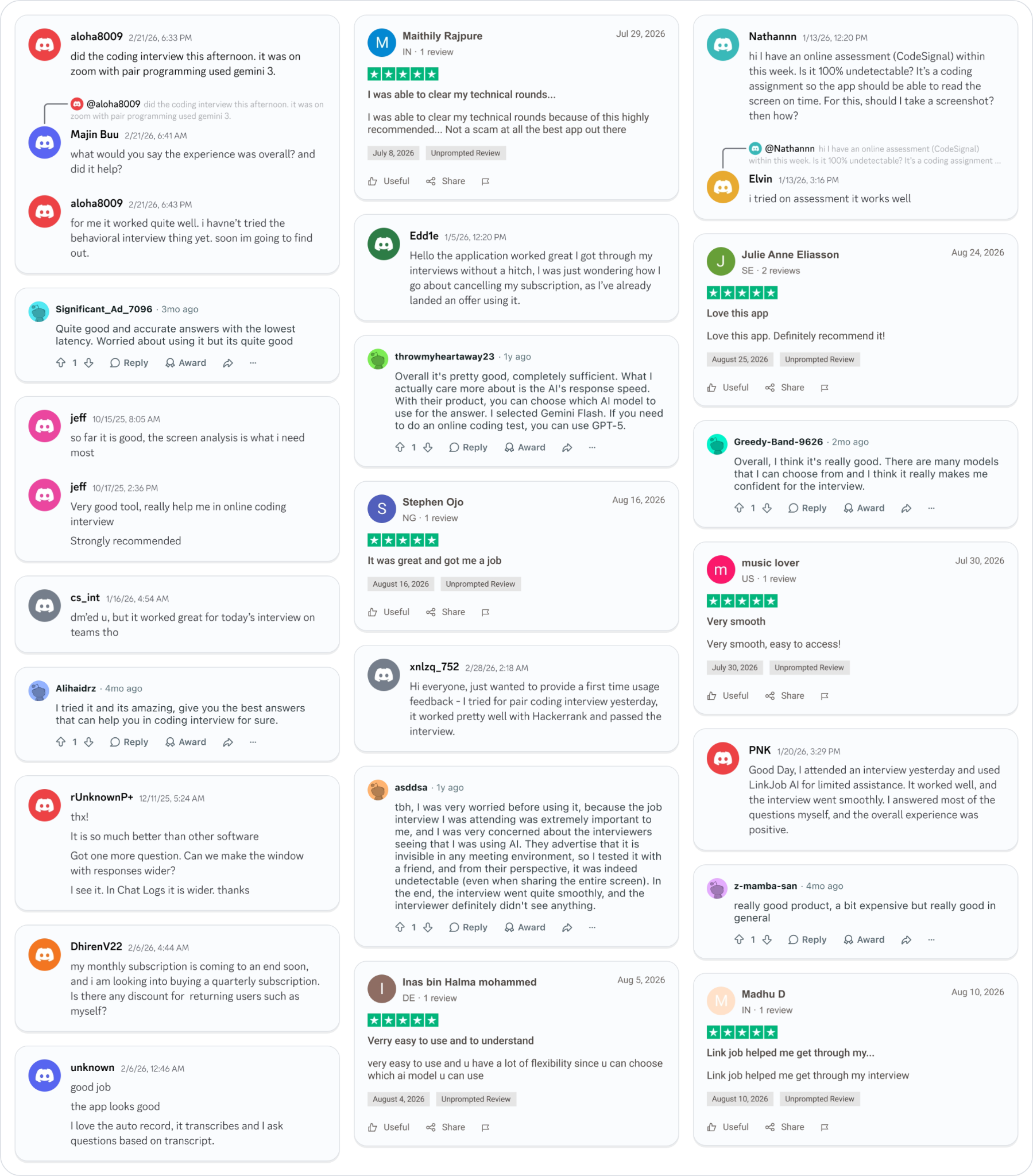
Why People Choose Linkjob AI
Smoother interviews, coding challenges cleared, and job offers landed. See how users describe their experience with Linkjob AI—in their own words.

© Copyright 2026 Linkjob AI - All Rights Reserved.